You’re in the middle of a crucial client presentation when suddenly you realize you can’t hear anything in teams. The meeting continues, but you’re completely cut off from the audio. Your colleagues are speaking, decisions are being made, and you’re frantically clicking buttons trying to restore sound. This scenario happens more often than you’d think, especially when teams not ringing on computer becomes a recurring issue. Whether it’s no audio in teams meeting situations or complete silence during calls, audio problems can derail productivity and damage professional relationships. Users also frequently report that Teams speaker detection isn’t working properly, which can completely disrupt communication flow.
Why sounds not working on teams?
Audio issues in Microsoft Teams can severely impact business continuity and collaboration effectiveness. When unable to hear on teams, employees miss critical information, project updates, and strategic discussions. These technical disruptions lead to miscommunication, repeated meetings, and decreased productivity across organizations. The problem becomes more complex when no audio in teams call situations occur sporadically, making it difficult to predict and prevent. Understanding the root causes helps IT administrators implement preventive measures and ensures seamless communication experiences for all users.
Restoring teams audio functionality
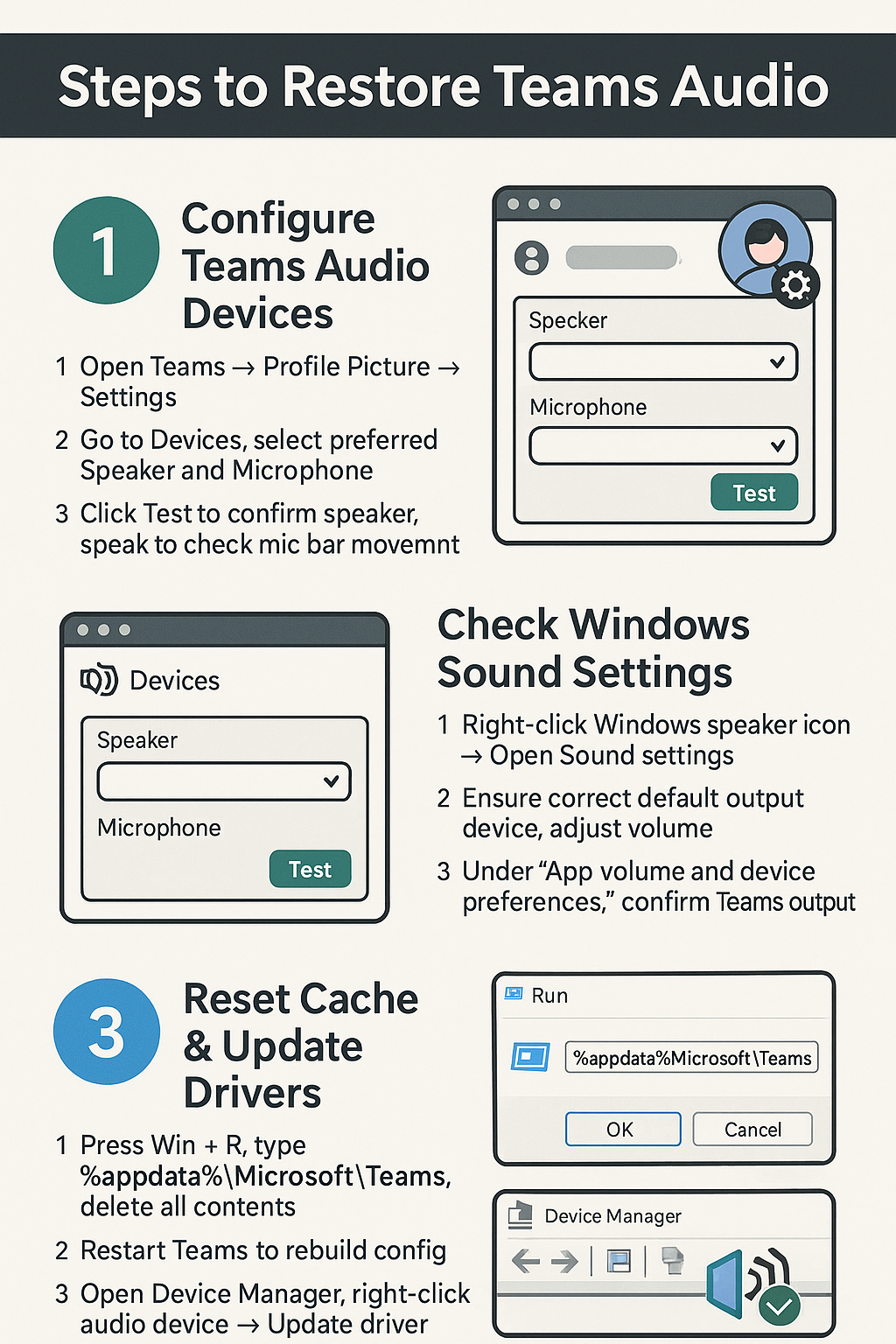
- Open Microsoft Teams and navigate to your profile picture in the top-right corner, then select Settings from the dropdown menu to access audio configuration options.
- Click on Devices in the left sidebar and verify that your preferred speaker and microphone devices are selected correctly in the respective dropdown menus.
- Test your speaker by clicking the Test button next to the Speaker dropdown, ensuring you can hear the test sound clearly through your selected audio output device.
- Check the microphone functionality by speaking into your device and observing the blue indicator bar that should move in response to your voice input.
- Exit Teams completely by right-clicking the Teams icon in the system tray and selecting Quit, then restart the application to refresh audio driver connections.
- Right-click the speaker icon in your Windows system tray and select Open Sound settings to access Windows audio configuration panel for system-wide adjustments.
- Verify that your preferred audio device appears as the default output device and adjust the master volume slider to ensure adequate sound levels.
- Navigate to App volume and device preferences within Windows Sound settings and confirm Teams is assigned to your preferred audio output device.
- Update your audio drivers by opening Device Manager, expanding Audio inputs and outputs, right-clicking your audio device, and selecting Update driver from the context menu.
- Clear Teams cache by pressing Windows key + R, typing %appdata%\Microsoft\Teams, deleting all contents in the folder, then restarting Teams to rebuild configuration files.
- Test audio functionality by joining a Teams test call using the Test call feature available in the Teams calling interface before joining actual meetings.
Common audio troubleshooting scenarios and their solutions
• Teams audio conflicts with other applications occur when multiple programs compete for audio resources, causing sound to cut out or fail completely during meetings. Close unnecessary applications using audio, especially media players, browsers with video content, or other communication tools. Check Windows Sound settings to ensure Teams has exclusive access to your audio device when needed.
• Bluetooth headset connectivity issues manifest as intermittent audio drops or complete silence during Teams calls, particularly with wireless devices that have power management features. Disconnect and reconnect your Bluetooth device, ensure it’s fully charged, and check Windows Bluetooth settings to verify the device shows as connected and ready. Update Bluetooth drivers through Device Manager if connection problems persist.
• Windows audio service disruptions can cause system-wide sound problems affecting Teams and other applications, typically occurring after system updates or driver changes. Restart Windows Audio service by opening Services.msc, locating Windows Audio, right-clicking and selecting Restart. Additionally, restart Audio Endpoint Builder service using the same process to restore full audio functionality across all applications.
Trace the Teams audio path from device to meeting
Start outside Teams. Play system audio through the intended speaker and record a short clip with the intended microphone. If either fails, reconnect the USB or Bluetooth device, select it in operating-system sound settings, and check privacy permission. Teams cannot repair a device that the operating system does not expose.
Select input and output separately
In Teams Settings, open Devices and choose the microphone and speaker independently. Headsets, monitors, docks, and webcams can each register audio endpoints, and connecting one after Teams starts may change the default. Use Make a test call when it is available, then listen to playback and confirm that the level meter responds to speech.
At the pre-join screen, select Computer audio and recheck the devices. During the meeting, open Audio settings because