Your Echo speaker ignores the smart plug you just set up, and Alexa keeps saying “No new devices found.” This problem usually traces back to a Wi-Fi frequency conflict, a disabled manufacturer skill, or a cloud sync glitch between Alexa and the device maker’s servers. The fixes below address each cause starting with the fastest solutions and working toward stubborn edge cases.
Fix Alexa Smart Device Discovery Issues
Confirm Device Compatibility in Alexa App
Before troubleshooting network or account settings, verify the smart device actually supports Alexa. Open the Alexa app on your phone, tap More >> Skills & Games, and search for the manufacturer’s skill — TP-Link Kasa, Philips Hue, or SmartThings, for example. If no skill exists for your device brand, Alexa cannot discover it regardless of any other changes you make.
Check the product listing on Amazon or the manufacturer’s website for the “Works with Alexa” badge. Some budget smart plugs and bulbs run Tuya-based firmware and require the Smart Life skill instead of a brand-specific one. Installing the wrong skill is one of the most common reasons discovery fails on the first attempt. Getting this check out of the way first saves you from chasing a device that was never compatible.
Restart Alexa and Your Smart Devices
A stale connection between your Echo and the smart device’s cloud service blocks discovery more often than any software configuration error. Follow this sequence:
- Unplug the Echo from power and wait ten seconds.
- Pull the smart device from its outlet and wait ten seconds.
- Plug the Echo back in first and let it fully boot.
- Reconnect the smart device and wait for its indicator light to stabilize.
After both devices finish booting, open the Alexa app and tap Devices >> the + icon >> Add Device. Power cycling clears cached network states on both ends and forces a fresh handshake with the manufacturer’s cloud API. Run discovery immediately after the reboot — waiting too long lets the stale state rebuild. If your Echo itself has become unresponsive, you may need to reset your Amazon Echo before attempting discovery again.
Verify Wi-Fi Network Configuration
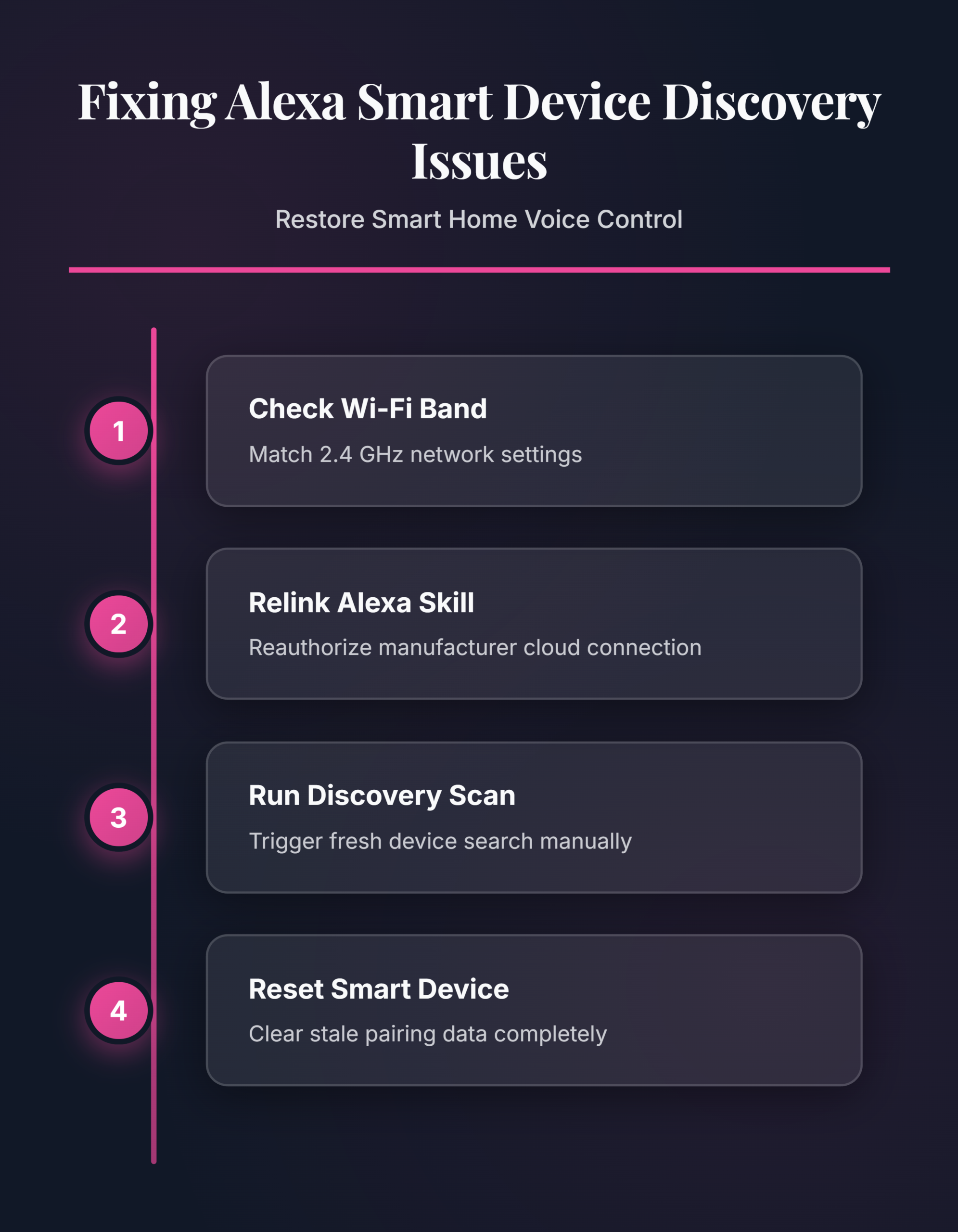
Alexa-compatible smart home devices almost always require a 2.4 GHz Wi-Fi connection. Many modern routers broadcast a combined 2.4/5 GHz signal under one SSID, and the router may push the smart device onto the 5 GHz band during setup. When the Echo connects on 2.4 GHz and the smart device lands on 5 GHz, discovery fails because they operate on separate network segments.
Log into your router’s admin panel and check whether band steering is active. If it is, either disable it temporarily or create a dedicated 2.4 GHz SSID for smart home gear. Connect the smart device to that dedicated network through the manufacturer’s app, then run Alexa discovery again. This single change resolves the majority of stubborn discovery failures, especially with newer mesh routers that aggressively steer devices between bands without notifying you.
Re-Enable the Alexa Device Skill
Skills occasionally become unlinked after a password change on the manufacturer’s account or an Alexa app update. To re-link the application:
- Open the Alexa app and navigate to More >> Skills & Games >> Your Skills.
- Find the relevant skill and tap Disable Skill.
- Wait five seconds, then tap Enable and sign into the manufacturer’s account when prompted.
- Tap Discover Devices on the skill’s page.
Alexa scans for every device associated with that account and typically finishes within 45 seconds. If the skill asks you to complete account linking but the link button does nothing, clear the Alexa app cache first. On Android, go to Settings >> Apps >> Amazon Alexa >> Storage >> Clear Cache. On iOS, delete and reinstall the Alexa app to achieve the same result.
Alexa Discovery Edge Cases
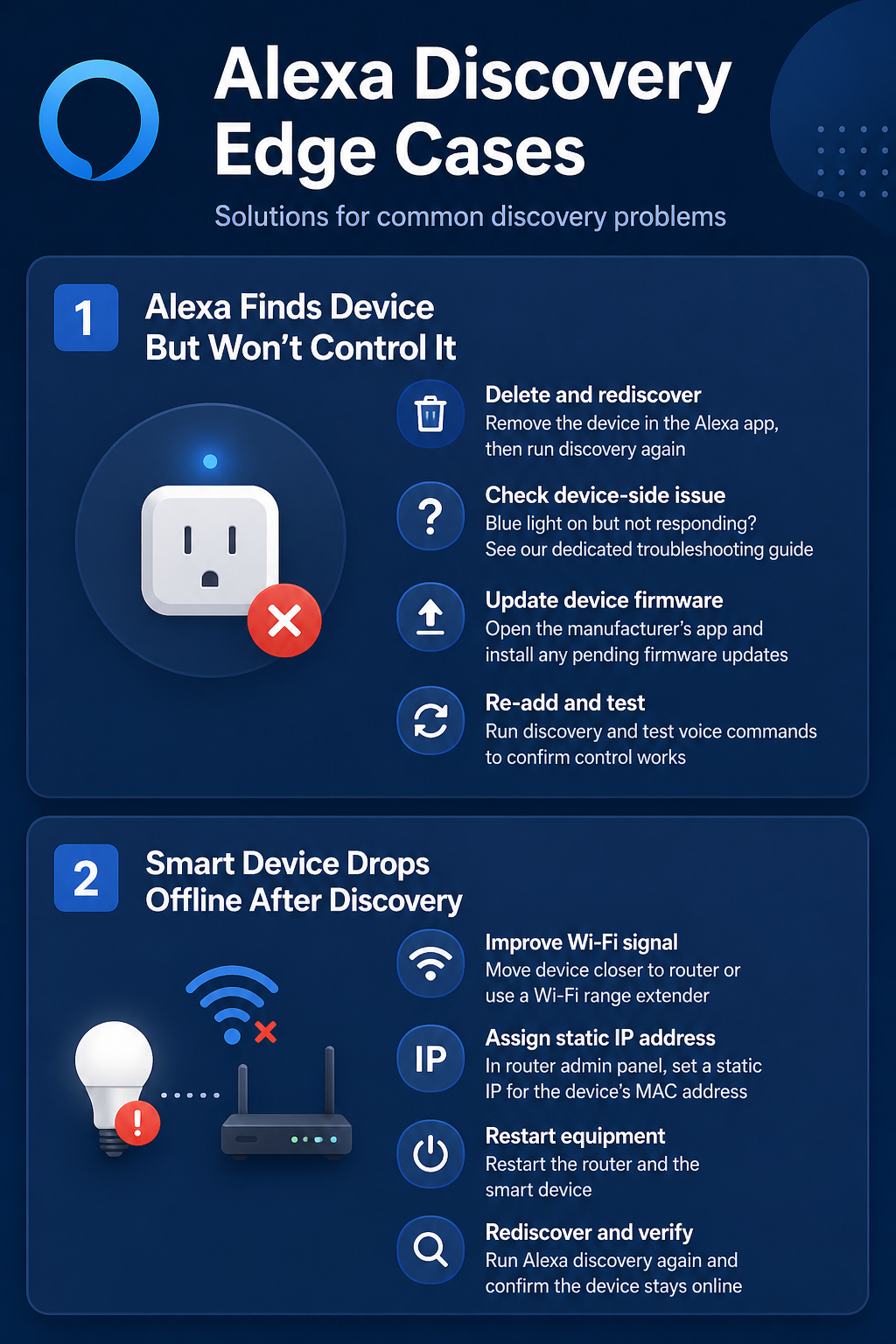
Alexa Finds Device But Won’t Control It
Discovery succeeds and the device appears in your list, but voice commands return “Device is not responding.” This means Alexa registered the device yet lost the control path. Delete the device from the Alexa app under Devices, then run discovery again to re-add it with a fresh connection. If the device shows a blue light but still ignores commands, the issue likely sits on the device side — check our guide to fix Alexa light on but not responding for targeted steps. Also open the manufacturer’s app and install any pending firmware updates, since outdated firmware sometimes supports discovery but drops the command protocol Alexa sends afterward.
Smart Device Drops Offline After Discovery
A device that Alexa discovers but marks as “Offline” within minutes usually suffers from a weak Wi-Fi signal or an IP address conflict. Move the device closer to your router or add a Wi-Fi range extender to cover that room adequately.
For a permanent fix, open your router’s admin panel and assign a static IP address to the device’s MAC address. This prevents the DHCP server from reassigning the address and severing the connection every time the lease expires. After setting the static IP, restart both the router and the smart device, then run Alexa discovery one more time to confirm the device holds a stable online status.
FAQ
Why is Alexa not discovering my smart home devices?
The most common causes are a missing or disabled manufacturer skill in the Alexa app, a Wi-Fi frequency mismatch between 2.4 GHz and 5 GHz bands, or a temporary cloud sync failure. Restart both the Echo and the smart device to clear the sync issue — this resolves discovery problems in most cases without any settings changes.
How do I fix Alexa not discovering devices permanently?
Assign all smart home devices to a dedicated 2.4 GHz Wi-Fi network, keep manufacturer skills enabled and properly linked in the Alexa app, and configure static IP addresses for each device through your router. These three steps eliminate the most frequent causes of recurring discovery failures across all Alexa-compatible brands.
Can Alexa discover devices on a different Wi-Fi network?
No. Your Echo and the smart device must connect to the same Wi-Fi network under the same Amazon account. If you use a guest network or a separate IoT VLAN, devices cannot find each other unless you enable mDNS or UPnP forwarding between the network segments in your router configuration.
Start with a power cycle and a Wi-Fi frequency check before changing any account or skill settings — those two steps fix roughly 80 percent of Alexa discovery problems. Keep all smart home devices on one dedicated 2.4 GHz network to avoid repeating this troubleshooting process with every new device.