Smart bulbs that refuse to connect to WiFi almost always fail during the pairing process because the bulb expects a 2.4 GHz network and the router is broadcasting on 5 GHz instead. Router settings, network congestion, and outdated bulb firmware account for the vast majority of connection failures. Adjusting your WiFi band, resetting the bulb properly, and updating your router configuration will get most bulbs online in under ten minutes.
Reconnect Smart Bulbs to WiFi Network
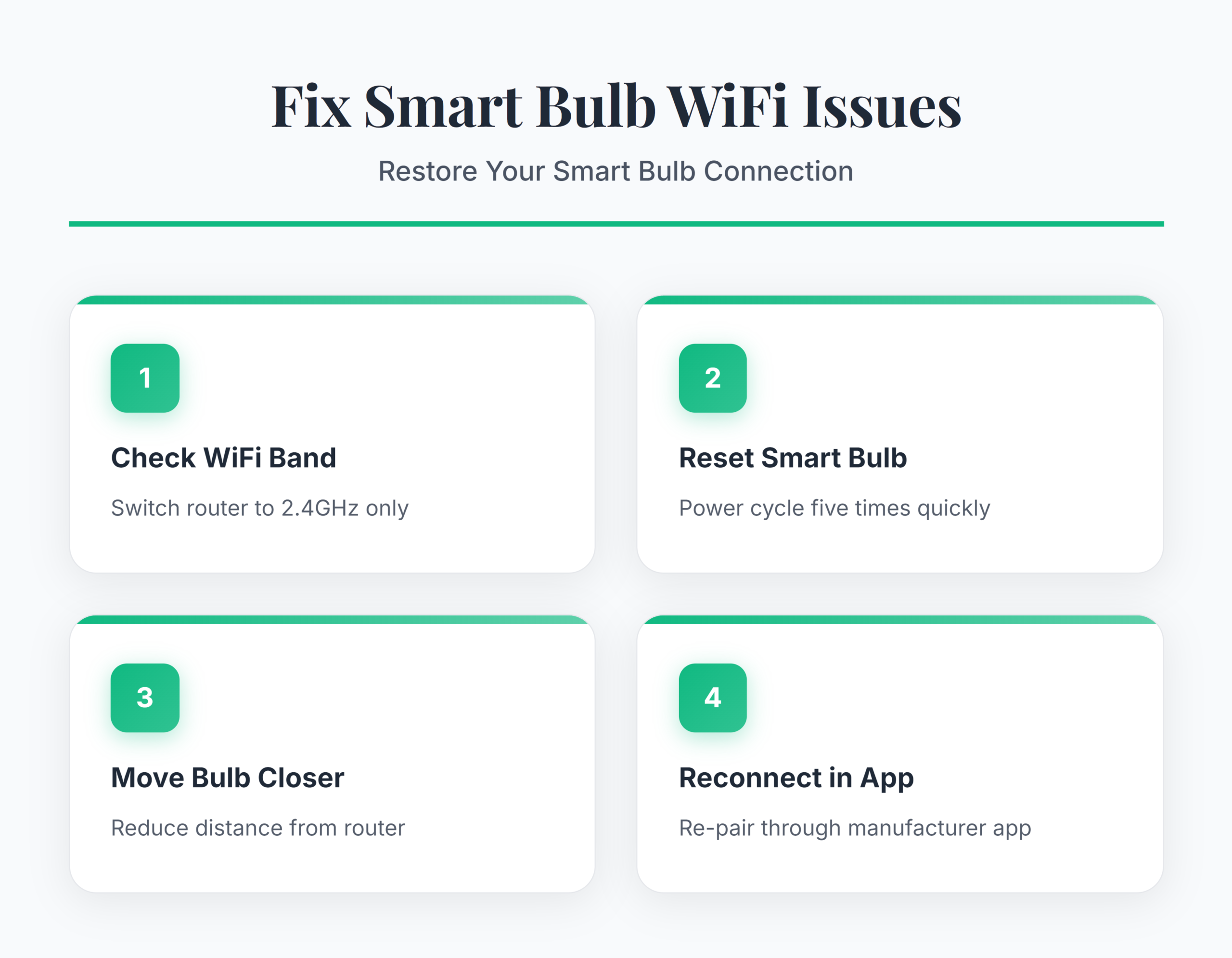
Confirm Your Router Uses 2.4 GHz
Nearly every smart bulb on the market — Philips Hue, LIFX, Wyze, TP-Link Tapo — only supports 2.4 GHz WiFi. If your router uses a combined SSID that merges both 2.4 GHz and 5 GHz bands, the bulb may latch onto the 5 GHz signal during setup and immediately fail. Open your router’s admin panel, usually at 192.168.1.1 or 192.168.0.1 in a browser, and navigate to Wireless Settings. Create a separate SSID for the 2.4 GHz band or temporarily disable the 5 GHz radio while pairing. After the bulb connects successfully, you can re-enable the 5 GHz band without affecting the bulb’s existing connection.
Some dual-band routers label this option Band Steering or Smart Connect — disable it during the pairing process. The bulb only needs to see the 2.4 GHz network once during initial setup. If you have trouble resolving unresponsive Windows 11 components on the same machine you use to manage your router, handle that first so the admin panel loads reliably.
Reset the Smart Bulb Completely
A factory reset clears any stored WiFi credentials from a previous network and forces the bulb back into pairing mode. Most smart bulbs use a power-cycle reset method:
- Turn the bulb off and on five times in quick succession, waiting about one second between each cycle.
- The bulb should flash or pulse to confirm it entered pairing mode.
- For Philips Hue bulbs on a Hue Bridge, use the Hue app >> Settings >> Light Setup >> Reset option instead.
- Wyze and Tapo bulbs flash rapidly three times when the reset succeeds.
If the bulb does not flash after five power cycles, try extending the off period to two seconds. Some cheaper bulbs need six or even seven cycles. Check the manufacturer’s app for model-specific reset instructions because the cycle count varies. The bulb must be in pairing mode — usually indicated by a slow pulsing glow — before the app can discover it.
Move the Bulb Closer to the Router
WiFi signal strength drops sharply through walls, floors, and metal fixtures. During the initial pairing, place the smart bulb in a lamp within fifteen feet of the router with a clear line of sight. Smart bulbs have small, low-power antennas that struggle with weak signals, especially during the handshake that establishes the initial connection.
After pairing succeeds, you can move the bulb to its permanent location. If the bulb drops offline after relocation, a WiFi range extender or mesh node placed between the router and the bulb solves the problem permanently. Avoid placing bulbs inside enclosed metal fixtures or recessed cans with metal housings because those act as Faraday cages and block the signal almost entirely. Check your router’s connected devices list to confirm the bulb maintains a stable connection at its final location.
Update the Smart Bulb App and Firmware
Outdated apps frequently cause pairing failures because the communication protocol between the app and bulb firmware falls out of sync. Open the App Store or Google Play Store and update the manufacturer’s app — Philips Hue, Wyze, LIFX, Tapo, or whichever brand you use. After updating the app, check for firmware updates within the app itself:
- Philips Hue: Settings >> Software Update >> check for bridge and bulb updates.
- LIFX: open the bulb’s detail page and look for a firmware banner.
- Wyze: Account ? Firmware Update.
- TP-Link Tapo: tap the bulb >> gear icon >> Firmware Update.
Firmware updates fix known connectivity bugs and add support for newer router security protocols like WPA3. Always complete firmware updates over a stable connection before moving bulbs to their final location.
Edge Cases for Smart Bulb WiFi Problems
Bulb Connects Then Drops Offline Repeatedly
A bulb that pairs successfully but keeps disappearing from the app usually points to IP address conflicts or router channel congestion. Log into your router’s admin panel and check the DHCP Client List for duplicate IP assignments. Assign a static IP to the bulb’s MAC address to prevent conflicts. If you also experience fixing WiFi disconnection issues on Windows 11 on other devices, the root cause is likely router-side — switch the WiFi channel from Auto to a fixed channel like 1, 6, or 11 on the 2.4 GHz band. Too many IoT devices on one network segment also causes this; most consumer routers handle around thirty simultaneous WiFi clients before performance degrades.
Bulb Not Appearing in the App During Setup
When the app scans for bulbs and finds nothing, the problem is almost always a network isolation setting on the router. Many routers enable AP Isolation or Client Isolation by default, which prevents devices on the same WiFi network from discovering each other. Disable this setting under Wireless ? Advanced Settings in your router’s admin panel. Also confirm that your phone is connected to the same 2.4 GHz SSID that the bulb is trying to join — if your phone is on the 5 GHz band, the app cannot find the bulb. Temporarily turn off mobile data on your phone during setup so the app does not route discovery packets through the cellular connection instead of WiFi.
Smart Bulb Fails After Changing WiFi Password
Changing your WiFi password immediately disconnects every smart bulb because they store the old credentials. You need to factory reset each bulb using the power-cycle method, then re-pair them through the app with the new password. There is no way to push a new password to a bulb that is already offline. Plan password changes around a time when you can spend ten minutes resetting and re-pairing your smart home devices.
Common Questions
Why is my smart bulb not connecting to WiFi?
The most common reason is a frequency mismatch. Smart bulbs only support 2.4 GHz WiFi, and most modern routers default to 5 GHz or a combined band. Log into your router settings and either split the bands into separate SSIDs or disable 5 GHz temporarily during setup. Signal distance and AP isolation settings are the next most frequent causes.
How do I fix a smart bulb that keeps disconnecting from WiFi?
Assign a static IP address to the bulb through your router’s DHCP settings to prevent IP conflicts. Switch the 2.4 GHz channel to a fixed channel like 1, 6, or 11 instead of Auto. If more than twenty-five devices share the network, consider adding a dedicated IoT network on a separate SSID to reduce congestion and improve stability.
Can smart bulbs work with 5 GHz WiFi networks?
Almost no smart bulbs support 5 GHz WiFi. The 2.4 GHz band offers better range and wall penetration, which matters for bulbs installed throughout a home. Even newer WiFi 6 smart home devices typically stick with 2.4 GHz for reliability. Always check the product specifications before purchasing, but expect to need a 2.4 GHz network available for smart bulb connectivity.
Keep your router’s 2.4 GHz band accessible with a dedicated SSID, and factory-reset any bulb that refuses to pair — those two steps resolve the vast majority of smart bulb WiFi connection failures.