When an AI Builder model is not available in Power Automate, rebuilding the flow is usually the wrong first move. The flow designer can only show models that exist in the current environment, are published, and are visible to the account editing the flow.
Start by opening Power Automate and AI Builder with the same work account. If the flow is part of a larger automation setup, compare the environment and connection pattern with the Power Automate integration checks before changing licenses or moving the model.
Check the environment before the model
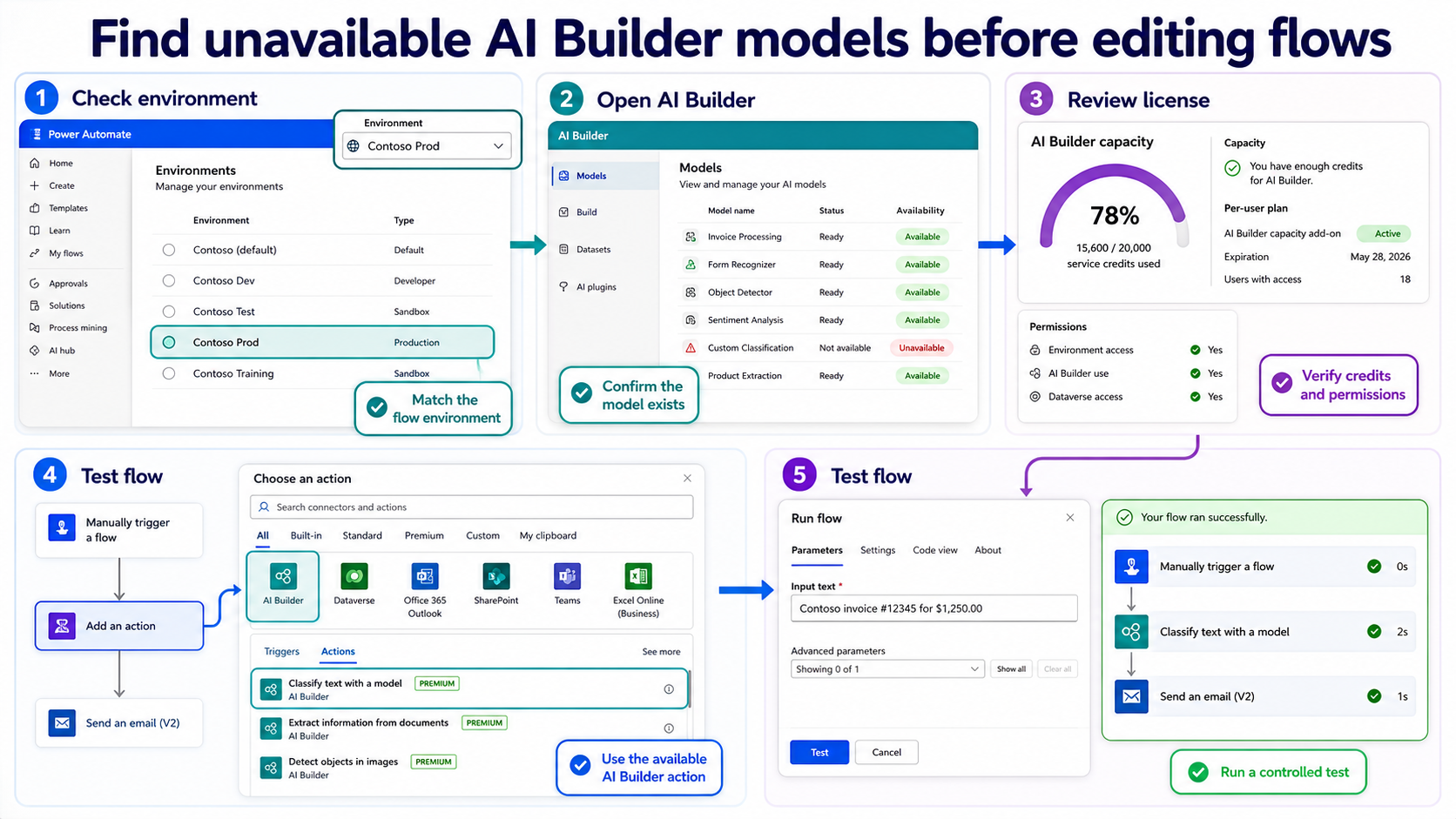
Look at the environment picker in the top-right corner of Power Automate. A model created in one environment will not appear in a flow being edited in another environment, even if the same user can access both places.
- Open the flow and note its current environment.
- Open AI Builder models in that same environment.
- Confirm the model is published, not only trained or edited.
- Check whether the flow is inside a solution that expects another environment.
If the model appears after switching environments, do not keep editing the old flow. Either move the flow to the correct environment or recreate only the AI Builder action in the environment where the model lives.
Confirm who can use the model
Model ownership and sharing matter. A user may see a flow but still not see the AI Builder model that the flow needs. Ask the model owner to confirm the model is shared with the maker or with the right security group.
Also check AI Builder credits and licensing. A missing model in the designer often looks like a connector problem, but the account may simply lack the entitlement needed to add or run the AI Builder action.
Reconnect the flow action after access is fixed
After the model is visible in AI Builder, return to the flow designer and reselect the model in the AI Builder action. Do not trust an old action that still displays a previous model name after the model was moved, republished, or shared differently.
- Open the AI Builder action in edit mode.
- Choose the current published model from the dropdown.
- Recheck downstream dynamic content because field tokens can change.
- Run one controlled test file and inspect the action output.
If the same flow creates Outlook tasks or follow-up actions after AI extraction, validate that those later actions still use the right account. The Outlook task automation checks are a useful comparison once the model itself is visible again.
Questions before you recreate the flow
Why can I see the model in AI Builder but not in my flow?
The flow may be in a different environment, or the action may be using a connection that does not have access to the model. Check the environment picker and the connection owner first.
Does the model need to be published?
Yes. A model that is still being trained or edited may not be available for normal flow actions. Publish the model, then reselect it in the flow designer.
Should I move the model or move the flow?
Move the smaller or less-connected part. In production, it is usually cleaner to keep the flow and model in the same managed environment rather than relying on cross-environment workarounds.
The fix is usually an environment and access problem, not a full rebuild. Once Power Automate and AI Builder are looking at the same published model, the flow can be repaired in place.