AI Builder can read common invoice fields and pass them into a flow, while Excel can store the extracted values in a structured table for review. That combination is useful when a team wants a lightweight invoice register without building a full finance system.
The safe version of the workflow does not dump every extracted value into a workbook immediately. It checks confidence, normalizes important fields, and writes only approved values into an Excel table that has clear columns.
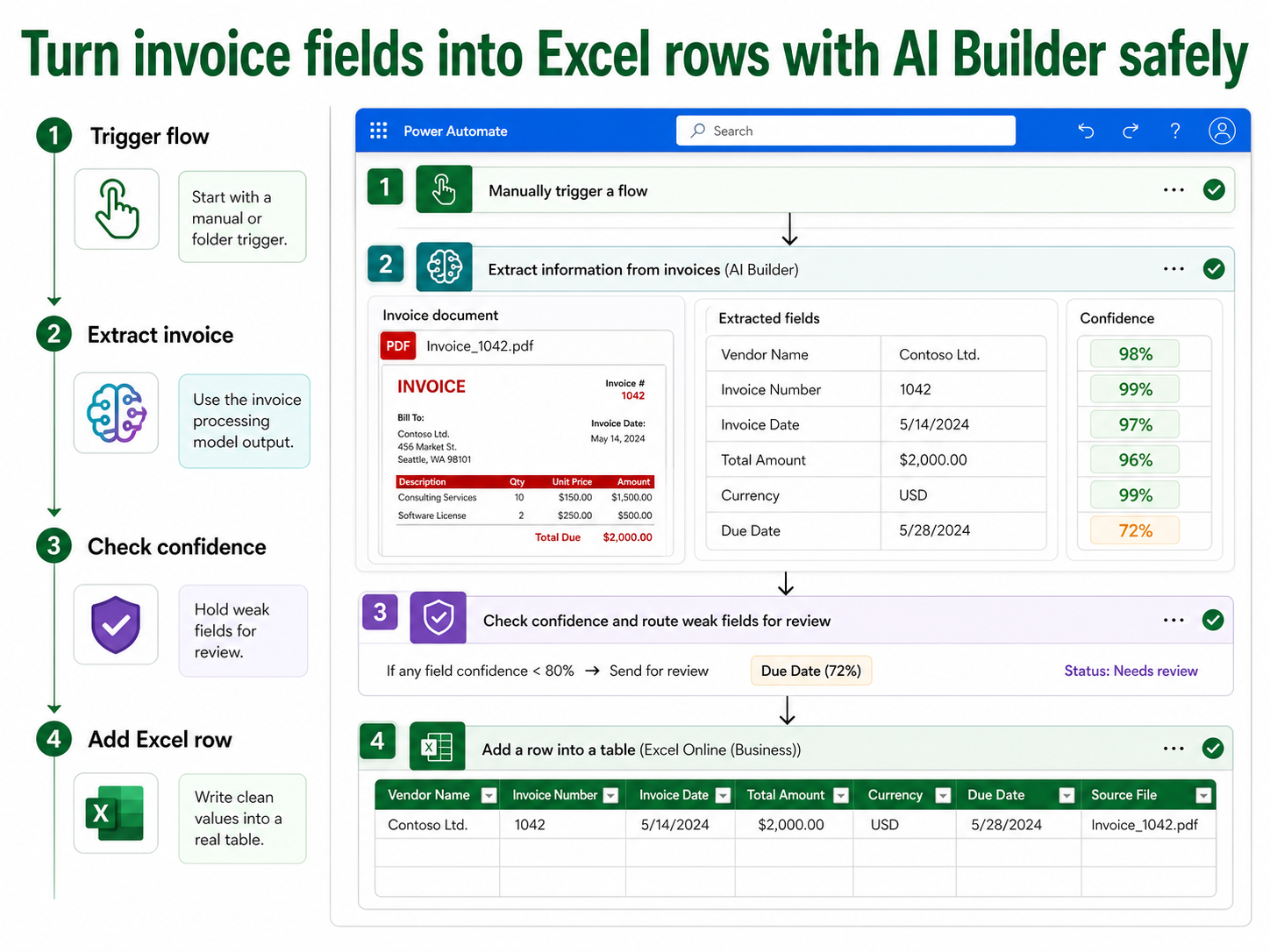
Prepare the Excel table first
Create an Excel workbook in OneDrive for Business or SharePoint, then format the destination range as a real table. The connector needs a table, not just loose cells on a worksheet.
Use stable column names such as Vendor, InvoiceNumber, InvoiceDate, DueDate, Subtotal, Tax, Total, Currency, FileLink, and ReviewStatus. Keep formulas outside the import columns so the flow writes clean source values.
- Store one invoice per row.
- Use date and number columns consistently.
- Add a ReviewStatus column for exceptions.
Build the Power Automate flow
Start with a manual trigger, a folder trigger, or an email attachment trigger depending on how invoices arrive. For a pilot, a manual trigger is easiest because you can test one file at a time.
Add the AI Builder invoice processing action and pass in the invoice file content. Then add a condition that checks confidence or required fields before writing to Excel. This avoids filling the workbook with partial rows that someone must clean later.
Required fields
At minimum, validate vendor, invoice number, date, and total. If one of those fields is missing or uncertain, route the file to review instead of writing a final row.
Excel row action
Use the Excel Online business connector to add a row into the table. Map each AI Builder output to the matching column and include a link back to the source file for audit checks.
Review the invoice rows before analysis
After the flow writes approved rows, open the workbook and check whether dates, currencies, and totals are formatted correctly. The workbook should be a review table first and an analysis table second.
Once the data is clean, you can summarize totals by vendor, month, project, or currency. That is where tools such as analyze Excel data with Copilot or generate data spreadsheets with Copilot in Excel can help users explore the finished table rather than repair bad imports.
Keep finance controls in the loop
Invoice extraction can support finance operations, but it should not bypass approval rules. Keep source files available, record who reviewed exceptions, and avoid overwriting corrected rows without a clear policy.
If the invoice process later grows into approvals, payment status, purchase orders, or vendor master data, move the system of record to a stronger database or finance platform. Excel is a good pilot and review surface, not always the final accounting system.
Keep the workbook clean as volume grows
The first few invoice rows are easy to inspect manually. The problems appear when the workbook becomes the working register for a team. Protect the header row, avoid merged cells, and keep one table for imported invoice rows. If users type notes in random columns between imported fields, the flow mapping becomes fragile.
Add a separate review view or filter for rows that need attention. For example, ReviewStatus can be Ready, Needs review, Corrected, or Exported. That gives the finance or operations owner a simple way to find exceptions without sorting through every successful import.
Be strict with currency and date formatting. Invoice documents often use regional formats, and an ambiguous date can become expensive if it drives payment timing. Store the raw extracted value when needed, but add a normalized date or amount column that reviewers can confirm before analysis.
If the process expands beyond a pilot, decide when Excel should hand off to a stronger system. Excel is useful for review, reconciliation, and lightweight reporting, but approvals, vendor master records, and payment controls usually belong in a dedicated business system or Dataverse-backed app.
- Protect the table structure before sharing the workbook.
- Use ReviewStatus to separate clean rows from exceptions.
- Normalize dates, amounts, and currency before analysis.
- Plan a database handoff if invoice volume becomes operational.
Audit the invoice register regularly
Schedule a regular audit of the Excel register while the process is new. Check a sample of rows against the original invoices, confirm that totals and currencies match, and review every row marked Needs review. If corrections are common, add a clear CorrectedBy or ReviewedBy column so the workbook shows who accepted the final value and when the decision was made. Keep those audit notes separate from the imported values. Recheck totals before using the workbook for reporting. That last review prevents small extraction mistakes from becoming summary errors.
FAQ
Can AI Builder read every invoice layout?
The prebuilt invoice model is designed for common invoice fields, but unusual layouts, poor scans, and missing labels still need testing. Keep a review path for invoices that do not extract cleanly.
Why does the Excel action fail even when extraction works?
The workbook may not be stored in OneDrive for Business or SharePoint, the range may not be formatted as a table, or the flow connection may lack access to the file.
Should I let the flow approve invoices automatically?
Not unless your finance policy allows it and the invoice values are validated against supporting records. Most teams start by using AI Builder to capture data, then keep approval as a separate controlled step.
Final check
A practical AI Builder to Excel workflow starts with a clean table, extracts only the invoice fields that matter, and routes uncertain values for review. That gives the team a useful invoice register without treating AI output as final accounting truth. Once the rows are clean, Excel becomes a dependable place to review trends and prepare follow-up work.