Choose the right Excel path first
Power Apps can use Excel data in more than one way, and the best option depends on whether the workbook is still a lightweight source or should become a managed business table. Microsoft describes three common paths: upload an Excel or CSV file so Power Apps creates a Dataverse table, connect to an external Excel file in cloud storage, or start with a blank app and add Excel data manually. Those choices matter because they decide where the data lives after the app is built.
Use the external Excel option when the workbook is small, already lives in OneDrive or another supported cloud location, and the app is a simple front end for a team process. Use Dataverse when you need stronger security, relationships, larger scale, or long-term ownership. Do not force an Excel connector into a workflow that is already behaving like a database application.
Prepare the workbook before connecting it
Power Apps expects Excel data to be formatted as a table. A plain range of cells is easy for people to read, but it is not reliable enough for an app. Open the workbook, select the data range, format it as a table, and give the table a clear name such as Customers, Requests, or Assets. Avoid spaces and vague names because you will see that table name again when you choose the source in Power Apps.
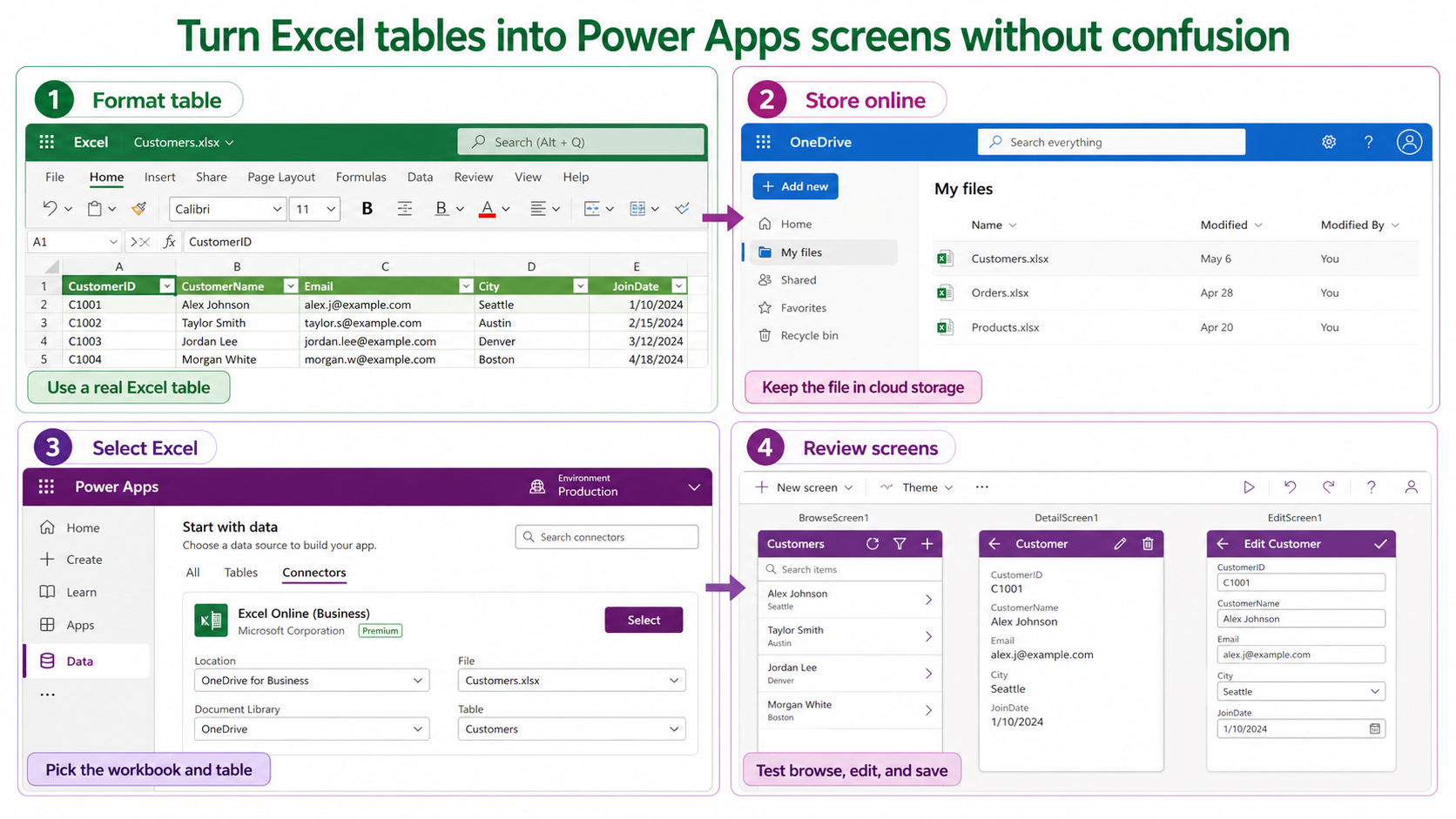
Clean the column names while you are still in Excel. Short names such as CustomerName, Status, DueDate, and Owner are easier to bind to labels and forms than long sentence-style headers. Check that dates are dates, numbers are numbers, and IDs are not mixed with extra notes. If the workbook has merged cells, subtotal rows, or several unrelated tables on the same sheet, simplify it before building the app.
Save a backup copy before changing the workbook structure. Power Apps formulas depend on table and column names, so a tidy preparation step is helpful, but accidental renames can still break an existing prototype.
Store the file where Power Apps can reach it
For an external Excel file, the workbook must be stored in a cloud location that the connector can access. Microsoft specifically notes that Power Apps can only connect to Excel files stored in cloud services such as OneDrive, OneDrive for Business, Dropbox, or Google Drive. A local file on a desktop is not enough because the app needs to read the data after the maker closes Power Apps Studio.
Use a stable folder and avoid renaming or moving the workbook after the app is connected. If you must replace the workbook, keep the table name and columns consistent. A renamed table or missing column can break formulas and form cards even though the file itself still opens in Excel.
Create or connect the app
From Power Apps, choose Start with data and select Excel Online (Business) when you want Power Apps to generate a starter app from the workbook. Pick the connection, file location, workbook, and table, then create the app. Review the generated browse, detail, and edit screens before adding custom formulas. Generated screens save time, but they still need testing with real records.
For an existing app, add the Excel connection from the Data pane and bind the gallery or form yourself. Set a gallery Items property to the table and confirm that search and sorting behave as expected. Then add an edit form and connect it to the same source. Keep the first pass boring: one browse screen, one detail screen, and one edit form are enough to prove the data path.
When Excel is the wrong back end
Excel is excellent for prototyping and small team lists, but it is not always the right operational store. If the app will have many users editing at once, strict permissions, audit expectations, or workflow automation across departments, consider moving the data to Dataverse or SharePoint Lists before launch. That change is easier before users depend on the app.
If the workbook is still useful for analysis, keep it in the workflow. You might use Copilot to analyze sales data in Excel before deciding which fields belong in the app. You can also export a Power BI table to Excel for a quick prototype, but do not confuse that exported table with a governed source of record.
The practical takeaway
A good Excel-backed Power Apps app starts with a clean table, a cloud-stored workbook, and a simple first screen that proves users can browse, edit, and save records. If the app later grows into a business-critical process, treat that as a signal to move the data to a stronger platform. Excel can be the starting point; it does not have to be the permanent database.
FAQ
Can Power Apps use an Excel file on my computer?
Not as a live app data source. The workbook needs to be stored in a supported cloud location so the app can reach it after the maker’s desktop session ends. OneDrive for Business is the most common choice in Microsoft 365 environments.
Why does Power Apps not show my worksheet data?
The most common reason is that the data is not formatted as an Excel table. Format the range as a table, give it a clear table name, save the workbook, and reconnect or refresh the data source in Power Apps.
When should I use Dataverse instead of Excel?
Use Dataverse when the app needs stronger permissions, relationships between tables, larger scale, or long-term business ownership. Excel is useful for small prototypes and familiar team data, but it becomes fragile when many users depend on it at the same time.