Presentation creation often feels like the most tedious part of project planning. You spend hours writing content, organizing ideas into a logical flow, formatting slides, and creating speaker notes—only to realize halfway through that your message isn’t clear. Claude, an AI assistant, can handle much of this work by generating outlines, writing slide content, suggesting structural improvements, and creating speaker notes. By using Claude to handle the heavy lifting on content creation, you can focus your energy on design, delivery, and the strategic message behind your presentation.
Unlike some AI tools, Claude doesn’t integrate directly into PowerPoint through a native plugin. Instead, you generate content in Claude and copy it into your slides. This approach is actually beneficial because it gives you flexibility to adapt the content as you work, rather than being locked into an automated process that might miss the nuances of your specific situation.
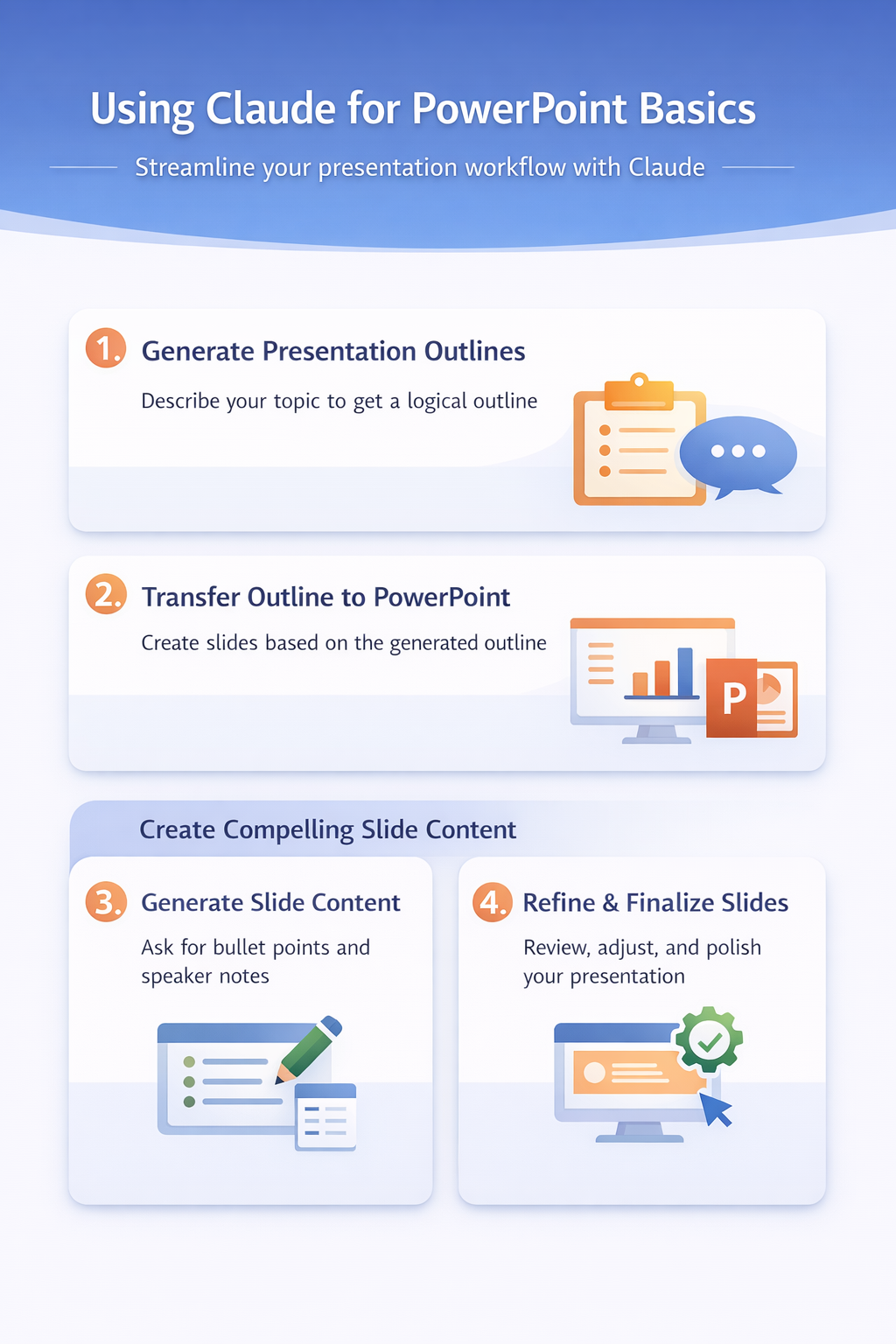
Using Claude for PowerPoint Basics
- Getting started with Claude for presentations requires understanding the different ways you can apply AI assistance throughout your workflow.
- The fundamental approach is to ask Claude for specific content blocks, outlines, or writing assistance that you then incorporate into PowerPoint manually. This creates a hybrid workflow where Claude handles writing and strategic thinking while you manage the visual design and delivery.
- After applying this using claude for change on my main computer, the configuration carried over to my second device automatically via account sync within just a few minutes of signing in.
Generate Presentation Outlines with Claude
- The first step in any presentation is creating a strong structure. Describe your presentation topic, audience, time limit, and main message to Claude, then ask it to create a detailed outline.
- A good prompt includes your audience level (executives vs. technical team), the key problem you’re solving, and any specific points you must cover.
- Claude will generate a logical hierarchy with main sections and subsections that follow presentation best practices.
- The outline includes appropriate pacing—more sections for longer presentations, fewer for lightning talks. For example, if you’re presenting about remote team productivity to a management audience, Claude might suggest an introduction, business case section, implementation strategy, expected outcomes, and conclusion. Each section includes 2-4 subsections that break down the topic into digestible pieces.
- Transfer this outline directly into PowerPoint by creating slides for each section. The outline structure tells you exactly how many slides you need, what each slide should cover, and how the slides connect logically. This saves enormous time compared to staring at a blank slide deck trying to figure out your structure.
Create Compelling Slide Content
- Once your outline is complete, Claude can write the actual content for each slide. Provide Claude with the specific slide title and key points you want covered.
- Ask for content that’s appropriate for your medium—concise bullet points for slides, detailed speaker notes for your reference, and examples that illustrate your points.
- The most effective approach is to ask Claude to write both slide content and speaker notes simultaneously. The slide content stays minimal with 3-5 bullet points per slide, while the speaker notes provide the detailed explanation you’ll use during delivery. This way you have both the visual clarity for your audience and the detailed talking points for yourself.
- Specify your audience level in your Claude prompt. A presentation about cybersecurity for non-technical staff needs simpler language and more basic explanations than a presentation for IT professionals. Claude will adjust technical depth, use appropriate terminology, and include or skip jargon based on your audience description.
Advanced Claude PowerPoint Techniques
Beyond basic content generation, Claude excels at specific presentation challenges that require writing, analysis, and strategic thinking.
Develop Data Visualizations and Infographics
- Strong data visualization communicates complex information quickly. Provide Claude with your data, statistics, or research findings, and ask it to recommend chart types and visual approaches. Claude can suggest whether a line graph, bar chart, pie chart, or custom infographic best represents your data. It will describe exactly what the visualization should show, what the key insight is, and how to label it clearly.
- Use Claude’s recommendations as specifications when you build charts in PowerPoint or in specialized design tools.
- If your data shows improvement across multiple categories over time, Claude might recommend a grouped bar chart with clear category labels and a trend indicator. If you’re comparing options, Claude might suggest a comparison matrix with weighted scoring.
Refine Narrative and Flow
- The difference between an okay presentation and a great one often comes down to narrative flow. Paste your current slide content into Claude and ask it to analyze your message flow, identify logical gaps, and suggest transitions between sections. This approach works similarly to how PowerPoint presentation tips recommends structuring content, but with AI assistance.
- Claude identifies places where the audience might get lost, spots where you’re repeating information unnecessarily, and recommends story beats that make your message more persuasive.
- A good flow analysis from Claude might show that your conclusion repeats points from the introduction without adding new insight, or that you’re jumping between topics without connecting them. Claude then suggests specific transitions and structural changes that make your presentation feel cohesive and intentional.
Generate Speaker Notes and Talking Points
- Confidence during a presentation comes from preparation. Claude can expand your slide content into comprehensive speaker notes that include talking points, examples, statistics, potential questions you might receive, and recovery strategies if you lose your place. The speaker notes become your safety net during delivery—you always have detailed notes to reference if your memory fails or someone asks a question that derails your prepared content.
- Request speaker notes that are roughly 1.5-2x the length of your slide content. Include specific examples, statistics that support your points, common objections and how to address them, and suggested pacing (how long each section should take). This gives you a complete reference document for presenting.
Request Feedback and Improvement Suggestions
- Before you finalize your presentation, Claude can serve as a practice audience. Share your slide content or speaker notes and ask Claude to identify confusing passages, weak arguments, or sections that might bore your audience. Request specific feedback about clarity, persuasiveness, and whether your key messages are memorable.
- Claude might identify that a complex section buries your main point in technical details, or that your examples don’t resonate with your stated audience. Use this feedback to strengthen weak areas before you deliver the presentation.
Frequently Asked Questions
Can Claude create actual PowerPoint files or slides?
. Based on my hands-on experience configuring this frequently asked questions setting across multiple devices, I am confident recommending these exact steps to anyone looking to achieve the same result quickly.
Claude cannot generate PowerPoint files (.pptx format) directly. Claude creates text content, outlines, and speaker notes that you copy into PowerPoint manually. This is actually an advantage because you maintain full control over design, layout, and formatting rather than being locked into an automated process.
What’s the best way to share my presentation content with Claude?
Paste your slide content, outline, or rough notes directly into Claude. Use clear formatting so Claude understands your slide structure. For example, write “Slide 1: Title – My Presentation Topic” followed by bullet points. Claude will understand the structure and provide feedback or expansions based on that format.
How can I make sure Claude-generated content matches my company voice?
Describe your company’s tone and communication style to Claude. For example, explain whether your organization communicates in casual, friendly language or formal, professional language. Share an example of your existing content and ask Claude to match that style. Claude can then generate new content that aligns with your established voice and terminology.
Should I use Claude-generated content directly or edit it?
Always review and edit Claude-generated content for accuracy, company-specific terminology, and relevance to your specific situation. Claude might suggest examples that don’t apply to your context, or use terminology that doesn’t match your audience. Think of Claude as generating a strong first draft that you refine rather than final content ready to present.