Are you struggling to create engaging PowerPoint presentations quickly? Many professionals find themselves spending hours designing slides, organizing content, and trying to make their presentations visually appealing. With Microsoft Copilot integration in PowerPoint, you can now leverage AI to transform your presentation creation process. But how exactly do you enable and use Copilot to create professional-looking presentations with minimal effort?
Benefits of Copilot for PowerPoint presentations
Microsoft Copilot addresses presentation creation by offering AI-powered assistance directly within PowerPoint. Before getting started, ensure you know how to install Microsoft Copilot in PowerPoint properly. This tool helps you generate content, design slides, and transform existing documents into presentations.For businesses, this means reduced preparation time, consistent branding, and professional-looking presentations created by team members regardless of their design expertise.
How to enable Copilot in your PowerPoint application?
Before you can start creating presentations with Copilot, you need to ensure it’s properly enabled in your Microsoft 365 environment. Copilot requires specific licensing and configuration:
- Verify that your organization has purchased Microsoft 365 Copilot licenses, as this feature isn’t included in standard Microsoft 365 subscriptions.
- Ensure you’re using the latest version of PowerPoint from your Microsoft 365 subscription by checking for updates through the Office app.
- Sign in to your Microsoft account that has Copilot licensing assigned to access the feature.
- Look for the Copilot icon in the PowerPoint ribbon—it appears as a star-shaped icon on the right side of the Home tab.
- If you don’t see the Copilot icon, check with your IT administrator to confirm your license assignment and that the feature has been enabled for your organization.
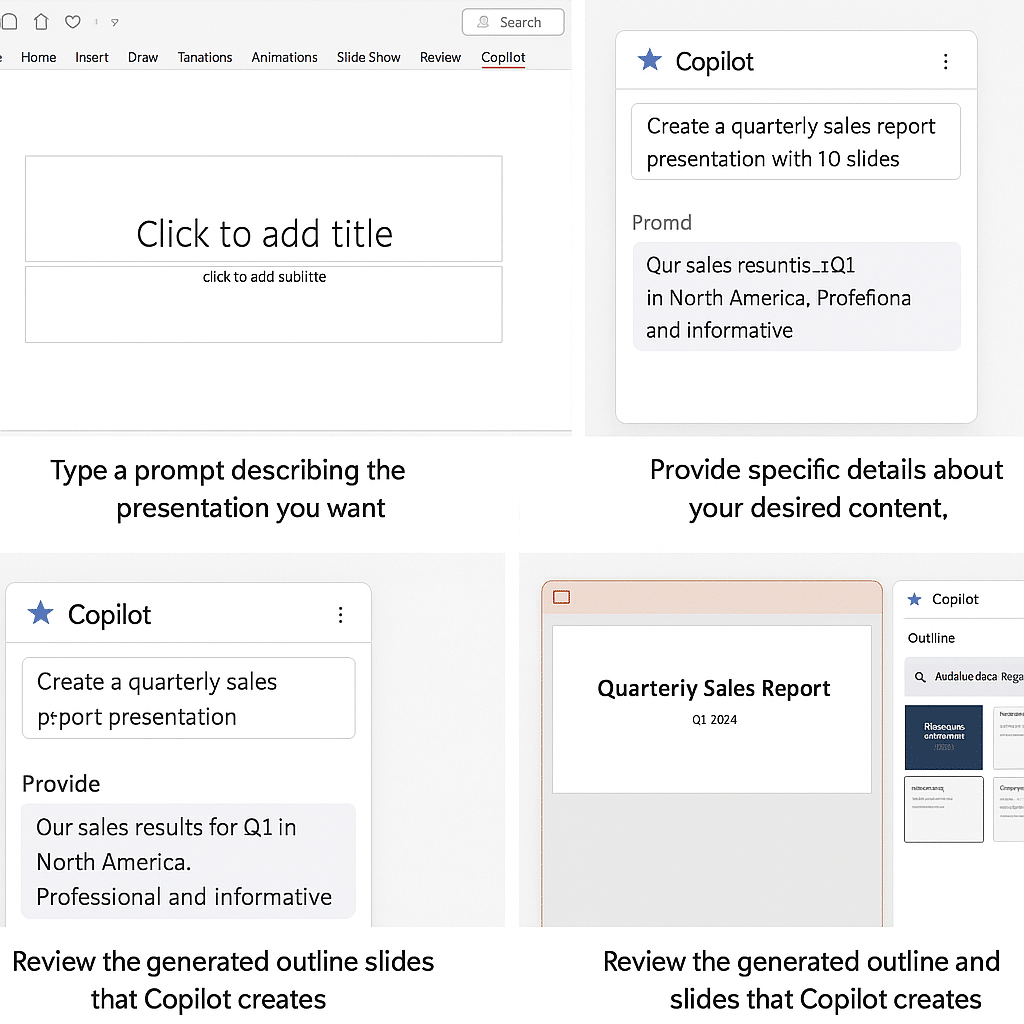
Creating presentations from scratch with Copilot assistance
Once Copilot is enabled, you can leverage its capabilities to build presentations quickly:
- Open PowerPoint and click on the Copilot icon in the ribbon to activate the Copilot pane on the right side of your screen.
- Type a prompt describing the presentation you want to create, such as “Create a quarterly sales report presentation with 10 slides” or “Make a product launch presentation for our new software.”
- Provide specific details about your desired content, audience, and presentation style to get more tailored results from Copilot.
- Review the generated outline and slides that Copilot creates based on your prompt, making adjustments as needed.
- Use follow-up prompts to refine specific slides, such as “Add more data visualization to slide 4” or “Make the executive summary more concise.”
- Customize the generated content by editing text, adjusting layouts, or applying your company’s branding elements to maintain consistency.
- Save time by asking Copilot to suggest visuals, icons, or charts that complement your content rather than searching for these elements manually.
Transforming existing documents into PowerPoint presentations
One of Copilot’s most powerful features is its ability to convert content from other formats into presentations:
- Open PowerPoint and access the Copilot pane by clicking on the Copilot icon in the ribbon.
- Use a prompt like “Create a presentation based on my quarterly report document” to initiate the conversion process.
- When prompted, select the Word document or other content source you want to transform into a presentation.
- Specify how you want the content organized, such as “Focus on the key statistics and action items” or “Include all section headings as separate slides.”
- Review the generated presentation to ensure Copilot has correctly interpreted and formatted your content into logical slide structures.
- Ask Copilot to adjust the presentation length with prompts like “Condense this into 10 key slides” or “Expand the section on market analysis.”
- Enhance the presentation by requesting Copilot to add relevant images, charts, or diagrams based on the textual content it extracted from your document.
Copilot issues in PowerPoint
When using Copilot with PowerPoint, you might encounter some challenges:
- If Copilot isn’t generating relevant content, try refining your prompts to be more specific about the presentation topic, audience, and desired outcome rather than using vague requests.
- When experiencing slow response times, check your internet connection as Copilot requires stable connectivity to process requests and generate content through Microsoft’s cloud services.
- For cases where Copilot creates presentations with formatting inconsistencies, apply a design template after generation or ask Copilot specifically to use a consistent design theme throughout all slides.
- If you notice that Copilot isn’t available despite having the proper licensing, try signing out and back into your Microsoft account or restarting PowerPoint to refresh the application connection.
- When working with sensitive information, remember that content processed by Copilot may be transmitted to Microsoft’s servers, so review your organization’s data policies before using it with confidential materials.
By understanding how to effectively use Microsoft Copilot with PowerPoint, you can dramatically reduce the time spent creating presentations while improving their quality and visual appeal.
Review the Copilot deck as a structured first draft
Copilot can create a presentation from a prompt or supported source file, but the output still needs editorial and factual review. Start from your organization’s approved template when branding matters. If the source is a Word document, use real Word heading styles so Copilot can recognize the hierarchy and turn sections into a more coherent outline.
Refine the generated presentation in passes
- State the audience, decision or learning objective, presentation length, tone, and required sections in the initial prompt.
- Review the outline before generating slides and remove topics that are outside the purpose.
- After generation, verify every number, name, date, quotation, and conclusion against the source material.
- Replace decorative or inaccurate visuals, add accessible alt text, and check color contrast and reading order.
- Use Copilot for focused revisions such as condensing one slide or reorganizing a section, not an unbounded rewrite of the finished deck.
Troubleshooting and safeguards
If Copilot is unavailable, confirm the file format, internet connection, signed-in account, license, privacy settings, and administrator configuration. Source permissions matter: referencing a file does not grant access to other viewers. Very long or poorly structured documents can produce weak slide groupings. Break the input into a concise brief or improve its headings instead of repeatedly regenerating the same vague request.
Verify the result
Run Slide Show and inspect each slide at normal projection size. Check notes for AI-generated image provenance when applicable, test links and media, and use PowerPoint’s accessibility checker. Ask the content owner and a representative audience member to review the deck. Save a new version rather than overwriting the last human-approved presentation.
Before escalating, preserve screenshots, exact error text, timestamps, account type, client version, and the last successful action. Reproduce the problem once with a normal user account and record what changed, because precise evidence helps support teams avoid repeating broad resets and focus on the correct service, permission, policy, or device layer.