“I need to present my quarterly report to our international team next week, but the slides are all in English and half my audience speaks Spanish. Is there a way to quickly translate my entire PowerPoint presentation without losing the formatting or having to recreate everything from scratch?”
Use Microsoft 365 Copilot to translate slides
Translating presentations for global audiences has become increasingly critical as organizations expand internationally. Traditional translation methods often require manual copying, external translation services, or recreating slides entirely, which consumes valuable time and risks formatting inconsistencies.
Microsoft 365 Copilot offers integrated translation capabilities that streamline this process directly within PowerPoint. This tutorial demonstrates how to leverage Copilot’s translation features to convert entire presentations while preserving visual elements, slide layouts, and professional formatting. When the source is a Word file, this Word-to-PowerPoint Copilot workflow explains how to prepare and generate the deck.
The workflow covers using Copilot’s natural language commands to translate individual slides, entire presentations, and specific content elements. You’ll learn to maintain design consistency while adapting content for different languages and cultural contexts.
Note – you will need a Microsoft 365 subscription with Copilot access. The process works with most common languages supported by Microsoft Translator services.
Translate entire PowerPoint presentation with Copilot
Setting up Copilot for PowerPoint translation tasks
- Open your PowerPoint presentation and ensure you’re signed into your Microsoft 365 account with Copilot licensing enabled for translation features.
- Navigate to the Home ribbon and locate the Copilot button, which appears as a colorful icon in the upper-right section of the PowerPoint interface.
- Click the Copilot button to open the chat panel on the right side of your screen, where you’ll enter translation commands and receive AI-generated responses.
- Test Copilot’s availability by typing a simple command like “Hello Copilot” to confirm the service is active and responding to your requests properly.
- Verify your presentation contains the content you want translated by reviewing each slide for text elements, speaker notes, and any embedded content requiring translation.
Expert Tip: Before starting translation, create a backup copy of your original presentation to preserve the source language version for future reference or revisions.
How to translate whole PowerPoint slides with natural language prompts?
- Select the first slide you want to translate by clicking on it in the slide thumbnail panel on the left side of your PowerPoint window.
- In the Copilot chat panel, type a specific translation command such as “Translate this slide to Spanish” or “Convert all text on this slide to French” for targeted translation.
- Wait for Copilot to process your request and generate the translated content, which typically appears as suggested text replacements in the chat panel within 10-15 seconds.
- Review the translated suggestions carefully, paying attention to technical terms, proper nouns, and context-specific language that may require manual adjustment for accuracy.
- Apply the translations by copying the suggested text from Copilot and replacing the original content in your slide text boxes, maintaining the original formatting and layout structure.
- For presentations with multiple slides, use the command “Translate the entire presentation to [target language]” to process all slides simultaneously rather than individual slide translation.
- Monitor the translation progress as Copilot works through each slide, and be prepared to make manual corrections for specialized terminology or cultural references that require localization.
Microsoft translator PowerPoint integration for content conversion
- Access advanced translation options by typing “Translate all speaker notes to German” to include presenter notes alongside slide content for complete presentation localization.
- Handle complex slide elements by requesting specific translations such as “Translate chart titles and labels to Italian” for data visualization components that contain text elements.
- Manage mixed content slides by using targeted commands like “Translate only the bullet points to Portuguese, keep headings in English” for presentations requiring partial translation approaches.
- Process embedded objects by asking Copilot to “Identify and translate text within images or SmartArt graphics” though manual editing may be required for image-based text elements.
- Utilize batch processing commands such as “Create a Spanish version of slides 5-10” to translate specific sections of longer presentations without affecting the entire document. For more advanced presentations, you can also use Copilot to add references and citations to your slides to maintain academic integrity across languages.
- Implement consistency checks by requesting “Review translation accuracy for technical terms” to ensure specialized vocabulary maintains meaning across different languages and cultural contexts.
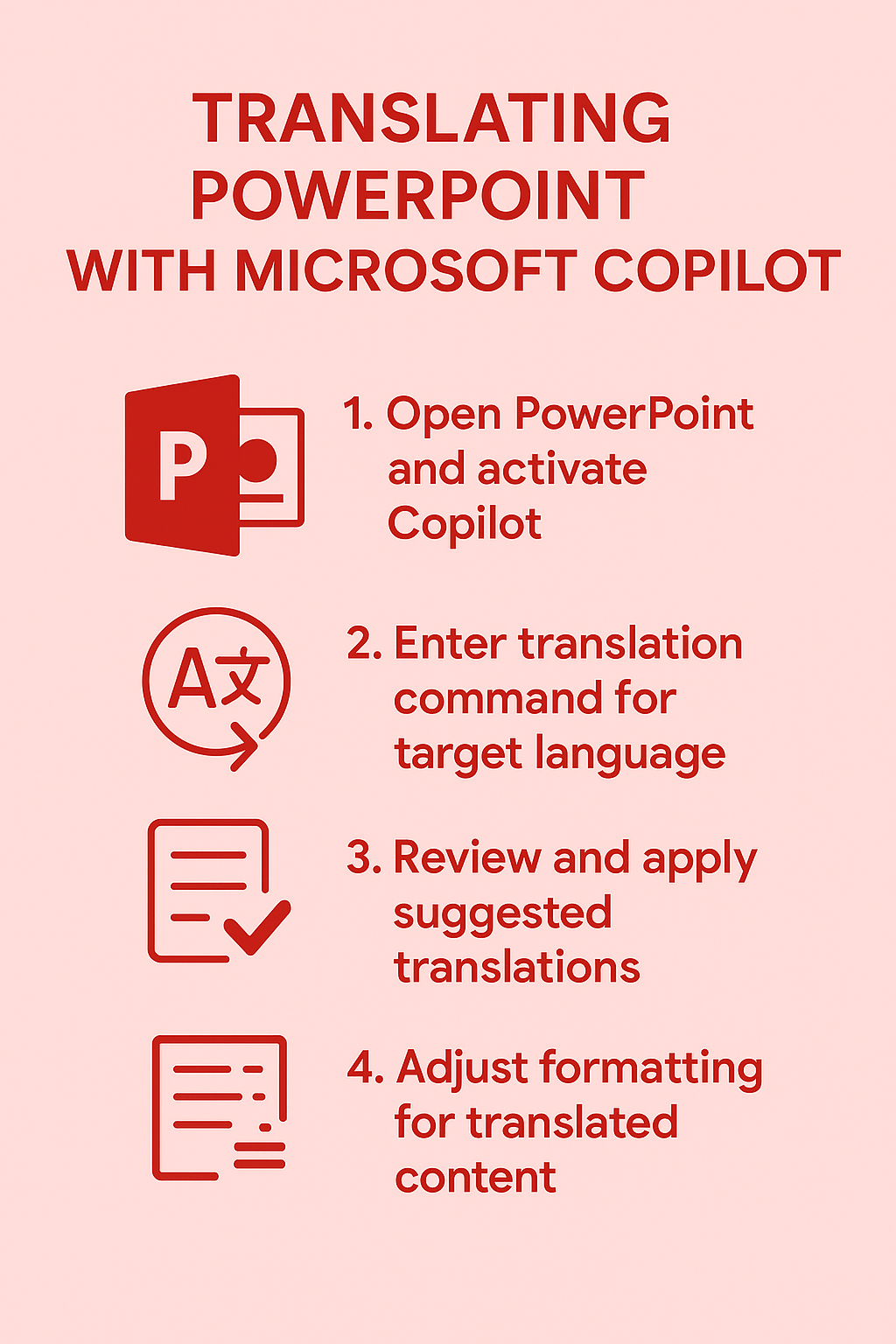
Review the translated copy before distributing it
Microsoft’s current PowerPoint Copilot translation workflow creates a new translated copy rather than replacing the open presentation. On Windows or Mac, save that new copy deliberately; on the web, confirm whether it was saved beside the source file or in the OneDrive root. Give the translated file a language and date suffix so reviewers do not edit the source by mistake.
Translation can preserve slide structure while still producing text that no longer fits. Inspect titles, tables, SmartArt, speaker notes, captions, and text inside shapes. Languages often expand or contract compared with English, which can cause clipped lines, crowded bullets, or unexpectedly small fonts.
Validate terminology and meaning
Create a short approved glossary for product names, legal terms, acronyms, and words that must not be translated. Compare repeated terms across several slides. If Copilot varies an important term, correct it consistently and update the glossary for the next presentation.
Ask a fluent reviewer to check high-risk material such as commitments, safety instructions, pricing, dates, and regulatory language. Machine translation is a starting point, not authorization to publish. Keep the source slide number visible during review so comments can be traced accurately.
Check every non-obvious content layer. Run PowerPoint’s proofing tools with the translated language selected. Review alt text, hyperlinks, chart labels, embedded spreadsheet content, video captions, and images containing text; these elements may require separate editing. Test links because localized display text does not change the destination automatically.
Present the translated deck in Slide Show mode on the target device. Confirm reading order, right-to-left behavior where applicable, animation timing, and whether fonts are available. Export a PDF for one final visual comparison, but retain the editable PowerPoint as the master.
Record the target language, source-file version, reviewer, and approval state in the file properties or controlled document system. This prevents a fluent-looking draft from being mistaken for an approved translation.
Microsoft 365 Copilot translation troubleshooting
Common PowerPoint translation challenges and solutions
- Translation accuracy issues often occur with technical terminology, brand names, or industry-specific jargon that Copilot may not recognize or translate appropriately for your context.
- Resolve formatting problems by manually adjusting text boxes after translation, as different languages may require more or less space than the original content, affecting slide layouts.
- Address incomplete translations by breaking complex slides into smaller sections and requesting translation of individual elements rather than entire slides at once for better accuracy.
- Fix cultural context errors by reviewing translated content for appropriateness in the target culture and manually adjusting phrases that may not translate well contextually.
Optimizing translation quality with specific Copilot prompts
- Improve translation accuracy by providing context in your prompts, such as “Translate this medical presentation to Spanish for healthcare professionals” to help Copilot understand specialized terminology.
- Enhance consistency by requesting “Use formal business language” or “Apply casual tone” when translating to ensure the translated content matches your intended communication style and audience.
- Maintain brand consistency by instructing Copilot to “Keep company names and product names in English” while translating surrounding content to preserve brand recognition across languages.
- Verify technical accuracy by asking Copilot to “Explain any translation choices for technical terms” to understand why specific words were chosen and make informed adjustments.
Important Tip: Always have a native speaker review critical presentations before delivery, as AI translation may miss nuanced cultural or contextual elements that could affect your message’s effectiveness.