Microsoft Copilot suggestions in Word can feel helpful at first, but the constant inline prompts interrupt focused writing sessions. Whether the AI predictions clash with your drafting style or you simply prefer a clean canvas, turning them off takes only a few clicks. This guide walks you through disabling Copilot suggestions in Word across personal and managed Microsoft 365 environments.
Prerequisites for Disabling Copilot in Word
Before adjusting Copilot settings, confirm the following:
- Microsoft 365 subscription with Word desktop app version 2311 (Build 17029) or later — Copilot features do not appear in older perpetual-license versions like Office 2021.
- Administrator access on your Windows 11 PC if your organization manages Copilot through Group Policy or Intune. Standard users can still toggle personal settings, but enterprise-level controls may override them.
- Word fully updated — open Word, go to File >> Account >> Update Options >> Update Now to ensure you see all current Copilot toggles.
Configure Copilot Suggestions in Word
Open Word’s Copilot Preferences
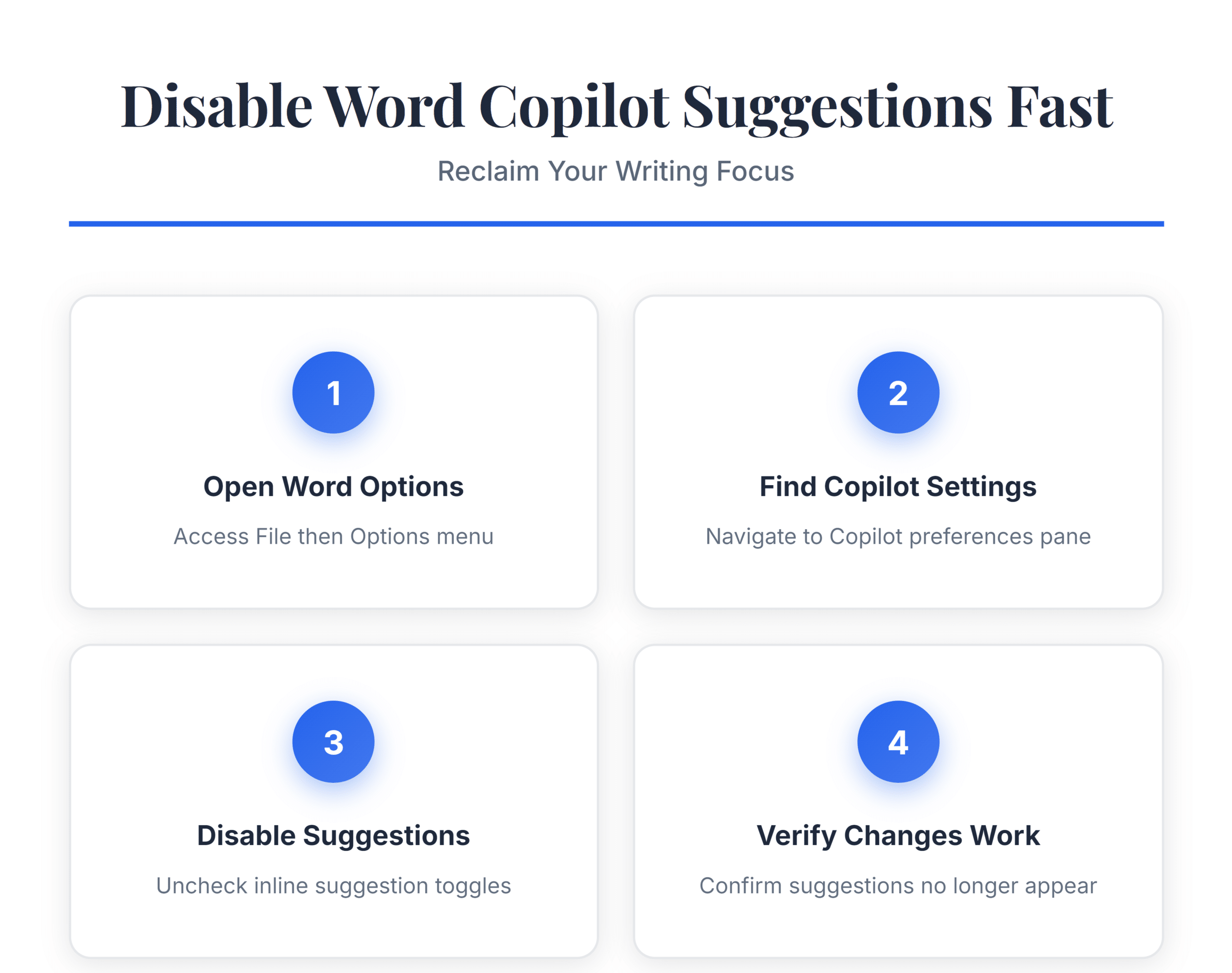
Launch any document in Microsoft Word and click File ? Options to open the Word Options dialog. In the left sidebar, select Copilot (on builds where the tab exists) or General if your version groups AI features there. The Copilot section lists every inline suggestion behavior Word currently supports. If you do not see a dedicated Copilot tab, update Word first because Microsoft rolled this settings pane out gradually through 2025 feature updates.
Disable Inline Copilot Suggestions
Inside the Copilot preferences pane, locate the checkbox labeled Show Copilot suggestions automatically while typing. Uncheck this box to stop Word from inserting gray predictive text as you draft. Below it, you may also see Show Copilot composition suggestions — this controls the longer paragraph-level rewrites that appear in a floating panel. Disable both if you want a completely suggestion-free experience. Click OK to save. The change takes effect immediately in every open document without restarting Word.
Verify Suggestions Are Turned Off
Open a new blank document and begin typing a few sentences. Previously, gray ghost text would appear after a short pause — that behavior should now be gone entirely. If suggestions still appear, close Word completely and reopen it, because cached suggestion data occasionally persists for the current session. Also confirm that the Copilot icon in the ribbon has not re-enabled a quick-toggle setting, since clicking that icon can independently reactivate inline suggestions even when the Options dialog has them turned off.
Advanced Copilot Controls in Word
Manage Copilot Through Group Policy
In enterprise environments, IT administrators can enforce Copilot settings across all users through Group Policy or Microsoft Intune. The relevant policy path is User Configuration >> Administrative Templates >> Microsoft Word >> Copilot >> Disable Copilot inline suggestions. Setting this to Enabled grays out the toggle in Word Options so end users cannot re-enable it. This approach is ideal for organizations that want to disable Copilot on Windows 11 system-wide or restrict AI features for compliance reasons. Deploy the latest Microsoft 365 ADMX templates to ensure the Copilot policy definitions appear in your Group Policy Editor.
Use the Copilot Ribbon Toggle Selectively
You do not have to disable suggestions permanently if you only need a distraction-free window during certain tasks. The Copilot button in the Word ribbon acts as a session-level toggle — click it once to collapse the Copilot pane and suppress inline suggestions for the current document. Click it again to bring suggestions back when you want drafting assistance. This method leaves your global Options untouched, so suggestions return automatically the next time you open Word. It works well for users who want Copilot available for brainstorming but turned off during final editing passes. If your organization has decided to turn off Microsoft 365 Copilot entirely, the ribbon toggle will not appear at all since the feature is disabled at the tenant level.
Disable Copilot Suggestions on Word for Web
Word for the web handles Copilot settings separately from the desktop app. Open a document at office.com, click the Copilot icon in the toolbar, then select the gear icon inside the Copilot pane. Toggle off Suggestions to stop inline predictions in browser-based editing. This setting is tied to your Microsoft account rather than the local machine, so it follows you across devices. Keep in mind that changes made here do not sync back to the desktop application — you need to disable suggestions in both places if you use Word on desktop and web interchangeably.
Q&A
Why is Copilot not working after I changed settings in Word?
Microsoft rolls out Copilot features in staged updates, so your Word build may not include the latest toggles. Run File >> Account >> Update Options >> Update Now and restart Word. If your organization manages licenses through Intune, the admin policy may override local settings entirely.
How to fix Copilot suggestions not turning off permanently?
Check whether the Copilot ribbon toggle is re-enabling suggestions at the session level, which overrides the global Options setting. Also verify that a Group Policy or Intune configuration is not pushing Copilot back to enabled status after each sign-in. Disable suggestions in both the Options dialog and the ribbon to cover both layers.
How to turn off Copilot suggestions not working on Windows 11?
Restart Word after changing the setting, then check for conflicting policies in Settings >> Accounts >> Access work or school. Managed devices often receive Copilot configurations from the organization that take priority over personal preferences. Contact your IT admin to confirm whether a tenant-level Copilot policy is active.
Disabling Copilot suggestions in Word gives you a cleaner writing environment whenever you need it. Toggle settings off globally through Word Options or use the ribbon switch for quick, session-based control.