Where is copilot in outlook and why you need it
“I’ve heard about Microsoft Copilot for Outlook, but I can’t seem to find it anywhere in my email interface. My team is drowning in emails every day, and I need to streamline our communication workflow. Where exactly is Copilot located in Outlook, and how can I start using it to draft better emails, summarize long threads, and manage my inbox more efficiently?”
Enable copilot in Outlook to solve productivity challenges
Email overload significantly impacts workplace productivity and employee satisfaction. Studies show that knowledge workers spend nearly 30% of their workweek managing emails. Microsoft Copilot for Outlook addresses this challenge by providing AI-powered assistance for email composition, summarization, and organization. This integration helps users draft professional responses faster and extract key information from lengthy email chains.
Activate copilot in outlook through proper configuration
This tutorial demonstrates how to enable and configure Microsoft Copilot within Outlook desktop and web applications. You’ll learn to locate Copilot features, activate the service, and integrate the AI assistant into your daily email workflow. Prerequisites include a Microsoft 365 Business Premium or Enterprise license with Copilot access and administrative permissions for organizational deployment.
Install copilot for Outlook
Before starting, ensure your organization has purchased Microsoft 365 Copilot licenses and your IT administrator has enabled the service.
• Navigate to the Microsoft 365 admin center and sign in with administrator credentials to access Copilot management settings
• Select “Settings” from the left navigation menu, then choose “Integrated apps” to view available Microsoft applications and add-ins
• Click “Available apps” and search for “Microsoft 365 Copilot” in the application gallery to locate the AI assistant service
• Select the Copilot application and click “Deploy” to begin the installation process across your organization’s Outlook instances
• Choose deployment scope by selecting specific users, groups, or the entire organization based on your licensing and rollout strategy
• Configure user permissions by enabling “Allow users to get add-ins from the Office Store” in the admin center settings
• Open Outlook desktop application and navigate to the “Home” ribbon to locate the newly installed Copilot integration button
• Click the Copilot icon in the ribbon or look for the purple Copilot symbol in the compose window when drafting new emails
• Verify installation by composing a new email and checking for the Copilot assistant panel on the right side of the interface
• Access Copilot features through the “Draft with Copilot” option when creating new messages or the “Summarize” function for existing email threads
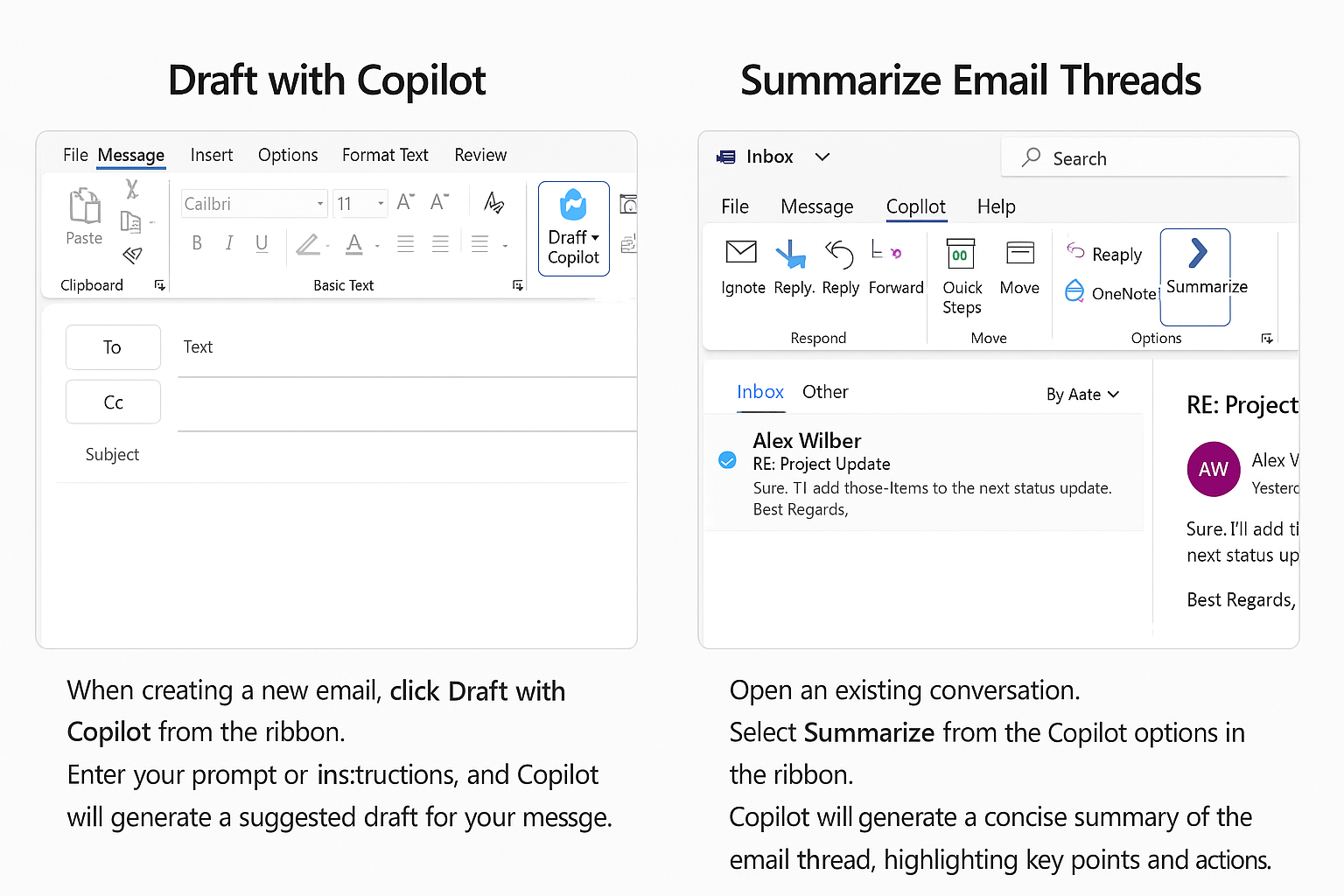
How to enable copilot in outlook app for mobile users?
- Download the latest version of Microsoft Outlook mobile app from your device’s app store to ensure Copilot compatibility
- Sign in with your Microsoft 365 account that includes Copilot licensing and wait for the application to sync your mailbox data
- Tap the compose button to create a new email and look for the Copilot icon near the formatting toolbar options
- Enable Copilot suggestions by tapping the AI assistant icon and granting necessary permissions for email content analysis and generation
- Access summarization features by opening long email threads and tapping the “Summarize with Copilot” option at the top of conversations.
Advanced Copilot Features for Power Users
Draft Coaching and Tone Adjustment
Beyond basic email composition, Copilot offers sophisticated draft coaching capabilities that analyze your writing style and suggest improvements. When composing emails, you can specify the desired tone—professional, casual, concise, or enthusiastic—and Copilot will adjust your message accordingly. This feature proves particularly valuable when communicating across different organizational levels or with external clients where tone consistency matters.
Meeting Preparation Integration
Copilot seamlessly connects with your Outlook calendar to provide context-aware email assistance. When drafting follow-up emails after meetings, Copilot can reference meeting details, attendee lists, and scheduled topics to suggest relevant content. Similarly, when preparing for upcoming meetings, you can ask Copilot to draft agenda emails or meeting invitations that automatically pull information from related email threads and calendar entries.
Cross-Platform Compatibility Considerations
Outlook Web vs Desktop Experience
While Outlook Copilot functionality remains consistent across platforms, the user interface differs slightly between Outlook desktop and web applications. Desktop users access Copilot through ribbon buttons and side panels, while web users find these features integrated into the compose toolbar and message headers. The summarization quality and draft suggestions maintain the same AI capabilities regardless of platform choice.
Teams Integration Benefits
When using Copilot across both Outlook and Microsoft Teams, the AI assistant learns from your communication patterns in both applications. This cross-platform intelligence enables more accurate draft suggestions and better context understanding when switching between email and chat communications with the same colleagues or project teams.
Frequently Asked Questions
Can Copilot access my private emails?
Copilot only processes content from emails you explicitly interact with during composition or summarization requests. The AI doesn’t scan your entire mailbox or retain personal information beyond the current session.
Does Copilot work with shared mailboxes?
Yes, Copilot functions normally with shared mailboxes, but requires appropriate permissions. Users need both Copilot licensing and shared mailbox access rights to utilize AI features in collaborative email accounts.
How does Copilot handle different languages?
Copilot supports multiple languages and can detect the primary language in email threads automatically. However, draft quality and summarization accuracy may vary depending on language complexity and regional variations in business communication styles.
Check Copilot eligibility before reinstalling Outlook
Copilot availability depends on the signed-in account, subscription, Outlook client, and organization controls. Start by opening the Microsoft 365 account page or asking the administrator to confirm the license assigned to the exact work or school account used in Outlook. Do not assume that a Copilot license on one tenant or personal account automatically applies to a different mailbox.
Microsoft’s current Outlook guidance also requires connected experiences to remain enabled. In Outlook privacy settings, review the options for experiences that analyze content and download online services. If an organization manages these controls, the setting may be locked and only an administrator can change the relevant policy.
Match the check to the Outlook client
Copilot is available in supported Outlook apps for Windows, Mac, mobile, and the web, but individual features can differ. New Outlook and Outlook on the web are useful comparison points because they update independently from classic Outlook add-ins. Sign in to Outlook on the web with the same account and open the same mailbox. If Copilot appears there but not in the desktop client, the license is probably active and the investigation should focus on the local app, update channel, account selection, or privacy configuration.
Classic Outlook for Windows does not support every Copilot-sharing behavior described for newer Outlook clients. Avoid looking for a generic downloadable Copilot add-in unless Microsoft specifically documents one for the feature. Copilot controls are normally delivered as part of the supported Outlook experience.
Verify activation with a controlled test
Open a message thread containing enough text to summarize, then check for the supported Copilot action. Create a new message and test drafting separately; one action can be unavailable even when another works because features, languages, or policies differ.
If the icon remains missing, record the Outlook version, update channel, signed-in account, mailbox type, license name, and whether Outlook on the web works. Give those details to the administrator. This evidence is more useful than repeatedly repairing Office and helps identify whether the blocker is deployment timing, connected experiences, account eligibility, or an organization policy.
Overcoming common implementation challenges
- When troubleshooting Copilot integration issues, you might need to verify your system notifications are properly set up. Users often need to configure their email thread summarization settings to ensure Copilot functions correctly with their Outlook client.
- Copilot icon missing from Outlook interface: Check your Microsoft 365 license includes Copilot access and verify your administrator has deployed the service to your account through the admin center
- • Draft suggestions not appearing in compose window: Ensure you’re using a supported Outlook version and clear your application cache by restarting Outlook desktop or refreshing the web application browser
- • Summarization feature unavailable for email threads: Verify the email conversation contains sufficient content for AI analysis and confirm your internet connection supports real-time Copilot processing requests