Why can’t I see Microsoft Copilot in my Outlook interface?
Many users find themselves asking this question when they expect to see Copilot features in their Outlook application but encounter empty ribbons or missing options. This situation typically occurs when organizations haven’t properly configured licensing, when users are running incompatible Outlook versions, or when specific administrative policies block Copilot functionality. The absence of Copilot can significantly impact productivity for teams that rely on AI-assisted email composition and meeting summaries.
Configuring Copilot availability through licensing and settings
Today we will address the most common scenarios where users cannot see Copilot in Outlook applications. We’ll cover license verification, application updates, administrative policy adjustments, and user-level configuration changes. The solution assumes you have administrative access to Microsoft 365 admin center or can coordinate with your IT department. We’ll focus on both the new Outlook for Windows and traditional Outlook desktop applications, ensuring comprehensive coverage for different deployment scenarios.
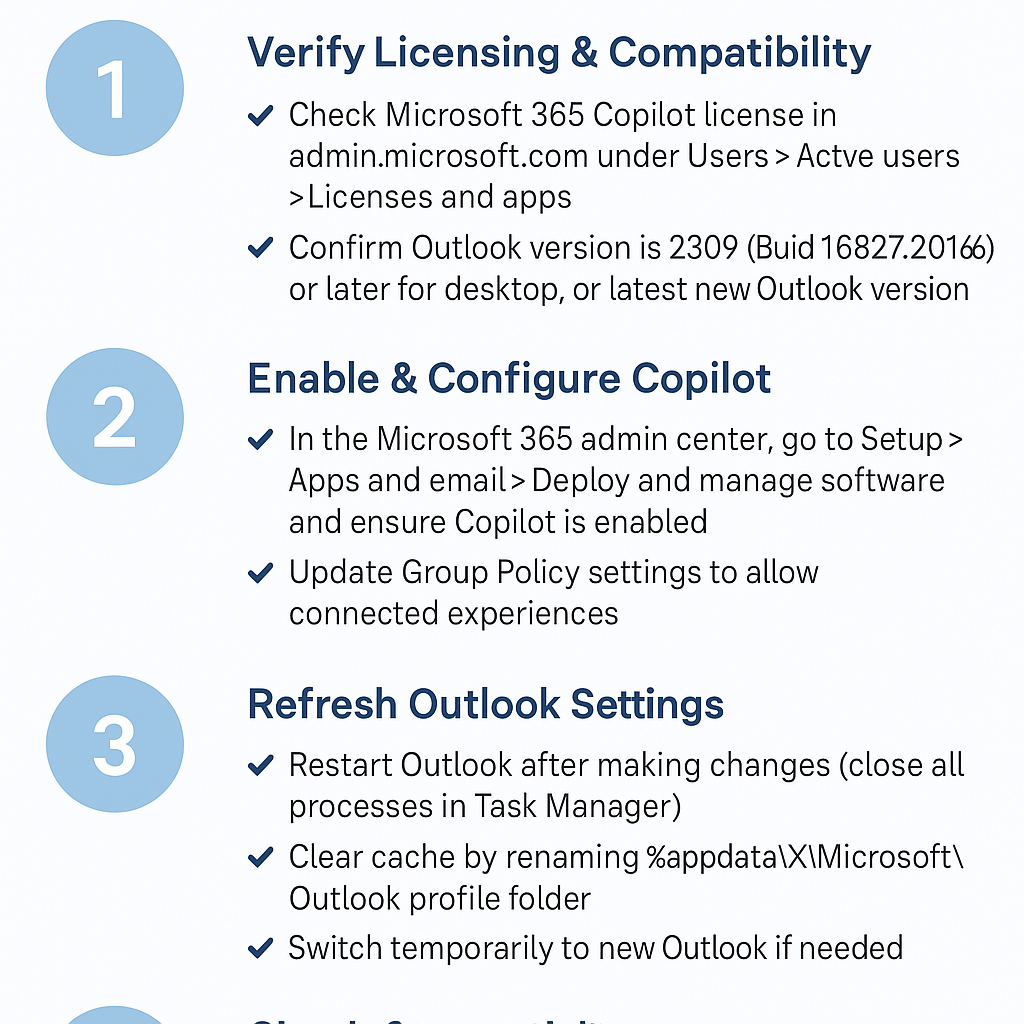
Step-by-step implementation for restoring Copilot functionality
- Verify your Microsoft 365 Copilot license status by navigating to admin.microsoft.com, selecting Users > Active users, and clicking on the affected user account to review assigned licenses under the Licenses and apps tab.
- Check application version compatibility by opening Outlook, clicking File > Office Account, and confirming you’re running Outlook Version 2309 (Build 16827.20166) or later for desktop, or the latest version of new Outlook for Windows.
- Enable Copilot through Microsoft 365 admin center by accessing Setup > Apps and email > Deploy and manage software, then locating Microsoft 365 Apps configuration policies and ensuring Copilot features are enabled.
- Update group policy settings if your organization uses Group Policy by navigating to Computer Configuration > Administrative Templates > Microsoft Office 2016 > Privacy > Trust Center and disabling any policies that block connected experiences.
- Restart Outlook completely after making licensing or policy changes, ensuring you close all Outlook processes through Task Manager before reopening the application to allow configuration updates to take effect.
- Switch to new Outlook temporarily by clicking the “Try the new Outlook” toggle in classic Outlook, as Copilot features may appear more consistently in the updated interface during transition periods.
- Clear Outlook cache and reset user preferences by closing Outlook, pressing Windows + R, typing %appdata%\Microsoft\Outlook, and renaming the existing profile folder to force Outlook to recreate user settings.
- Verify network connectivity and proxy settings that might block Copilot’s cloud-based services by testing access to *.office.com and *.microsoft.com domains through your organization’s firewall configuration.
Check the current Outlook client and license
Copilot entry points differ between new Outlook, classic Outlook, mobile, and Outlook on the web. Sign in to Outlook on the web with the same account and check the same primary mailbox. If Copilot works there but not in classic Outlook, the license is likely active and the investigation should focus on the desktop build or client-specific availability.
Microsoft documented a 2026 classic Outlook issue in which Copilot buttons disappeared for users with the basic Copilot Chat license on affected builds. Microsoft reports that the service-side issue was fixed and recommends restarting Outlook and updating Office. Use new Outlook or Outlook on the web as a comparison while the desktop client receives the fix.
Confirm mailbox and privacy eligibility
Copilot scenarios are intended for the user’s primary Exchange Online mailbox. They are not supported in archive, group, shared, or delegate mailboxes in the same way. Open a message in the primary mailbox before concluding that the feature is missing everywhere.
Check that Outlook connected experiences are enabled. On organization-managed devices, privacy controls may be locked by policy, so an administrator must verify them. Also confirm the exact account and Copilot license; a license on a different personal account or tenant does not establish access for the active work mailbox.
Test more than one Copilot entry point
Open a substantial email thread and look for Summarize. Start a new message and check for drafting or coaching controls. Chat with Copilot has different subscription and client requirements, so a missing navigation icon does not prove that every Outlook Copilot feature is unavailable.
Record the Outlook version, build, update channel, active account, mailbox type, license, and whether Outlook on the web works. Restart Outlook after updating and retest the primary mailbox. If the icon remains absent, give that evidence to the administrator instead of repeatedly reinstalling Office or adding unsupported ribbon commands.
Common challenges when Copilot is not available in Outlook
- License assignment delays can prevent immediate Copilot access even after administrators assign appropriate licenses, requiring up to 24 hours for propagation across Microsoft’s systems, during which users should periodically restart Outlook and check for feature availability.
- Conflicting group policies often block connected experiences that Copilot requires to function properly, necessitating coordination with IT administrators to review Computer Configuration policies under Microsoft Office templates and adjust Trust Center settings accordingly.
- Regional availability restrictions may limit Copilot features in certain geographic locations or for specific tenant configurations, requiring verification through the Microsoft 365 message center for service availability announcements and potential workarounds for affected regions.
Suggestion: If Copilot appears intermittently, try switching between classic and new Outlook interfaces, as Microsoft continues rolling out features gradually across different application versions.
Copilot outlook integration – questions
Q: Why does Copilot work in Microsoft Word but not Outlook?
A: Microsoft 365 Copilot licensing includes access across all supported applications, but each app receives updates independently. Copilot may activate in Word, Excel, or PowerPoint while remaining unavailable in Outlook due to different rollout timelines. Verify your Outlook version meets minimum requirements (Version 2309 or later) and consider switching to new Outlook for Windows, which typically receives Copilot features faster than classic Outlook.
Q: Can I use Copilot in Outlook with a personal Microsoft 365 subscription?
A: No, Microsoft 365 Copilot requires a commercial or enterprise subscription. Personal Microsoft 365 subscriptions (Microsoft 365 Personal or Family) do not include Copilot functionality. Organizations must purchase Microsoft 365 Copilot licenses separately, which cost $30 per user monthly in addition to existing Microsoft 365 subscriptions.
Q: Will clearing my Outlook profile affect my emails and settings?
A: Clearing Outlook profiles removes locally cached data but preserves server-stored emails, contacts, and calendar items. However, personal customizations like signatures, rules, and view preferences will reset to defaults. Before clearing profiles, document your current settings and consider exporting Outlook rules for easy restoration.
Q: How can I tell if my organization has disabled Copilot through policies?
A: Contact your IT administrator or check if other Microsoft 365 Copilot features work in Word, Excel, or Teams. If Copilot functions in other applications but not Outlook, the issue likely involves Outlook-specific configuration problems rather than organization-wide policy restrictions.