Windows 10 /11 print directory listing challenges
“I need to create a printed inventory of all files in our project folders for compliance documentation. Our team manages hundreds of files across multiple directories, and manually typing each filename would take forever. Is there a way to automatically print a directory listing in Windows 10 that shows all file names, sizes, and dates? We need this for our quarterly audit, and I’m hoping there’s a built-in solution that doesn’t require third-party software.”
Print file directory Windows requirements
Many organizations require physical documentation of their digital file structures for audits, backups, or project management. Creating manual inventories wastes valuable time and introduces human error. Windows 10 provides several built-in methods to print directory listings without additional software. This tutorial covers Command Prompt, PowerShell, and File Explorer techniques to print file lists from folders efficiently.
Print directory to text file workflow overview
We’ll demonstrate how to generate comprehensive directory listings using Windows 10’s native tools. This tutorial covers three approaches: Command Prompt for basic listings, PowerShell for detailed file information, and File Explorer integration for quick access. You’ll learn to customize output formats, save listings as text files, and print directly from Windows applications. Prerequisites include basic Windows navigation skills and administrator access for some PowerShell commands.
Print file list from folder implementation steps
Using Command Prompt for basic directory listings
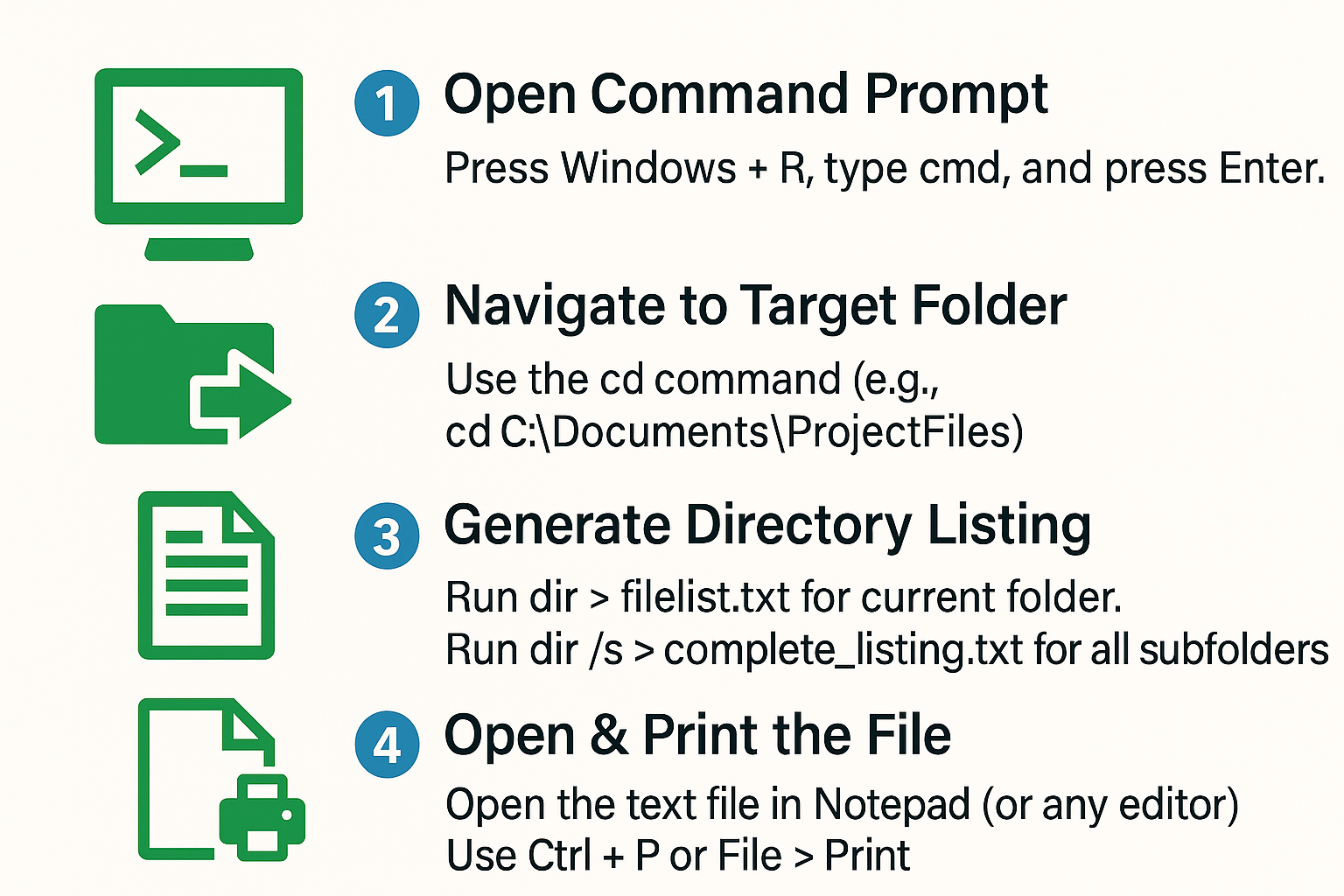
- Open Command Prompt by pressing Windows key + R, typing “cmd”, and pressing Enter to access the command line interface
- Navigate to your target directory using the “cd” command followed by the folder path, such as “cd C:\Documents\ProjectFiles” to change directories
- Execute “dir > filelist.txt” to create a text file containing all filenames, sizes, dates, and subdirectories in the current folder
- Use “dir /s > complete_listing.txt” to include all subdirectories and their contents in a comprehensive recursive listing of the entire folder structure
- Open the generated text file in Notepad or your preferred text editor, then print using Ctrl+P or the File menu print option
Using PowerShell for detailed file information
- Launch PowerShell as administrator by right-clicking the Start button and selecting “Windows PowerShell (Admin)” from the context menu
- Navigate to your desired directory using “Set-Location” followed by the folder path, maintaining the same directory structure as Command Prompt navigation
- Execute “Get-ChildItem | Out-File -FilePath directory_listing.txt” to create a formatted text file with detailed file and folder information including permissions
- Use “Get-ChildItem -Recurse | Select-Object Name, Length, LastWriteTime | Out-File detailed_list.txt” for customized output showing specific file properties in tabular format
- Open the resulting file in any text editor and print using standard Windows printing commands through the application’s print dialog
Using File Explorer integration methods
- Navigate to your target folder in File Explorer and select all files using Ctrl+A to highlight the entire directory contents
- Hold Shift and right-click in the folder to reveal the “Open PowerShell window here” option in the extended context menu
- Execute “ls | Out-File folder_contents.txt” in the PowerShell window to quickly generate a simple file listing without changing directories
- Alternatively, use “Get-ChildItem | Format-Table Name, Length, LastWriteTime -AutoSize | Out-File formatted_list.txt” for professionally formatted output suitable for printing
- Access the generated text file through File Explorer and use the default text editor’s print functionality to create physical copies
Windows 11 Specific Features and Differences
Windows 11 introduces enhanced PowerShell 7.x integration and improved context menu options. The new “Open in Terminal” option replaces the previous PowerShell menu item, providing direct access to both Command Prompt and PowerShell from any folder location. Windows 11 users can leverage the updated Windows Terminal application for better command-line experience with tabbed interfaces and improved text rendering.
The modern File Explorer in Windows 11 includes refined right-click menus that streamline access to command-line tools. Use the “Show more options” menu item if you need access to legacy context menu features for directory listing generation.
Create a directory listing that can be reproduced later
Before changing directory exports, define the expected outcome and protect any data or recovery information involved. Use a harmless sample and keep the original state available so unsuccessful changes can be reversed cleanly.
Protect the source before testing
Decide whether the listing needs names only, full paths, sizes, modified dates, owners, or recursive subfolders. A simple dir command and a PowerShell object export answer different questions, so choose fields before generating output.
Resolve the exact folder path and write the result to a separate destination. For PowerShell, select only required properties and export CSV when sorting or filtering in Excel; avoid including sensitive paths in shared reports.
Validate access and data
Open the output, compare item counts, and check hidden files, access-denied folders, reparse points, and long names. Record the command and timestamp because a listing is a snapshot, not a live inventory.
After the change, close and reopen the affected client and repeat the original task. A result that survives a new session is stronger evidence than a temporary improvement caused by cached state.
Finish by deciding whether the solution belongs to one user, one device, or a wider deployment. Broader changes require an owner, pilot group, and rollback path even when the individual test succeeds.
Check whether the behavior started after an update, account change, policy assignment, new extension, peripheral, data refresh, or connector edit. Timing alone does not prove cause, but a dated change history helps choose the next comparison and prevents several people from repeating the same unsuccessful repair.
Compare the result with the same input and account after a normal restart. Stable behavior across sessions matters more than one successful attempt, particularly for background processes, scheduled flows, device drivers, and cloud synchronization.
If business records or shared access are involved, ask the content owner to confirm completeness and permissions. A technically successful operation can still expose the wrong version or the wrong audience.
Windows print directory listing troubleshooting
- Access denied errors when running PowerShell commands: Run PowerShell as administrator by right-clicking the PowerShell icon and selecting “Run as administrator” to gain necessary permissions for directory access and file creation in protected locations. Check if you need to modify Windows file associations to ensure proper access to all file types.
- Directory listing appears incomplete or truncated in output files: Increase PowerShell’s output width using “$Host.UI.RawUI.BufferSize = New-Object Management.Automation.Host.Size(120, 3000)” before running directory commands to prevent text wrapping and ensure complete file information display
- Generated text files show garbled characters or formatting issues: Specify UTF-8 encoding when creating output files by adding “-Encoding UTF8” parameter to Out-File commands, ensuring proper character display for files with special names or international characters
Suggestion: Create a batch file containing your frequently used directory listing commands to automate the process for regular reporting needs.
The methods outlined above provide flexible solutions for printing directory listings in Windows 11. Command Prompt offers quick basic listings, while PowerShell enables detailed customization for professional documentation. Choose the approach that best matches your specific requirements for file inventory and documentation purposes.