Copying a Power Automate template workflow is useful when you want the same logic for another team, project, mailbox, or SharePoint site. The copy should be treated as a new automation, however, not as a harmless backup. A duplicated trigger can begin processing live data as soon as the flow is enabled.
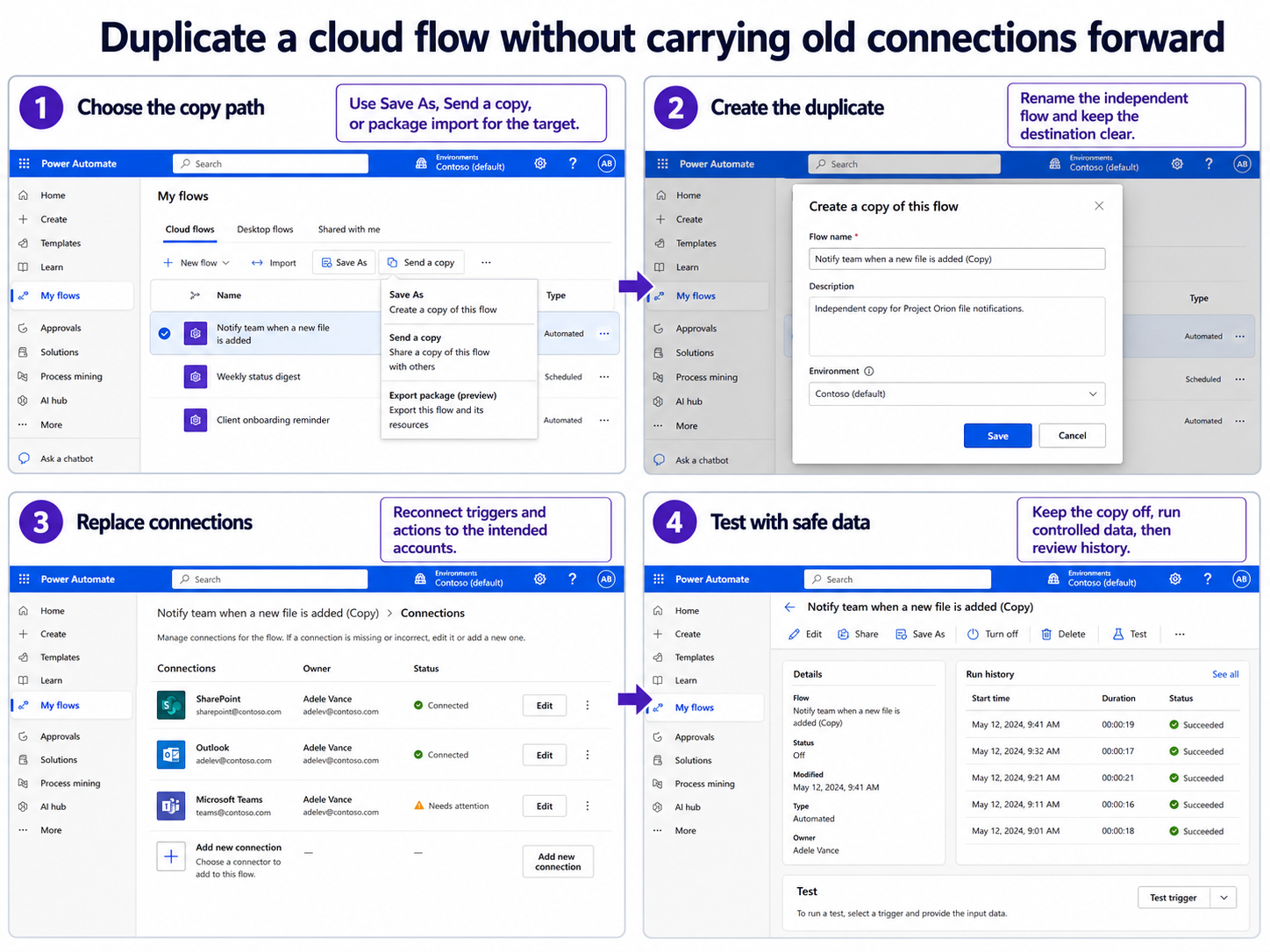
The safest approach is to choose the copy method first, create the duplicate with a clear name, replace its connections and resource values, and then test it while the original flow remains unchanged. Power Automate offers several copy paths, and each one solves a different problem.
Choose the copy method before changing the flow
Use Save As when you own a cloud flow and want another version in the same environment. Use Send a copy when another person needs an independent template that does not share your connections. Use a package or Power Platform solution when the flow must move to another environment.
| What you need | Best starting method | Important detail |
|---|---|---|
| A duplicate in the same environment | Save As | Rename it clearly and confirm where the copy was saved. |
| A reusable template for another user | Send a copy | The recipient creates an independent flow and supplies connections. |
| One non-solution flow in another environment | Export and import package | Choose Create as new during import and map related resources. |
| Repeatable deployment or several related components | Power Platform solution | Keep connection references and environment variables with the solution. |
Do not use co-ownership when the real goal is an independent template. A co-owner can edit the same flow definition, whereas a copy lets each owner change and test a separate automation.
Duplicate a workflow in the same environment
Use Save As from the flow details page
Sign in to Power Automate and select My flows. Open the cloud flow you want to copy, choose Save As, enter a name that identifies the new purpose, and save it. For example, replace a vague name such as “Invoice approval copy” with “UK invoice approval – test” so nobody confuses it with production.
Power Automate can take a few seconds to finish the copy. If you return to My flows immediately and do not see it, refresh the list before repeating Save As. Repeating the command too quickly can leave you with two copies that look nearly identical.
If the copied template needs a different trigger, rebuild that part deliberately rather than editing random fields until it runs. Reviewing the trigger-and-action basics helps you separate the event that starts the flow from the actions that follow it.
Keep solution-aware flows in the intended solution
For a solution-aware cloud flow, the current solution context matters. Open an unmanaged solution first, find the flow inside it, and then use Save As if you want the duplicate added to that solution. Microsoft notes that a Save As operation without a suitable solution context can leave the duplicate in My flows or the default solution instead.
Check the Solutions card on the copied flow’s details page before you start editing. This small check prevents a working duplicate from being stranded outside the solution you expect to export or maintain.
Send another maker an independent template
Open the source flow’s details page and select Send a copy. Add a useful name and description, then choose the recipient. Microsoft describes the result as an independent flow instance: the recipient receives the definition as a template, creates their own flow, and can modify it without changing yours.
Connections are not shared with the copied template. That separation is helpful because it avoids handing another person your connector credentials, but it also means the recipient must authenticate each required service. Once sent, access to that independent copy cannot be revoked from the original flow, so confirm the recipient before sending it.
Use this path for a colleague who needs the pattern, not for someone who only needs to run the original automation. Run-only access is a better fit when a user should trigger an instant flow without viewing or editing its design.
Replace connections and environment-specific values
Inspect every trigger and connector
Open the duplicate, select Edit, and inspect the trigger followed by every connector action. Confirm the signed-in account, connection owner, mailbox, SharePoint site, list or library, Teams destination, workbook, and gateway where relevant. A flow can save successfully while still pointing at a test site or an old owner’s connection.
When SharePoint is involved, apply those connector permission checks to the copied trigger and actions. The new owner needs access to the source content and every destination the flow reads or changes.
Replace fixed IDs, addresses, and recipients
Look beyond the visible connection name. Expand actions and conditions to find fixed email addresses, folder paths, channel IDs, list names, approval recipients, URLs, and expressions that contain environment-specific values. Templates often hide these values inside nested conditions or an Apply to each loop.
For solution-based deployments, use connection references and environment variables for values that change between development, test, and production. For a one-off copy, update the values directly but keep the duplicate turned off until the review is complete.
Test the copied workflow without duplicate processing
Keep the duplicate off while you configure it. If the original and copy use the same automatic trigger, enabling both can cause each flow to react to the same email, file, form response, or list item.
- Give the copy a unique test name and confirm its environment.
- Replace all connections and destination values.
- Use a controlled test record that is easy to identify and remove.
- Run a manual test when the trigger supports it, or create one safe trigger event.
- Open Run history and inspect the trigger inputs and each action output in order.
- Verify the intended destination before enabling the copied flow for normal use.
A successful status only proves that the actions completed. Check the actual email, file, list item, approval, or Teams message as well. The wrong destination can still return a technically successful run.
Questions you might have
Can I copy a Power Automate flow that I do not own?
You normally need to be the creator, owner, or co-owner to work with the source definition. If the owner uses Send a copy, you can create an independent instance from the template without receiving their connections. Ask for run-only access instead if you only need to trigger the existing flow.
Why is Save As missing or the copy not in my solution?
First confirm that you can edit the source flow and that you opened its details page. For solution-aware flows, open the unmanaged solution before using Save As so the solution provides the intended context. If the copy was made outside that context, check My flows and the default solution.
Which copy method should I use for another environment?
For one non-solution flow, export a package and choose Create as new when importing it. For application lifecycle management or several related components, Microsoft recommends Power Platform solutions. The destination environment also needs the required permissions, connections, and dependent resources.
Will the original and copied workflows both run?
They can if both are enabled and watch the same event. Keep the new copy off until its trigger, filters, connections, and destinations are verified. Enable it only when you have decided whether the original should remain active.
Put the duplicate into service deliberately
A copied workflow is a starting point, not a finished deployment. Choose Save As, Send a copy, or an import method according to the destination, then review every connection and fixed value before testing. Keep the duplicate disabled while you use controlled data, and inspect the real output as well as run history. That process preserves the useful template logic without carrying the source flow’s hidden assumptions into production.