Microsoft Edge calls bookmarks favorites. When they disappear, the cause is often a different Edge profile, a hidden Favorites bar, an incomplete sync state, or an accidental deletion. Recovery is possible when another device, an HTML export, or the local profile still holds a usable copy.
One important change affects current instructions: Microsoft removed Edge’s former Restore deleted favorites feature in version 128.0.2739.42 and later. If a guide tells you to open a 28-day favorites recycle bin, it describes an interface that is no longer available in current Edge. Use the evidence-based paths below instead.
Decide whether the favorites are missing or merely hidden
Open edge://favorites and search for a distinctive page name. Expand Favorites bar, Other favorites, Mobile favorites, and any Imported folder. The Favorites panel can also be opened with Ctrl+Shift+O.
Confirm the active Edge profile
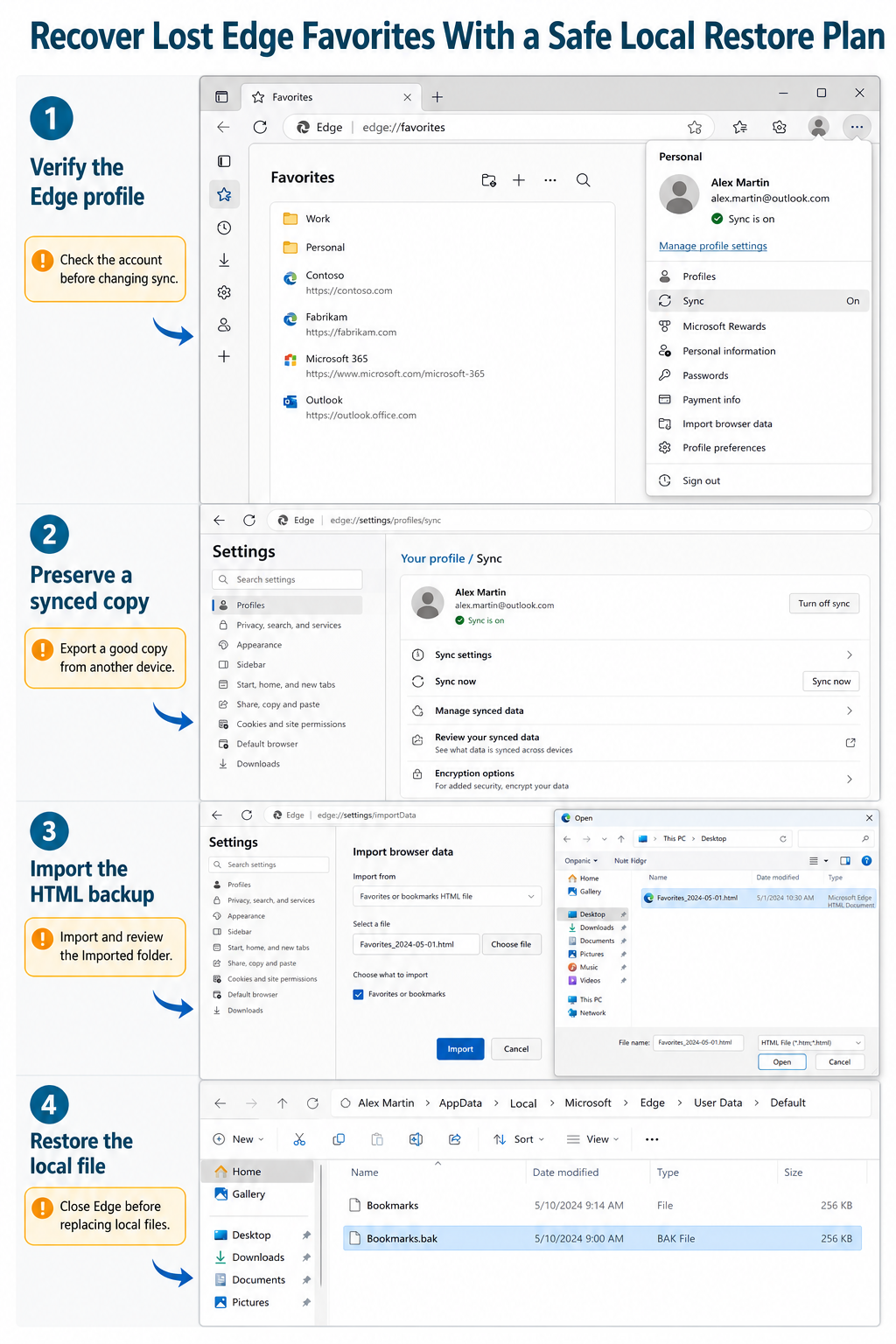
Select the profile picture in the upper-right corner. Check the account name and whether you are using Personal, Work, Guest, or another profile. Each profile has its own local favorites file, so changing profiles can make a complete collection appear to vanish.
Open edge://settings/profiles if the profile menu is unclear. Do not delete or reset any profile while investigating. A profile that looks unused may contain the copy you need.
Show the Favorites bar
Press Ctrl+Shift+B to toggle the Favorites bar. You can also open Settings and more > Settings > Appearance > Toolbar, then change the Favorites setting to Always or Only on new tabs.
The bar setting affects visibility, not storage. If the items appear at edge://favorites, there is nothing to restore; organize them or change the toolbar display.
Preserve a good copy before sync changes
If another computer or phone still shows the full list, take that device offline before editing favorites. On a desktop copy, open edge://favorites, choose the three-dot menu, and export the favorites to an HTML file.
Microsoft warns that deleting browsing data while signed in and syncing can remove it from all synced devices. That makes an offline export more reliable than repeatedly switching sync off and on. Save the HTML file outside Edge’s profile folder.
For ongoing protection, keeping a dated HTML copy outside the browser profile gives you a restore point that is independent of the current Microsoft account state.
Check the account and Favorites sync setting
Go to Settings and more > Settings > Profiles > Sync. Confirm that the expected Microsoft account is shown and that Favorites is enabled. Sync can retrieve data already associated with that account, but it is not a recycle bin and may also propagate deletions.
If a second device has the correct list, export from it before reconnecting. Only after the HTML file is safe should you troubleshoot account sign-in or allow another sync cycle.
Recover from an HTML export
An HTML file is the cleanest recovery source because it is separate from Edge’s live database and sync state.
- Open Edge and select Settings and more > Settings.
- Under Profiles, select Import browser data.
- Next to Import browser data now, select Import.
- In Import from, choose Favorites or bookmarks HTML file.
- Select Choose file, open the saved HTML file, and finish the import.
Microsoft says imported favorites appear in a folder on the Favorites bar, commonly named Imported. Review that folder before moving items; importing normally adds data rather than replacing the current collection.
If the only surviving copy is still in Chrome, Firefox, or another browser, the broader browser-data transfer route may be faster than exporting and reorganizing each folder manually.
Restore Edge’s local favorites file
Use this advanced method only when no current profile or HTML export contains the missing favorites. Edge is Chromium-based, and its profile stores a Bookmarks file plus, when available, a Bookmarks.bak backup created before a later save.
The backup is not version history. If Edge has already written the incomplete state, both files may contain the same data.
Locate the exact profile folder
Open edge://version and find Profile path. Do not assume the folder is named Default; it may be Profile 1, Profile 2, or another name.
A typical Windows path is:
%LOCALAPPDATA%\Microsoft\Edge\User Data\Default
Copy the entire profile folder to a safe location before changing any file. Compare the modified dates and sizes of Bookmarks and Bookmarks.bak. A .bak file saved before the favorites disappeared is the useful candidate.
Test the backup without destroying the current state
- Close every Edge window.
- Open Task Manager and confirm that no
msedge.exeprocess remains. - Rename
BookmarkstoBookmarks.current. - Copy
Bookmarks.bakand name the copyBookmarks; keep the original backup unchanged. - Start Edge and inspect
edge://favorites. - If the favorites return, export them to HTML immediately.
- If the result is wrong, close Edge and restore
Bookmarks.currentasBookmarks.
Rebuild only what cannot be recovered
When neither local file contains the missing list, open history with Ctrl+H. Search for memorable words from a page title or domain, open each result, and select the star in the address bar. History can recover URLs, but not the original folder structure.
On a managed work computer, ask IT whether File History, endpoint backup, or a profile-management system captured the Edge user-data folder. Copy any restored Bookmarks file for inspection instead of overwriting the live profile immediately.
Avoid extensions or websites that ask you to upload the entire Edge profile. Favorites can reveal internal applications, client systems, research topics, and private URLs. Work only with local copies you control.
Quick answers for Edge favorites recovery
Where did the Restore deleted favorites button go?
Microsoft removed that recovery feature in Edge 128.0.2739.42 and later. Current Edge users should not expect the old 28-day deleted-favorites interface. Check profiles, preserve another synced copy, import HTML, or inspect the local backup instead.
Does importing an HTML file remove current favorites?
Edge normally adds imported favorites and places them in an Imported folder. It does not use the HTML file as a destructive replacement. Export the current list first if you want a simple rollback before merging folders.
Why is Bookmarks.bak missing?
You may be viewing the wrong Edge profile folder, or a backup may not have been created. Use Profile path at edge://version rather than guessing. If the file is absent, do not manufacture one; rely on another device, HTML export, history, or a system backup.
Can mobile Edge restore a local Windows favorites file?
No. The Windows file-replacement method applies to the desktop profile. Recover the favorites on a trusted desktop installation, export a safety copy, verify the Microsoft account, and then allow the collection to sync to mobile.
Make the next recovery simpler
After the list is correct, remove unwanted duplicates, export a fresh HTML file, and give it a dated filename. Keep one copy outside the Edge profile and another on a separate drive or trusted cloud location. Sync makes favorites convenient across devices, while an independent export gives you a controlled restore source when the account or profile state is wrong.