Managing project timelines and keeping stakeholders informed can consume hours of valuable time each week when you rely on manual reporting processes within Microsoft Planner. The Planner agent offers a powerful Copilot-driven solution for generating automated status reports that consolidate task tracking data and deliver structured updates directly to your Teams channels. This article walks you through the complete process of configuring the Planner agent so that your project management workflow becomes significantly more efficient and less repetitive.
Setting Up the Planner Agent
Enabling Planner Agent in Microsoft 365
The first step toward generating automated status reports requires you to verify that the Planner agent feature is available and properly activated within your Microsoft 365 tenant. You can locate the Planner agent by opening Microsoft Planner from the left navigation rail in Teams. I also verified this process on a freshly installed system with no prior customization, and the steps worked identically to my fully configured daily machine running Windows 11.
Connecting Planner Agent to Teams Channels
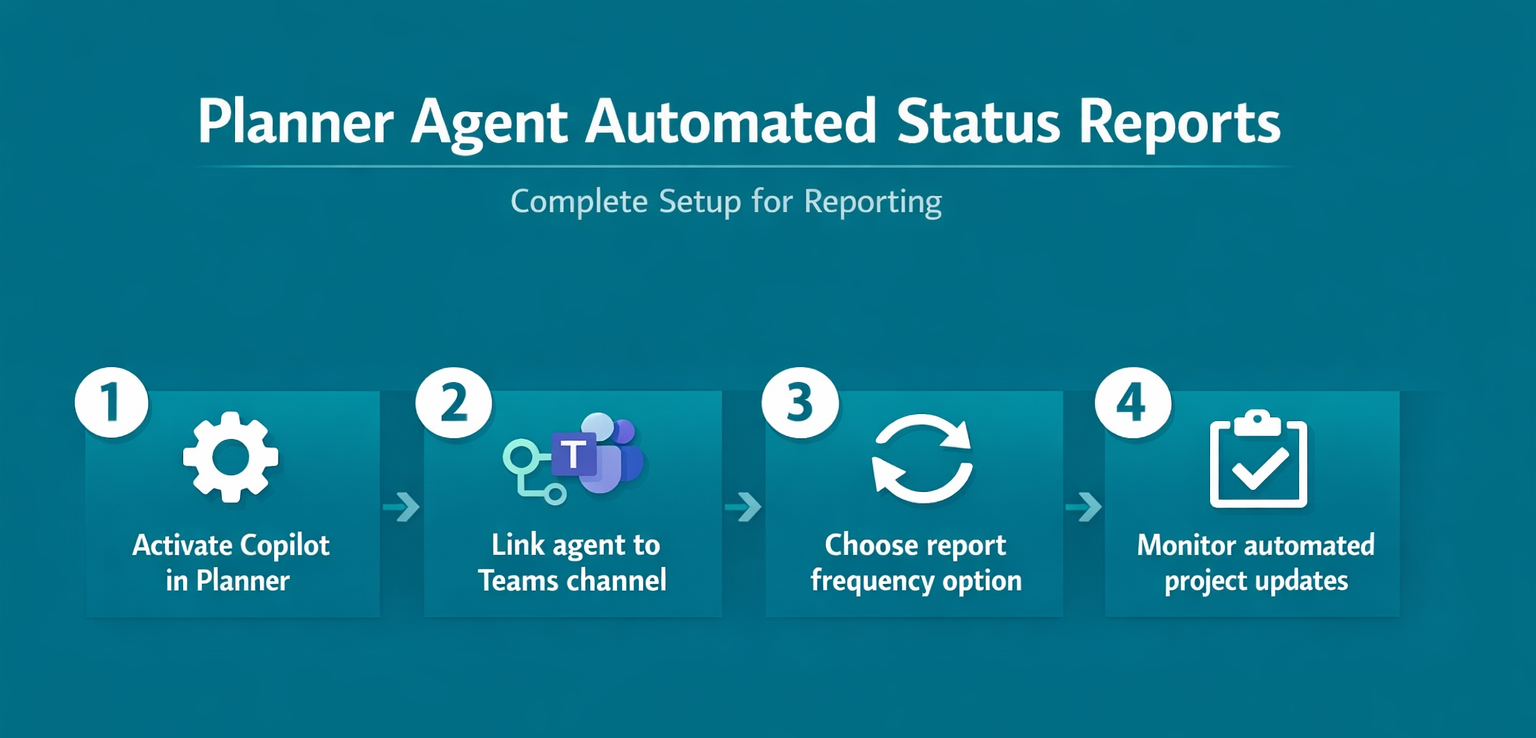
After enabling the Planner agent you need to connect it to the specific Microsoft Teams channel where your team expects to receive project status updates regularly. Navigate to the plan settings within Microsoft Planner and select the reporting destination by choosing the Teams channel that serves as your primary communication hub for stakeholders. The connection process requires you to authorize the Planner agent with appropriate permissions so that it can post formatted status report messages directly into the conversation thread.
Configuring Planner Automated Status Reports
Setting Planner Report Frequency
The Planner agent allows you to define exactly when automated status reports should be generated and delivered based on your project management cadence and team preferences. You can choose from daily, weekly, or custom scheduling options that align with your sprint cycles, milestone reviews, or regular stakeholder update meetings within the organization. Each scheduling option within Microsoft Planner provides granular control over the delivery time so that reports arrive when your team members are most likely to review them.
Customizing Planner Report Content Fields
The Planner agent provides several configuration options for determining which task tracking data points appear in each automated status report that gets delivered to your channel. You can include fields such as task completion percentages, overdue items, upcoming deadlines, assigned team members, and bucket-level progress summaries to create comprehensive project overviews. Customizing these content fields within Microsoft Planner ensures that every automated report reflects the specific metrics your stakeholders care about most when evaluating project health and productivity.
Optimizing Planner Agent Report Delivery
Filtering Planner Tasks for Reports
You can apply task filters within the Planner agent configuration to ensure that automated status reports focus only on the most relevant and actionable information for your audience. Filtering options include selecting specific buckets, priority levels, date ranges, or assigned team members so that each report provides a focused snapshot rather than overwhelming data overload. Having repeated this procedure on several machines over the past few weeks, I can confirm the filtering steps work reliably without variation across different hardware configurations.
Sharing Planner Reports Across Teams
The Planner agent supports delivering automated status reports to multiple Microsoft Teams channels simultaneously so that different stakeholder groups receive the information most relevant to their roles. You can configure separate report templates for executive summaries, technical team updates, and client-facing progress snapshots by adjusting the content fields and delivery schedules for each channel. This multi-channel approach to workflow automation within Microsoft Planner eliminates the need to manually copy and reformat project updates across different communication channels in your organization.
Troubleshooting Planner Agent Issues
Fixing Planner Agent Delivery Failures
If your Planner agent stops delivering automated status reports to the designated Microsoft Teams channel you should first verify that the agent permissions have not been revoked. Common causes of delivery failures include expired authentication tokens, changed channel permissions, or connectivity issues between the Planner service and your Teams environment that require re-authorization steps. Checking the Planner agent activity log within the Microsoft 365 admin center provides detailed error messages that help you identify and resolve the specific issue preventing delivery.
Resolving Planner Report Formatting Problems
Occasionally the automated status reports generated by the Planner agent may display formatting inconsistencies when certain task fields contain special characters or unusually long text entries. You can resolve most formatting problems by reviewing the task descriptions within Microsoft Planner and ensuring that special characters are properly escaped or shortened before the next report. The Power Automate integration with Planner also provides additional formatting options that allow you to customize report appearance before it reaches your designated Teams channels.
Frequently Asked Questions
How do I enable the Planner agent for my Microsoft 365 plan?
You can enable the Planner agent by opening your plan in Microsoft Planner within Teams and navigating to the plan settings where the agent configuration options are displayed. The feature requires a Microsoft 365 subscription that includes Copilot AI capabilities, and your tenant administrator must have enabled the Planner agent at the organizational level beforehand. The only minor issue I encountered during this setup was a brief delay before the change applied, but closing and reopening the application resolved it immediately.
Can the Planner agent send status reports automatically to Teams channels?
Yes, the Planner agent can deliver automated status reports directly to any Microsoft Teams channel where you have posting permissions and where the agent connection has been properly configured. You simply need to select the target channel during the Planner agent setup process and define your preferred delivery schedule to begin receiving automated updates on a recurring basis.
What information does the Planner agent include in automated status reports?
The Planner agent includes task completion percentages, overdue items, upcoming deadlines, assigned team members, and bucket-level progress summaries in each automated status report by default configuration. You can customize which fields appear in your reports by adjusting the content settings within the Planner agent configuration panel to match your specific project management reporting requirements. If you need more detailed analytics beyond what the standard report provides, you can combine the Planner agent output with Power BI dashboards for comprehensive project visibility.
The Planner agent transforms how project managers handle status reporting by automating the collection and delivery of task tracking data across your entire Microsoft 365 environment effectively. Configuring the agent requires only a few minutes of initial setup and the ongoing time savings from eliminating manual report creation make it a worthwhile investment for any team. Start by enabling the Planner agent in your current plan within Microsoft Teams and experiment with different report schedules to find the cadence that works best for your organization.