Your printer vanishes from the Devices and Printers control panel, and every print job gets stuck in the queue. This printer not showing up problem usually traces back to a crashed Print Spooler service, a corrupted driver, or a stale registry entry that Windows 11 refuses to clean up on its own. The seven fixes below target each root cause so your printer reappears and stays visible after every reboot.
Troubleshoot Printer Not Working on Windows
Work from the connection outward before removing drivers. This order separates a printer that Windows cannot discover from one that is installed but unable to print.
Check the printer and its connection
Turn off the printer, unplug its power cable for 30 seconds, reconnect it, and turn it on. For USB models, reseat the cable and try another USB port. For Wi-Fi printers, confirm that the printer and PC use the same network name; guest networks and separate router bands can prevent discovery. Clear any paper, cover, ink, or toner warning shown on the printer itself.
Run the Windows printer troubleshooter
Open Get Help from Start, search for printer troubleshooter, and run the guided diagnostic. Microsoft now recommends the Get Help troubleshooter for Windows 11 because it checks common connection, queue, and driver problems and attempts applicable repairs. Restart Windows if the tool asks, then return to Settings > Bluetooth & devices > Printers & scanners.
Remove and add the printer again
If the printer is listed but remains unavailable, select it under Printers & scanners and choose Remove. Restart the PC, make sure the printer is powered on and connected, then select Add device. Wait for Windows to finish searching. If the model does not appear, choose Add a new device manually and select the option that matches a USB, TCP/IP, or shared-printer connection. You may need administrator approval on a managed work computer.
Check the queue, driver, and spooler
Open the printer in Printers & scanners, view its print queue, and cancel jobs that remain stuck. Install current Windows updates and any suitable driver offered through Windows Update or the printer manufacturer’s support site. Avoid third-party driver download utilities.
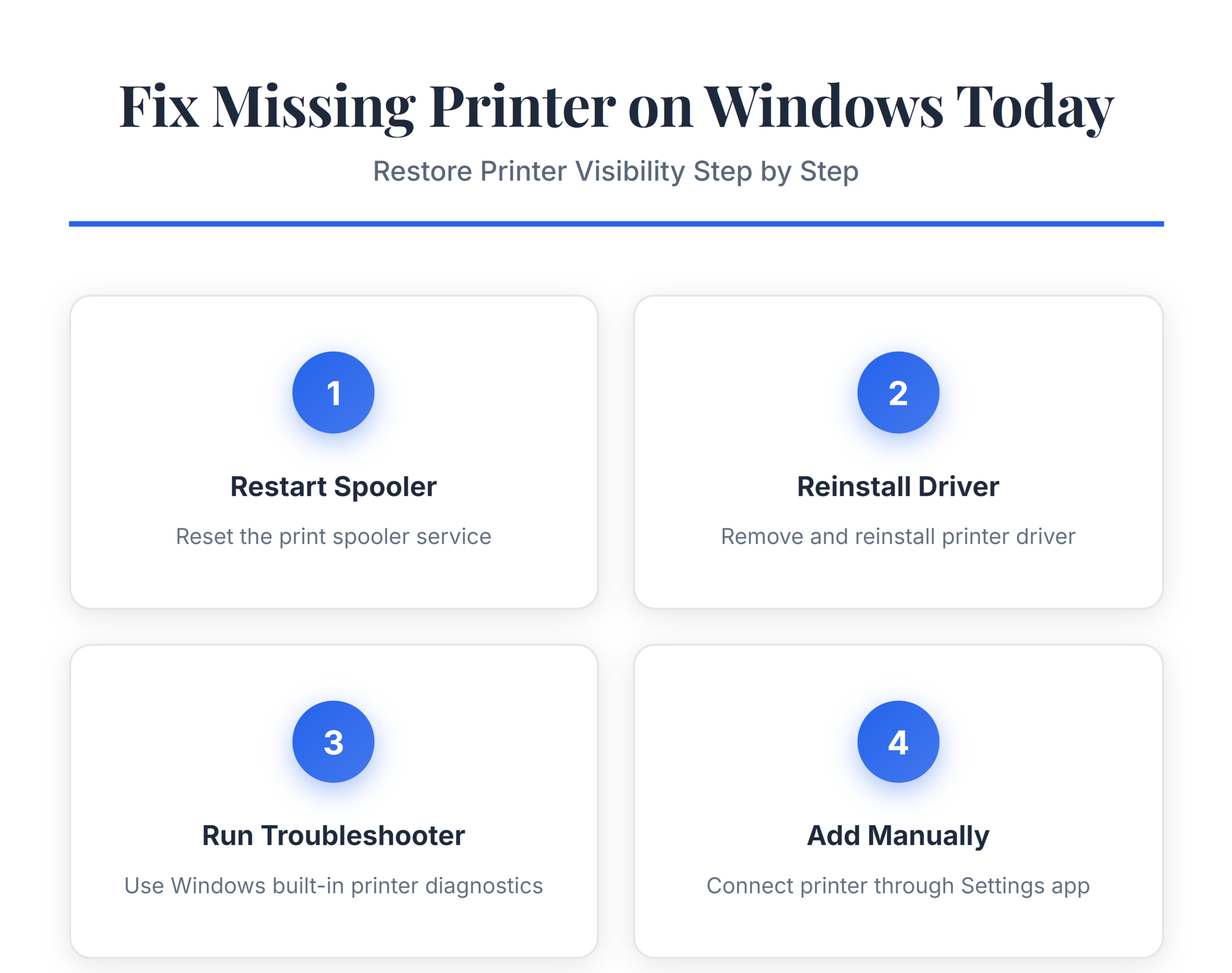
If every printer disappears or the queue will not open, press Win + R, enter services.msc, and restart Print Spooler. Test with a one-page document. If the spooler stops again, or Windows repeatedly loses the printer after rebooting, contact your IT administrator or the printer manufacturer before deleting driver-store files or changing the registry.
Fix Printer Visibility in Windows 11
Clear Stale Printer Entries
Old printer entries from previous installations block Windows from creating new connections to the same hardware. These ghost devices consume driver resources and can cause port conflicts that hide active printers.
Open Device Manager, click View >> Show hidden devices, then expand Print queues. Delete every grayed-out printer entry by right-clicking and selecting Uninstall device. Next, open Settings >> Bluetooth & devices >> Printers & scanners and remove any printers marked as offline or unavailable.
After clearing stale entries, restart the Print Spooler service to force a clean device enumeration. This fix is especially important after Windows updates that reset device configurations.
Update Windows and Printer Firmware
Microsoft ships printer driver fixes and spooler patches through Windows Update. A pending update can leave your system running a driver version that conflicts with the printer’s current firmware.
- Open Settings >> Windows Update and click Check for updates.
- Install all available updates, including optional driver updates listed under Advanced options >> Optional updates.
- Restart your computer after installation completes.
Check your printer manufacturer’s website for firmware updates as well. Many modern printers support firmware updates through a built-in web interface — type the printer’s IP address into a browser to access it. Mismatched firmware and driver versions rank among the most common causes of printer not working on Windows 11.
Reset the Printer Port Configuration
Windows assigns each printer a communication port during initial setup. If that port reference becomes corrupted or points to a disconnected path, the printer disappears from Devices and Printers even though the driver remains intact.
- Open Control Panel >> Devices and Printers.
- Right-click any remaining printer and select Printer properties.
- Go to the Ports tab and identify which port is checked.
- For USB printers, confirm the port matches the physical connection (USB001, USB002).
- For network printers, select Configure Port and verify the IP address and protocol match the printer’s current network settings.
Incorrect port assignments happen frequently when printers receive new IP addresses from DHCP. Assign a static IP address on the printer to prevent this issue from recurring after every router reboot.
Separate printer discovery from printing failures
Start by preserving the working state and defining one repeatable test. Test USB, network reachability, queue, and default-printer selection independently. Record the account, device or client, and exact symptom so every later test uses the same starting point. Avoid combining resets, reinstalls, and permission changes because a successful result would not identify which action mattered.
Establish a reliable baseline
Remove stale entries only after recording the correct port and driver. Use non-sensitive sample data and a standard user account whenever possible. If the sample succeeds, compare its location, ownership, policy, and data shape with the failing item rather than widening the repair to the whole application.
Use a simple local test page before troubleshooting an application. Preserve the original file, configuration, or identifier until the result is confirmed. A locked option or organization message is evidence of an administrative boundary, not an invitation to bypass policy.
Confirm the result from the user’s view
undefined. Close and reopen the relevant app, then repeat the ordinary workflow. Check a second client or observer only when it answers a specific question about synchronization, permissions, hardware, or service availability.
When results differ, note the app version, account type, time, network, and exact error. That information separates a device problem from account, data, permission, or service behavior and gives support a focused case. Remove personal names, addresses, document text, and tokens from screenshots before sharing them.
Have another authorized user repeat the shortest safe test if shared access is involved. Their result may expose owner-only privileges, stale state, or an assumption about storage. Keep the known-good configuration available until the change survives a restart, refresh, or normal work cycle, and reverse experimental settings that did not help. Check the outcome again after the next scheduled synchronization when timing can affect the feature.
Frequently Asked Questions
Why is my printer not showing in Devices and Printers?
The most common cause is a stopped Print Spooler service. Windows depends on this background service to detect and display all connected printers. A crashed spooler, corrupted driver, or stale registry entry from a previous printer installation can all prevent detection. Restart the Print Spooler service first, then check for driver and port issues if the printer still does not appear.
How do I fix a printer that stopped working after a Windows update?
Windows updates occasionally replace working printer drivers with newer versions that contain bugs. Open Device Manager, uninstall the printer driver, then download the previous driver version from the manufacturer’s website. Install it manually and prevent Windows from overwriting it by pausing automatic driver updates in Settings >> Windows Update >> Advanced options.
Can a firewall block printer detection on a network?
Yes. Windows Firewall and third-party security software can block the SNMP and WSD protocols that printers use for network discovery. Add exceptions for ports 161 (SNMP) and 3702 (WSD) in your firewall settings, or temporarily disable the firewall to confirm whether it is causing the detection failure.
Start with the Print Spooler restart since it resolves most printer visibility problems in under a minute. Work through the remaining fixes only if the printer still refuses to appear. Assigning a static IP address to network printers prevents the most common recurrence of this issue.