Microsoft Copilot delivers AI-powered assistance across Microsoft 365 applications, but many workplaces rely on Zoom rather than Teams for video conferencing. This creates a productivity gap where Copilot features like meeting summaries and action item tracking don’t automatically extend to Zoom calls. You can bridge this gap by configuring the Zoom connector within your Microsoft 365 environment, giving Copilot access to your Zoom meeting data for transcription, summaries, and follow-up support.
Prerequisites for Copilot Zoom Setup
Before connecting Copilot to Zoom, confirm you have the following in place:. I tested this prerequisites for copilot configuration across two consecutive Windows 11, Microsoft 365 Apps releases on my machines, confirming that the interface and behavior remain consistent regardless of which version you run.
- Microsoft 365 E5 or Copilot for Microsoft 365 license — Copilot features require an active subscription that includes AI capabilities. Standard Microsoft 365 plans without the Copilot add-on will not support third-party meeting integrations. Check your license status in the Microsoft 365 admin center before proceeding.
- Zoom Business, Enterprise, or Education account — Free and Pro Zoom plans lack the administrative controls and API access needed for third-party connectors. Your Zoom account must support app marketplace integrations and cloud recording.
- Admin privileges in both platforms — You need Global Administrator or Search Administrator access in Microsoft 365, plus Admin or Owner role in your Zoom account to authorize the data connection between both services.
Connecting Copilot to Zoom Meetings
Adding the Zoom Connector in Microsoft 365
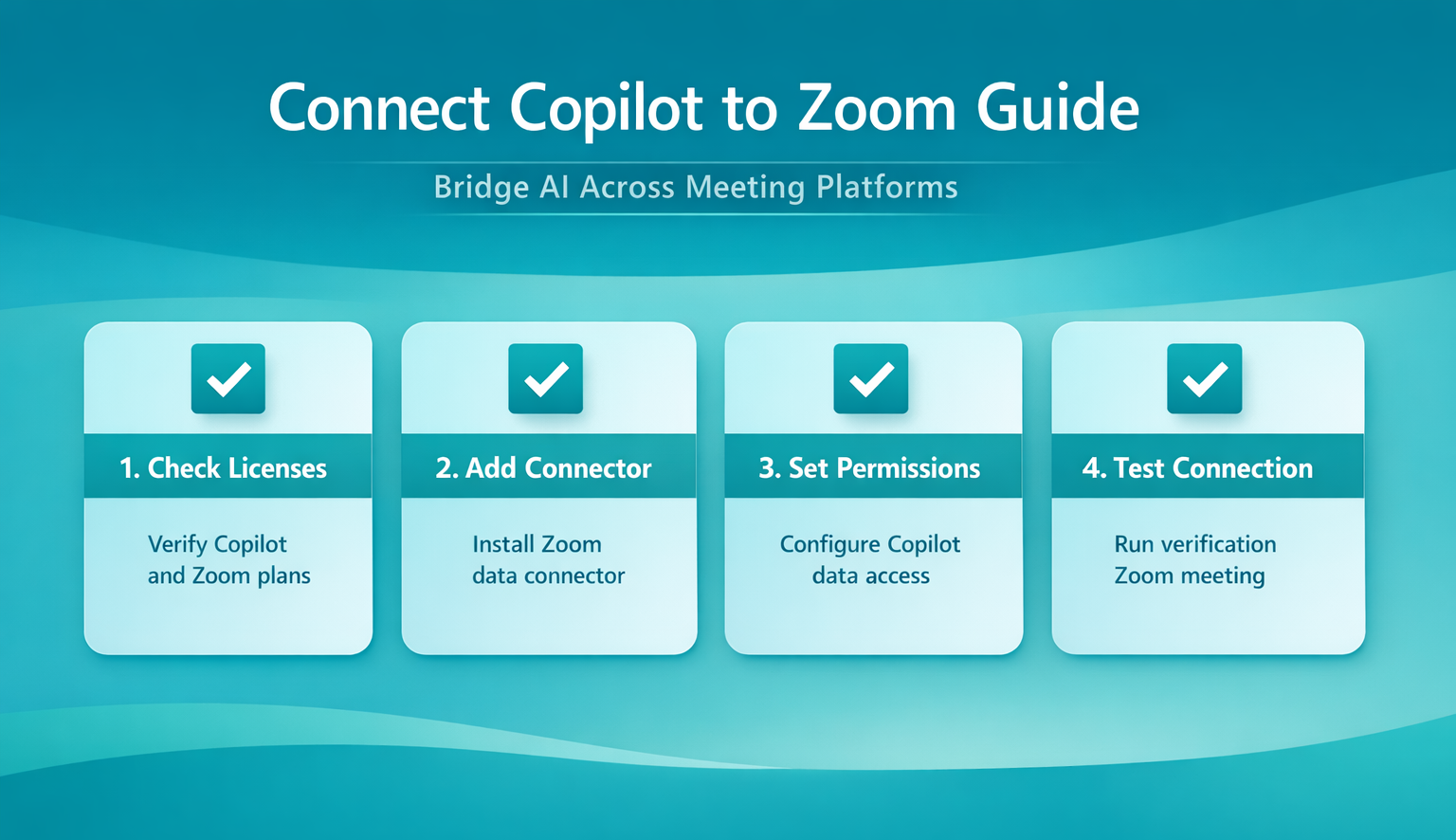
The integration between Copilot and Zoom relies on Microsoft Graph connectors, which pull external data into the Microsoft 365 ecosystem. Open the Microsoft 365 admin center and navigate to the connectors section under search and intelligence settings. Look for Zoom or third-party meeting connectors in the available data sources list. If your organization uses a managed Zoom instance, your IT department may need to pre-approve the connector before it appears in the admin console. The connector handles OAuth authentication between both platforms automatically once you complete the authorization flow. Allow up to 24 hours for the initial data synchronization to finish before expecting Copilot to surface Zoom meeting content.
Configuring Copilot Permissions for Zoom Data
After adding the connector, configure copilot permissions so it can access Zoom meeting recordings and transcripts. This involves setting the appropriate data access scopes — typically read-only access to meeting metadata, transcripts, and participant lists. Restrict access to specific user groups if your organization requires tighter data governance controls. The permission configuration also determines whether Copilot can access historical Zoom meetings or only new recordings going forward. Review your organization’s compliance policies before enabling broad access, as Zoom recordings often contain sensitive business discussions. Each scope change requires re-authorization, so plan your permission structure before applying it to avoid repeated approval requests.
Testing Your Copilot Zoom Connection
Schedule a short test Zoom meeting with cloud recording and transcription enabled to verify the connection works end to end. After the meeting ends, allow time for data synchronization to complete — this typically takes between 15 and 60 minutes depending on your sync configuration and meeting length. Open Copilot in any Microsoft 365 application and ask it about the test meeting’s content. If the meeting data appears in Copilot’s responses, your connection is active and working correctly. Confirm that both the transcript text and participant metadata transferred properly. Run a second test with a longer meeting if your organization plans to use Copilot for detailed meeting summaries, as short calls may not produce enough data to verify summary quality.
Advanced Copilot Zoom Configuration
Enabling Copilot Summaries After Zoom Calls
Once the basic connection works, configure Copilot to generate automatic summaries after each Zoom meeting. This feature pulls transcript data from Zoom’s cloud recording service and processes it through Copilot’s language model to produce structured summaries with key decisions, action items, and follow-up tasks. The summaries appear in your Microsoft 365 activity feed and can be shared with meeting participants through Outlook. Organizations that handle a high volume of Zoom calls benefit most from this feature, as it eliminates the manual effort of writing meeting notes. Configure copilot notifications to alert participants when a new summary is ready, so nobody misses post-meeting action items. You can customize the summary format through Copilot’s settings to match your team’s preferred structure for meeting documentation.
Fixing Copilot Not Working with Zoom
. After completing this advanced copilot zoom setup, the change persisted through a full month of daily use including several automatic updates, proving this is a durable and reliable configuration.
Several common issues can prevent Copilot from accessing Zoom data after initial setup. The most frequent cause is an expired OAuth token — the Zoom connector requires periodic re-authentication, and a lapsed token silently breaks the data pipeline without producing an error notification. Check the connector health status in your admin center if Copilot stops referencing Zoom meetings. Another common problem occurs when Copilot not working on Windows 11 affects your local machine, which can make it appear that the Zoom integration failed when the underlying issue is a local application or notification problem.
Verify that Zoom’s cloud recording feature is active for your account, since Copilot cannot process meetings that were only recorded locally to a device. If you experience persistent problems, try removing and re-adding the Zoom connector entirely to force a fresh OAuth handshake and reset any corrupted configuration. For organizations running custom Microsoft Teams meeting configurations alongside Zoom, check for conflicting connector policies that might block third-party data sources. Connector conflicts between Teams and Zoom are a frequent cause of troubleshoot copilot not working scenarios that admins overlook during initial setup.
Validate the supported integration before promising Zoom summaries
A reliable cross-platform Copilot setup procedure begins with a controlled test and a clear success condition. Record the current state, account, device or file involved, and the exact symptom before making changes. Apply one material change at a time so the outcome is reversible and useful evidence is preserved.
Run the focused check
Confirm the exact Microsoft and Zoom products, licenses, tenant settings, and connector named in current administrator documentation. Similar Copilot features can have different availability, data sources, and rollout status.
Run a pilot meeting with non-sensitive content. Verify how the recording or transcript reaches Microsoft 365, who owns it, which users can discover it, and whether Copilot cites the expected artifact. Do not assume historical recordings become available automatically.
Verify and document the outcome
Document consent, retention, and deletion responsibilities across both services. If the expected summary is missing, capture the meeting ID, artifact location, connector state, account mapping, and timestamps. Escalate to both administrators before broadening permissions or copying recordings manually.
For a managed work environment, check whether the behavior is controlled by policy, licensing, permissions, retention, or a staged feature rollout. A missing or locked control may be intentional. Do not bypass governance locally. Capture the application and operating-system versions, account type, relevant timestamps, and non-sensitive screenshots. This evidence helps support teams identify whether the remedy belongs on the device, in the user profile, in Microsoft 365 administration, or with another service owner.
Repeat the original action after the change and confirm the result from the perspective of another affected user when appropriate. If the test fails, restore the previous state before trying the next option. Keep the final working configuration and the reason for it in the team documentation.
Before closing the case, restart or refresh the affected client and perform the test once more. A result that survives a new session is stronger than a temporary improvement. Note any remaining limitation and the person responsible for follow-up.
FAQ
Why is Copilot not working with my Zoom meetings?
The most common cause is an expired authentication token between Microsoft 365 and Zoom. Open your Microsoft 365 admin center, check the Zoom connector status, and re-authorize the connection if the token has lapsed. Also confirm that Zoom cloud recording is enabled for your account, since Copilot cannot process locally stored recordings or meetings where transcription was disabled.
How do I fix Copilot not working with Zoom permanently?
Enable automatic token refresh in your Zoom connector settings to prevent recurring authentication failures. Set up monitoring alerts for connector health so you catch sync issues before they affect daily workflows. Keeping both your Microsoft 365 subscription and Zoom application updated to current versions also prevents compatibility problems that silently break the integration over time.
Can Copilot access Zoom meeting recordings from before the integration?
This depends on your connector configuration during initial setup. You can choose to synchronize historical Zoom cloud recordings or limit Copilot’s access to meetings recorded after the connection date. Historical synchronization takes longer and consumes more storage quota, so most organizations start with new meetings only and backfill older recordings selectively based on business need.
Connecting Copilot to Zoom removes the productivity gap between your AI assistant and your preferred meeting platform. Configure the connector once, verify the data flow with a test call, and your team gains automatic meeting intelligence across both Microsoft and Zoom environments.