Your printer accepts the job, the progress bar completes, and a perfectly blank sheet rolls out. A printer that prints blank pages is a common problem affecting both inkjet and laser models, and it typically traces back to four causes: depleted or clogged ink cartridges, corrupt printer drivers, misconfigured print settings, or a blocked printhead. Most fixes take less than ten minutes on Windows 11.
Troubleshoot Blank Printer Pages
Check Ink and Toner Levels
Open Settings >> Bluetooth & devices >> Printers & scanners and select your printer. Most modern printers display remaining ink or toner levels directly in this panel or through the manufacturer’s companion app. Low ink produces blank pages more often than faded output because the printhead cannot distribute enough pigment when the cartridge drops below a critical threshold.
Replace any cartridge showing critically low levels, even if only one color appears depleted. On inkjet printers, a dried-out cartridge that sat unused for two or more weeks causes blank output despite showing ink remaining in the software reading. Remove the cartridge and gently shake it side to side to redistribute settled ink before reinstalling — this temporary fix sometimes restores printing while you wait for a replacement to arrive.
Run the Windows Printer Troubleshooter
Open Settings >> System >> Troubleshoot >> Other troubleshooters and click Run next to Printer. The built-in troubleshooter detects configuration errors including stuck print queues, offline status flags, and port mismatches that silently produce blank pages. You can also run the built-in Windows troubleshooter from the legacy Control Panel if the Settings app method fails. Windows 11 applies fixes automatically and reports what changed after each scan.
If the troubleshooter identifies a spooler problem, it restarts the Print Spooler service, which clears corrupted jobs from the queue. You can also restart the spooler manually:
- Press Win + R, type services.msc, and press Enter
- Find Print Spooler in the list, right-click it, and select Restart
- Return to your document and send the print job again
Run this tool before attempting manual driver changes because it catches problems that are difficult to spot through visual inspection alone.
Clean Printer Printhead Nozzles
Access your printer’s maintenance utility through Settings >> Bluetooth & devices >> Printers & scanners >> your printer >> Printing preferences >> Maintenance tab. Select the printhead cleaning option and run it once. After the cycle completes, print a nozzle check pattern to confirm all color channels fire correctly.
Follow these steps if the first cleaning cycle does not resolve the blank output:
- Run a second cleaning cycle if gaps appear in the nozzle test pattern
- Wait five minutes between cycles to prevent overheating the printhead
- After three unsuccessful attempts, remove the cartridge and wipe the printhead contacts with a lint-free cloth dampened with distilled water
- Allow the printhead to dry completely before reinstalling the cartridge
Clogged nozzles are the leading cause of blank pages on inkjet printers that sit idle for extended periods. The ink inside the nozzles dries and hardens into a plug that blocks flow even when the cartridge contains plenty of ink. Running a cleaning cycle forces ink through the nozzles under pressure to break up dried deposits.
Update or Reinstall Printer Drivers
Outdated or corrupted drivers produce blank output more frequently than most users expect. Open Device Manager, expand Print queues, right-click your printer, and select Update driver. Choose Search automatically for drivers to let Windows locate the latest version from Microsoft’s driver catalog.
If updating the driver does not resolve the blank page issue, perform a complete removal and reinstall:
- Right-click the printer in Device Manager and select Uninstall device
- Check the box to delete the driver software when prompted
- Restart your computer to clear any cached driver files
- Reconnect the printer and allow Windows to reinstall the driver automatically
Download the driver directly from the manufacturer’s support page if Windows installs a generic version. Generic drivers lack model-specific print commands and communication protocols, which causes certain printer models to process jobs without producing any ink output. Match the driver version to your exact printer model number printed on the label on the front or back of the device for the most reliable results.
Printer Blank Page Edge Cases
Fix Blank Pages After Cartridge Change
New cartridges sometimes ship with protective tape covering the ink nozzles or electrical contacts. Remove the cartridge and verify that all orange or yellow protective strips have been fully pulled away, including any small tabs along the bottom edge of the cartridge housing. Reinstall the cartridge firmly until it clicks into the carriage assembly, because a loose cartridge cannot make proper electrical contact with the printhead.
Run one printhead cleaning cycle after installing any new cartridge to prime the ink delivery channels. If blank pages persist after a fresh cartridge install, try the cartridge in a different slot to rule out a defective unit. Contact the manufacturer for a warranty replacement if the new cartridge fails across multiple slots or in a second printer.
Resolve Blank Output From Specific Apps
When only certain programs produce blank pages while others print normally, the issue sits with the application settings rather than the printer hardware. Open the problem application and access print settings by pressing Ctrl + P. Verify the correct physical printer appears selected in the printer dropdown, because applications sometimes default to a virtual printer like Microsoft Print to PDF that creates files instead of producing paper output.
Check that your document content falls within the printable area defined by the page margins. Content positioned outside the margin boundary appears on screen but prints as empty space on paper. Reset the application’s print preferences to their default values if the blank output continues, and test by printing a different document to confirm whether the issue follows the specific file or the application itself.
FAQ
Why does my printer print blank pages even with full ink cartridges?
Full cartridges produce blank pages when the printhead nozzles are clogged from dried ink. This happens frequently on inkjet printers left idle for two or more weeks. Run the printhead cleaning utility through your printer’s maintenance settings to force ink through the blocked nozzles and restore normal output.
How do I fix a printer printing blank pages on Windows 11?
Open Settings >> System >> Troubleshoot >> Other troubleshooters and run the Printer troubleshooter first. If blank pages continue, update your printer driver through Device Manager and run a printhead cleaning cycle. These three steps resolve the majority of blank page cases on Windows 11.
What is the permanent fix for printer blank pages?
The most reliable permanent fix involves updating your printer driver to the latest manufacturer version and scheduling regular printhead maintenance. Print a test page at least once per week to keep ink flowing through the nozzles and prevent the drying that causes most recurring blank page problems.
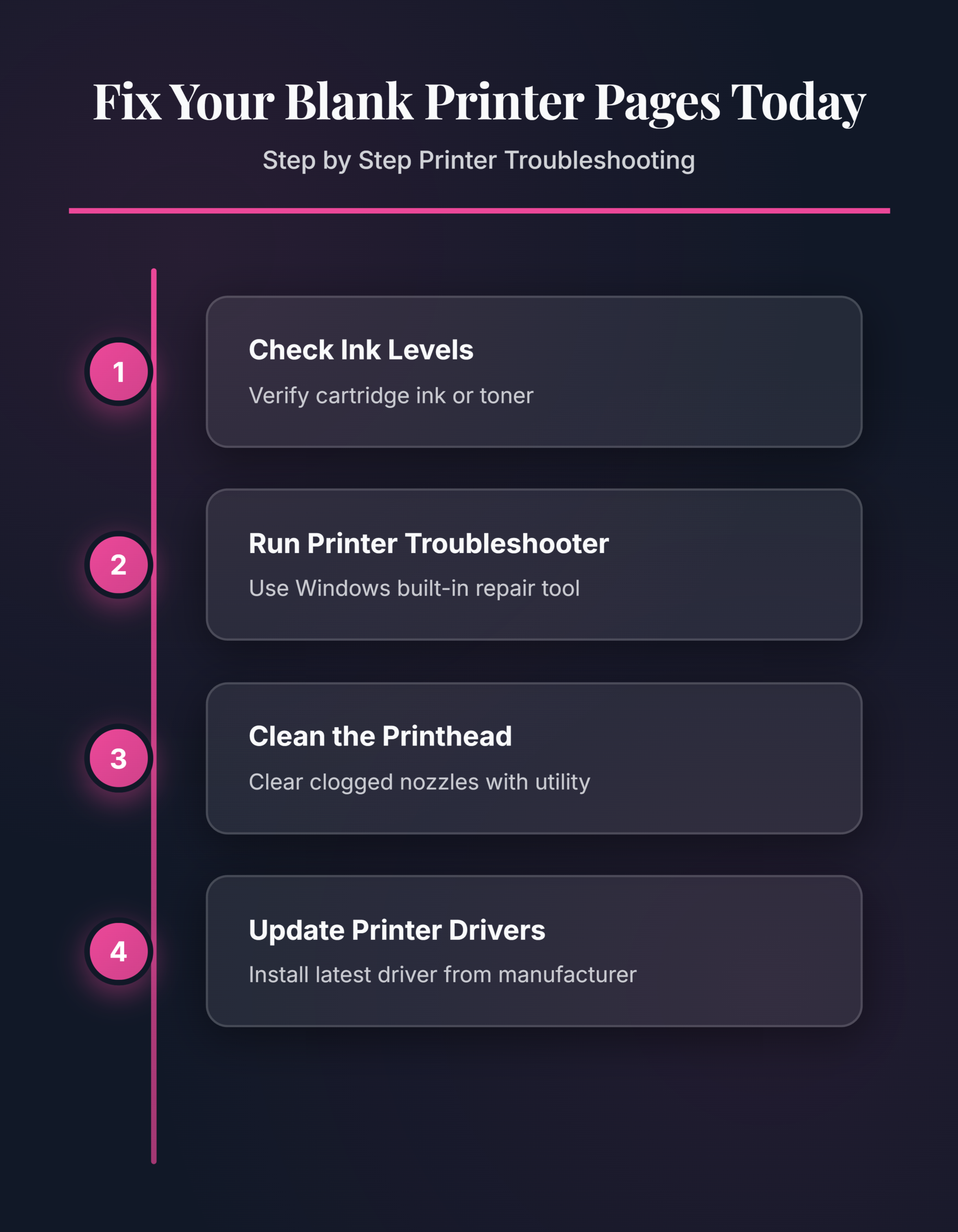
Start with ink and toner levels, move to the Windows troubleshooter, then clean the printhead and update drivers. Working through these steps in order isolates the cause quickly and avoids unnecessary hardware replacements when a software fix restores normal printing.