Your Microsoft Planner workspace is cluttered with completed projects and outdated plans. Deleting these plans clears your workspace and removes associated tasks permanently. But deletion isn’t always reversible, and you need the right permissions to proceed.
Microsoft Planner plan deletion affects more than just the plan itself. When you delete a plan in Microsoft Planner, you remove all tasks, attachments, and conversation history permanently. The associated Office 365 group may also be deleted depending on your setup.
Understanding Microsoft Planner Plan Deletion
What Happens When You Delete Planner Plans.
While working through these understanding microsoft planner adjustments on my computer, I found that the new configuration synchronized automatically across all signed-in profiles without requiring additional setup.
Deleting a Microsoft Planner plan triggers a cascade of changes across your Office 365 environment. The plan disappears from all team members’ views immediately. All tasks within the plan are permanently removed, including their descriptions, due dates, and file attachments.
The deletion also affects the underlying Office 365 group if the plan was the group’s primary purpose. Microsoft automatically removes groups that have no remaining content or active services. This means associated SharePoint sites, shared mailboxes, and Teams channels may also disappear.
Conversation threads linked to tasks become inaccessible once the plan is deleted. Any comments, updates, or discussion history vanishes with the plan. This data cannot be recovered through standard Microsoft 365 recovery tools.
Microsoft Planner Plan Deletion Permissions
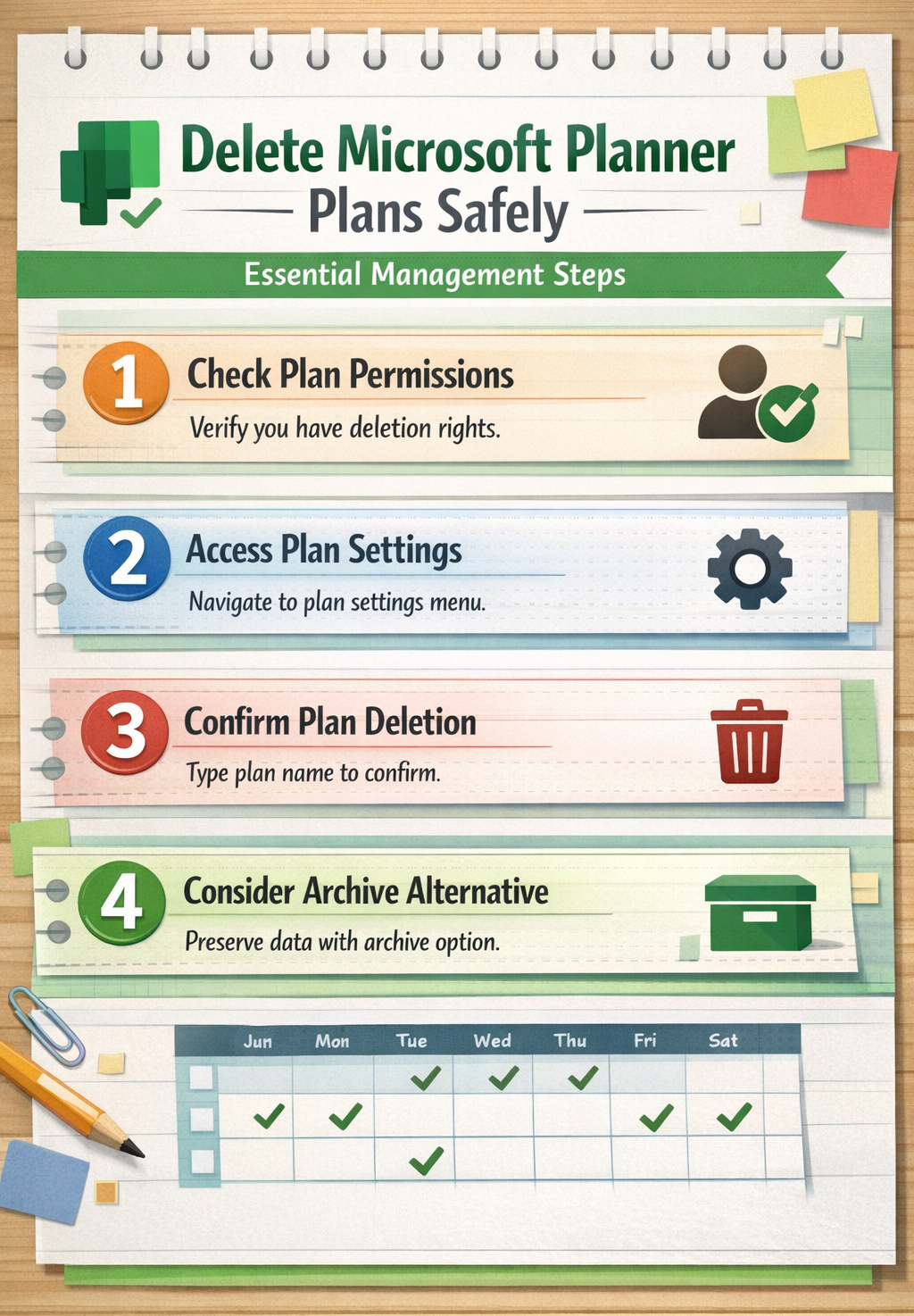
Only specific users can remove Microsoft Planner plans permanently from your organization. Plan owners have full deletion rights for plans they created or inherited through team ownership transfers. Group owners also possess deletion permissions for any plans associated with their Office 365 groups.
Global administrators and SharePoint administrators can delete any plan within their organization regardless of ownership status. These admin roles override standard permission restrictions for compliance and management purposes.
Regular plan members cannot delete plans even if they have edit access to tasks and buckets. They can modify plan content but lack the elevated permissions required for permanent plan removal. Team ownership must be transferred to grant deletion rights to other users.
How to Remove Microsoft Planner Plans
Delete Planner Plan From Teams Interface
Microsoft Teams provides the fastest route to delete Planner plans integrated with your team channels. Navigate to your team and select the Planner tab containing the plan you want to remove.
Click the Settings button (three dots) next to the plan name in the Planner tab. Select Remove tab from the dropdown menu to disconnect the plan from Teams. This removes the Teams integration but preserves the plan in the standalone Planner web app.
To delete the plan entirely, you must complete the process in the Planner web application. The Teams interface only handles tab removal, not permanent plan deletion. The plan remains accessible through other Microsoft 365 interfaces until you delete it completely.
Remove Plan Permanently Via Web App
Access the standalone Microsoft Planner web app at https://tasks.office.com to permanently delete plans. Sign in with your Office 365 credentials and locate the plan you want to remove from your plan hub.
Click on the plan tile to open it, then select the Settings gear icon in the top navigation bar. Choose Plan settings from the dropdown menu to access the deletion options. Scroll down to find the Delete this plan section at the bottom of the settings page.
Click Delete this plan and confirm your choice in the warning dialog. Microsoft displays a final confirmation explaining that all tasks, files, and conversation history will be permanently removed. Type the plan name exactly as prompted to confirm deletion and prevent accidental removals.
The deletion process completes within minutes, and the plan disappears from all user interfaces immediately. Associated Office 365 group resources may take longer to process depending on your organization’s retention policies and backup systems.
Microsoft Planner Plan Management Alternatives
Archive Microsoft Planner Plan Instead of Deleting. On my Windows 11, Microsoft 365 Apps machine, this microsoft planner plan configuration interface displayed all available options clearly, making it straightforward to identify and modify the correct settings without any confusion.
Archiving preserves your plan data while removing it from active workspaces, offering a safer alternative to permanent deletion. Create a dedicated “Archive” bucket within your plan and move all completed tasks there. Rename the plan with an “[ARCHIVED]” prefix to clearly mark its status.
Consider copying important information to a SharePoint document or Teams wiki before archiving. This creates a searchable backup of key decisions, file links, and project outcomes. Consider exporting your task lists into Excel spreadsheets for long-term record keeping if your organization requires project documentation.
Move archived plans to a separate Office 365 group designated for completed projects. This keeps them accessible for reference while decluttering active team spaces. Set appropriate permissions to restrict editing while maintaining read access for stakeholders.
Restore Deleted Microsoft Planner Plan Options
Microsoft Planner plans cannot be restored once permanently deleted through the standard interface. Unlike SharePoint sites or Exchange mailboxes, Planner doesn’t maintain a recycle bin for deleted plans. The deletion is immediate and irreversible through normal user channels.
Office 365 administrators may recover deleted plans within 30 days using PowerShell commands and Azure AD group restoration tools. This process requires technical expertise and only works if the associated Office 365 group can be recovered. Success depends on your organization’s backup policies and retention settings. Advanced administrators often rely on Microsoft 365 Copilot chat for streamlined administrative tasks and automation.
Third-party backup solutions may offer additional recovery options if your organization uses Microsoft 365 backup services. These tools can restore plans, tasks, and associated data from archived snapshots. Contact your IT administrator to explore available recovery methods before accepting permanent data loss.
Archive plan information before permanent deletion
Treat plan deletion as a layered workflow: user choice, application behavior, operating-system or cloud service, and organizational policy can each affect the outcome. Test those layers separately and keep the original state recoverable.
Protect data before testing
Confirm the exact plan, Microsoft 365 group, members, and connected Teams tab before deleting anything. Similar plan names are common, and removing a tab from Teams is not the same as deleting the underlying plan.
Export or record tasks, descriptions, checklists, labels, attachments, comments, owners, and due dates when retention is required. Verify linked files separately because they may live in SharePoint even after the plan changes.
Record the working boundary
Ask a second owner to confirm the target and choose a reversible alternative such as renaming, closing, or removing the tab when possible. After deletion, verify the intended plan is gone and related group resources remain as expected.
After each change, restart or refresh the affected client and repeat the original action. A result that survives a new session is stronger than a one-time improvement.
Review the outcome after the next normal restart or scheduled refresh. Stable behavior across sessions is the practical proof that the change addressed the cause rather than the symptom.
Check whether the behavior began after an update, account change, policy assignment, new extension, peripheral, or data-source change. Correlation does not prove cause, but a dated change history helps select the next test and prevents repeated work across support teams.
Use the same sample and success criteria during every comparison. Changing the account, file, network, and setting together may make the symptom disappear while leaving the actual cause unknown and likely to return.
Recheck the outcome after reconnecting normal peripherals, extensions, networks, or data sources one at a time. Stop when the symptom returns; the last restored dependency is stronger evidence than a broad reinstall.
Frequently Asked Questions About Microsoft Planner Plan Deletion
What happens when you delete a Microsoft Planner plan? All tasks, attachments, comments, and conversation history are permanently removed. The associated Office 365 group may also be deleted if the plan was its primary purpose.
Can you recover a deleted Microsoft Planner plan? Standard users cannot recover deleted plans. Office 365 administrators may restore plans within 30 days using PowerShell if the associated Office 365 group is recoverable.
Who can delete Microsoft Planner plans? Plan owners, Office 365 group owners, global administrators, and SharePoint administrators can delete plans. Regular plan members with task editing permissions cannot delete entire plans.
Deleting Microsoft Planner plans requires careful consideration of data preservation needs and user permissions. Archive important plans instead of deleting them when possible, and ensure you have proper backups before proceeding with permanent removal. Always verify ownership and permissions before attempting plan deletion to avoid access errors.