Last updated: May 2026 | Tested on: Windows 11, Microsoft 365 Apps
WhatsApp alerts on Windows 11 can come from two places: the WhatsApp desktop app and Windows notifications. That means muting a chat inside WhatsApp may not stop every banner, and turning off Windows notifications may silence the app more broadly than you intended. The clean fix is to decide whether you want to mute one chat, quiet WhatsApp completely, or pause all notifications while you work. If the goal is to quiet every application rather than WhatsApp alone, use the Windows-wide notification controls and preserve any critical alerts.
Use WhatsApp settings for chat-level control and Windows settings for system-level control. That keeps your phone and desktop behavior easier to understand.
Silence WhatsApp chats
Mute one conversation
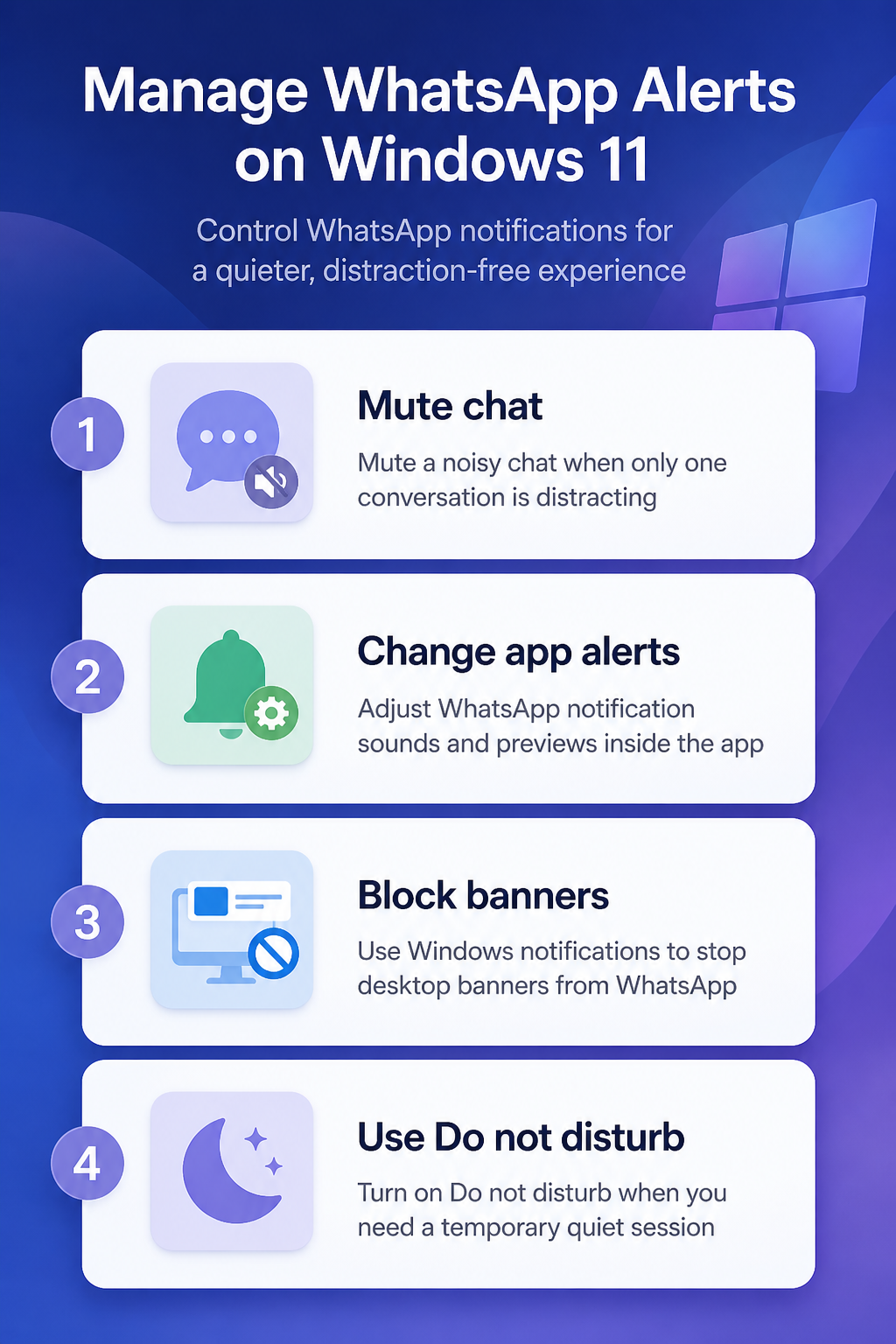
Open WhatsApp Desktop, right-click the noisy chat or group, and look for the mute option in the chat menu or chat info area. Choose the duration that fits the problem, such as a short mute for a busy group or a longer mute for a low-priority thread. Muted chats still receive messages, but they stop interrupting you with alert noise.
My preference is muting the chat first, because it solves the actual source without hiding useful alerts from other people.
If you use WhatsApp on your phone too, remember that mute behavior may sync across devices depending on the chat and app state. Check the phone if a group is still noisy after muting it on the desktop. For group chats, open the group info panel and verify the mute setting there.
Turn off app sounds
In WhatsApp Desktop, open Settings and check the Notifications area. Turn off message sounds or notification previews if those options are available in your installed version. This is a better choice when you still want Windows banners but do not want a sound each time a message arrives.
WhatsApp Desktop versions change over time, so the exact labels may vary. Look for settings tied to message notifications, sounds, desktop alerts, previews, or notifications when WhatsApp is closed. Change one setting at a time so you can tell which one fixed the interruption.
Archive low-priority chats
Archiving is useful when you want a chat out of view, while muting is for stopping alerts. If a thread is both distracting and not currently useful, mute it first and then archive it. Do not archive as your only fix if the real issue is sound or banners.
Archived chats can still contain new messages. Treat archive as inbox organization, not a notification control. For important work contacts, muting is usually safer than archiving because the chat remains visible.
Control Windows alerts
Disable WhatsApp banners
Open Settings >> System >> Notifications. Find WhatsApp under app notifications, then turn it off if you want no Windows banners or notification center entries from WhatsApp. If you want a softer setup, open the WhatsApp notification entry and adjust banners, sounds, lock screen visibility, or priority instead of disabling everything.
- Turn off Play a sound when a notification arrives if sound is the only problem.
- Turn off banner display if pop-ups are distracting but notification history is useful.
- Disable WhatsApp entirely if you want the desktop app quiet during work.
Windows notification settings affect the PC, not every WhatsApp device you own. Your phone can keep alerting unless you mute the chat or change phone notification settings too.
Use Do Not Disturb
For temporary focus, use Windows Do not disturb rather than permanently changing WhatsApp. Open Settings >> System >> Notifications and turn on Do not disturb, or use the notification center shortcut if available. This quiets notifications across apps while keeping the underlying app settings intact.
Do not disturb is the right tool for meetings, writing blocks, screen sharing, or late-night work. It is not the right tool for one noisy WhatsApp group because it silences more than WhatsApp. Use chat mute for chat problems and do not disturb for time-based focus; if meetings are the noisy source, fix Teams calls ringing instead.
Check Focus rules
Windows can turn on Do not disturb automatically during certain activities, such as duplicating your display, playing a game, or using an app full screen. Review Settings >> System >> Notifications >> Turn on do not disturb automatically. If WhatsApp alerts seem inconsistent, an automatic rule may be changing notification behavior.
This is especially common on laptops connected to external monitors. A presentation or full-screen app can suppress banners, then notifications return later. Knowing the rule prevents you from chasing a WhatsApp setting that is not actually changing.
Troubleshoot alert problems
Alerts still appear
If WhatsApp alerts still appear after you mute a chat, check whether the alert is from a different chat, a call, a mention, or Windows notification history. Mute settings usually apply to selected conversations, not necessarily every type of WhatsApp activity. Calls may still behave differently from message notifications, much like reminder behavior in Outlook, where you may need to disable Outlook calendar reminders separately.
I check the notification title before changing settings again, because the noisy alert is often from a second group with a similar name.
If every WhatsApp banner keeps showing, use Windows Notifications settings and disable WhatsApp at the app level. That is the broadest desktop-side control. Then decide whether you also need phone-side changes.
Alerts disappeared completely
If you only meant to silence one chat but all WhatsApp alerts disappeared, revisit Windows notification settings. Make sure WhatsApp is allowed to send notifications, then check WhatsApp’s own notification settings. Also turn off Windows Do not disturb if it is enabled.
This layered setup is why broad changes should be your last step. Chat mute is reversible and narrow; Windows app-level blocking is stronger and easier to forget. Keep a note of which layer you changed if you support multiple PCs.
Notifications when closed
WhatsApp Desktop may have a setting related to notifications while the app is closed or running in the background. If you want fewer interruptions, disable that option where available, or close WhatsApp fully from the system tray. If you still want reliable messages on the desktop, leave background notifications enabled and mute only the noisy chats.
WhatsApp alert questions answered
How do I stop WhatsApp pop-ups on Windows 11?
Open Settings >> System >> Notifications, select WhatsApp, and turn off banners or disable WhatsApp notifications entirely. Use the app-level setting when you want the PC to stop showing WhatsApp pop-ups. Use chat mute when only one conversation is the problem.
Will muting WhatsApp on desktop mute my phone?
Mute behavior can sync across WhatsApp devices for chats, but Windows notification settings will not change your phone. If your phone still makes noise, check the same chat in the mobile app. For a complete quiet setup, control both the chat and the device notification settings.
Is archive the same as mute?
No. Archive hides a chat from the main chat list, while mute controls alerts for that conversation. If the goal is fewer interruptions, mute is the relevant setting. Archive is useful after muting when the chat is also low priority.
The simplest setup is narrow first: mute the noisy WhatsApp chat, then adjust WhatsApp sounds, and only then use Windows notification controls if the whole desktop app needs to be quiet.