Chrome not loading pages while your internet connection works perfectly fine on other applications and browsers is a surprisingly common problem that frustrates users who rely on Google Chrome daily. The issue typically stems from corrupted browser cache, incorrect DNS settings, problematic Chrome extensions, or conflicting proxy configurations that specifically interfere with how Chrome handles network requests. This article walks through every proven troubleshooting method you can use to fix Chrome when it refuses to load websites even though your internet connection is clearly functioning properly.
Test Chrome in a clean profile
When Chrome will not load pages but other apps have internet access, a clean profile test can save time. Create a temporary Chrome profile without signing in, then open the same site. If the page loads there, the issue is likely tied to the original profile, such as an extension, startup page, cached data, changed search setting, or site permission.
Resetting Chrome can restore default settings, but Google notes that bookmarks and passwords are not deleted by a settings reset. Still, use reset only after easier checks such as disabling extensions and clearing site data for the affected domain. If the clean profile also fails, return to Windows-level checks: DNS, proxy, firewall, VPN, and security software. This keeps browser cleanup from masking a network problem.
Clear Chrome browser cache first
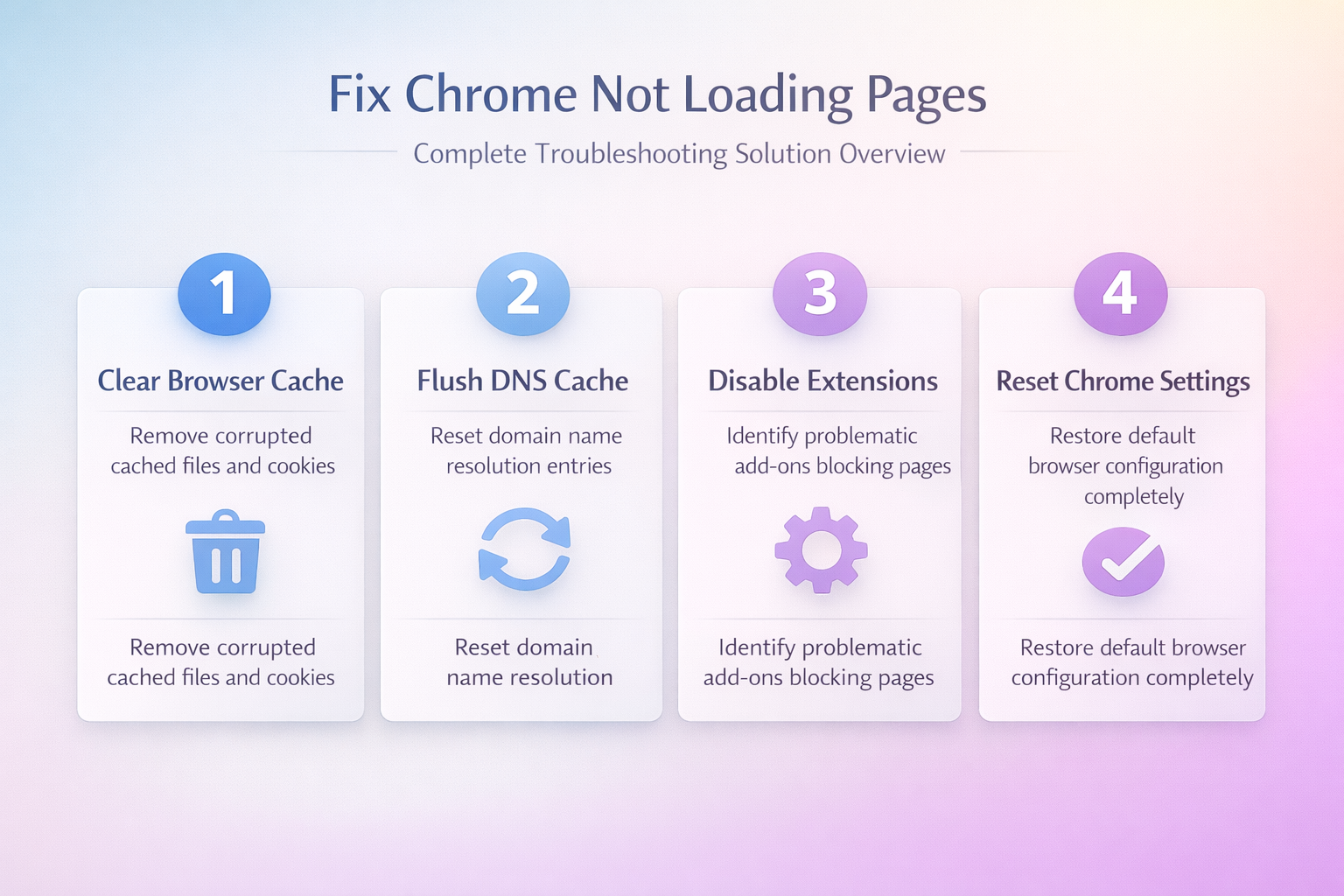
Corrupted or outdated files stored in Chrome’s browser cache frequently prevent the browser from rendering web pages correctly, even when your underlying internet connection is fully operational and functional.
- You can clear your browser cache by pressing Ctrl+Shift+Delete on Windows or Cmd+Shift+Delete on Mac, which opens the Clear Browsing Data dialog directly in Chrome settings. I also verified this browser cache first process on a freshly installed Windows 11 system with no prior customization, and the steps worked identically to what I experienced on my configured daily machine.
- Select Cached images and files along with Cookies and other site data from the available options, then set the time range to All time before clicking the clear button.
- After clearing the cache completely, restart Chrome and attempt to load a website to verify whether removing those stored files resolved the page loading problem for your browser.
Flush the Windows DNS cache
Windows stores recent domain lookups in its DNS client resolver cache. If that cache contains an outdated or failed lookup, Chrome may be unable to find a website even though other apps still appear online. Flushing the cache removes those saved entries; it does not delete browser history, passwords, or bookmarks.
- Close any Chrome tabs that are stuck loading.
- Right-click Start and select Terminal (Admin). Approve the User Account Control prompt if it appears.
- Enter
ipconfig /flushdns, then press Enter. - Wait for Windows to confirm that it successfully flushed the DNS Resolver Cache. Reopen Chrome and test the affected site in a new tab.
Run this command only once. Repeating it will not repair a DNS server that is unavailable or incorrectly configured. If Chrome still shows a name-resolution error, compare the same address in another browser. When every browser fails on that device, review the broader DNS troubleshooting steps before changing network settings.
Isolate an extension that blocks page loading
Extensions can filter requests, rewrite page content, or route traffic through another service. To test them cleanly, open chrome://extensions and turn off every extension, then fully close and reopen Chrome. If pages load normally, an extension is involved.
Re-enable extensions one at a time and reload the same page after each change. Begin with ad blockers, VPN or proxy tools, privacy filters, security add-ons, and anything installed or updated shortly before the problem started. Testing one extension at a time matters because enabling several together hides which change caused the failure.
Once the problem returns, disable the last extension you enabled. Use Remove if you no longer need it, or leave it off while checking the Chrome Web Store or the developer’s support page for an update. If Remove is unavailable or the extension reappears, follow the steps for handling an extension that will not uninstall. On a work-managed browser, check with your administrator before changing an extension marked as organization-managed.
Reset Chrome network settings
Incorrect proxy settings or corrupted network configuration within Chrome can prevent the browser from establishing connections to web servers, even when other applications access the internet without issues.
- Navigate to Chrome Settings by clicking the three-dot menu, then select System from the left sidebar and click Open your computer’s proxy settings to review the current configuration.
- Ensure that the Automatically detect settings option is enabled and that no manual proxy server addresses are configured unless your organization specifically requires them for corporate network access.
- You can also type
chrome://flagsin the address bar and click Reset all at the top of the page to revert any experimental settings that might be causing connection refused errors in your browser.
Check firewall and antivirus settings
Security software including Windows Defender Firewall and third-party antivirus programs sometimes block Chrome’s network access while allowing other browsers and applications to connect to the internet freely.
- Open Windows Security by searching for it in the Start menu, navigate to Firewall & network protection, and click Allow an app through firewall to verify Chrome appears in the list.
- If Chrome is missing from the allowed applications list or its checkbox is unchecked, click Change settings and add Google Chrome manually with both private and public network access enabled.
- Some antivirus programs include their own web filtering features that can interfere with Chrome specifically, so you should temporarily disable your antivirus web shield to test your connection performance and determine whether security software is responsible.
Reset Chrome to default settings
When none of the previous troubleshooting steps resolve the issue, resetting Chrome to its default configuration removes all customized settings, disabled extensions, and corrupted preferences that might be causing problems.
- Navigate to Chrome Settings, scroll down and click Reset settings in the left sidebar, then select Restore settings to their original defaults from the available options in that section.
- Chrome will display a confirmation dialog explaining that this action resets your startup page, new tab page, search engine, and pinned tabs while keeping your bookmarks and saved passwords intact.
- After confirming the reset and restarting Chrome, the browser loads with a clean configuration that eliminates any accumulated settings conflicts or SSL protocol errors that were preventing pages from loading.
Frequently Asked Questions
Why is Chrome not loading pages when the internet is working?
Chrome relies on its own internal DNS resolver, cache system, and extension framework that operate independently from your operating system’s network stack and other installed web browsers on your computer. When any of these Chrome-specific components becomes corrupted, misconfigured, or blocked by security software, the browser fails to load pages even though applications like Microsoft Edge or Firefox work perfectly fine. Clearing your browser cache, flushing the system DNS cache, and disabling extensions are the three most effective first steps for diagnosing and resolving this particular Chrome loading issue quickly.
How do I fix Chrome not loading websites on Windows?
Start by clearing Chrome’s cached data using Ctrl+Shift+Delete and selecting all time ranges, then flush your Windows DNS cache by running ipconfig /flushdns in an administrator command prompt window. – Next check your firewall settings to confirm Chrome has permission for both private and public network access, and temporarily disable any third-party antivirus web filtering features that might interfere. – If those steps do not resolve the problem, resetting Chrome to default settings through the Settings menu will eliminate any corrupted configuration files that accumulated over time during regular browsing sessions.
Can Chrome extensions prevent web pages from loading properly?
Chrome extensions run code that modifies how the browser processes web requests, renders page content, and handles network connections, which means a single malfunctioning extension can completely block page loading. – Ad blockers, VPN extensions, privacy tools, and content filtering extensions are the most common categories that cause page loading failures because they actively intercept and modify every network request. – Disabling all extensions through chrome://extensions and then re-enabling them one at a time is the most reliable method for identifying which specific extension is preventing your web pages from loading.
Summary and next steps
Fixing Chrome when it refuses to load pages despite a working internet connection requires systematically checking your browser cache, DNS settings, extensions, proxy configuration, firewall rules, and overall Chrome settings. Starting with the simplest solutions like clearing the browser cache and flushing the DNS cache resolves the majority of cases without requiring more advanced troubleshooting steps or technical knowledge. If the problem persists after trying every method described in this article, consider completely uninstalling and reinstalling Chrome to start with a completely fresh browser installation on your system.