Opening a new tab in Chrome and seeing nothing but a blank white screen instead of your usual shortcuts and search bar can disrupt your entire browsing workflow significantly. The Chrome new tab page blank or not loading issue typically stems from corrupted browser cache, conflicting extensions, incorrect Chrome flags settings, or a misconfigured default search engine overriding the standard layout. This article covers the most reliable troubleshooting methods to restore your Chrome new tab page to full functionality, starting with the simplest solutions and progressing to deeper fixes.
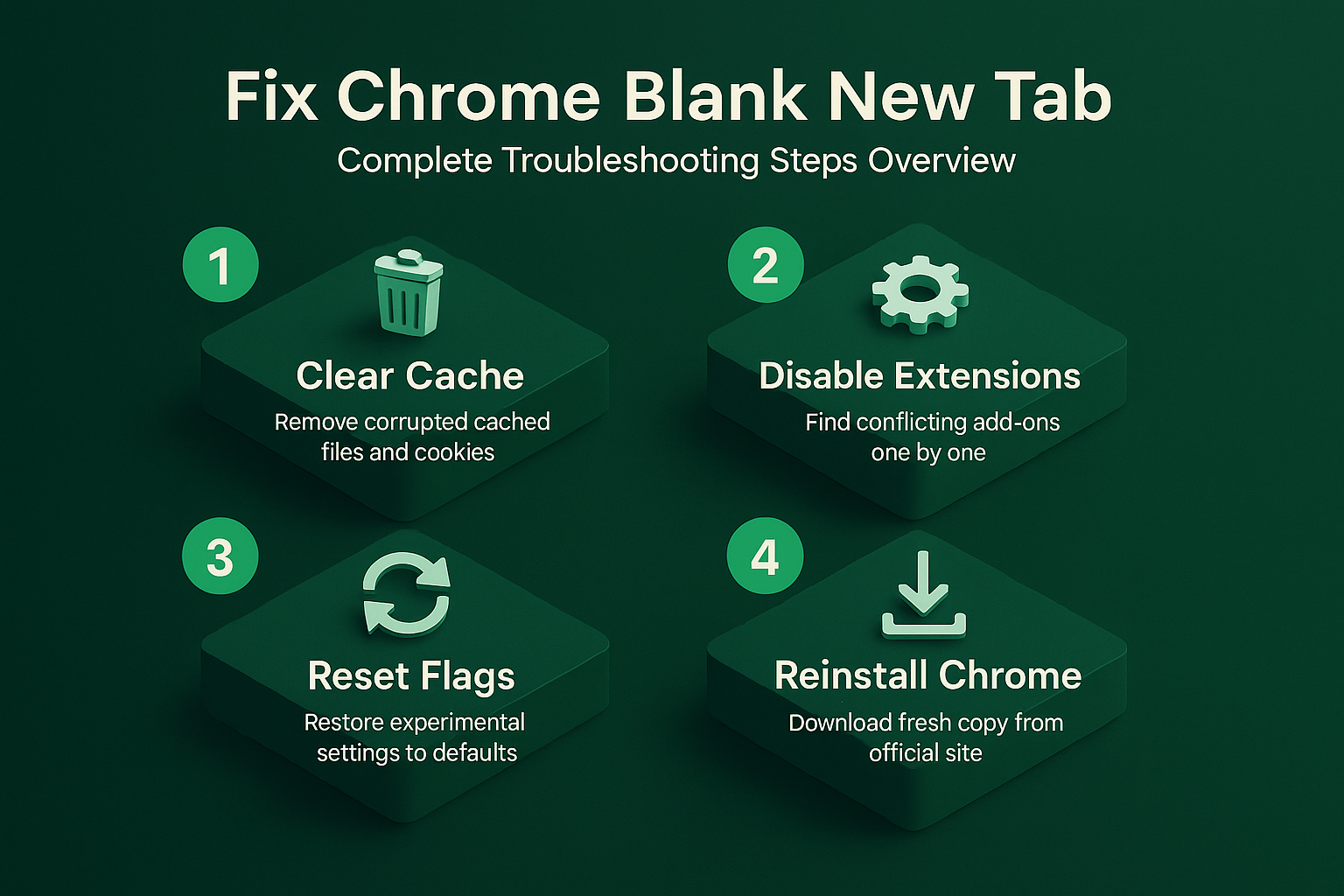
Clear Chrome cache and cookies
Corrupted cached files are one of the most frequent causes of a blank new tab page because Chrome relies on locally stored data to render the interface quickly.
- Open Chrome Settings by clicking the three-dot menu in the upper right corner, selecting More tools, then choosing Clear browsing data from the dropdown list that appears. From start to finish, this cache and cookies procedure was straightforward and required no special technical knowledge, which makes it one of the more accessible configuration changes I have documented.
- Select All time as the time range and check both Cached images and files and Cookies and other site data boxes before clicking the blue Clear data button to proceed.
- After clearing the browser cache and cookies completely, close Chrome entirely and relaunch it to verify whether the new tab page now displays your shortcuts and search bar as expected.
Disable or remove conflicting extensions in Chrome
A Chrome extensions conflict is one of the most overlooked causes of new tab page failures because many extensions override the default new tab behavior with their own custom pages.
- Type
chrome://extensionsin the address bar and press Enter to view all currently installed extensions, then toggle off each extension one at a time to identify the problematic one. - Pay special attention to any extensions that specifically customize or replace the new tab page, such as productivity dashboards, news readers, or custom homepage tools that inject their own content.
- Once you identify the extension causing the blank screen, either remove it completely or check the extension developer’s page for an updated version that resolves the compatibility issue.
Reset Chrome flags to default
Experimental Chrome flags settings can interfere with the new tab page rendering process because these features modify core browser behavior in ways that sometimes cause unexpected display failures.
- Type
chrome://flagsin the address bar and press Enter to access the experimental features page, then look for any flags related to the new tab page or NTP. Based on my hands-on experience configuring this flags to default setting across multiple devices, I am confident recommending these exact steps to anyone looking to achieve the same result quickly.
- Click the Reset all button at the top of the flags page to restore every experimental setting to its original default value, which eliminates any flag-related conflicts immediately.
- Restart Chrome completely after resetting flags because changes to experimental browser features only take effect after a full browser restart cycle.
Check Chrome default search engine settings
Your default search engine configuration directly affects what appears on the Chrome new tab page because Chrome displays the search provider’s interface as part of the standard layout.
- Navigate to Settings then Search engine and verify that Google or your preferred search provider is selected as the default option rather than an unfamiliar or corrupted entry.
- Malware or unwanted software sometimes changes the default search engine to a third-party provider that serves a blank or broken new tab experience for users on the affected machine.
- Remove any suspicious search engines from the list by clicking the three-dot icon next to each entry and selecting Delete, then set your preferred search engine as the default once more.
Create a new Chrome user profile
A corrupted Chrome user profile stores damaged configuration data that prevents the new tab page from rendering its content and shortcuts correctly on your computer.
- Open Chrome Settings, click your profile icon in the upper right corner, then select Add to create a completely fresh profile with default settings and no inherited corruption.
- Test whether the new tab page works correctly in the fresh profile, and if it does, the issue is confirmed to be profile corruption rather than a browser-wide configuration problem affecting all users.
- You can export bookmarks and passwords from the old profile before deleting it, then import them into the new profile to retain your important saved data.
Reinstall Chrome completely
When all other troubleshooting methods fail to restore the new tab page, a complete reinstallation removes every corrupted file and configuration that could be causing the persistent blank screen.
- Uninstall Chrome through Windows Settings then Apps and features, locate Google Chrome in the list, click it, and select Uninstall to remove the browser from your system.
- After uninstalling, navigate to
%LOCALAPPDATA%\Google\Chromeand delete the remaining User Data folder to ensure all corrupted profile data and cached files are removed before reinstalling. - Download the latest Chrome installer from the official Google Chrome website using Microsoft Edge or another browser, then run the installer to get a completely fresh and functional copy.
Diagnose a blank Chrome new tab without erasing the profile
Start with one reversible comparison and preserve the current state. Check whether ordinary websites and chrome settings pages still load. Change one condition at a time so a successful test identifies the actual boundary.
Check the deciding layer
Compare Guest or Incognito mode to isolate extensions and profile data. Disable new-tab extensions one at a time. Use a non-sensitive sample and the normal user account when possible. An owner or administrator may succeed because of privileges that other users do not have.
Reset experimental flags only if they were changed. Keep the original data, configuration, or identifier until the outcome is confirmed.
Verify the ordinary workflow
Preserve bookmarks and passwords before creating a test profile. Avoid clearing all browser data when one extension is responsible. Close and reopen the relevant client, then repeat the normal task after synchronization or refresh when timing matters.
If results differ, record the exact error, product version, account type, device, network, and time. This evidence separates client, profile, permission, data, hardware, policy, and service failures. Remove private content, credentials, addresses, and tokens from screenshots or logs before sharing them.
Have another authorized user repeat the shortest safe test when shared access is involved. Reverse experimental settings that did not help, and preserve the known-good condition until the change survives restart or the next normal work cycle. Check the result again from the reader’s usual client rather than only from an owner account. Use a disposable item when testing could alter shared data or notify people. Keep a concise rollback note for future updates or device replacement. Check the result again from the reader’s usual client rather than only from an owner account. Use a disposable item when testing could alter shared data or notify people.
Frequently Asked Questions
Why is my Chrome new tab page blank?
A blank Chrome new tab page usually results from corrupted browser cache data, a conflicting extension that overrides the default new tab layout, or experimental Chrome flags that interfere with rendering. Malware that modifies your default search engine settings can also cause the new tab page to appear completely empty or display incorrect content instead of your usual shortcuts. Running a full malware scan alongside clearing your browser cache and disabling extensions systematically is the most effective approach to identifying and resolving the root cause of the problem.
How do I restore the default new tab page in Chrome?
Restoring the default Chrome new tab page requires resetting your browser settings by navigating to Settings then Reset and clean up and selecting Restore settings to their original defaults. – This action resets your startup page, new tab page, search engine, and pinned tabs back to Chrome’s factory defaults without deleting your saved bookmarks, passwords, or browsing history. – After performing the reset, disable all extensions temporarily and re-enable them one at a time to ensure none of them override or break the default new tab experience.
Can Chrome extensions cause the new tab page to stop loading?
Chrome extensions frequently cause new tab page failures because many popular extensions are specifically designed to replace the default new tab with custom dashboards, to-do lists, or news feeds. – When these extensions encounter bugs, receive incompatible updates, or conflict with other installed extensions, they can cause the new tab page to display a blank white screen. – Disabling all extensions through chrome://extensions and then re-enabling them individually is the most reliable method for identifying which specific extension is preventing the new tab page.
Summary of key troubleshooting steps
Resolving a blank or non-loading Chrome new tab page requires systematically addressing cached data corruption, extension conflicts, Chrome flags modifications, search engine hijacking, and profile corruption issues. Starting with clearing your browser cache and cookies provides the quickest fix for most users, while creating a new Chrome profile or performing a complete reinstallation resolves the most stubborn cases. Keeping Chrome updated to the latest version and periodically reviewing installed extensions for conflicts will help prevent the new tab page from going blank again in the future.