Your Outlook calendar shows outdated appointments while changes made on your phone never appear on your desktop, creating a synchronization breakdown that affects productivity and causes missed meetings. When you need to fix Outlook calendar sync issues, understanding the root causes makes troubleshooting far more effective.
Outlook calendar sync issues stem from several common causes including corrupted cache files, network connectivity problems, account authentication errors, and conflicting calendar settings. Most synchronization problems resolve with systematic troubleshooting that addresses these root causes one layer at a time.
Why your calendar stops syncing in Outlook
Outlook uses multiple synchronization layers to keep your data consistent across devices. Your calendar data moves between local cache files, Microsoft 365 servers, and connected devices through a coordinated exchange process. When any single layer fails, synchronization breaks down and appointments stop updating across your ecosystem. This understanding helps you fix Outlook calendar sync issues faster by targeting the right component.
Common sync error types
Connection timeouts occur when Outlook cannot reach Microsoft servers, while authentication failures happen when stored passwords expire, and attachment delivery failures appear when local data becomes corrupted or change unexpectedly. Cache corruption creates inconsistent data that prevents proper synchronization across devices, often manifesting as duplicate or missing calendar entries that confuse both users and the sync engine.
Network and server dependencies
Outlook calendar synchronization requires stable internet connectivity and accessible Microsoft 365 servers to function properly. Firewall restrictions, proxy configurations, or DNS resolution issues can silently block synchronization attempts even when other internet services work normally, making network problems particularly frustrating to diagnose without systematic testing.
Quick fixes to try first in Outlook
Start with simple solutions that resolve most synchronization issues before moving to advanced techniques. These methods address common problems without requiring deep technical knowledge or system-level changes.
Force a manual sync in Outlook
Press F9 to trigger immediate synchronization in Outlook desktop, which bypasses automatic sync intervals and often resolves temporary communication delays between your local calendar and Microsoft servers. This single keystroke forces Outlook to attempt a fresh connection and push or pull any pending calendar changes right away.
Restart the application completely
Close Outlook completely using Task Manager if the application does not shut down through normal methods. Wait thirty seconds to allow background processes to terminate fully, then reopen the application so it can clear temporary memory issues and reestablish server connections that may have timed out during your session.
Verify your online connectivity
Navigate to File >> Account Settings >> Account Settings and select your email account. Click Test Account Settings to run a diagnostic that checks authentication, server reachability, and protocol negotiation. Failed tests indicate network or authentication problems that prevent calendar synchronization from completing successfully.
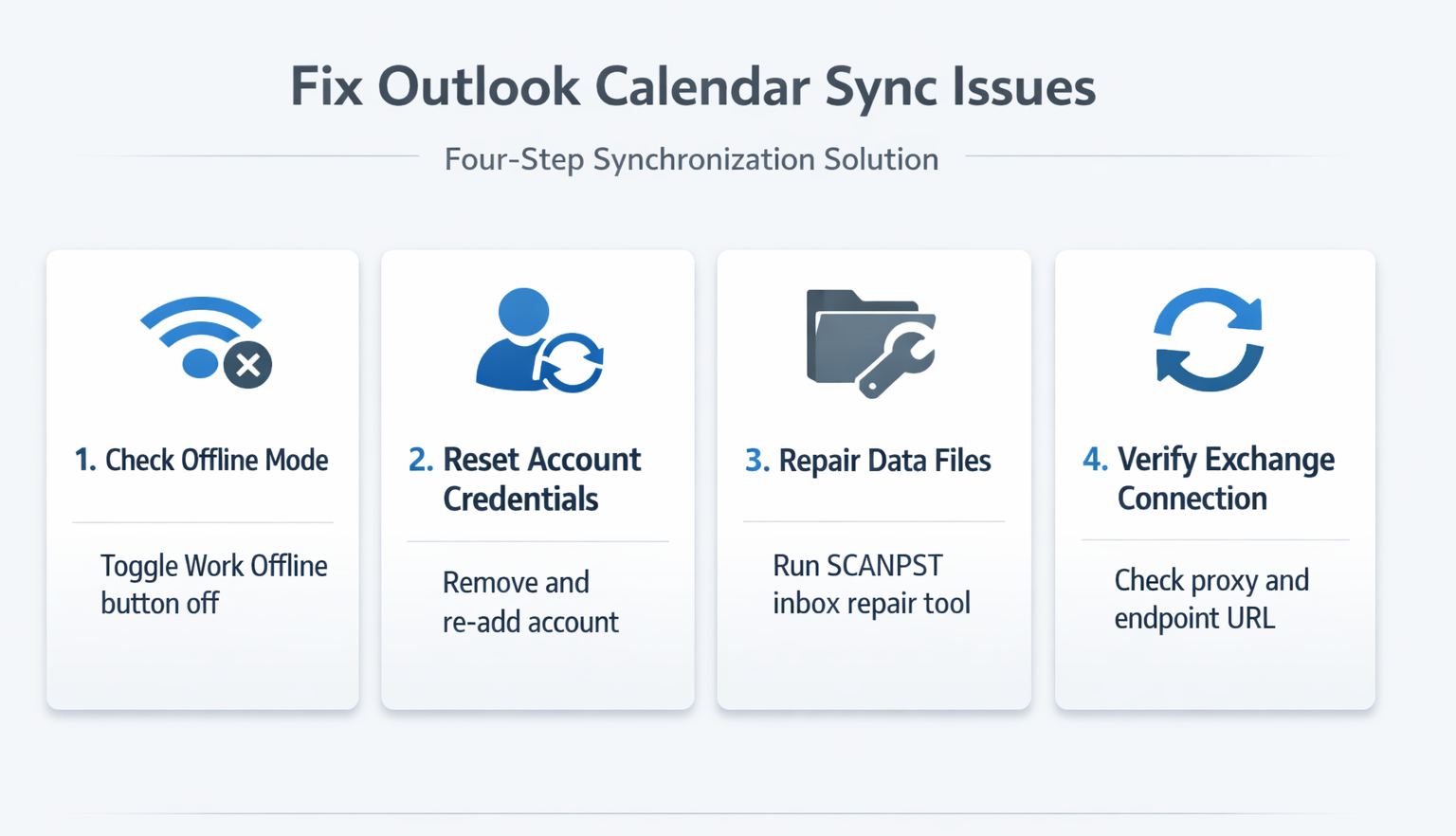
Advanced troubleshooting steps in Outlook
When basic fixes fail to restore calendar synchronization, deeper system-level issues may be preventing proper data exchange, often manifesting as persistent data exchange failures between Outlook and Microsoft servers. These advanced methods target specific technical problems that resist simpler solutions. Compared to the previous Outlook sync interface that I documented several months ago on Microsoft 365, the current layout places these advanced options in a more intuitive and accessible location.
Clear the Outlook calendar cache
Outlook stores local calendar data in cache files that can become corrupted over time through interrupted sync operations or unexpected shutdowns. Navigate to File >> Options >> Advanced >> Outlook Data Files, select your calendar file, and click Settings >> Compact Now to rebuild the cache structure from scratch.
Reset sync settings to defaults
Access Control Panel >> Mail >> Data Files >> Account Settings to reach the account configuration panel. Remove your email account completely, then re-add it with fresh authentication credentials to eliminate corrupted sync parameters that block calendar updates. For additional solutions, see how to solve calendar sync in Outlook.
Refresh expired auth tokens
Modern authentication tokens expire periodically and require renewal to maintain secure server connections. Sign out of your Microsoft 365 account in Outlook, then sign back in to generate new authentication credentials that restore calendar synchronization capabilities across all connected devices. If you experience authentication failures, resolving Teams authentication login issues may help with cross-integrated calendar services.
Device-specific sync solutions in Outlook
Different devices and platforms require targeted approaches to fix Outlook calendar sync issues because each operating system handles mail synchronization through its own framework and permission model.
Fix calendar sync on mobile
Remove and re-add your Outlook account in your phone’s email settings to force a complete credential refresh. Enable Calendar synchronization explicitly in the account configuration, then allow up to fifteen minutes for initial sync completion after account setup finishes processing your mailbox data.
Resolve desktop sync delays
Increase sync frequency by navigating to Send/Receive >> Send/Receive Groups >> Define Send/Receive Groups in the Outlook ribbon. Set automatic send/receive to occur every 1 minute instead of the default longer intervals, which dramatically reduces the window during which calendar changes remain unsynced between your local client and the server.
Configure web access sync settings
Ensure calendar changes made in Outlook Web Access save properly by clicking Save explicitly after each modification rather than relying on auto-save behavior. Browser cache issues can prevent changes from syncing to other Outlook clients without explicit save commands, so clearing your browser cache periodically prevents stale data from interfering. To maintain sync across integrated tools, learn about linking Outlook calendar with Teams.
Why does my Outlook calendar sync slowly?
Can firewall settings block Outlook calendar synchronization?
How long does Outlook calendar sync take after fixes?
Prevent future sync failures
Regular maintenance prevents most calendar synchronization issues from recurring once you fix Outlook calendar sync issues initially. Keep Outlook updated with the latest patches from Microsoft and archive old calendar items quarterly to reduce database size and improve sync performance.
Monitor your internet connection stability, especially on mobile devices that switch between WiFi and cellular networks. You can also configure professional auto-responses to notify contacts during planned maintenance windows frequently. Unstable connections during sync operations can corrupt calendar data and require repeating the troubleshooting steps outlined above, so maintaining a reliable network connection serves as your first line of defense against synchronization failures.