Last updated: May 2026 | Tested on: Windows 11, Windows 10
Bluetooth audio delay usually shows up as lips moving before the words, game audio arriving late, or Teams calls sounding fine until the microphone turns on. The fix is rarely one magic toggle. On Windows, lag can come from the Bluetooth profile in use, audio enhancements, driver behavior, distance from the adapter, or an app forcing the headset into call mode.
Start with the Windows settings that change the audio path, then move to drivers and headset-specific checks. The goal is to get Windows using the cleanest output device, a stable Bluetooth connection, and the lowest-latency mode your hardware actually supports.
Start with Windows sound
Pick the right output
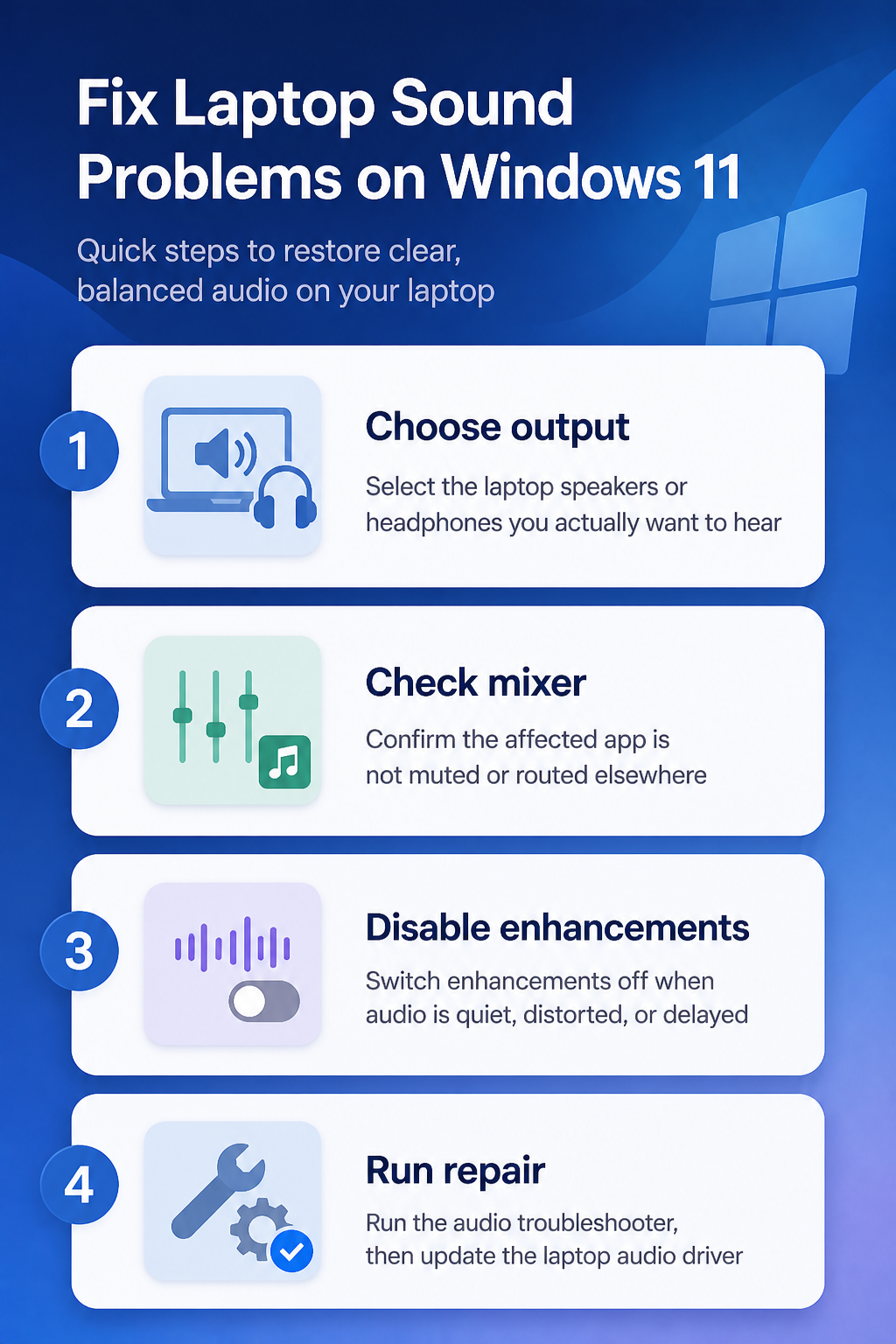
Open Settings >> System >> Sound, then choose your Bluetooth headphones or speaker under Output. If you see more than one entry for the same headset, test each one because one profile may be optimized for calls while another is better for media. Windows can keep sending audio to a monitor, laptop speaker, or hands-free profile after a reconnect, which feels like Bluetooth lag when the real problem is the wrong endpoint.
My quickest test is playing a local video while switching outputs, because browser tabs can cache odd audio states.
Also open Volume mixer and check whether the app has its own output device selected. A browser, meeting app, or game can override the system default, so the taskbar speaker picker alone does not always tell the full story. If the delay affects only one app, reset that app’s output to Default before changing drivers.
Turn off audio enhancements
Audio enhancements can add processing that makes Bluetooth timing worse, especially on inexpensive adapters or headsets that already buffer heavily. Go to Settings >> System >> Sound, select the Bluetooth output device, and set Audio enhancements to Off if that option appears. Test the same video again before changing anything else.
If the device page offers Default format, try a common format such as 16-bit, 48000 Hz. Unsupported or awkward formats can cause crackling, resampling, or sync drift. This is not a quality contest; the most stable format is usually better than the highest number in the list.
Avoid microphone call mode
Many Bluetooth headsets switch to a lower-quality call profile when the microphone is active. That can change latency and make music or video sound delayed, thin, or slightly robotic. Close meeting apps, voice chat overlays, browser recording permissions, and game launchers, then test playback again.
For meetings, consider using the laptop microphone while keeping the Bluetooth headset as the output. In Windows sound settings, set Input to the built-in microphone and Output to the headphones. This keeps the headset out of hands-free mode on many systems and often improves both delay and audio quality.
Improve Bluetooth stability
Re-pair the headset
Open Settings >> Bluetooth & devices >> Devices, select the Bluetooth audio device, and choose Remove device. Restart the headset, then pair it again from Add device. Re-pairing clears stale profile data that can survive normal disconnects.
- Keep the headset within a few feet of the laptop during pairing so Windows negotiates the strongest connection first.
- Disconnect the headset from phones, tablets, and other computers while testing because multipoint switching can add delay.
- If the headset has a companion app, check for firmware updates after the Windows pairing is stable.
This is also the right moment to remove duplicate headset entries. If Windows lists old copies of the same earbuds, clean them out so apps cannot grab the wrong endpoint. If the issue appears mainly during meetings, you may also need to fix Microsoft Teams audio before judging the headset.
Check LE Audio support
Windows 11 supports Bluetooth LE Audio only on compatible PCs and headsets, and the setting appears under Settings >> Bluetooth & devices >> Devices when available. If Use LE Audio when available is missing, the PC or driver does not currently expose that capability. LE Audio can reduce latency compared with classic Bluetooth audio, but both the computer and headset need support.
Do not chase this setting on Windows 10 or older Windows 11 hardware. Update the Bluetooth driver from the laptop maker first, then check again. If the toggle still does not appear, treat it as a hardware limitation rather than a Windows setting you have missed.
Update Bluetooth drivers
Use Windows Update first, then check the laptop manufacturer’s support app or driver page. Bluetooth audio depends on both the Bluetooth adapter and the audio stack, so update Bluetooth, chipset, and audio drivers when they are offered together. Avoid random driver-download sites because the wrong Bluetooth package can make pairing worse.
If the delay began after a driver update, open Device Manager, expand Bluetooth, right-click the adapter, and check Properties >> Driver. Roll Back Driver is worth trying when it is available and the timing clearly matches the update. Restart after any driver change before judging the result.
Edge cases and checks
Test another app
Use a downloaded video or the Windows media player before blaming the headset. Streaming sites, browser extensions, remote desktops, and overloaded tabs can create their own sync delay. If local playback is fine but a browser is late, restart the browser, disable extensions temporarily, and test another browser. When video timing looks wrong because text and windows are hard to read, fix blurry text in Windows as a separate display issue.
I usually separate Bluetooth problems from browser problems before touching Device Manager, because it saves a lot of pointless driver work.
Reduce wireless interference
Bluetooth shares crowded 2.4 GHz space with Wi-Fi, keyboards, mice, game controllers, and USB 3 devices. Move USB drives and hubs away from the laptop’s Bluetooth side, and test with the laptop closer to the headset. If your router supports it, keep the laptop on 5 GHz or 6 GHz Wi-Fi while testing Bluetooth audio.
Distance matters more than people expect. A headset can stay connected across a room but add buffering or drop into a less stable state. Fix the connection quality first, then decide whether the delay is still unacceptable.
Know the hardware limit
Some Bluetooth delay is normal, especially with classic Bluetooth codecs and older headphones. Windows does not provide a universal manual audio sync slider for every app, so there may be no perfect system-wide correction. Video players sometimes include audio delay controls, but calls and games usually need lower-latency hardware.
If gaming or live instrument monitoring is the goal, Bluetooth is the wrong baseline. Use wired headphones, a gaming headset with its own 2.4 GHz dongle, or a device that explicitly supports low-latency audio on Windows.
Bluetooth audio questions answered
Why is Bluetooth audio delayed on Windows 11?
The delay usually comes from buffering, Bluetooth profile switching, audio processing, or driver behavior. It gets worse when an app uses the headset microphone because many headsets switch into a call-focused mode. Start by checking the output device, turning off enhancements, and testing without the microphone active.
Does LE Audio fix Bluetooth delay?
LE Audio can reduce latency and improve call quality on supported Windows 11 PCs and headsets. It is not available on every Bluetooth LE laptop, and Windows 10 does not support it. If the Use LE Audio when available setting is missing, update drivers and then assume the hardware may not support it.
Should I reinstall my Bluetooth driver?
Reinstall only after simpler checks fail. Removing and pairing the headset again is safer and often enough. If the problem affects every Bluetooth audio device, updating the laptop manufacturer’s Bluetooth and audio drivers is a better next move.
Bluetooth audio delay is fixable when it comes from Windows choosing the wrong profile, adding audio processing, or holding stale pairing data. If the connection is clean and the headset still lags, the practical fix is usually different hardware for latency-sensitive work.