For Teams audio problems, identify which direction is failing: you cannot hear others, others cannot hear you, or both. Then test the speaker and microphone separately. Changing every audio option together can hide the cause and make a working device harder to restore.
Test the speaker and microphone separately
Connect the headset you intend to use and check its physical mute switch. If it is wireless, confirm that it is charged and connected to the computer being used for the call.
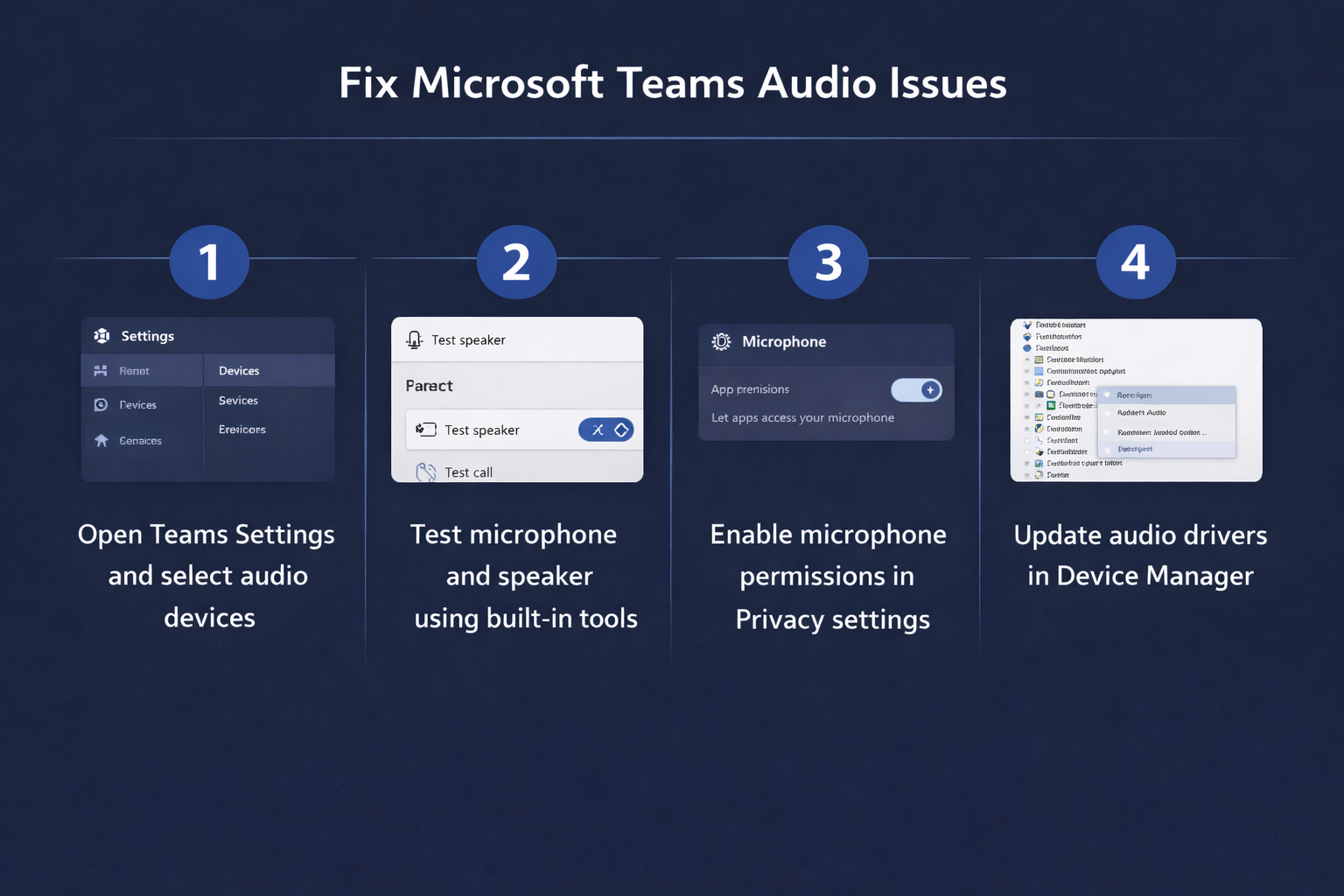
- In Teams desktop, open Settings and more > Settings > Devices.
- Choose the intended device in the Speaker dropdown.
- Choose the intended device in the Microphone dropdown.
- Select Make a test call when available.
- Record the sample and listen to the playback before changing another setting.
Microsoft’s test-call instructions apply to Teams desktop on Windows and Mac. Use a permitted test meeting for a browser comparison rather than expecting the desktop test-call command in Teams web.
If you cannot hear other participants
Check the speaker selected in Teams and the volume of that device. A monitor, dock, or newly connected headset can become the selected output even when you expect sound from the laptop.
Review how you joined the meeting. Computer audio, phone audio, room audio, and joining without audio are different choices. Microsoft’s meeting audio guidance explains how these sources affect the call.
If you chose phone or room audio intentionally, test that device rather than trying to unmute the laptop speaker. Avoid connecting two nearby devices with active speakers and microphones to the same meeting, which can complicate an echo investigation.
If other participants cannot hear you
Confirm the meeting’s mute state and the headset’s own mute control. Then test whether Windows receives sound from the intended microphone.
- Open Windows Settings > System > Sound.
- Under Input, select the microphone you intend to use.
- Open its properties and run Start test.
- Speak normally, stop the test, and listen to the recorded sample where that option is available.
- Return to Teams and select that same microphone.
The Windows microphone test helps separate an input problem from a Teams-only failure. Adjust the level from the sample rather than prescribing one volume percentage for every headset.
If the Windows test works but Teams does not, check permissions and the Teams input configuration. If Windows also receives no sound, investigate the connection, physical mute, or device before changing Teams’ processing options.
Check browser access when Teams web fails
A browser meeting needs access at both the operating-system and website levels. Check the permission for the actual Teams site, refresh after an approved change, and repeat the same short call test.
Microsoft’s web-device troubleshooting covers browser and app permissions. A successful desktop call does not establish that the browser has permission to use the same microphone.
Compare one connection at a time
If the device disappears or the audio breaks up, test a direct wired connection when available. Compare the same headset with and without an optional dock before replacing drivers. Save other applications’ work before closing anything that may be using the device.
For intermittent problems, note whether microphone input, speaker output, or the whole call stops. A working local test and a failing live call narrow the next investigation, but do not by themselves prove a network cause.
Questions about Teams sound problems
Should I change noise suppression first?
Confirm the device, mute state, and basic recording first. Then change one processing option and compare the same sample; otherwise several unrelated changes can produce a misleading result.
Why does the wrong microphone keep returning?
Check the device selected after reconnecting a dock or headset and after rejoining. Compare the exact displayed device names rather than relying on the word Default.
How do I confirm that the repair worked?
Verify local playback and a real two-way call. Have another participant confirm your voice while you confirm theirs, using the equipment and join mode you intend to keep.