Managing work becomes chaotic without proper task organization. Microsoft Teams transforms scattered project management into streamlined team collaboration through its integrated task system.
Teams consolidates task delegation, deadline tracking, and project management into one platform. This eliminates the need for separate tools while keeping your team communication and task management synchronized.
How to Create Tasks in Microsoft Teams
Access the Teams Task App
I confirmed this create tasks in setting synchronized correctly between my desktop and laptop through cloud sync, meaning you only need to configure it once if you use the same account everywhere.
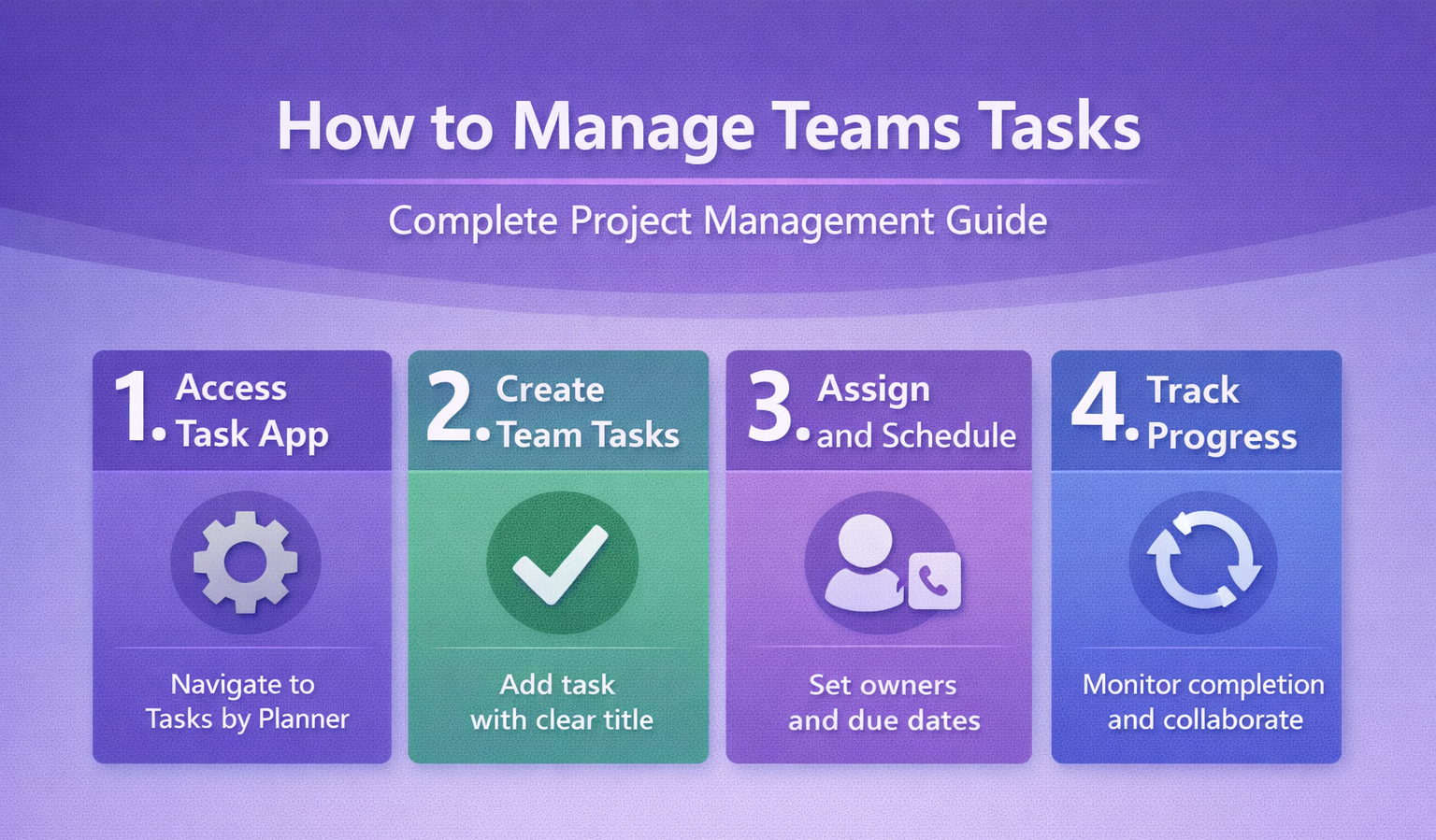
Open Microsoft Teams and navigate to the Apps section in the left sidebar. Search for “Tasks” and select Tasks by Planner and To Do. This integration combines Microsoft Planner’s project management capabilities with To Do’s personal task tracking.
Pin the app to your Teams sidebar for quick access. The task app appears as a dedicated tab where you can create and manage all team tasks without switching between different Microsoft applications.
Create New Team Tasks
Click Create a plan to start a new project workspace. Name your plan using descriptive terms that reflect the project scope — avoid generic names like “Team Tasks” that become confusing as projects multiply.
Select whether to create a new plan or add an existing Planner board. New plans generate fresh task boards. Existing plans import previously created task structures from other Microsoft 365 applications.
Add team members during plan creation. Members receive task notifications automatically and can contribute to the collaborative workflow immediately upon plan activation. You can streamline this process by setting up Planner tasks using Copilot for enhanced automation.
How to Assign Tasks in Teams
Set Task Details and Ownership
Click Add task within your plan to create individual work items. Enter a clear task title that describes the specific deliverable or action required.
Assign the task to team members using the Assign dropdown menu. Tasks can have multiple assignees for collaborative work, but designate a primary owner to avoid responsibility confusion.
Configure Due Dates and Priorities
Set realistic due dates that account for the assignee’s current workload and project dependencies. Tasks without deadlines often become deprioritized and forgotten.
Use the Priority setting to indicate urgency levels. High-priority tasks appear prominently in assignee dashboards and receive enhanced task notifications.
Add detailed descriptions in the task notes section. Include context, requirements, and success criteria to eliminate back-and-forth clarification requests.
Add Task Labels and Categories
Organize tasks using labels that reflect project phases, departments, or task types. Consistent labeling enables quick filtering and progress tracking across complex projects.
Create custom categories that match your team’s workflow. Development teams might use “Frontend,” “Backend,” and “Testing” labels, while marketing teams prefer “Content,” “Design,” and “Campaign” categories.
Microsoft Teams Task Management Features
Track Progress with Visual Boards.
After completing this microsoft teams task setup, the change persisted through a full month of daily use including several automatic updates, proving this is a durable and reliable configuration.
Switch between Board, Charts, and Schedule views to monitor project advancement from different perspectives. Board view provides Kanban-style task organization with customizable columns.
Charts view displays completion percentages and team workload distribution. Use this view during team meetings to identify bottlenecks and rebalance task assignments.
Schedule view shows timeline-based task organization with deadline visualization. This view helps identify scheduling conflicts and optimize project timelines for better deadline tracking.
Enable Team Collaboration Workflows
Task comments enable real-time collaboration without cluttering Teams chat channels. Team members can ask questions, provide updates, and share files directly within task contexts.
File attachments connect relevant documents to specific tasks. This eliminates the common problem of losing project files in lengthy chat histories or email threads.
Automate Task Notifications
Teams automatically sends task notifications when assignments are created, updated, or approaching due dates. These alerts appear in both Teams notifications and connected Outlook calendars.
Customize notification preferences in your Teams settings. Some users prefer immediate alerts for urgent tasks, while others batch notifications to avoid constant interruptions during focused work periods.
Manage Team Tasks for Project Success
Monitor Team Workload Distribution
Regularly review the My Tasks section to understand individual team member capacity. Overloaded team members should delegate or postpone non-critical tasks to maintain quality standards.
Use the team dashboard to identify productivity patterns. Some team members excel at rapid task completion, while others provide thorough quality review — assign tasks accordingly.
Integrate with Microsoft 365 Tools
Connect tasks to SharePoint documents, OneNote project notebooks, and Outlook calendar events. This integration creates comprehensive project ecosystems where all related resources remain accessible.
Sync task deadlines with Outlook to prevent scheduling conflicts. Team members can block calendar time for specific tasks and receive deadline reminders through their preferred notification channels.
Frequently Asked Questions
How do I create and assign tasks in Microsoft Teams?
Access the Tasks app through Teams’ app directory, create a new plan, and use the **Add task** button to create assignments. Select team members from the assign dropdown and set clear due dates with priority levels.
Can you manage project tasks in Microsoft Teams?
Yes, Teams integrates Microsoft Planner for comprehensive project management. You can create task boards, track progress through multiple views, collaborate on specific tasks, and generate project reports without leaving Teams.
What is the best way to track tasks in Teams?
Use the Charts view for progress visualization and the My Tasks dashboard for individual workload monitoring. Set up automated notifications and regularly review team capacity to maintain optimal task distribution and deadline tracking.
Conclusion
Microsoft Teams task management transforms chaotic project coordination into organized team collaboration. The integrated approach eliminates tool switching while providing powerful project management capabilities that scale from simple task lists to complex multi-team initiatives.
Start with basic task creation and assignment, then gradually implement advanced features like custom labels, automated workflows, and cross-application integration. After your meetings conclude, capture action items with Copilot to automatically convert discussions into trackable Tasks. Your team’s productivity will improve as task delegation becomes more systematic and deadline tracking more reliable.