Microsoft Teams provides a built-in recording feature that captures audio, video, and screen sharing activity for every meeting your organization hosts across departments and teams. If you want to enable recording for all Teams meetings at the organizational level, the Teams admin center offers policy-based controls that apply recording settings uniformly to every user. This article walks you through the admin center configuration, PowerShell commands, and meeting options that ensure automatic recording across your entire Microsoft 365 tenant without additional effort.
Understand Teams meeting recording settings before you begin
Teams meeting recording settings are governed by meeting policies that administrators create and assign through the Microsoft 365 admin center or the Teams admin center directly. Each meeting policy contains a recording toggle that determines whether participants in meetings assigned to that specific policy are permitted to start, stop, or auto record Teams meetings.
The global default policy applies to every user who has not been assigned a custom meeting policy, making it the most efficient place to enable recording. Understanding how these policies cascade from global to group to individual assignments helps you avoid conflicts that could prevent recordings from starting as expected for users.
Access the Teams admin center to configure recording policies
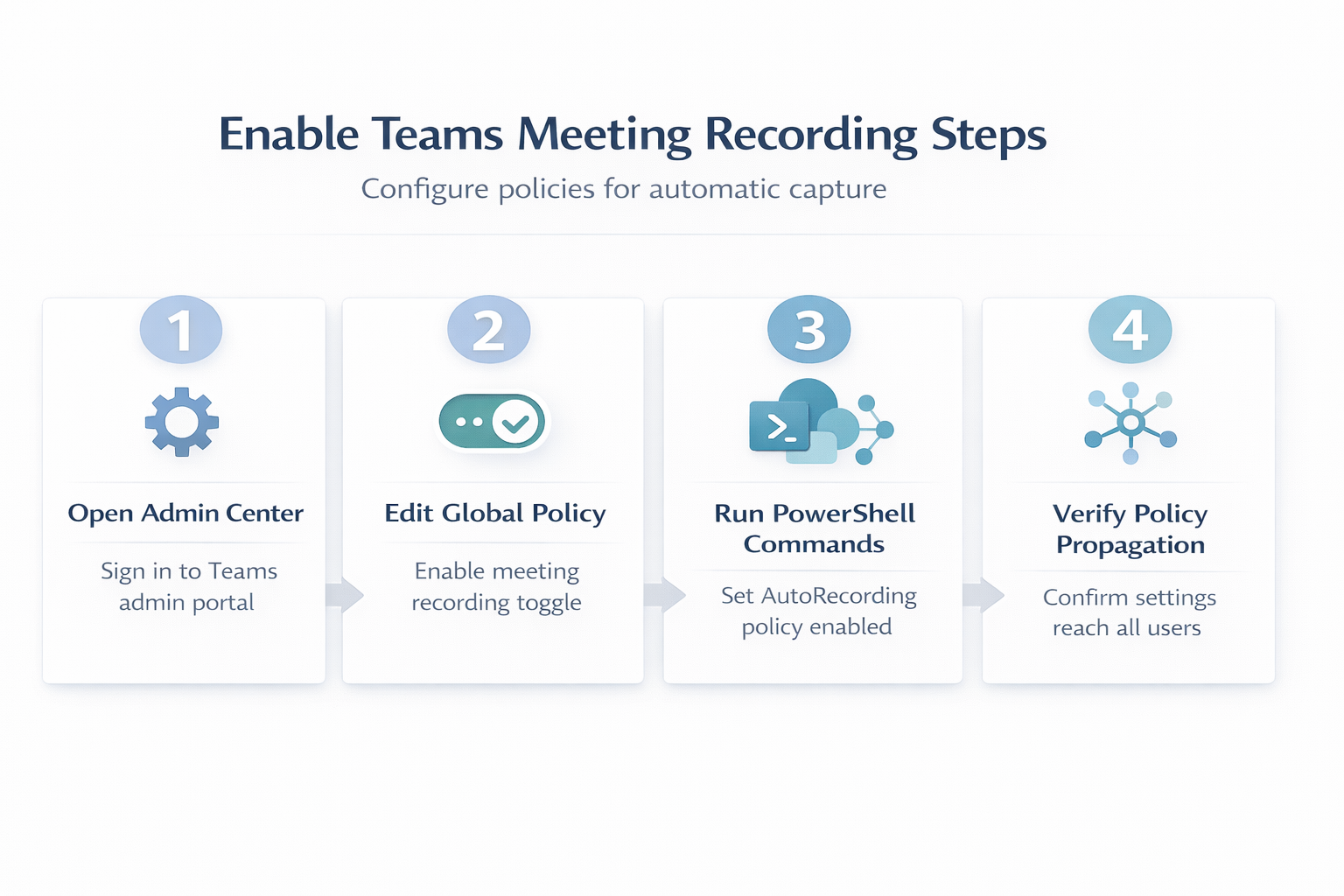
Sign in to the Microsoft Teams admin center at admin.teams.microsoft.com using an account that holds the Teams Administrator or Global Administrator role within your tenant. Navigate to the Meetings section in the left sidebar, then select Meeting policies to view all existing policies including the global organizational default policy. Click on the Global (Org-wide default) policy to open its settings, which will affect every user in your organization unless they have a custom override.
Enable the recording toggle in the global policy
Locate the Recording and transcription section within the global meeting policy settings page, then toggle the Meeting recording option to the On position clearly. Confirm that the Recordings automatically expire setting aligns with your organization’s data retention requirements, as Teams defaults to a 120-day expiration period that you can change the Teams recording expiration date through policy settings. Save the updated policy and allow up to 24 hours for the changes to propagate across all user accounts and Teams clients throughout your entire tenant.
Configure meeting options for individual meetings when needed
Meeting organizers can also control recording at the individual meeting level through the Meeting options panel accessible from the Teams calendar or the meeting invitation link. Select the Record automatically toggle within Meeting options to ensure that specific high-priority meetings begin capturing content immediately when the first attendee connects to the session successfully. This per-meeting setting works alongside organizational policies, giving organizers flexibility to turn on meeting recording for Microsoft Teams sessions that require documentation beyond the default configuration.
Understand where Teams meeting recordings are stored securely
Teams meeting recordings are saved to OneDrive and SharePoint storage depending on whether the meeting was a standard call or a channel meeting within a specific team. Standard meetings store recordings in the organizer’s OneDrive for Business account inside a dedicated Recordings folder, and you can search for your Teams recording location through your OneDrive files. Channel meetings store recordings in the SharePoint site associated with that channel, and administrators can manage these files on the corresponding SharePoint storage for their organization.
Manage recording permissions and sharing settings
Administrators should review sharing permissions in the SharePoint admin center to ensure that meeting recordings are accessible only to authorized personnel within the organization or specific groups. Configure expiration policies for recordings stored in OneDrive and SharePoint to comply with your organization’s data governance framework and any applicable regulatory or compliance recording requirements. Users who need to share recordings externally must have external sharing enabled in their SharePoint settings, which administrators control at the tenant level through separate policies.
Enable transcription alongside meeting recording
Organizations that enable recording should also consider activating meeting transcription to create searchable text records that complement the audio and video capture from every recorded session. You can turn on Teams meeting transcripts with recording through the same meeting policy settings in the Teams admin center or through PowerShell. Transcripts are stored alongside recordings in OneDrive and SharePoint, giving participants a text-based alternative for reviewing meeting content without watching the entire video playback from start to finish.
Auto record Teams meetings across the organization
Administrators who prefer command-line tools can use the Teams PowerShell module to modify meeting policies and enable automatic recording for all users more efficiently. Open PowerShell as an administrator, install the Microsoft Teams module by running Install-Module MicrosoftTeams, and then connect to your tenant using Connect-MicrosoftTeams with valid credentials. Run the command Set-CsTeamsMeetingPolicy -Identity Global -AllowCloudRecording $true to enable recording permissions in the global policy for every user account.
Set automatic recording as the default meeting option
To ensure meetings record automatically without requiring someone to manually click the Record button, run Set-CsTeamsMeetingPolicy -Identity Global -AutoRecording Enabled in your session. This Teams admin recording policy change means every meeting created by users under the global policy will begin recording as soon as the first participant joins. Verify the change took effect by running Get-CsTeamsMeetingPolicy -Identity Global and confirming that both AllowCloudRecording and AutoRecording display the correct enabled values in output.
Common recording issues across your organization
If recordings fail to start automatically, verify that the meeting policy assignment has fully propagated by checking the effective policy for affected users through the Teams admin center. Ensure that users have sufficient OneDrive and SharePoint storage quotas available, because recordings will fail silently when the organizer’s cloud storage reaches its allocated capacity limits entirely. Check that third-party compliance recording solutions are not conflicting with the native Teams recording feature, as some enterprise compliance tools override the default meeting policy settings.
Define governance before automatic recording
A dependable recording policy fix starts with a reproducible test, not a long list of unrelated changes. Preserve the current configuration, note the time and exact symptom, and change one variable at a time. That approach makes the result reversible and gives an administrator useful evidence if the issue needs escalation.
Run a focused validation
Automatic recording is a meeting option, while recording availability and who can record are controlled by organizational policy and meeting roles. Confirm the intended user group, meeting types, storage location, retention rules, and consent requirements before broad deployment.
Run a pilot with internal, external, recurring, and channel meetings. Verify the recording starts, participants see the notification, transcription follows the intended policy, and the file lands in the expected OneDrive or SharePoint location with correct permissions.
Confirm the result
Document exceptions for confidential, regulated, or personal conversations and give organizers a way to disable automatic recording when policy allows. Assign owners for storage and deletion, and monitor failures. A policy that permits recording does not guarantee that every meeting will start recording automatically.
Repeat the original action after every material change and record what improved. If the test fails, restore the previous state before trying the next step. This keeps the troubleshooting path clear and avoids creating a second problem while resolving the first.
For a managed work device, also check whether the setting is enforced by organizational policy. A control that is unavailable, returns after sign-in, or behaves differently for another account may be intentional rather than broken. Do not bypass that policy locally. Instead, capture the device name, Windows or application version, account type, network used, and screenshots of the relevant setting. Share only non-sensitive evidence with support. This information lets the administrator reproduce the condition, compare policy assignments, and decide whether the solution belongs on the device, in the user profile, or in the Microsoft 365 administration layer.
Frequently asked questions
How do I enable recording for all meetings in Teams?
Sign in to the Teams admin center, navigate to Meeting policies, open the Global policy, and toggle Meeting recording to On under the Recording and transcription section. Save the policy and allow up to 24 hours for the change to reach all users across your entire Microsoft 365 organization.
Can Teams meetings be recorded automatically without clicking record?
Yes, administrators can enable automatic recording by setting the AutoRecording policy to Enabled through PowerShell or by toggling the Record automatically option within the meeting options. Meeting organizers can also enable automatic recording for individual meetings through the Meeting options panel accessible from the Teams calendar before the session.
Where are Teams meeting recordings stored?
Standard meeting recordings are stored in the organizer’s OneDrive for Business account, while channel meeting recordings are saved to the associated SharePoint site for that team. Both locations provide secure access controls, sharing capabilities, and configurable expiration settings that administrators manage through the Microsoft 365 admin center for compliance purposes.
Conclusion
Enabling recording for all Teams meetings through organizational policies ensures that every conversation, presentation, and decision is captured without requiring individual users to remember to press record manually. Configure the global meeting policy in the Teams admin center or use PowerShell commands to apply recording settings at scale across your entire Microsoft 365 tenant. Take the next step today by signing into your admin center and updating your organization’s Teams meeting recording settings to keep every important meeting documented automatically.