Unable to view Teams recording after successful meeting capture
“I recorded our important client presentation in Microsoft Teams yesterday, but now I can’t find the recording anywhere. I’ve checked OneDrive, SharePoint, and even the chat, but nothing appears. Our team needs to review the discussion points and share key moments with colleagues who missed the meeting. Where could the recording have gone, and how can I ensure this doesn’t happen again?”
Can’t find Teams recording due to storage location changes
Microsoft Teams recording storage has evolved significantly over recent years. Previously, recordings automatically saved to Microsoft Stream Classic, but Microsoft transitioned to OneDrive and SharePoint storage. This change creates confusion about where recordings actually reside after meetings conclude.
Understanding the current storage system prevents future recording location mysteries. Teams now saves recordings to the meeting organizer’s OneDrive or associated SharePoint site, depending on meeting type and organizational settings. Resolving recording visibility issues requires systematic troubleshooting across multiple Microsoft 365 locations.
Unable to access Teams recording through systematic location checking
We will show you how to locate missing Teams meeting recordings. We’ll examine OneDrive folders, SharePoint document libraries, Teams chat conversations, and administrative settings that affect recording visibility. Before investigating a missing recording, confirm the organization-wide controls in this Teams recording enablement guide.
Note that you will need appropriate permissions to access the meeting organizer’s shared content. External participants may require additional sharing permissions to view recordings stored in organizational repositories.
Solve Microsoft Teams recording not available
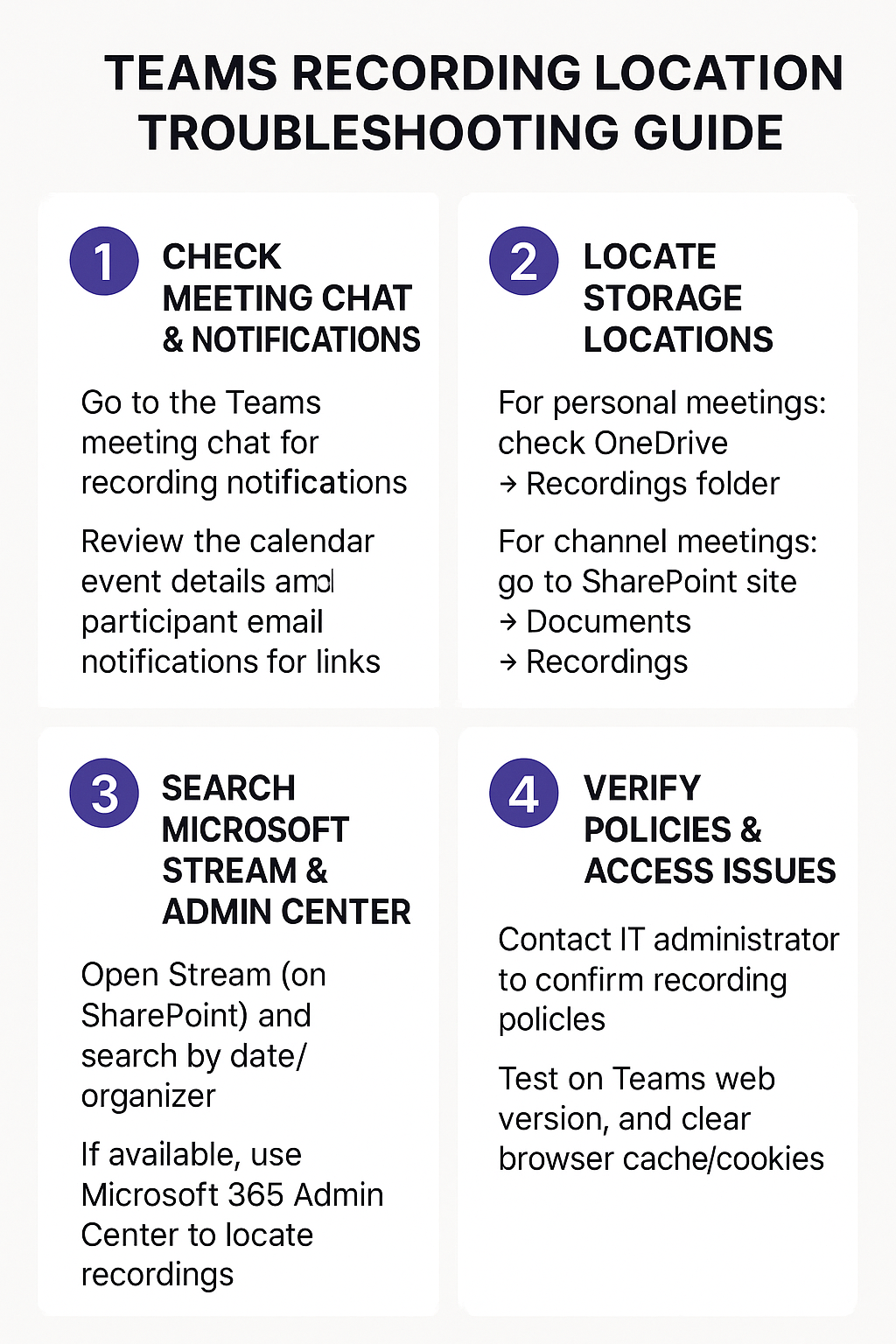
- Navigate to the original Teams meeting chat where the recording was initiated and look for automated recording notifications that appear as system messages
- Check the meeting organizer’s OneDrive account by accessing the “Recordings” folder, which Teams creates automatically when saving meeting content to personal storage
- Access the associated SharePoint site if the meeting was scheduled through a Teams channel, as channel meeting recordings save to the channel’s document library under “Recordings”
- Open Microsoft Stream (on SharePoint) by visiting your organization’s Stream portal and searching for recent uploads using the meeting date or organizer name
- Review the Teams calendar event details by clicking on the original meeting invitation and checking for recording links that may appear in meeting notes or descriptions
- Contact your IT administrator to verify organizational recording policies, as some companies disable automatic recording or restrict access to specific user groups
- Use Microsoft 365 admin center search functionality to locate recordings across all organizational repositories if you have administrative privileges
- Check email notifications sent to meeting participants, as Teams sometimes sends recording availability messages with direct access links
- Verify browser compatibility and clear cache/cookies, as outdated browser data can prevent recording links from displaying properly in Teams interface
- Access Teams web version instead of desktop application, as different clients sometimes show varying levels of recording information and availability
Remember: Recordings typically process within 15-30 minutes after meeting ends, but complex meetings with many participants may require several hours for full availability.
Confirm that recording actually started
Open the meeting chat or recap and look for the notification that recording began. If no start notice exists, the meeting may never have been recorded, and there is no file to recover. Ask the organizer or co-organizer who selected Record and note the approximate start and stop times.
Allow processing time after a long meeting. A temporary recording card can appear before the video is fully available. Do not start a second upload or create an unrelated replacement link while processing continues.
Search the owner and storage location
Non-channel meeting recordings normally go to the organizer’s OneDrive Recordings folder. Channel meeting recordings go to the channel’s SharePoint site. Search the correct account and library, not only the attendee’s OneDrive. Open the meeting’s Shared view and inspect the recording link target.
If the file exists but one attendee cannot open it, repair sharing permission rather than moving the recording. Guests and external attendees may require a direct permitted link. Moving or renaming the file can leave the meeting card pointing to an old location.
Check expiration, deletion, and failed uploads
Recording expiration is controlled by administrator settings, and expired files move to the recycle bin of the owning OneDrive or SharePoint site. Check both the normal and second-stage recycle bins while recovery is still possible. The organizer or an owner with edit permission can review the expiration setting.
Microsoft also documents a failed-upload recording card that can keep the recording in temporary storage for a limited period. Use the retry or download action promptly; once temporary storage expires, recovery may be impossible.
Provide support with the meeting ID, organizer, meeting type, channel, recording-start evidence, date, file owner, recording card status, and recycle-bin results. This evidence separates processing, permissions, moved files, expiration, and a recording that never started.
Microsoft Teams recording not showing: Common issues
- If you’re experiencing persistent issues with Teams recordings, you might need to clear your Microsoft Teams cache. Additionally, understanding how to find Microsoft Teams recording location guide can help prevent future recording access problems.
- Recording permissions were insufficient during the meeting session, preventing successful capture from occurring in the first place despite appearing to record normally. Verify that the meeting organizer has appropriate licensing (Microsoft 365 Business Standard or higher) and that organizational policies allow recording functionality for the specific user account.
- OneDrive storage quota exceeded prevents Teams from saving the completed recording file, causing it to appear missing even though processing completed successfully. Check the meeting organizer’s OneDrive storage usage and free up space or increase quota limits through Microsoft 365 admin center to allow proper recording storage.
- SharePoint permissions restrict access to channel meeting recordings, making them invisible to participants who lack appropriate site member or visitor permissions. Request access to the associated SharePoint site or ask the site owner to adjust sharing permissions to include all meeting participants who need recording access.