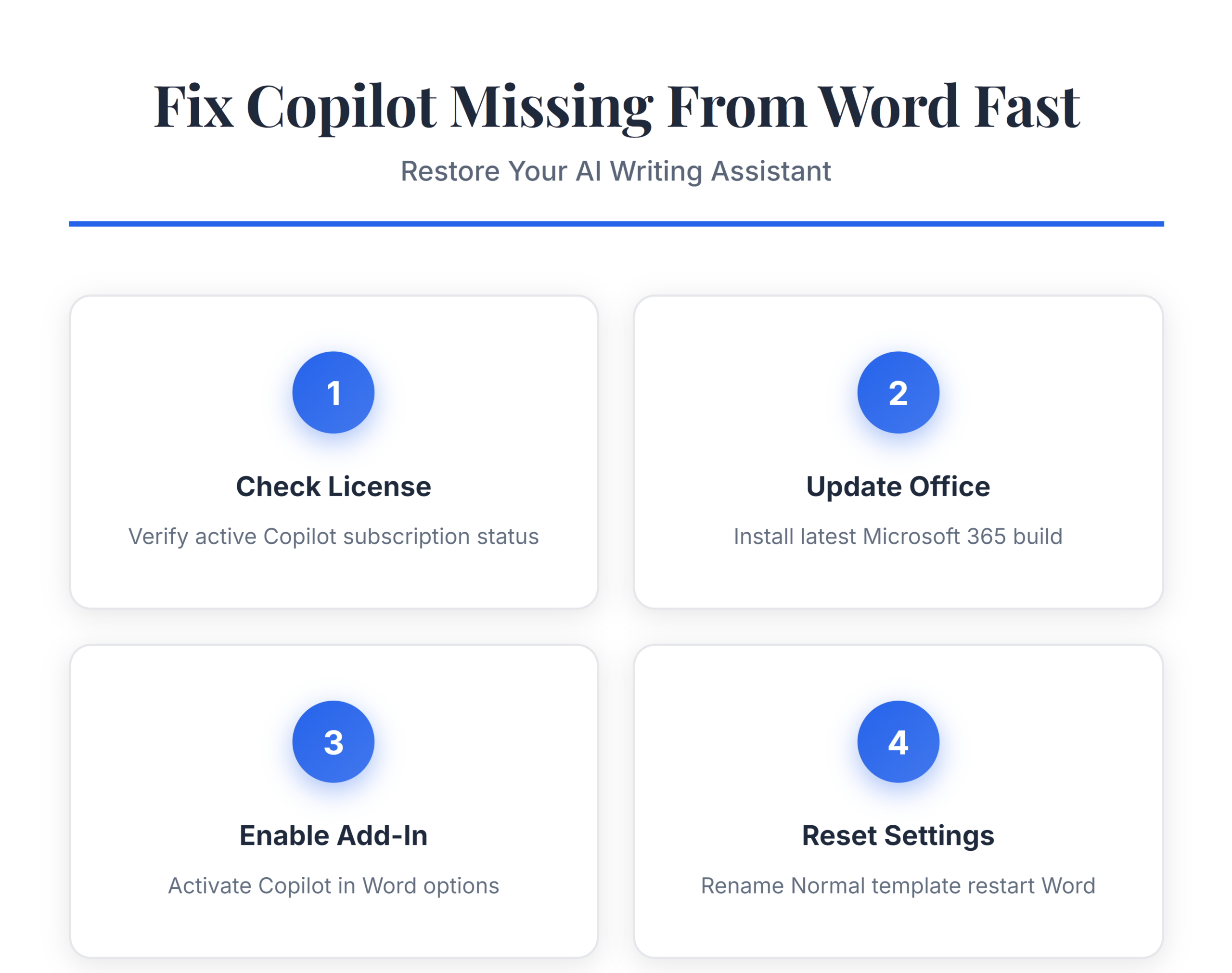
You open Word expecting the Copilot button on the Home tab, but it is completely missing from the ribbon. When Microsoft 365 Copilot stops appearing in Word, the root cause almost always traces back to a licensing gap, an outdated Office build, or a disabled add-in. The fixes below take under five minutes each, and working through them in order resolves the issue for most users without contacting IT support.
Restore Copilot Access in Word
Verify Your Copilot License Status
Copilot only appears in Word when your Microsoft 365 account carries an active Copilot license. Open Word, click File >> Account, and confirm the subscription listed includes a Copilot entitlement. Plans like Microsoft 365 Personal, Business Basic, and standalone Office 2024 do not include Copilot by default.
Your IT administrator may need to assign the Copilot license through the Microsoft 365 admin center. Even if your organization purchased Copilot seats, each user still needs an explicit license assignment before the feature activates. Sign out of Word completely, wait about thirty seconds, then sign back in to force a license refresh. Check the Account page again to verify that the Copilot entitlement now appears under your subscription details. A fresh sign-in cycle clears cached license states that sometimes block new features from loading.
Update Microsoft 365 Apps Manually
Microsoft rolls out Copilot features through monthly Office updates, and an outdated build hides the button entirely. Navigate to File >> Account >> Update Options >> Update Now to pull the latest version. Word needs Current Channel build 16.0.16227 or later for Copilot to appear on the ribbon. If you encounter Microsoft 365 apps not updating, run an Office repair first to unblock the update service.
- Close all Office applications before starting the update
- Allow the update to finish completely — partial installs can leave features missing
- Restart your computer after the update completes to apply all changes
Organizations that manage updates through WSUS or Microsoft Configuration Manager may lag several builds behind. Ask your IT team to confirm the Current Channel or Monthly Enterprise Channel is enabled, since the Semi-Annual Enterprise Channel often delays Copilot availability by several months.
Enable the Copilot Add-In in Word
Word loads Copilot through a COM add-in that can become disabled after a crash, an Office repair, or a Windows update. Open Word, navigate to File >> Options >> Add-ins. At the bottom of the window, set the dropdown to COM Add-ins and click Go. Locate Microsoft Copilot in the list and make sure its checkbox is selected.
If Copilot does not appear in the COM add-ins list at all, the add-in files may be missing from your installation. Run an Office repair by opening Settings >> Apps >> Installed apps, finding Microsoft 365, clicking the three-dot menu, and selecting Modify >> Online Repair. This process reinstalls all add-in components without affecting your documents or saved preferences. Relaunch Word after the repair finishes and check the COM add-ins list again.
Reset Word to Default Settings
Corrupted user settings occasionally prevent add-ins from loading correctly. Close Word and rename the Normal.dotm template file to force a fresh configuration. This file lives at %appdata%\Microsoft\Templates\Normal.dotm — rename it to Normal.dotm.bak to preserve a backup.
- Press Win + R to open Run, paste the path above, and press Enter
- Rename Normal.dotm to Normal.dotm.bak, then relaunch Word
- Word generates a new Normal.dotm automatically at startup
Renaming this file clears custom macros, styles, and keyboard shortcuts stored in the default template, so keep the backup if you rely on customizations. After Word creates the fresh template, check the Home tab for the Copilot button. If the button still does not appear, rename BuildingBlocks.dotx in the same Templates folder as a secondary measure, then restart Word once more.
Copilot Missing After Windows Update
Major Windows 11 feature updates sometimes reset Office configuration files and disable add-ins as a safety precaution. If Copilot vanished right after installing a Windows update, start by re-enabling the COM add-in using the steps above. When that alone does not restore the button, run a Quick Repair from Settings >> Apps >> Installed apps >> Microsoft 365 >> Modify.
Quick Repair preserves your settings while replacing corrupted program files. If the button still does not return after a Quick Repair, escalate to Online Repair, which redownloads all Office components from Microsoft servers. This takes longer but resolves deeper file-level corruption that Windows updates occasionally introduce. After any repair, restart your computer before checking Word again.
Copilot Grayed Out in Shared Documents
Copilot sometimes appears on the ribbon but stays grayed out when you open documents from SharePoint or OneDrive shared libraries. This happens when the document uses a format Copilot does not support, or when your organization restricts Copilot access on specific file locations through sensitivity labels.
- Save the document as a .docx file if it currently uses .doc or .rtf format
- Move the file to your personal OneDrive folder and test Copilot there
- Check with your administrator whether sensitivity labels block Copilot on certain document classifications
Copilot also requires an active internet connection to function. If you opened the file in offline mode or your VPN connection dropped, the button grays out until full connectivity returns.
Distinguish Copilot Chat from document-grounded Word features
A reliable change starts with a controlled comparison, not a long sequence of resets. Compare Word for the web with the desktop app using the same document. Write down the account, client or device, and exact symptom so that later tests use the same conditions. Change one variable at a time; several simultaneous fixes can hide the real cause and make the problem return.
Run a focused comparison
Check connected experiences and organization policy before reinstalling Office. Repeat the test with a simple sample that contains no confidential or business-critical data. If the sample works, compare permissions, file location, policy, and content with the failing case instead of reinstalling the whole product.
Record the missing control and document location for the administrator. Keep the original configuration or data until the new result has been checked. When a setting is unavailable, grayed out, or labeled as organization-managed, capture that message and ask the responsible administrator to review the policy.
Verify the result in normal use
undefined. Confirm the result after closing and reopening the relevant app, then repeat it from the normal user workflow rather than only from an administrator or owner account. A successful one-time test is not enough when synchronization, scheduled refresh, or another device is involved.
If behavior differs across clients, record the app version, account type, time of the test, and where the expected result appears. Use that evidence to decide whether the remaining fault is local, account-specific, data-specific, or service-side. This keeps troubleshooting narrow and protects working settings while support investigates the correct layer.
Finally, explain the intended outcome to another user and have that person repeat the shortest safe test. Their result can reveal hidden owner privileges, cached state, or assumptions about where data is stored. Preserve screenshots of error messages only after removing names, addresses, document content, and other private information.
Frequently Asked Questions
Why is Microsoft 365 Copilot not working in Word?
The most common causes are a missing Copilot license, an outdated Office build, or a disabled COM add-in. Verify your license under File >> Account, update Office to the latest Current Channel build, and confirm the Copilot add-in is enabled under File >> Options >> Add-ins. Restart Word after each change to apply the fix.
How do I fix Copilot not appearing in Word permanently?
Start by confirming your Microsoft 365 subscription includes a Copilot license assigned to your specific account. Update Office apps through File >> Account >> Update Options, then verify the Copilot COM add-in is active. If the problem recurs after updates, run an Online Repair from Windows Settings to replace corrupted Office files permanently.
Does Copilot work in all versions of Word?
Copilot requires a paid Microsoft 365 subscription with an active Copilot add-on license. The free web version of Word, standalone Office 2021, and Office 2024 perpetual licenses do not support Copilot. You need Microsoft 365 Personal, Family, Business Standard, or Enterprise E3/E5 with a Copilot seat assigned to your account.
A missing Copilot button in Word almost always comes down to a licensing gap, a stale Office build, or a disabled add-in. Work through the fixes above in order, and Copilot should reappear on the Home tab within minutes.