Microsoft Intune can upload and run PowerShell scripts on managed Windows devices through the Intune Management Extension. This is useful for a one-time configuration that is not available in the settings catalog. It is not the right choice for every recurring repair or full application installation.
The deployment quality depends on three decisions: execution context, 32-bit versus 64-bit host, and a success signal that Intune can interpret. This guide builds a controlled platform-script rollout and shows where to look when the portal says the script ran but the endpoint did not change as expected.
Choose the correct Intune tool
Use a Platform script when you need to apply a focused configuration once after assignment. Use Remediations when you need separate detection and repair scripts on a recurring schedule. Use a Win32 app when files, uninstall logic, requirements, and version-aware detection form an application lifecycle.
A script that installs a complex product is often better packaged as Win32 content. Intune runs platform scripts before Win32 apps, so platform scripts can prepare a prerequisite, but that ordering should be tested rather than used to hide an unreliable installer.
Write for unattended execution
Remove prompts, pauses, message boxes, and requests for input. Return a nonzero exit code when the operation fails, and write only concise diagnostic output. Scripts time out after 30 minutes, so long installers or indefinite network waits do not belong here.
Never include passwords, access tokens, personal information, or collected user data. If the script needs a secret, redesign the workflow around a managed identity, certificate, protected service, or another supported management method.
Test the context locally
First decide whether the change belongs to the device or the signed-in user. Registry values under HKEY_LOCAL_MACHINE, services, and machine-wide folders normally need system context. Settings under a user profile may need logged-on credentials.
Test the script using the matching architecture. A 32-bit PowerShell host on 64-bit Windows sees redirected registry and system paths. If the script manages 64-bit software or locations, select the 64-bit host in Intune and verify the behavior on a 64-bit pilot PC.
The script should be safe when retried. Intune retries a failed platform script during the next three consecutive management-extension check-ins. A partial first run must not damage the machine or cause the second run to fail for a different reason.
Upload and assign the policy
In the Intune admin center, go to Devices > Scripts and remediations > Platform scripts. Select Add > Windows 10 and later. Enter a descriptive name and purpose, then upload the .ps1 file on Script settings.
Choose the settings deliberately:
- Set Run this script using the logged on credentials to No for system context or Yes for the current user.
- Enable signature enforcement only when the script is signed by a publisher trusted on the device.
- Select the 64-bit PowerShell host when the script requires native 64-bit paths or components.
- Apply scope tags if delegated administrators must see only part of the environment.
The uploaded platform script must stay within Microsoft’s documented size limit. Save it in a compatible encoding and keep external downloads to a minimum. An endpoint may have network access to Intune but not to an arbitrary package host.
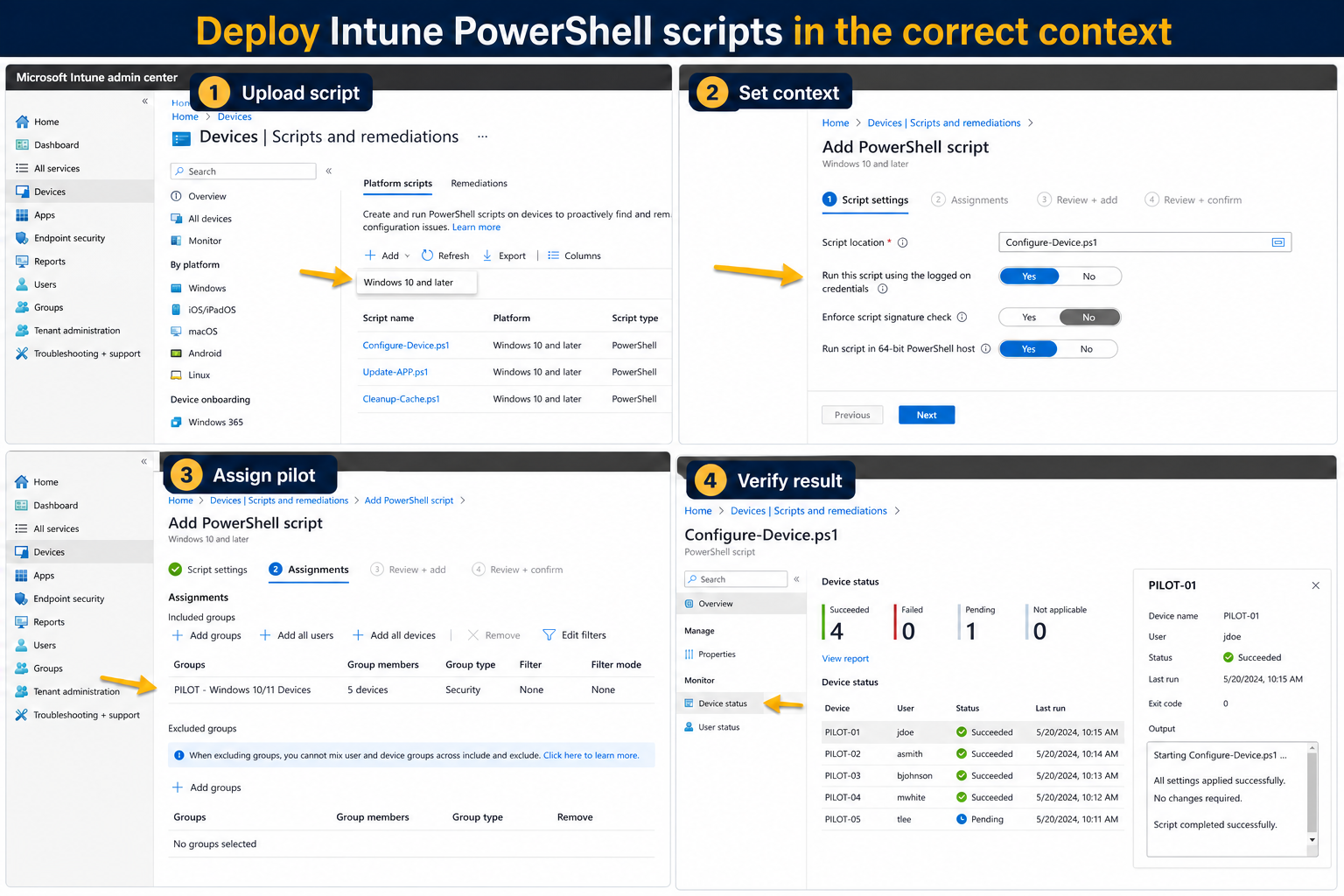
On Assignments, include a small Microsoft Entra user or device group. Workplace-joined devices have an important targeting limitation: user targeting is ignored, so use a device security group for that scenario. Review the summary and select Add.
For a device-side rollout, it is wise to pilot against PCs where you can inspect the result directly. The Windows restore-point guidance can be useful before testing a script that changes a difficult-to-reverse local setting, though enterprise rollback should still be designed into the script itself.
Monitor the evidence
Open the script and review Device status and User status. A successful result means the process returned success; it does not prove every intended business outcome. Verify the changed registry value, file, service, or configuration on at least one pilot device.
The management extension checks for new or changed scripts after reboot and on its normal check cycle. Once a platform script succeeds, it does not run again unless the script or policy changes. Do not repeatedly edit whitespace merely to force execution; choose Remediations if ongoing drift correction is the real requirement.
The script never arrives
Confirm the device is managed and joined appropriately, the assignment group contains it, and the Intune Management Extension is installed. A badly outdated system clock can prevent extension-delivered scripts from running. Also review the extension service and its local logs.
Intune reports success but nothing changed
Check the selected user/system context and PowerShell host architecture. Then examine whether the script suppressed an error or returned exit code 0 after a failed command. Use strict error handling for important operations and verify the end state before returning success.
Access is denied
System context does not automatically solve every permission problem. A network share may not accept the device identity, a security product may block the process, or a user-profile path may not exist. The local permission checklist helps isolate filesystem rights before you change the Intune policy.
Reader questions about platform scripts
Will the script run at every user sign-in?
Not as a normal recurring logon script. It runs after assignment and again only under documented change or retry conditions. Device-assigned scripts can run for new users in some scenarios, but that does not make them a general sign-in automation system.
Do users need to be signed in?
No, end users do not have to be signed in for an eligible script to execute. User-context work still depends on a meaningful user environment, so test that scenario separately from system-context deployment.
What happens after a failure?
The Intune Management Extension retries the script three times over the next three consecutive check-ins. After that, correct the code or policy and upload a changed version rather than waiting for unlimited automatic retries.
Can the script display a setup window?
No reliable enterprise deployment should depend on interactive UI. Write an unattended script and report failure clearly. For an application that requires user choices, obtain a silent enterprise installer or use another supported delivery design.
Expand only after endpoint verification
A platform script is ready for production only when the same code works in the selected context, returns an honest exit code, and leaves a verifiable end state. Pilot both 32-bit and 64-bit considerations where relevant, and inspect the Intune Management Extension logs when status is ambiguous. If the configuration must be checked repeatedly, move to Remediations instead of forcing a one-time script to behave like a scheduler. That boundary keeps endpoint management understandable and supportable.