Microsoft Intune Remediations run a detection script and, when needed, a repair script on managed Windows devices. The schedule determines how quickly a recurring problem is found, but a shorter interval is not automatically better. Heavy scripts can waste CPU, network capacity, and battery life when they run too often.
This guide shows how to create or edit a package assignment, choose Once, Hourly, or Daily, and verify that devices report useful results. It also explains when a regular Intune platform script is the wrong tool: platform scripts normally run after assignment and do not provide a recurring detection-and-repair loop.
Match the cadence to the support problem
Start with the failure’s real recurrence pattern. A service that can stop several times a day may need an hourly check. A cache or configuration drift that develops slowly may need only a daily or weekly interval. A one-time migration check belongs on a Once schedule.
Use this quick decision table:
| Situation | Practical starting schedule | Reason |
|---|---|---|
| Urgent state can recur during the workday | Hourly, with a measured interval | Limits time spent in the failed state |
| Normal configuration drift | Daily | Balances detection and device cost |
| Expensive inventory or cleanup | Daily with a multi-day interval | Reduces repeated work |
| Controlled one-time correction | Once | Avoids an unnecessary recurring task |
If your repair is really a cloud workflow rather than endpoint maintenance, the scheduled-flow setup pattern is the better model. Intune Remediations are designed for Windows endpoint detection and correction through the Intune management extension.
Make detection idempotent
The detection script should inspect state without changing it and return a predictable exit code. Use exit code 0 when no remediation is required and exit code 1 when the remediation should run. Keep output concise because the portal’s reporting fields are not a substitute for a full log stream.
Make remediation safe to repeat
Even a correctly scheduled package may run again after a device was offline or a result changed. Write the repair so running it twice does not corrupt state. Avoid embedding passwords, tokens, personal data, or unnecessary collection logic in either script.
Create the package and its assignment
In the Intune admin center, go to Devices > Manage devices > Scripts and remediations > Remediations. Choose Create script package for a custom package, or open a built-in package if it already addresses the issue.
Provide a specific name and description, upload the detection script, and upload a remediation script when a repair is required. Use UTF-8 encoding. Review options for signed scripts, logged-on credentials, and 64-bit PowerShell against what the code actually needs. System context is appropriate for machine-wide settings; user context is required for state stored in a user profile.
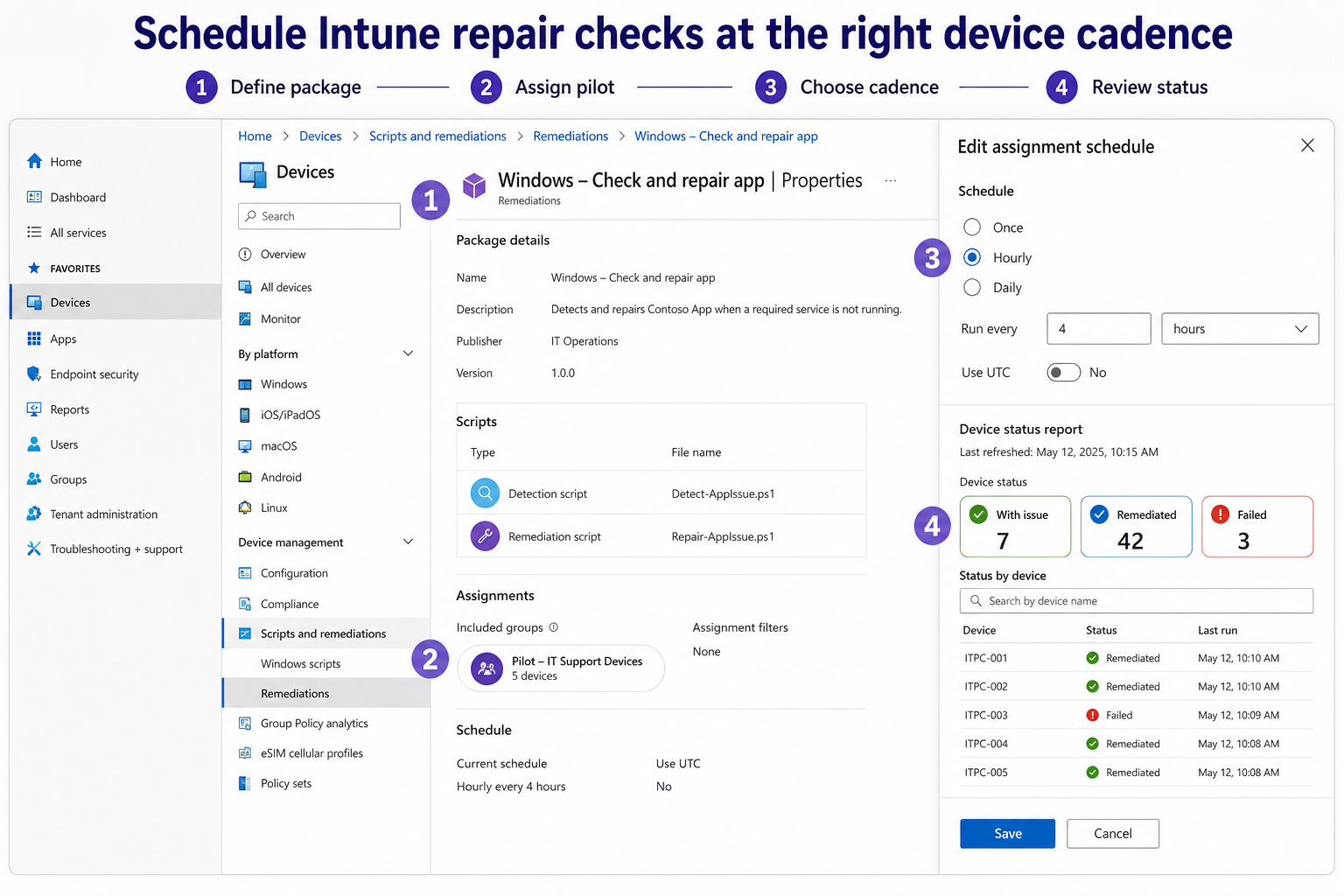
Continue to Assignments, include a small pilot group, and open the schedule settings for that assignment. Choose one of the supported schedules:
- Once runs at the specified date and time.
- Hourly accepts an interval smaller than 24 hours.
- Daily runs at a specified local time and can use a multi-day interval.
By default, the schedule follows each device’s local time. Select Use UTC only when a single global reference time is operationally important. If a scheduled run is missed because the device is offline, Intune runs it as soon as practical after the device returns.
Prove the scripts before shortening the interval
Run the detection script manually on a representative test device in the same context that Intune will use. Test three conditions: healthy, deliberately unhealthy, and repaired. Confirm the detection output and exit codes at every stage.
Then assign the package to a pilot group and wait for policy retrieval. The Intune management extension retrieves Remediations policy after service or device restart, after sign-in, and on its regular check cycle. An assignment appearing in the portal does not mean the endpoint has already received it.
Read the device status, not only the overview
Open the package and review Device status. Separate devices that are healthy from those that detected an issue, remediated it, or failed to run. Exported results can help with a larger investigation, but first inspect a few individual devices to see whether the output is actionable.
When a script shows a failure, treat connectivity, permissions, PowerShell host architecture, script signing, and the Intune management extension as separate checks. General Windows resource symptoms can also distort timing; the local performance checks are useful when the remediation itself completes but creates noticeable load.
Tune the schedule after observing a full cycle
Collect at least one normal operating cycle before increasing frequency. Compare how often detection finds a real fault with how long each run takes. If nearly every run reports healthy and the problem is low risk, reduce frequency. If the same device repeatedly needs repair, investigate the root cause instead of using an hourly script to mask it indefinitely.
For resource-heavy packages, Microsoft recommends less frequent runs, such as every seven days. Stagger unrelated packages by choosing different daily times. The portal does not need every endpoint maintenance job to begin at the start of the hour.
Quick answers about Remediations schedules
Can an hourly interval be 24 hours?
No. The hourly interval must be less than 24 hours. Use Daily for a once-per-day job or for an interval measured in days.
Does the run use the tenant’s time zone?
The default is the device’s local time. Select Use UTC when you need the same reference time across locations, and remember that a sleeping or offline device can run the missed job later.
Can I trigger a package immediately?
Intune includes an on-demand Run remediation device action, currently documented as preview. It requires a supported online device, and issuing several requests quickly to the same device can cause one action to overwrite another.
Why does the portal not show a new result every day?
Recurring scripts use a reporting cycle that emphasizes changes. The client reports when a result changes and also sends a periodic report even when nothing changed. That behavior is different from the package’s execution schedule.
A sustainable operating rule
Schedule Remediations for the risk and recurrence of the endpoint problem, not for the fastest interval the interface allows. A clean detection script, repeatable repair, narrow pilot, and readable output matter more than frequency. After monitoring real devices, widen the assignment and adjust the cadence based on evidence. If the repair becomes permanent background machinery, investigate why the underlying configuration continues to drift.