You need to schedule a Teams meeting for tomorrow’s project review. The interface shows multiple options, but you’re not sure which method works best. Here’s the complete process that works reliably across all devices. Knowing how to schedule a Teams meeting saves time every week.
Teams meeting scheduling methods and when to use them
The Teams calendar provides the most comprehensive way to schedule a Teams meeting with full control over every detail. Access your calendar through the Teams application or web interface for the broadest range of scheduling features. You can schedule a Teams meeting from any device with internet access, including desktop computers, mobile phones, and tablets running Windows, macOS, iOS, or Android operating systems.
Existing chat conversations provide the quickest way to schedule a Teams meeting when participants are already in a conversation. This method automatically includes all chat participants as attendees, eliminating manual entry and reducing the time required to create meeting invitations. The calendar approach offers maximum flexibility for formal recurring events, while chat-based scheduling provides speed for ad-hoc collaboration needs with colleagues you already work with regularly.
Expert Tip: Choose the calendar method for meetings requiring detailed configuration like recurrence patterns, registration forms, or cross-organizational attendees, and use chat-based scheduling for quick internal team discussions.
Note: You can further enhance your Teams setup by learning how to configure your meeting communication settings.
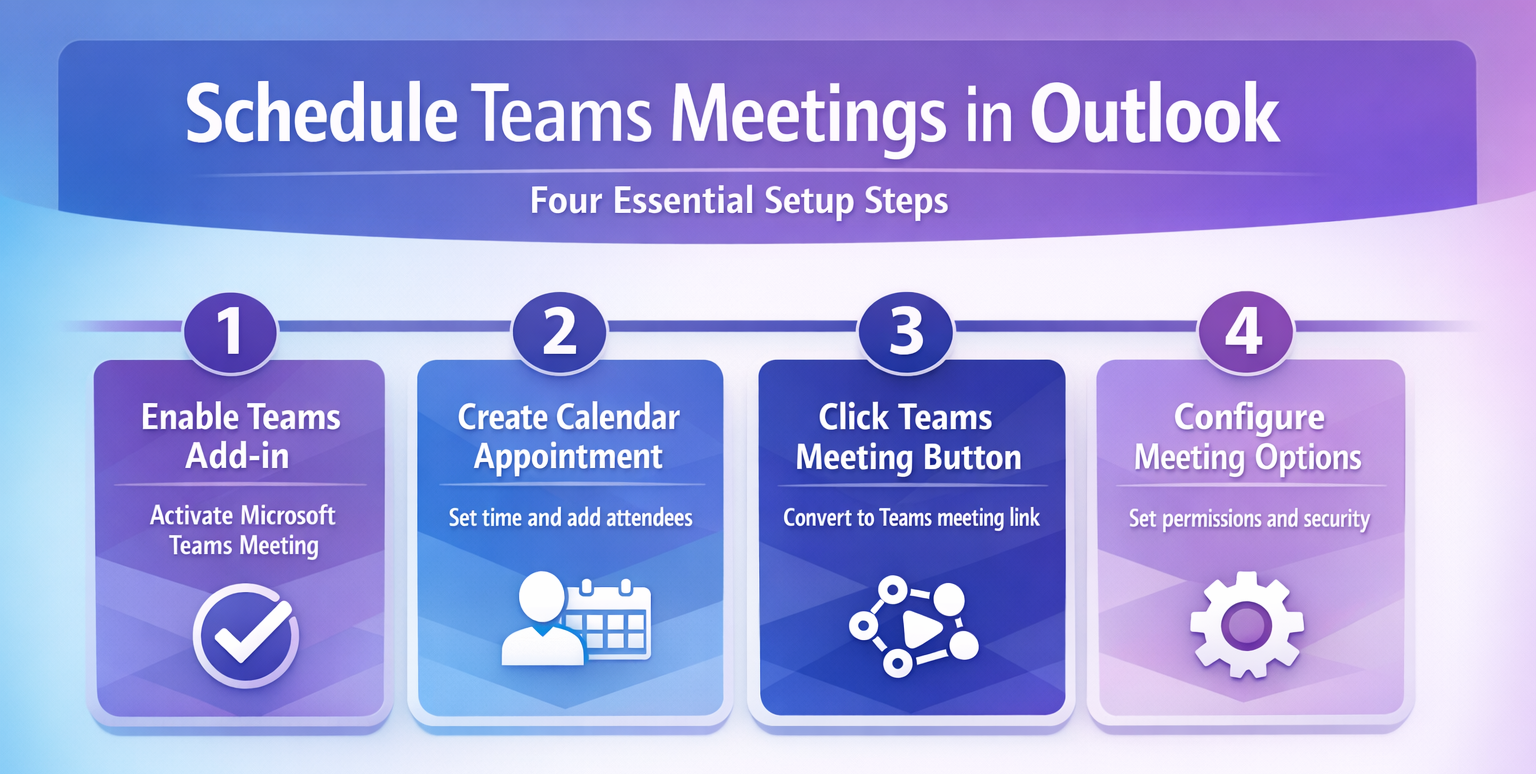
Create a Teams meeting from your calendar view
Open Teams and select Calendar from the left navigation panel to access your complete scheduling interface. Click New meeting in the top toolbar to begin the scheduling process and open the meeting configuration window. Enter your meeting title in the Title field, using descriptive names that clearly identify the purpose such as “Weekly Team Standup” or “Q1 Budget Review” for improved searchability.
- Set the date and time using the calendar picker, which displays available time slots based on your existing commitments and organizes options chronologically for easy selection.
- Add attendees by typing names or email addresses in the Add required attendees field, where Teams will suggest matching contacts from your organization as you type characters.
- Optionally add a description or agenda in the Details section to provide context that helps attendees prepare and understand the meeting purpose before joining.
- Click the Location dropdown to add a physical location if hybrid participants will join from a conference room alongside remote attendees using the Teams link.
- Verify all meeting details are correct, then click Send to distribute calendar invitations to all required and optional attendees you have specified in the form.
Configure recurring meeting patterns for regular sessions
For recurring meetings, click Repeat and choose your frequency from daily, weekly, monthly, or custom patterns that fit your team’s regular collaboration cadence. Specify the end date for recurring meetings using the End dropdown, where you can set it to end after a specific number of occurrences or on a particular calendar date. Custom recurrence patterns allow complex scheduling like “every second Tuesday” or “monthly on the third Friday” to accommodate specialized team workflows and organizational rhythms.
Remember: Recurring meetings maintain the same Teams link across all occurrences, making it easy for participants to bookmark and join without searching for new invitations each time.
Schedule meetings directly from existing chat conversations
Open the chat where you want to schedule the meeting and locate the conversation header containing participant names and icons. Click the Calendar icon in the conversation header, then select Schedule a meeting to open the abbreviated scheduling interface designed specifically for chat-based meetings. The meeting title defaults to the chat name but can be modified if you need something more specific that accurately reflects the discussion topic.
- Adjust the date and time as needed using the compact time selector, which pre-populates with a reasonable default time based on your current availability patterns.
- All chat participants are automatically added as attendees, eliminating the need to manually search for and add each individual person to the meeting invitation.
- Remove participants if needed by clicking the X next to their names, which is useful when the chat includes stakeholders who don’t need to attend every meeting.
- Add a meeting description if additional context would help attendees prepare, though this field remains optional for quick scheduling scenarios where the chat history provides sufficient background.
- Click Send to finalize the meeting and distribute invitations to all participants, who will receive both a calendar entry and a notification in the chat thread.
Manage time zones when coordinating global participants
When scheduling with participants across multiple time zones, Teams displays times in your local zone by default for consistency and to prevent confusion during initial setup. Click Time zone to view times in different regions and verify that the selected meeting time falls within reasonable business hours for all attendees across their respective locations. The scheduling assistant shows availability across all selected time zones using color-coded blocks, where green blocks indicate when all participants are available simultaneously for the scheduled meeting duration.
Important Tip: Always verify that your proposed meeting time doesn’t fall outside standard working hours for participants in significantly different time zones to ensure maximum attendance and engagement.
Set advanced meeting permissions and access controls
Teams offers sophisticated options when you need to schedule a Teams meeting with complex requirements like cross-organizational collaboration, registration tracking, or multi-timezone coordination that exceeds basic scheduling capabilities. Control who can join your meeting using the Meeting options link, which opens detailed permission settings in a separate browser window or panel within the Teams interface. Choose who can bypass the lobby from the Who can bypass dropdown, with options ranging from everyone to only people in your organization or only specific invited attendees.
- Set presenter permissions using the Who can present option to restrict presentation rights to specific attendees or allow all participants to share content during the session.
- Enable the lobby feature to screen participants before they enter, giving you control over exactly when each person joins and preventing unauthorized or unexpected attendees from accessing content.
- Configure announcement settings to determine whether Teams plays a sound when people join or leave, which helps track attendance in large meetings but can be distracting in smaller sessions.
- Allow meeting chat controls let you determine whether participants can communicate via text during the meeting, which is useful for managing distractions in presentation-heavy sessions or webinars.
Add registration requirements for webinars and large events
For large meetings or webinars, enable registration to track attendance and control access with greater precision than standard meeting invitations provide through simple calendar entries. Click Require registration in meeting options to activate the registration form builder, which allows you to create custom fields and questions that attendees must complete before receiving access. Customize registration questions to gather relevant attendee information such as job titles, departments, specific interests, or accessibility needs that help you tailor the event experience appropriately.
Suggestion: Registration generates a unique link for each attendee, providing better security through individualized access tokens and detailed attendance tracking that shows exactly which registered individuals actually joined the session.
Resolve common scheduling and calendar synchronization issues
Common scheduling issues have straightforward solutions, and most problems stem from permission settings or calendar synchronization delays between Teams and Outlook rather than fundamental software failures. If your Teams calendar doesn’t match Outlook, check your calendar sync settings by navigating to Settings and then General and Application to verify calendar integration is enabled correctly. Force a manual sync by refreshing your calendar view using the refresh icon in the Teams calendar or by pressing F5 in the web interface to trigger an immediate synchronization.
- Calendar sync typically completes within five to ten minutes under normal network conditions, though delays occasionally occur during peak usage periods or when servers experience high load.
- Restart Teams if synchronization doesn’t occur after fifteen minutes, as application restarts often resolve temporary communication issues between Teams and Exchange servers that prevent proper calendar updates.
- Guest access problems often result from organizational policies configured by administrators rather than individual user settings, so contact your IT administrator if external participants cannot join scheduled meetings consistently.
- Check meeting options to ensure external participants have appropriate lobby bypass permissions, and adjust settings before the meeting starts to avoid disruption when guests attempt to join punctually.
Scheduling Teams meetings becomes intuitive once you understand the available methods and when each one fits best for your specific collaboration scenario. Advanced options like registration pages and granular lobby permissions support complex organizational requirements such as webinars, training sessions, and cross-company workshops that demand tighter control over participant access and engagement tracking throughout the event lifecycle.