Last updated: May 2026 | Tested on: Microsoft 365 Apps for Business, Windows 11
A Word header that should appear only on the first page needs the Different First Page option. Without it, Word treats the header as part of the section and repeats it on every page. The fix is simple for a title page, but it gets more careful when your document has section breaks, page numbering, or existing headers.
Use the first-page header area for cover-page content, then leave the regular header blank. If the header problem starts in the middle of a document, section breaks and Link to Previous are the settings that decide what repeats.
Create the first header in Word
Open the header area
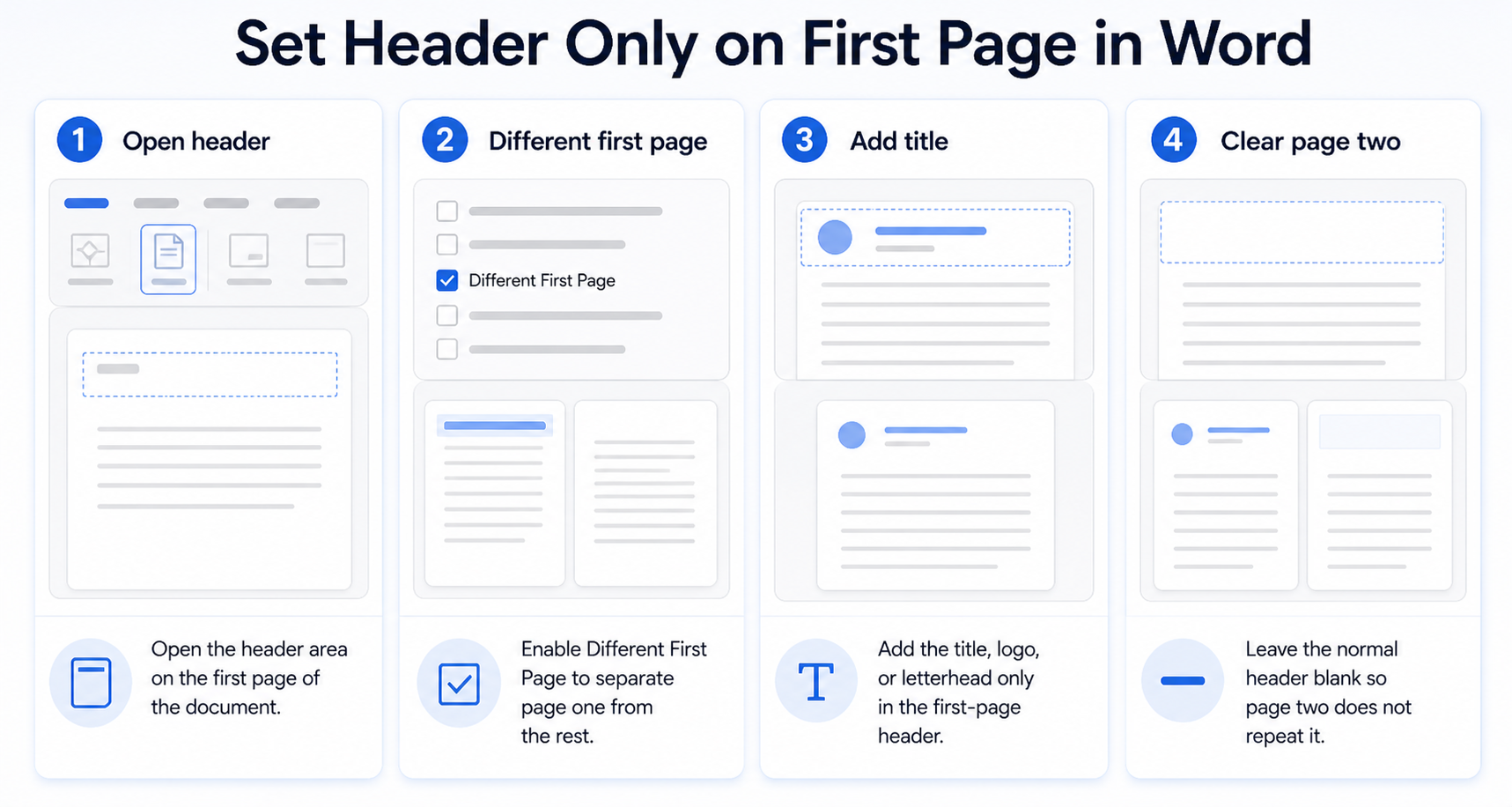
Double-click near the top margin of the first page, or go to Insert >> Header >> Edit Header. Word opens the Header & Footer tab and places your cursor in the header. If you already inserted a built-in header, you can edit it from the same area.
My usual check is whether Word labels the area as the normal header or First Page Header, because that tells you which header type you are editing.
Do not delete the header from later pages manually yet. Manual deletion often removes the same repeated header everywhere because the pages share one section header. Set the first-page behavior first, then clean up any remaining section issues.
Enable Different First Page
On the Header & Footer tab, select Different First Page. Word creates a separate first-page header for the current section. Add your logo, document title, author line, date, or other cover-page text in the first-page header area.
If the old header disappears from page one after you enable the toggle, that is expected. Word has separated the first page from the rest of the section, so you may need to paste or type the first-page content again. The regular header for later pages remains separate.
Leave later headers blank
Scroll to page two while still editing headers. If page two has content you do not want, select it and delete it from the regular header area. Then choose Close Header and Footer or press Esc. The first page keeps its header, and later pages should be blank.
- Use Different First Page when only the section’s first page should differ.
- Use a section break when the special header starts somewhere other than page one.
- Use Link to Previous only when a later section should inherit the previous section’s header.
This distinction matters because Word headers belong to sections, not individual physical pages. Page one of section two can also have its own first-page header.
Fix document section issues
Check for section breaks
If the header appears or disappears in unexpected places, turn on formatting marks with Home >> Show/Hide. Look for Section Break (Next Page) entries. A document with multiple sections can have multiple first-page headers, regular headers, and linked headers. If the main symptom is broader repetition, fix repeating page headers before rebuilding the document.
For a simple document, you probably do not need section breaks at all. For reports with chapters, appendices, or different page numbering, section breaks are normal. The key is knowing which section you are editing before changing the header.
Turn off Link to Previous
When you are editing a header in a later section, Word may show Link to Previous on the Header & Footer tab. If it is enabled, the current section’s header copies the matching header from the previous section. Turn it off before changing or deleting a header that should be independent.
This is the setting that trips people up in long documents. Deleting a header while it is linked can remove it from another section too. Break the link first, then edit the current section’s header.
Use page numbers carefully
Page numbers live in headers or footers, so the same first-page setting can affect them. If you do not want a page number on the first page, enable Different First Page and remove the first-page number. If you want page two to display as page 1, use Page Number >> Format Page Numbers and set the numbering start as needed.
Do not mix header cleanup with numbering changes unless you need both. First confirm the header appears only where it should, then handle page-number formatting. It is easier to diagnose one layout rule at a time, especially in long reports where you may also need to update Word table contents after layout changes.
Troubleshoot Word headers
Header still repeats
If your Word header still repeats, you probably edited the regular header instead of the first-page header, or the document has another section. Double-click the first page header and confirm Different First Page is selected. Then check page two and delete content from the regular header if necessary.
I look for the small header labels before deleting anything, because they prevent accidental changes across sections.
If the repeated header starts after a section break, go to that section and check its own Different First Page and Link to Previous settings. Each section can behave differently. That is powerful, but it also means one global fix may not reach every page.
Header missing on page one
When Different First Page is turned on, the first page uses a separate header box. If you typed content before enabling the setting, it may still be in the regular header for later pages. Copy the content into the First Page Header area and clear the regular header if later pages should stay empty.
This does not mean Word deleted your header. It means Word moved you to a different header type. Check page two before assuming the content is gone.
First page of each chapter
For chapters, each chapter is usually a separate section. Place a Next Page section break before the chapter, then enable Different First Page for that section if the chapter opener needs a special header. Use Link to Previous carefully depending on whether chapter headers should match.
This pattern is also useful for appendices, title pages inside a report, or documents where only one section needs a letterhead-style first page.
Test first-page headers across section boundaries
For Word section behavior, begin with the smallest reproducible example. Note the time and exact action, remove unrelated variables, and change only one factor between tests so a temporary improvement is not mistaken for a fix.
Check the smallest reproducible case
Turn on formatting marks and inspect section breaks before editing headers. Different First Page applies within a section, so a document with chapters may intentionally produce a separate first-page header in each section.
Open the header in the affected section, verify Different First Page, and check Link to Previous for both the first-page and primary header types. Change one link at a time to avoid removing headers from earlier sections.
Validate before closing
Review page one, page two, and the first two pages of every section in Print Layout and PDF preview. Confirm page numbering, odd/even headers, and blank pages before distributing the document.
If the result differs by user, network, or device, record that boundary. It helps support teams decide whether the remedy belongs in the profile, endpoint, tenant, or connected service.
Keep the confirmed working setting and note why it was chosen. If the issue returns, the recorded control test provides a safe starting point instead of repeating every possible repair.
When the workflow touches cloud content, verify both the visible item and its underlying storage or permission. A client can display an old reference even when the file, task, recording, credential, or indexed source is unavailable. Confirm ownership and access from the authoritative location.
When documentation differs from the interface, verify product edition, update channel, license, and rollout status. Do not invent a missing menu path; record what is visible and use the current vendor guidance for that exact environment.
If the case affects business records or shared access, have the content owner confirm completeness and permissions. Technical success alone is insufficient when users can open the wrong version or see more information than intended.
Word header questions answered
How do I make a header first page only in Word?
Double-click the first page header, select Different First Page, add the content to the First Page Header, and leave the regular header blank. If page two still shows the header, delete the content from the regular header area. Close the header when the first page is the only one showing it.
Why does my header show on every page?
Word repeats headers across a section by default. Until you enable Different First Page, the first page and later pages share the same header. In multi-section documents, Link to Previous can also copy headers from earlier sections.
Can I remove a header from one page only?
For the first page of a section, use Different First Page. For another single page, insert section breaks before and after that page, then turn off Link to Previous and edit that section’s header. A normal page break is not enough because headers are controlled by sections.
Once you understand that Word headers are section-based, the first-page-only setup is predictable. Use Different First Page for the opening page, and use section breaks only when the exception starts later in the document.