Calendar search can return nothing even when the appointment is visible on its date. The usual reasons are a search phrase that is too exact, the wrong selected calendar, a narrow time filter, or an item stored in a shared or group calendar rather than the personal calendar.
The safest method is to prove the item exists, identify its owning calendar, and then rebuild the search from one distinctive clue. This avoids destructive profile work and also catches renamed meetings.
Keep one calendar example for comparison
Choose one calendar item whose date and owner are known. That example lets you compare manual browsing, search filters, and the same mailbox in another client. Change only one variable before repeating the test, and keep the failing example unchanged until the comparison is complete.
For calendar search, keep the event’s exact current subject, date, organizer, and owning calendar. Try one uncommon word, then the organizer, then a wider date range. A manually visible event that appears in web search but not desktop search gives support a precise client-only example without risking the appointment.
When results differ between desktop and web, do not keep changing both clients. A working web result usually proves that the cloud object and account still exist, leaving desktop installation, operating-system permission, or cached session as the narrower scope. Failure in both places makes the item, account, policy, connector, or service configuration more likely.
For a managed account, provide the affected identity, client, time, one reproducible example, the second-client result, and any visible error. Keep screenshots focused on the relevant pane and remove private names. Avoid sending passwords, private documents, recordings, or full card payloads unless the support owner requests them through an approved channel.
Before closing this Outlook issue, repeat the successful path with a second ordinary example. If the second example works, preserve the original failure for object-specific review. If it fails in the same place, the shared client, account, permission, policy, or connector layer remains the stronger lead.
Start from the calendar, not the search box
Confirm the owning calendar
Browse to the approximate day or switch to a wider month view. Select the event if it is visible and note its current subject, location, organizer, and calendar. If crowded working hours are hiding context, the calendar-view setup can make manual verification easier without changing the event.
Search fields Outlook actually uses
Microsoft documents that calendar search can use words from fields such as subject, location, body, attachments, organizer, and attendees. Start with one uncommon word. Avoid a long remembered title, because a renamed meeting or punctuation difference can exclude the result.
Build the query from broad to narrow
- Select Calendar and make sure the relevant personal, shared, or group calendar is visible.
- Enter one uncommon word and press Enter. In Outlook.com and new Outlook, inspect the calendar and time filters in the search controls.
- If results appear, add a second word or choose an organizer filter. In classic Outlook, scroll to the end and load more when Outlook initially limits the list.
- Try quotation marks only when you know the exact phrase. Use uppercase AND, OR, or NOT in classic Outlook when a logical query is useful.
- Search the organizer or a distinctive location if the subject changed. Then open the item and confirm its series, calendar, and date.
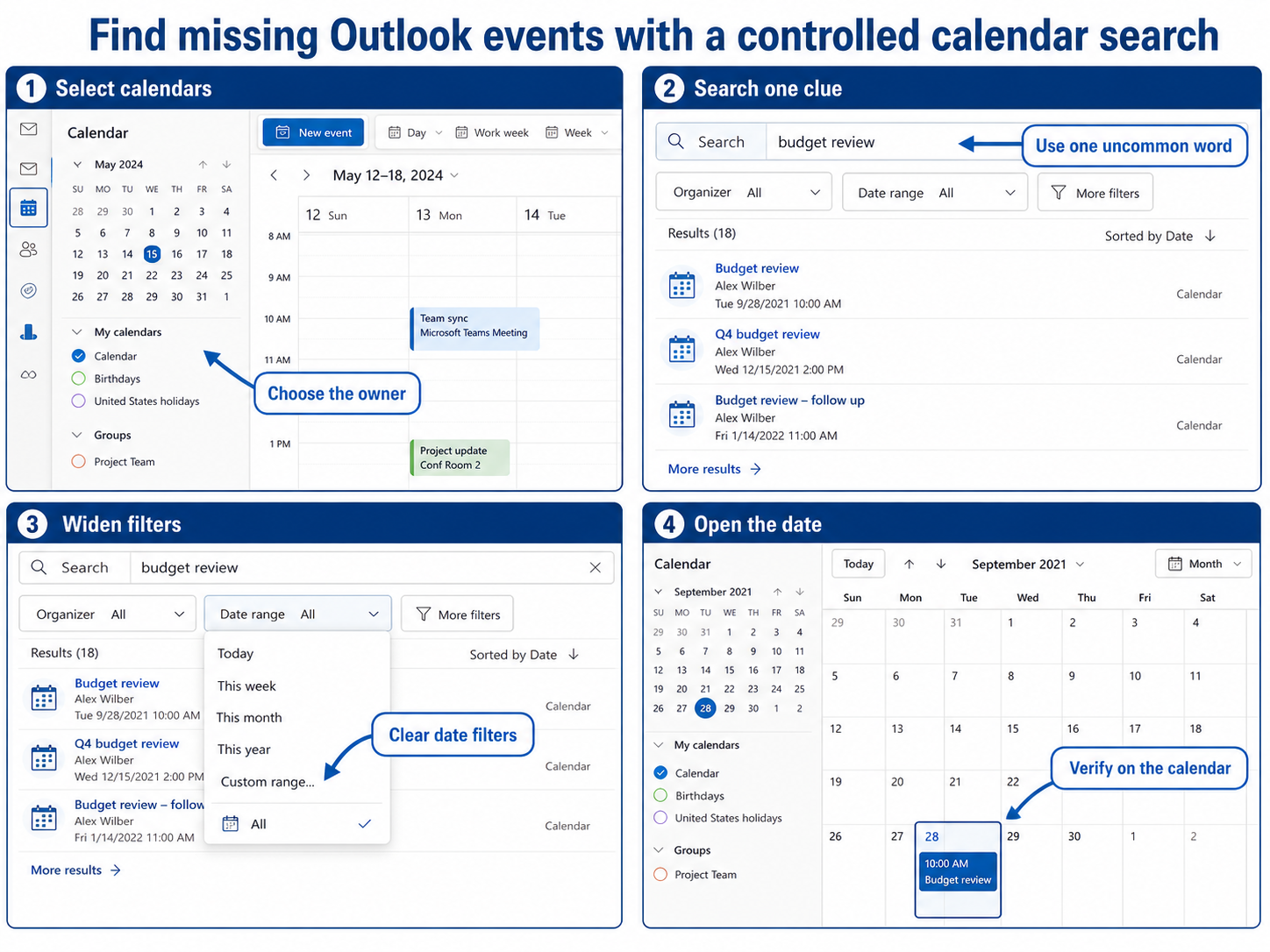
Check date and time assumptions
An event can appear missing when it was moved across midnight or created in another time zone. Compare the expected time with the multi-zone calendar check before assuming search deleted anything. Recurring meetings also deserve a series check because one occurrence may have been changed.
If the event exists in Outlook on the web but not in the desktop result list, the mailbox copy is intact and the desktop client is the narrower scope. Record the exact query and calendar, update the client, and let support investigate the local search experience rather than recreating the event.
Practical verification notes
Repeat the successful path with a second ordinary example before calling the issue resolved. The second test should use the same account and client but a different item, meeting, file, or run. If only the original example fails, investigate that object’s settings and history. If both fail, continue at the client, policy, connector, or service layer.
Keep rollback simple. Save existing settings before changing them, avoid deleting shared data during diagnosis, and prefer reversible tests such as a new appointment, copied flow, private meeting, or sample file. This protects production work while giving support a clean comparison.
Questions about missing results
Why does Outlook find recent events but not old ones?
A time-range filter or result limit may be hiding older items. Clear filters, scroll for more results where offered, and search one field at a time. Verify one old event directly on its date to separate a search issue from a missing mailbox item.
Does selecting several calendars change the results?
Yes, especially in Outlook.com, which searches the calendars currently selected and provides calendar filters. Select only the likely owner first. If the item is not there, add shared and group calendars deliberately.
Can search find text inside an invitation?
Microsoft says calendar search can consider the message body and other event fields, although behavior varies by client. Use a distinctive term rather than a full sentence. Searching the organizer or location is often more predictable.
Should I rebuild my Outlook profile?
Not as a first step. Compare the same mailbox in Outlook on the web and confirm the event exists. Profile repair is justified only after a repeatable desktop-only failure and a normal update or restart does not help.
Keep one reproducible example
Write down one event’s date, owning calendar, exact current subject, and a query that fails. That evidence is more useful than saying old events are missing in general. If web search finds it and desktop search does not, continue with desktop support; if neither finds it but manual browsing does, review selected calendars and filters again.