External Teams chats are easy to lose in search because the thread may live outside your normal team list, use a guest or external display name, or fall under retention and access rules that differ from internal chats. Search can also miss a message if you use the wrong wording or date range.
Do not assume the message is deleted just because the first search returns nothing. Start with the sender, date, and chat context. Then open the actual external thread and look at the Files tab, because the document or attachment often gives you the fastest path back to the conversation.
The steps below are designed for business users who need to find a specific external message without running a full compliance export.
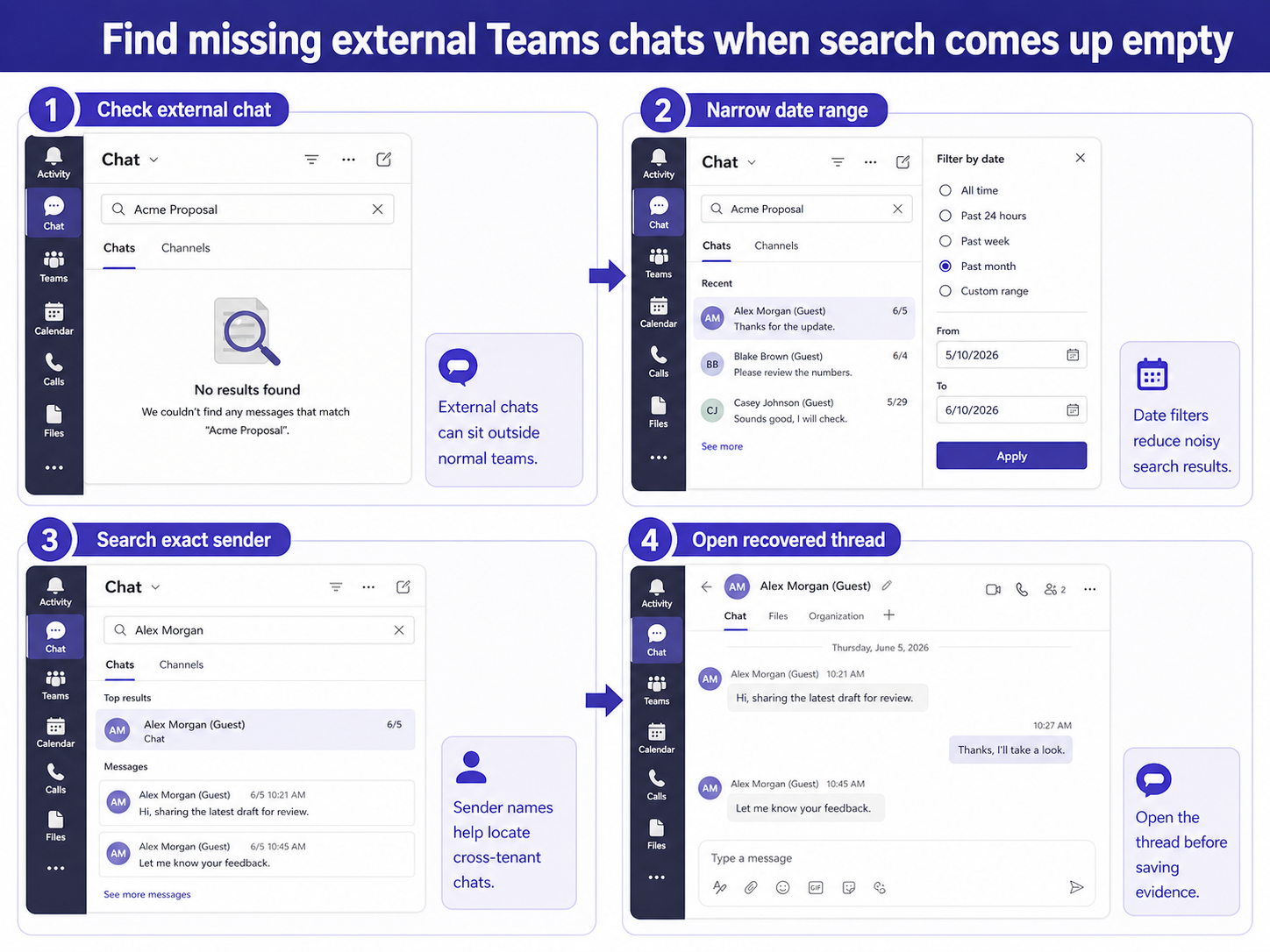
Search by person before searching by phrase
If you remember who sent the message, search for the external person’s display name or email domain first. External participants can appear with guest labels, tenant names, or slightly different display names. Once you find the person, open the chat and search within the conversation for the exact phrase.
If you only search for a phrase like proposal, approval, or invoice, Teams may return too many internal results and hide the external thread below the fold. The workflow in a practical next step is useful, but external chats need the extra sender and tenant checks.
Try these search terms:
- External sender display name.
- External sender email domain.
- A unique attachment file name.
- A date range around the expected conversation.
- A short exact phrase from the message, not a long sentence.
Open the old chat context
External conversations may not appear under the team where the project happened. Open Chat, scroll recent and hidden chats, and use the filter control if available. If you find the external participant, open the thread even if the preview looks unrelated. Older messages may load only after you scroll.
Check whether the external user was a guest inside your tenant or an external access participant from another tenant. That difference can change where the thread appears and which messages are available to you. If the organization changed external access settings after the conversation, newer search results may not behave like the original chat experience.
For files, switch to the Files tab in the recovered chat and compare it with OneDrive or SharePoint. The path for the file-access checks can reveal the conversation when the text search is weak.
Use date filters and exact wording
- Teams search is more useful when you constrain the time window. Use the week or month when the message was likely sent, then broaden only if nothing appears. If the conversation involved a deadline, invoice number, or customer name, search those unique terms one at a time.
- Avoid punctuation-heavy searches. A pasted sentence from another system may include smart punctuation, line breaks, or formatting that was not stored the same way in Teams. Search for the noun or number that makes the message unique, then open the surrounding conversation manually.
If the result still does not appear:
- Sign out and back in to Teams.
- Check Teams on the web to separate cache from service results.
- Ask another internal participant to search the same sender and date.
- Confirm retention policy has not removed the message from user view.
Preserve the message once you find it
When you recover the thread, do not rely on memory. Copy the message text into your case notes, capture the date and sender, and save related files from the Files tab if your company process allows it. For formal legal, HR, or compliance needs, stop and use the approved Microsoft Purview or admin export process instead of personal screenshots.
For normal project work, the goal is simpler: reopen the external thread, verify the exact message, and share the link or context with the people who need it. If the thread cannot be recovered by any participant, ask your Microsoft 365 admin to confirm retention and external access settings.
What people ask next?
Why can my coworker find the external chat but I cannot?
They may have been an original participant, have a different guest context, or still have the chat in recent history while your client needs a direct sender search.
Are missing search results proof that the message was deleted?
No. Search can fail because of wording, date range, external identity labels, client cache, or retention rules.
Can I recover an external chat after access was disabled?
You may still see historical content if you were a participant and retention allows it, but new external access settings can limit future interaction.
Escalate only after participant checks
Most missing external chats are found by searching the sender, narrowing the date range, and opening the original thread. That is faster than asking an admin to run an export before you know the user-level search has been exhausted. Escalate when multiple original participants cannot see the message, when retention may be involved, or when the request has legal or compliance implications.
Common questions
Should I test this in Teams on the web?
Yes. The web app is a useful control because it removes part of the local desktop app from the test. If the same account works on the web but not in the desktop app, focus on cache, updates, add-ins, or the local profile before changing tenant-wide settings.
What if the same setup works for another user?
That usually points to an account, license, permission, or profile difference rather than a broken feature for everyone. Compare the affected user’s role, mailbox or file access, app license, and client version before rebuilding the workflow.
When should I ask an administrator to check this?
Escalate when several users see the same symptom, when the setting is controlled by policy, or when the fix requires access you do not have. Give the administrator the affected account, client, time of the test, and the exact result from the web or desktop comparison.