Microsoft Teams can support conversations with people outside your organization, but the setup depends on what those people need to do. If they only need a one-to-one or group chat, external access is usually the right path. If they need to join a team, open shared channel content, or work with files, guest access is usually the better fit.
Start by deciding which collaboration model you need. External access lets users in another organization find and chat with your users, subject to domain and tenant policy. Guest access adds the outside person to your tenant as a guest, which is better when the conversation belongs inside a team workspace with channels and files.
For external access, ask a Teams administrator to open the Teams admin center and check the external access policy. The admin should confirm whether communication with external Teams users is allowed, whether specific domains are allowed or blocked, and whether both organizations permit the connection.
For guest access, invite the person from the team or the Microsoft 365 admin flow your organization uses. Assign the lowest role that lets them do the work, usually member rather than owner. Related team-governance settings are covered in our guide to requiring owner approval for a private Team.
After the policy is ready, start a short test chat. In Teams, open Chat, choose New chat, type the external person’s email address, and wait for Teams to resolve the contact. If Teams shows multiple choices, pick the external organization entry rather than a local contact with a similar name.
If the chat fails, check three things before escalating: the spelling of the email address, the external domain policy, and the other organization’s Teams configuration. Some users can receive meeting invites but still cannot chat externally because meeting federation and chat federation are not the same practical experience.
For channel-style alternatives, email can still be useful when a partner cannot use Teams chat. EasyTweaks has a related walkthrough for sending email to and from Teams channels, which can help when outside contributors need a lower-friction way to reach a team.
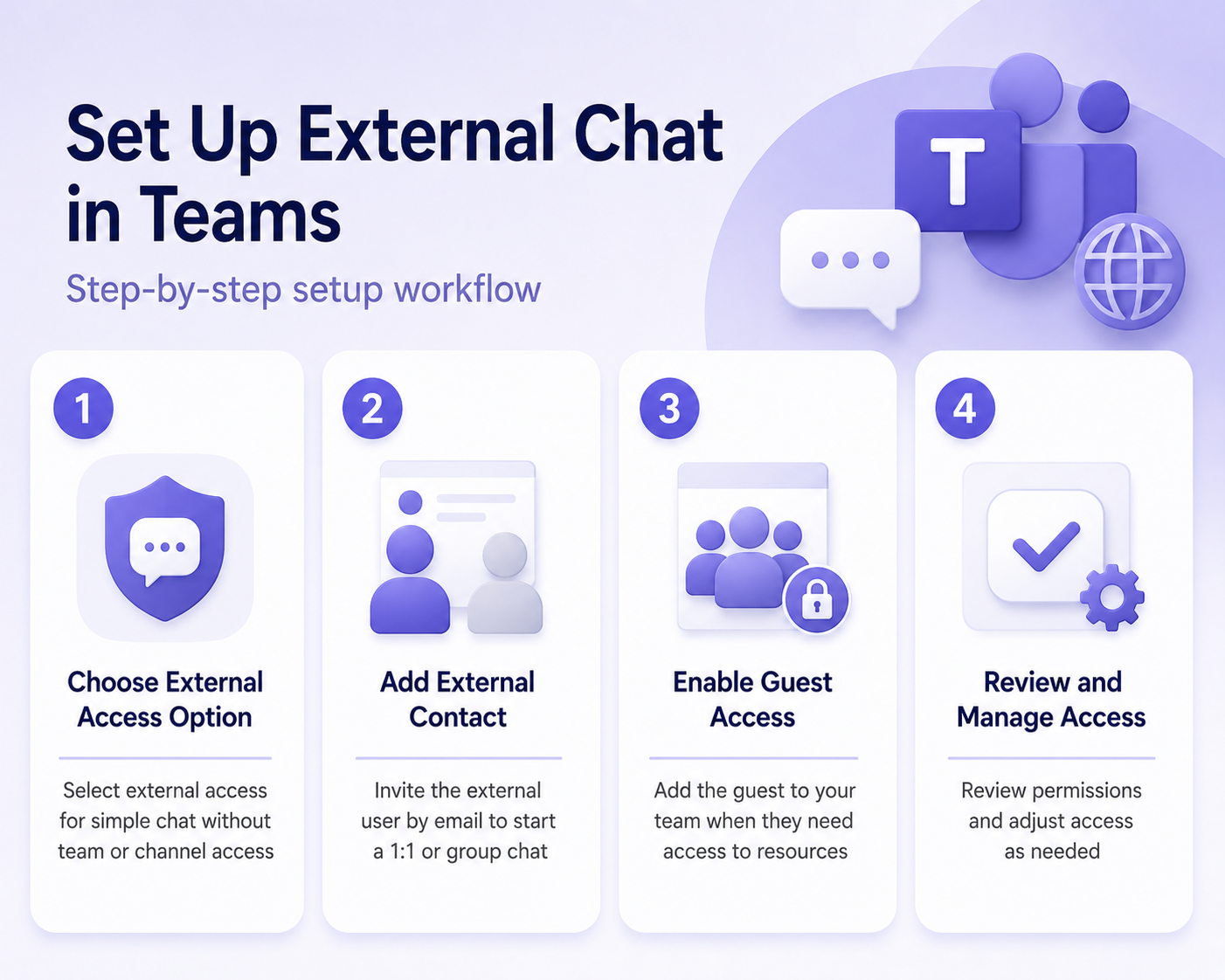
External access or guest access?
Use external access when the outside person only needs chat and calls with your users. It keeps the relationship lighter and avoids adding a guest object to your tenant. Use guest access when the person needs to participate inside a team, use channel files, or see shared team resources.
Troubleshooting checklist
- Confirm external access is enabled for the tenant.
- Check whether the partner domain is explicitly allowed or blocked.
- Confirm the other organization also allows the connection.
- Use guest access when the person needs files or team channels.
- Test with one short chat before moving business-critical work.
Practical policy decisions
Before enabling broad external communication, decide whether your organization wants an allow-list or a block-list approach. An allow-list is stricter because only approved partner domains can chat with users. It works well for regulated teams, legal projects, and customer implementations with a defined set of partners. A block-list is more flexible, but it depends on users recognizing when a conversation should move into a more controlled workspace.
Document the decision in plain language for help desk and team owners. Users should know when to request external chat, when to request a guest account, and when to avoid Teams for sensitive material. The most common support loop happens when a user asks IT to “enable external Teams” without explaining whether they need a quick chat, recurring meetings, shared files, or channel membership.
For guest access, set a review habit. Guests often remain in teams long after a project ends. Team owners should review guest membership at regular intervals, remove old guests, and avoid making guests owners unless there is a clear operational reason. If the external person only needs to answer a few questions, guest access is usually unnecessary overhead.
User-facing setup tips
Tell users to start with one test message and wait for a reply before adding the external contact to a larger group chat. That small test confirms address resolution, policy compatibility, and notification flow. It also avoids creating a busy group thread where half the participants can see the conversation and the external user cannot.
When Teams shows more than one identity for the same person, slow down. Pick the external organization result or the guest identity that matches the intended collaboration path. If you choose a stale local contact, messages can appear to send but never reach the partner. If your organization uses sensitivity labels, private channels, or retention policies, confirm those rules before discussing customer or project data externally.
FAQ
Can I chat with any email address in Teams?
No. Teams has to resolve the person as a supported Teams external or guest user, and both organizations may apply policies that allow or block the connection.
Is guest access more secure than external access?
Neither is automatically more secure. They solve different problems. Guest access gives the person tenant resources, so it needs tighter lifecycle and permission management.
Why can an external user join a meeting but not chat?
Meeting access and ongoing Teams chat can be controlled by different tenant settings and policies. Check external access and guest settings, not only meeting options.
Conclusion
The safest way to chat externally in Teams is to choose the access model first. Use external access for simple chat, guest access for team collaboration, and validate the domain policy before assuming the user account is the problem.