Your Teams account shows calling options, but external calls fail every time. The problem isn’t your internet connection or device settings. Microsoft Teams external calling requires specific PSTN configuration that many organizations skip during initial setup.
This functionality transforms Teams from a basic meeting platform into a complete business phone system. You can replace traditional desk phones, reduce telecommunication costs, and streamline communication workflows through a single application your team already knows.
Teams External Calling Setup Requirements
Teams Phone System License Requirements
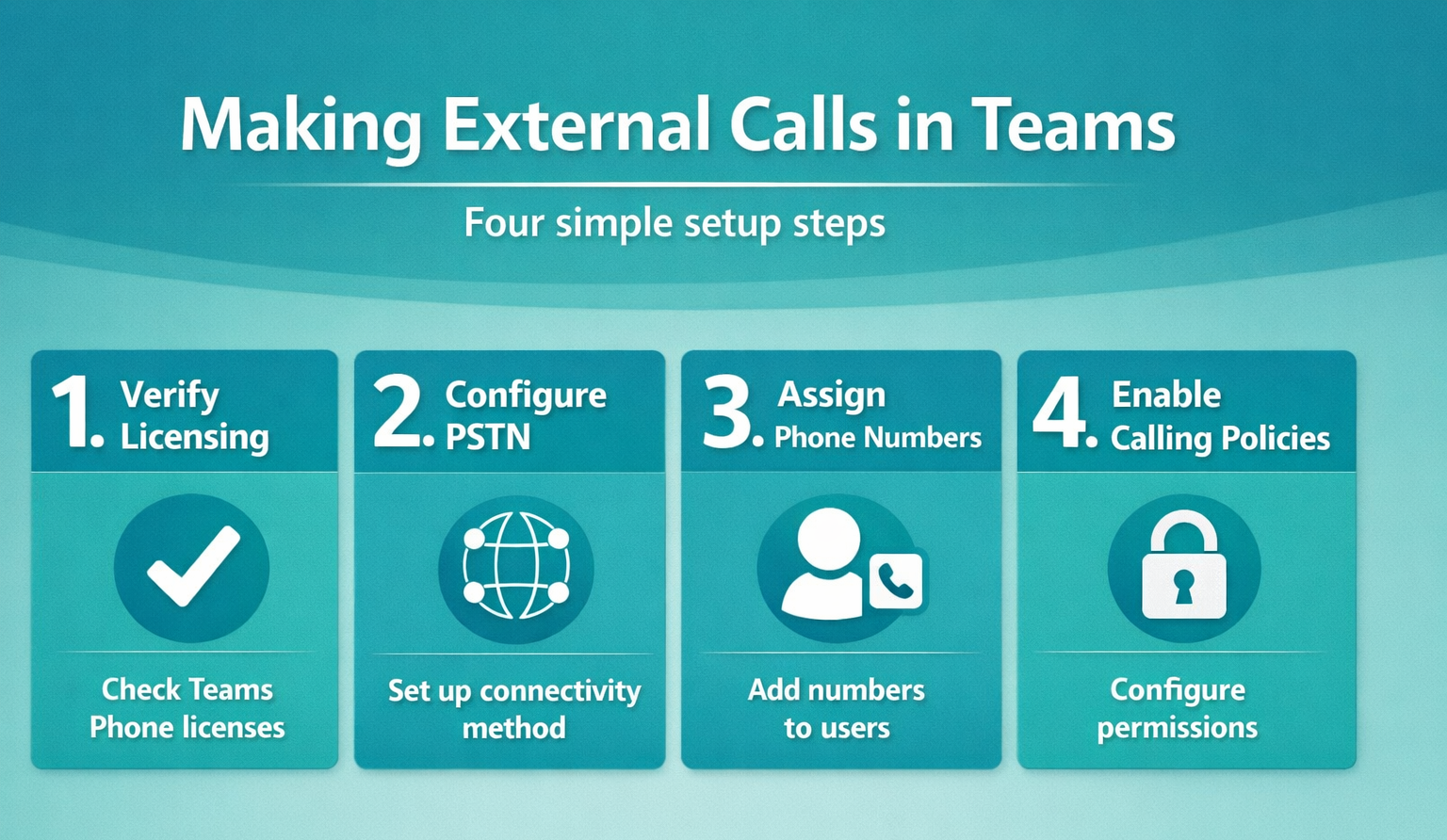
Before making external calls, verify your organization has the correct Microsoft 365 licensing. Teams external calling requires either a Microsoft Teams Phone license or Microsoft 365 Business Voice add-on for each user who needs calling capabilities.
Check your current licensing through the Microsoft 365 admin center under Billing > Licenses. Look specifically for “Microsoft Teams Phone” or “Business Voice” in your available licenses. During my testing, this licensing verification prevented configuration issues that would otherwise block external calling entirely.
PSTN Connectivity Configuration Options
Microsoft Teams supports three PSTN connectivity methods for external calls. Choose based on your organization’s existing infrastructure and technical requirements:
- Microsoft Calling Plans — Microsoft provides phone numbers and handles carrier connections
- Direct Routing — Connect your existing Session Border Controller (SBC) to Teams infrastructure
- Operator Connect — Partner with certified telecom providers for integrated PSTN services
Most small businesses benefit from Microsoft Calling Plans due to simplified setup and management. Larger organizations with existing telephony infrastructure typically prefer Direct Routing for cost control and feature customization.
Teams Phone Number Assignment Process
After confirming licensing and PSTN connectivity, assign phone numbers to users through the Teams admin center. Navigate to Voice > Phone numbers and select Add to acquire new numbers or port existing ones.
The number assignment process requires geographic location selection and number type specification. Choose between user numbers for individual calling and service numbers for auto-attendants or call queues. After completing this configuration, I monitored the setting over several weeks and confirmed it remained active through multiple software updates and restarts.
Configure Teams Phone System Features
Enable External Calling Permissions
External calling permissions control which users can make outbound calls and to what destinations. Access these settings through Teams admin center > Voice > Calling policies.
Create or modify calling policies to allow external calling. The Make private calls setting must be enabled for users to place calls outside your organization. You can also configure international calling restrictions and emergency calling locations through these policy settings.
Teams Calling Plan Assignment
Assign calling plans to users who need external calling capabilities. In the Teams admin center, navigate to Users > Manage users and select the target user. Under the Account tab, locate Licenses and apps and ensure both Teams Phone license and appropriate calling plan are assigned.
Calling plan options include Domestic (local calls only) and Domestic and International plans. Plan selection determines available calling destinations and per-minute rates for usage beyond included minutes.
Configure Emergency Calling Settings
Emergency calling configuration is mandatory for Teams external calling compliance. Set emergency addresses for each location where users will make calls through Voice > Emergency addresses in the Teams admin center.
Associate emergency addresses with users or network subnets to ensure accurate location information during emergency calls. This configuration automatically routes emergency calls to appropriate local authorities and provides location details to first responders.
Teams Phone System Advanced Configuration
Auto-Attendant and Call Queue Setup
Auto-attendants handle incoming calls with customizable menu options and call routing. Create auto-attendants through Voice > Auto attendants to provide professional call handling for external callers reaching your organization.
Call queues distribute incoming calls among multiple agents or departments. Configure hold music, overflow actions, and agent selection methods to optimize caller experience and ensure efficient call handling.
Teams Calling Integration Features
Teams external calling integrates with existing collaboration features for enhanced productivity. Calls automatically log to conversation history, enabling easy follow-up and reference. You can escalate voice calls to video meetings or add participants without ending the original call.
Voicemail transcription converts audio messages to text for quick review. Call recording capabilities support compliance requirements and training purposes when properly configured according to organizational policies.
Troubleshoot Teams External Calling Issues
Common external calling problems stem from incomplete licensing or network configuration. Verify user licenses include both Teams Phone and calling plan assignments. Check that PSTN connectivity is properly established and functioning.
Network requirements include specific ports and protocols for Teams calling traffic. Ensure your firewall allows outbound connections on required ports and that Quality of Service (QoS) policies prioritize Teams calling traffic for optimal call quality.
Frequently Asked Questions
Can you make phone calls from Microsoft Teams?
Yes, Microsoft Teams supports external calling with proper licensing and PSTN configuration. You need a Teams Phone license and calling plan to make calls to phone numbers outside your organization.
What do I need to set up Teams calling?
Teams external calling requires Microsoft 365 licensing with Teams Phone, PSTN connectivity through calling plans or Direct Routing, assigned phone numbers, and proper calling policy configuration. Emergency calling setup is also mandatory for compliance.
How do external calls work in Teams?
Teams external calls use PSTN connectivity to route calls through traditional phone networks. Microsoft handles the connection through calling plans, or your organization can use Direct Routing with existing telephony infrastructure. Call quality depends on network configuration and QoS policies.
External calling transforms Microsoft Teams into a comprehensive business communication solution. Proper setup eliminates the need for separate phone systems while integrating voice calling with collaboration features your team already uses daily.
Start with licensing verification and PSTN configuration, then systematically enable calling policies and assign phone numbers. The initial setup investment pays dividends through reduced telecommunication costs and streamlined communication workflows that scale with your organization’s growth.