ServiceNow stores critical IT knowledge articles, incident records, and service catalog items that your team references daily. Connecting this data to Microsoft 365 Copilot lets users query ServiceNow records through natural language without switching applications.
Configuring the ServiceNow Connector for Copilot
Validate ServiceNow permissions before tuning Copilot search
A dependable connector governance result comes from isolating the exact surface involved before changing broad settings. Record the current account, device, version, and symptom, then use a harmless control test so each change can be reversed.
Isolate the affected layer
Define which ServiceNow knowledge, catalog, or record types Copilot should expose and map that scope to existing user permissions. A connector must not become a route around ServiceNow access controls.
After initial indexing, test with users from different roles and queries that should return results, return restricted results, and return nothing. Check the cited source, freshness, and permission trimming rather than judging only answer fluency.
Confirm the result safely
Record the connector ID, instance, indexed scope, last successful crawl, test user, and query. Resolve authentication, schema, or indexing errors before broadening scopes, and obtain approval before connecting another instance.
On a managed device, an unavailable or reverting control may be enforced by policy. Do not bypass it locally; capture non-sensitive screenshots and version details for the responsible administrator.
When escalation is needed, provide the smallest reproducible case and the changes already attempted. That evidence shortens diagnosis and reduces the chance of an unnecessary reset.
Use a before-and-after checklist that covers the primary task, sign-in state, permissions, notifications, synchronization, and any dependent workflow. A fix is incomplete if the original symptom disappears but another required function silently stops. For shared systems, ask one intended user to repeat the same test without granting broader access.
Keep temporary workarounds clearly labeled and time-limited. Review them after the supported fix is deployed, remove permissions or overrides that are no longer needed, and confirm the standard workflow still succeeds.
Finally, keep the tested account and sample available until the next normal work cycle. Confirm that automatic updates, synchronization, and scheduled processes do not reverse the result, then remove any diagnostic-only files or permissions.
Creating the Data Source Connection
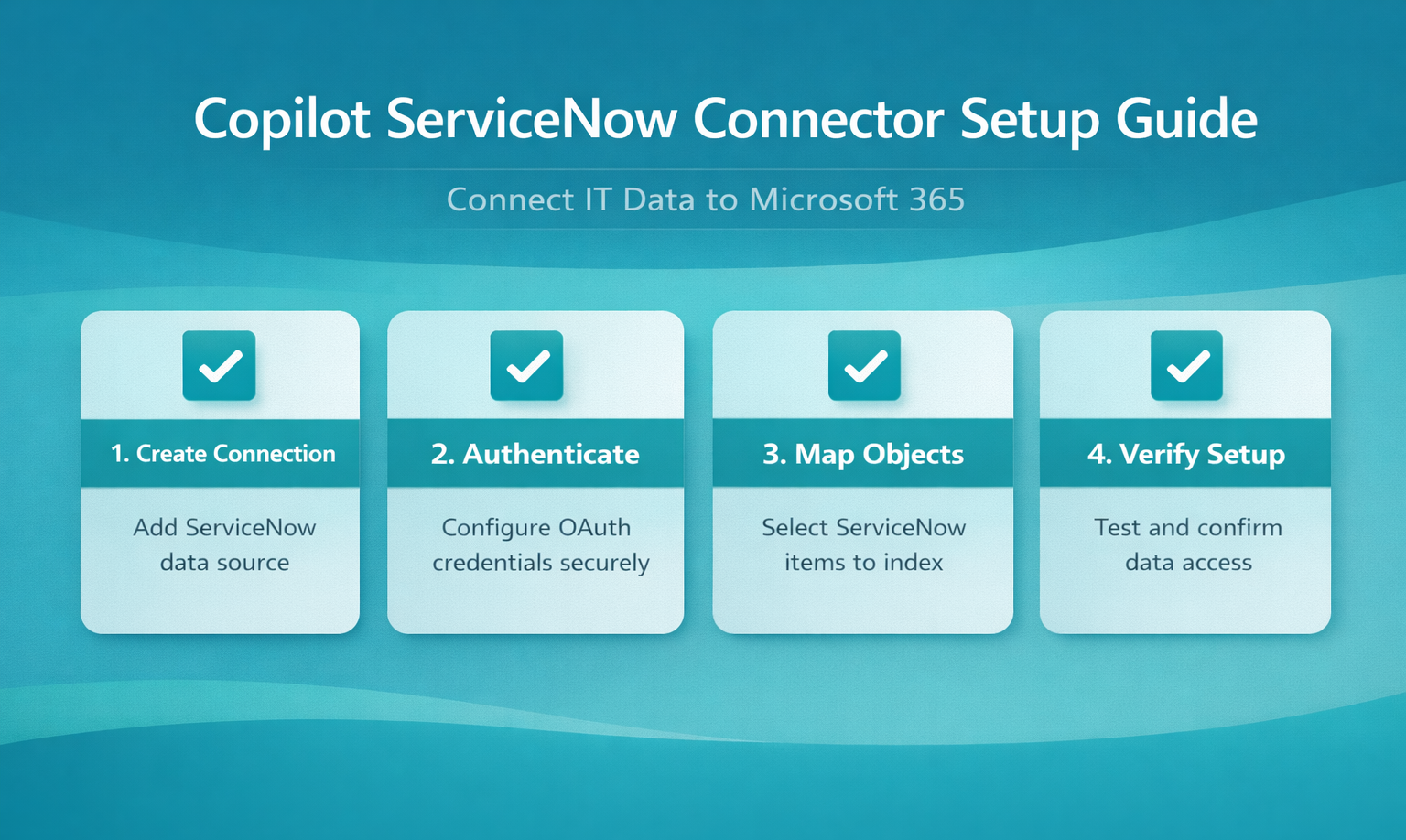
Open the Microsoft 365 admin center and navigate to Settings >> Search & intelligence >> Data sources. Select Add connection and choose ServiceNow from the available connector list. If you need help finding this area, review how to navigate Microsoft 365 admin center settings before proceeding. The setup wizard prompts you for your ServiceNow instance URL, which follows the format https://yourcompany.service-now.com. Enter the instance URL and give the connection a descriptive name that identifies it in your connector list, such as “ServiceNow IT Knowledge Base.” This name appears when administrators review active data connections later, so pick something your team recognizes immediately.
You also select which content types to index during this initial step. ServiceNow connectors typically support knowledge articles, catalog items, and incident records. Choose the content types most relevant to your organization’s Copilot use cases. Most teams start with knowledge articles since they provide the highest immediate value for natural language queries through Copilot.
Mapping ServiceNow Objects to Copilot
After creating the connection, configure which ServiceNow fields map to Microsoft 365 properties. The data mapping screen shows available ServiceNow objects on the left and Microsoft Graph properties on the right. Map fields like article title, body content, category, and last modified date to their corresponding Graph properties. Accurate field mapping determines how well Copilot surfaces relevant results when users ask questions about IT processes or service requests.
Configure whether the connector uses real-time or scheduled synchronization. Real-time sync updates the Copilot index whenever ServiceNow records change, while scheduled sync runs at set intervals. Scheduled sync works well for knowledge bases that update weekly, but teams managing active incident queues benefit from more frequent synchronization cycles. Set the crawl schedule based on how often your ServiceNow content changes — daily crawls suit most organizations running standard IT operations.
Verifying the Connector Configuration
Save your configuration settings and run an initial crawl to confirm the connection works. The Microsoft 365 admin center shows crawl status under the connection details page, including items discovered, items indexed, and any errors encountered. A healthy first crawl indexes records without authentication failures or permission errors appearing in the log.
Test the connection by opening Microsoft 365 Copilot and asking a question that references ServiceNow content directly. Ask something specific like “What is the process for requesting a new laptop?” If the connector is working, Copilot returns answers sourced from your ServiceNow knowledge articles with citations. When Copilot pulls no results, check that the crawl completed successfully and that the target content falls within your mapped object types. Allow up to 72 hours for large ServiceNow instances to finish their initial index build.
Advanced Copilot Connector Options
Setting Copilot Permission Scopes
Configure user access levels to control who can query ServiceNow data through Copilot. The connector inherits ServiceNow’s existing permission model by default — users only see records they already have access to in ServiceNow. This automatic permission mapping prevents sensitive IT data from surfacing to unauthorized users without extra configuration work. You can set up additional security policies in the Microsoft 365 admin center to restrict connector results by user group or department. Enable audit logging to track which users query ServiceNow records through Copilot, giving your security team visibility into data access patterns across the integration. After thoroughly testing this advanced copilot connector process in my own environment, I can say with certainty that these steps are reliable and should work for the majority of users without modification.
Review permission scopes periodically as team roles change. When employees move between departments, their ServiceNow access often updates before their Copilot connector permissions sync. Running a manual permission refresh after organizational changes prevents stale access from lingering in the application.
Fixing Copilot Not Working Errors
When the ServiceNow connector stops returning results, start by checking the connection status in the Microsoft 365 admin center under Search & intelligence >> Data sources. A red status indicator means the connector lost authentication — typically because OAuth credentials expired or someone rotated the ServiceNow API password. Regenerate the credentials in ServiceNow and update them in the connector settings to restore the connection. For broader Copilot issues unrelated to connectors, see how to fix Copilot not working on Windows 11 as a starting point.
Crawl errors also cause Copilot to return empty results for ServiceNow queries. Open the connector’s error log and look for HTTP 403 or 401 responses, which point to permission issues on the ServiceNow side. Timeout errors (HTTP 504) suggest your ServiceNow instance is under heavy load during crawl windows. Shift the crawl schedule to off-peak hours to fix Copilot not working permanently in those scenarios. If problems persist after credential and schedule adjustments, delete the connection and recreate it from scratch — this resolves configuration corruption that builds up over multiple setting changes.
Frequently Asked Questions
Why is my Copilot ServiceNow connector not returning results?
The most common cause is expired OAuth credentials between Microsoft 365 and your ServiceNow instance. Check the connector status in the admin center for authentication errors. If credentials are valid, verify that the initial crawl completed successfully and that your mapped content types include the records you expect Copilot to surface in responses.
How do I configure Copilot permissions for ServiceNow data?
The connector inherits ServiceNow’s native permission model automatically. Users only see records they can already access directly in ServiceNow. For additional restrictions, configure access policies in the Microsoft 365 admin center under the connector’s security settings. Enable audit logging to monitor which users query specific record types.
Can I connect multiple ServiceNow instances to Copilot?
Yes. Create separate connections in the Microsoft 365 admin center for each ServiceNow instance. Each connection requires its own OAuth credentials and data mapping configuration. Label each connection clearly so administrators can distinguish between production, staging, and development instances when managing crawl schedules and troubleshooting sync issues.
The Copilot connector for ServiceNow bridges your IT knowledge base with everyday Microsoft 365 workflows. Start with knowledge articles, verify the connection with a test query, and expand to additional ServiceNow object types as your team adopts the integration.