A Windows compliance policy gives Intune a consistent way to evaluate whether managed PCs meet your organization’s minimum security rules. The policy itself reports a compliant or noncompliant state; Conditional Access is the separate enforcement layer that can use that state to allow or block access.
This walkthrough builds a practical baseline policy, assigns it to a pilot group, and explains how to read the first results without locking out your entire workforce. You need an Intune subscription and enrolled Windows devices. Microsoft Entra ID P1 or P2 is required only if you also plan to enforce compliance through Conditional Access.
Decide what the policy should prove
Avoid turning every preferred configuration into a compliance requirement. A compliance policy should answer a small number of security questions that justify restricting access. Typical Windows checks include whether BitLocker, Secure Boot, and the firewall are enabled, whether the device has an acceptable operating-system version, and whether a password meets the required standard.
If you are investigating a PC that already reports the wrong state, first work through the broader status investigation. A device that is stale, unenrolled, or assigned through the wrong group can make a correctly designed policy look broken.
Choose a consequence before a setting
For each proposed rule, ask what should happen when it fails. A missing critical security control may justify immediate noncompliance. A minimum OS version often needs a grace period so users have time to update. This consequence-first approach keeps the policy focused and makes support responses predictable.
Separate baseline and high-risk devices
Create a broad baseline for all managed Windows PCs, then use additional policies for regulated or privileged populations. A smaller policy is easier to troubleshoot than one giant profile. Intune combines applicable compliance evaluations, so a device must satisfy every policy assigned to it.
Build the Windows policy
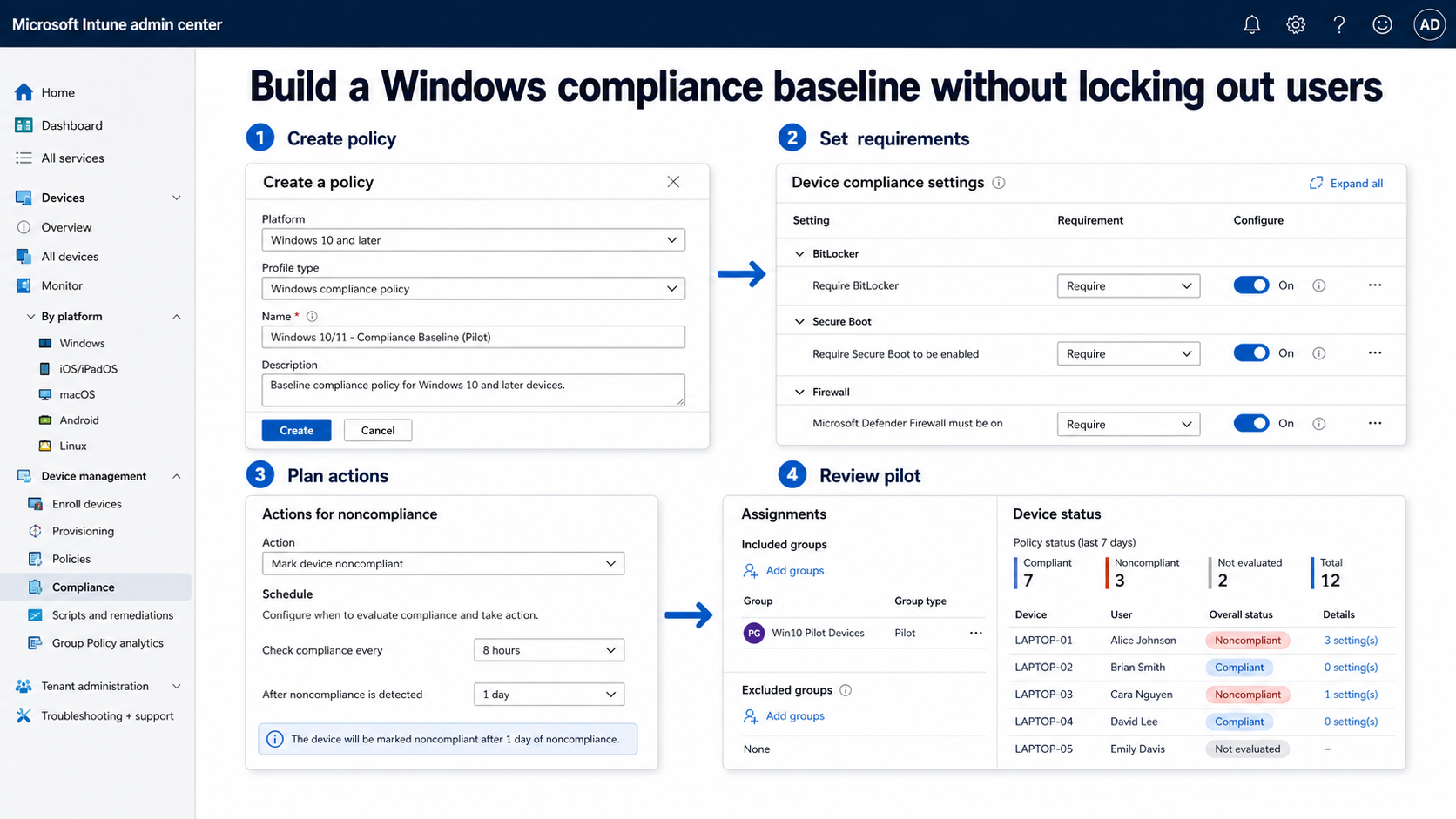
In the Microsoft Intune admin center, open Devices, expand Manage devices, select Compliance, and then open Policies. Choose Create Policy. Select Windows 10 and later as the platform, enter a clear name such as Windows corporate baseline, and add a description that identifies the owner and intended pilot group.
Work through the available compliance settings. The exact list can change as Microsoft updates the service, so use the labels shown in your tenant rather than copying an old screenshot. Configure only rules you can support operationally. For example:
- Require BitLocker and Secure Boot when the hardware fleet supports them.
- Require the firewall if it is part of your security baseline.
- Set minimum OS versions only after checking the versions actually deployed.
- Configure password rules that do not conflict with another identity or device policy.
Do not use compliance as a substitute for configuration. A compliance rule can detect that a control is missing, but a security baseline, settings catalog profile, endpoint security policy, or script may be needed to enable the control.
Configure actions for noncompliance
Every policy includes the default action Mark device noncompliant, normally with zero days. You can change the grace period and add other actions, such as notifying the user. Match the delay to the risk and the time needed to remediate it.
A sensible pilot might mark a device noncompliant after one day and send an earlier notification. A production policy tied to Conditional Access deserves extra caution: if the supported fix takes several days, a zero-day deadline may interrupt work before the user has a realistic recovery path.
Assign a pilot and review the outcome
On Assignments, include a dedicated Microsoft Entra pilot group. Use exclusions sparingly and document why they exist. Finish with Review + create, inspect the summary, and create the policy.
Give enrolled test devices time to check in, or initiate a sync from the device or Intune admin center. Then open the policy’s monitoring views to review device status, user status, and per-setting status. A per-setting result is more useful than the overall red banner because it tells you which requirement caused the evaluation.
Before you widen the assignment, verify these points:
- A fully configured test PC becomes compliant.
- A deliberately failed setting produces the expected noncompliant result.
- The notification or grace period behaves as designed.
- Your support team can identify and correct the failed setting.
- Conditional Access, if used, is still in report-only or a tightly scoped pilot.
On affected Windows endpoints, normal update and restart hygiene can change the result. If the minimum OS requirement is the failing rule, that update preparation checklist helps distinguish a policy problem from a machine that simply has not installed current updates.
Interpret common failure patterns
The policy says not applicable
Confirm the device platform, enrollment state, ownership, and group membership. Also check whether the chosen compliance setting applies to that Windows edition and hardware. A policy cannot evaluate a requirement that the enrolled device does not expose.
The device stays noncompliant after a fix
Compliance is not always recalculated immediately. Sync the device, allow the next evaluation cycle to complete, and examine the setting-level report. If the portal still shows an old result, verify that the device is actively managed and that its clock and network connection are healthy.
Too many devices fail at once
Pause before tightening enforcement. A broad simultaneous failure often indicates an assignment mistake, an unrealistic minimum version, or a hardware-dependent rule applied to incompatible devices. Correct the policy or scope before using Conditional Access to block users.
Questions administrators usually ask
Does a compliance policy change Windows settings?
Usually no. It evaluates the settings that Intune exposes and records a compliance state. Use a configuration policy, endpoint security profile, app, or script to make the underlying change, then let compliance confirm the result.
Can one device have several compliance policies?
Yes. Intune evaluates all applicable policies, and one failed requirement can make the device noncompliant. Use the per-setting and policy reports to identify which assignment supplied the failing rule.
Should I target users or devices?
Choose the scope that matches the requirement and your enrollment design. Device groups are often easier for hardware and operating-system baselines, while user groups may fit user-owned access scenarios. Test the same targeting model you intend to use in production.
When should Conditional Access be enabled?
Enable it only after the policy produces reliable results for a representative pilot and users have a documented recovery path. Begin with report-only where appropriate, exclude emergency access accounts, and review the sign-in impact before enforcing the control broadly.
Move from pilot to production
A good compliance rollout proves detection, remediation, and support before it proves enforcement. Expand the assignment in stages, monitor the newly included devices, and keep the rules limited to requirements that materially protect access. When a rule changes, repeat the pilot instead of assuming yesterday’s results predict tomorrow’s. That discipline gives Conditional Access a trustworthy signal and reduces avoidable lockouts.