A gray Share control is usually a permission signal, not a damaged presentation. Teams can disable presenting when the organizer assigned you the Attendee role, when a meeting policy restricts sharing, or when the operating system has not granted capture permission. A stuck meeting session can create a similar appearance.
Before changing the computer, identify whether every participant is blocked or only your account. That single comparison separates an organizer or tenant rule from a local client issue and prevents unnecessary reinstalls.
Distinguish policy from a broken session
If nobody except the organizer can share, the meeting option is the leading cause. If selected presenters can share but one Mac cannot, screen-recording permission is more likely. If the control changed after a role update, rejoin before assuming the change failed.
For managed accounts, an administrator can enforce screen-sharing policy. A meeting organizer cannot override every tenant restriction, so provide the meeting URL, affected user, role, client, and the result of a web-client test when escalating.
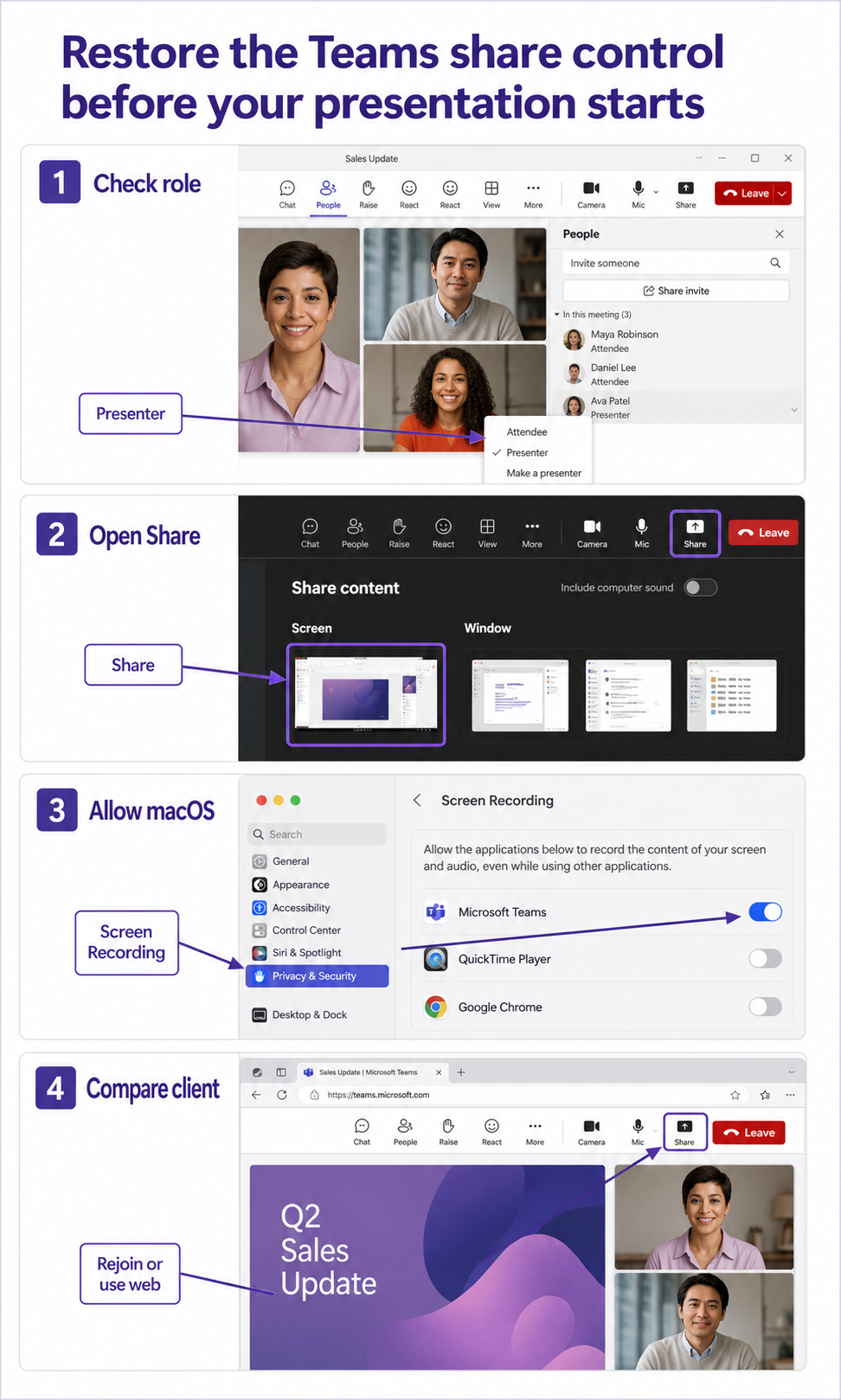
Read the meeting role before touching the app
Compare with another presenter
Open People and look at your role. If another presenter can share but you cannot, ask the organizer or co-organizer to change you to Presenter. The role-change path explains the participant control the organizer needs; changing roles is faster and safer than restarting everyone.
Use the correct source picker
Once the control activates, follow the normal presenting workflow and choose a screen, window, PowerPoint, or other available source. A share button that opens normally but shows no usable screen is a different problem from a button that remains disabled.
Prove the control with a second participant
Run a short private meeting with an organizer and one participant. Compare their roles and controls before altering the app installation or operating-system permissions. Change only one variable before repeating the test, and keep the failing example unchanged until the comparison is complete.
For screen sharing, compare your role with a presenter who can share. Note whether the Share button is disabled, opens an empty picker, or opens normally but fails after a source is chosen. On macOS, include the Screen Recording permission state and whether Teams was restarted after permission changed.
When results differ between desktop and web, do not keep changing both clients. A working web result usually proves that the cloud object and account still exist, leaving desktop installation, operating-system permission, or cached session as the narrower scope. Failure in both places makes the item, account, policy, connector, or service configuration more likely.
For a managed account, provide the affected identity, client, time, one reproducible example, the second-client result, and any visible error. Keep screenshots focused on the relevant pane and remove private names. Avoid sending passwords, private documents, recordings, or full card payloads unless the support owner requests them through an approved channel.
Before closing this Teams issue, repeat the successful path with a second ordinary example. If the second example works, preserve the original failure for object-specific review. If it fails in the same place, the shared client, account, permission, policy, or connector layer remains the stronger lead.
A five-minute permission ladder
- Ask the organizer whether Who can present is limited to organizers and co-organizers. Have them grant Presenter only to people who need it.
- Leave the meeting and join again from the original invitation. This refreshes role and policy state without changing the meeting.
- On macOS, approve Teams under the system screen-recording permission when Teams prompts for it, then restart Teams so the permission takes effect.
- Close competing screen-capture or remote-control tools for one test. They can complicate which display or window Teams can capture.
- Try the supported web client. If the button is disabled there too, return to organizer policy; if web sharing works, focus on the desktop app and OS permission.
Practical verification notes
Repeat the successful path with a second ordinary example before calling the issue resolved. The second test should use the same account and client but a different item, meeting, file, or run. If only the original example fails, investigate that object’s settings and history. If both fail, continue at the client, policy, connector, or service layer.
Keep rollback simple. Save existing settings before changing them, avoid deleting shared data during diagnosis, and prefer reversible tests such as a new appointment, copied flow, private meeting, or sample file. This protects production work while giving support a clean comparison.
Sharing-control answers
Can an attendee share without becoming a presenter?
Not when the meeting setting limits presenting to organizers or presenters. The organizer should promote the attendee only for the time needed. That keeps the meeting controlled while restoring the Share button.
Why can I share a window but not the entire screen?
The available source types can differ by client, operating-system permission, and policy. On macOS, revisit screen-recording access and restart Teams. Also test another window to determine whether one protected application is the exception.
Does rejoining erase my presentation or chat?
No. Leaving and rejoining refreshes the live session and your effective role; it does not delete the invitation or meeting chat. Save unsaved work in the application you plan to present before closing anything.
What proves this needs an administrator?
A disabled control across multiple supported clients, after the organizer confirms Presenter status, strongly suggests policy. Capture who can share, the meeting option, and whether the behavior occurs in another meeting. Those details help the Teams admin check the assigned meeting policy.
Before the audience arrives
Confirm the fix with a short private meeting and share one harmless window. The control should open the source picker, other participants should see the selected content, and stopping the share should return the meeting cleanly. If the test only fails in the production meeting, review that meeting’s organizer options instead of changing the computer again.