A blank spinner in the Teams background gallery can look like a network failure, but the fastest diagnosis starts with the video pipeline. Teams needs an active, usable camera preview before it can render many effects. The same symptom can also appear when the current client, device, or virtual desktop session does not support the feature.
Treat the gallery and the camera preview as two parts of one test. If the preview is already broken, fix camera access first. If video is clear but only the gallery fails, compare a built-in effect with an uploaded image and then compare clients.
Separate a camera problem from an effects problem
Read the pre-join screen
Open the meeting from the Teams calendar and stop on the pre-join screen. Turn the camera on, confirm that your live picture appears, and then select Effects and avatars. If the camera toggle is unavailable or the preview is black, work through the camera access checklist before changing background files.
Use one controlled effect
Choose Blur or one Microsoft-supplied background first. A built-in option removes file format, dimensions, and file access from the test. If it applies normally, use More video effects > Add new and select a JPG, PNG, or BMP from a local folder. Avoid a cloud-only placeholder until the file has downloaded.
Recover the gallery in the least disruptive order
- Leave the effects pane and reopen it once. Give the thumbnails time to populate on a stable connection.
- Select None, apply it, and reopen Video effects. This clears the active selection without deleting custom files.
- Quit Teams completely and reopen it. Do not test only by closing the meeting window while Teams remains running in the notification area.
- Install the current Teams update offered by your organization, then repeat the built-in-background test.
- Join the same meeting in a supported browser. A working web test points to the desktop client; failure in both places suggests account, policy, device, or network scope.
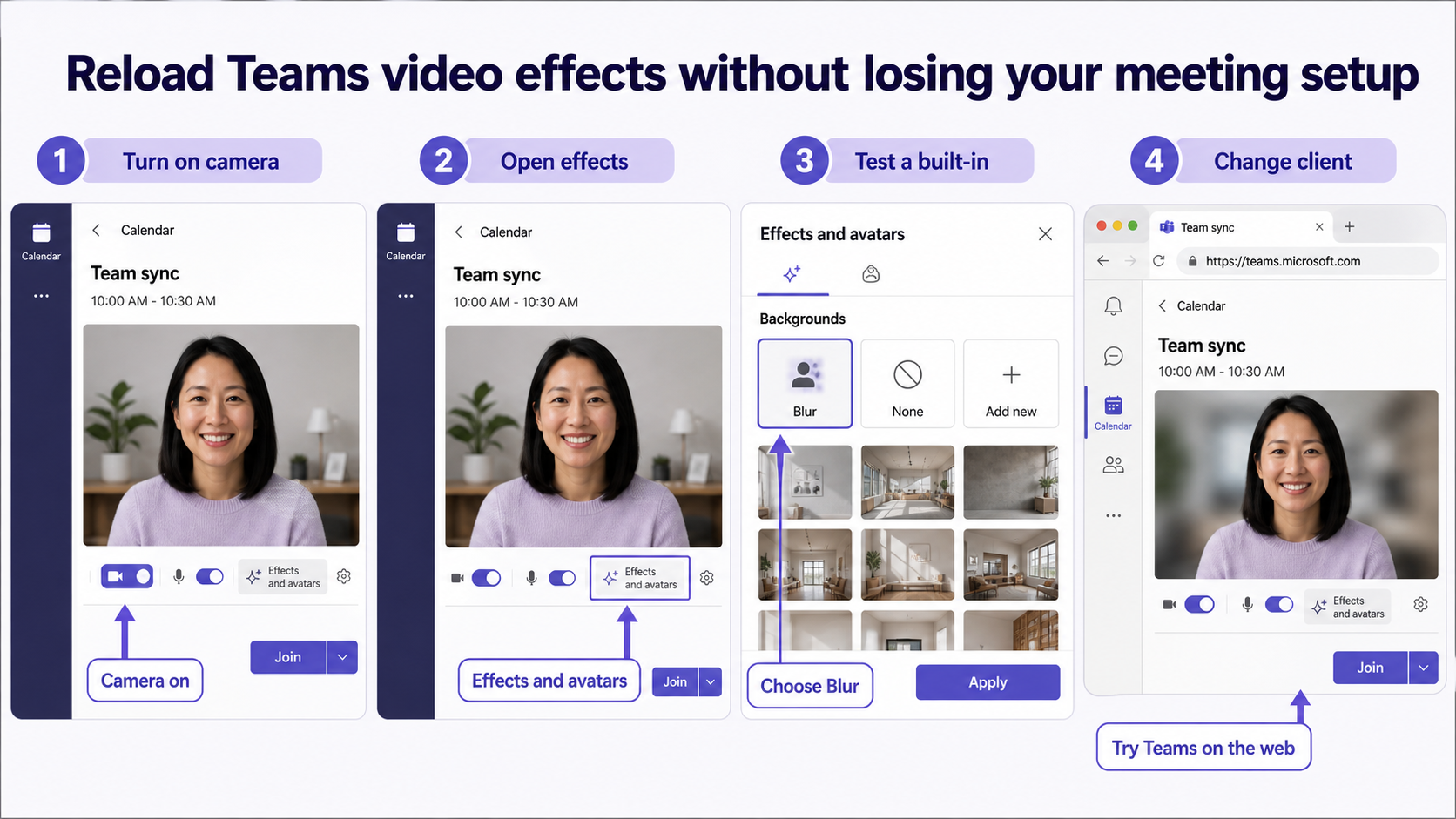
Know when the environment is the limit
Microsoft notes that background effects may be unavailable on some devices, on Linux, and in optimized virtual desktop infrastructure. In those cases, repeatedly reinstalling Teams will not add unsupported rendering capabilities. Ask the desktop or VDI administrator which client path is supported.
If Teams cannot detect the camera consistently, a broader camera detection check is more useful than replacing custom backgrounds. Test the Windows Camera app, privacy permission, and one alternate camera before escalating.
Use one repeatable meeting test
Use one account, one meeting, and one client for the first Teams test. Record the live preview, available control, and exact status before changing a setting. Change only one variable before repeating the test, and keep the failing example unchanged until the comparison is complete.
For background effects, record whether the camera preview works, whether Blur loads, and whether Add new accepts a local image. Those three results separate the camera, built-in gallery, and custom-file paths. Also note VDI use and device type because a supported desktop session can behave differently from Linux or an optimized virtual desktop.
When results differ between desktop and web, do not keep changing both clients. A working web result usually proves that the cloud object and account still exist, leaving desktop installation, operating-system permission, or cached session as the narrower scope. Failure in both places makes the item, account, policy, connector, or service configuration more likely.
For a managed account, provide the affected identity, client, time, one reproducible example, the second-client result, and any visible error. Keep screenshots focused on the relevant pane and remove private names. Avoid sending passwords, private documents, recordings, or full card payloads unless the support owner requests them through an approved channel.
Before closing this Teams issue, repeat the successful path with a second ordinary example. If the second example works, preserve the original failure for object-specific review. If it fails in the same place, the shared client, account, permission, policy, or connector layer remains the stronger lead.
Practical verification notes
Repeat the successful path with a second ordinary example before calling the issue resolved. The second test should use the same account and client but a different item, meeting, file, or run. If only the original example fails, investigate that object’s settings and history. If both fail, continue at the client, policy, connector, or service layer.
Keep rollback simple. Save existing settings before changing them, avoid deleting shared data during diagnosis, and prefer reversible tests such as a new appointment, copied flow, private meeting, or sample file. This protects production work while giving support a clean comparison.
Background-effect questions
Why is the Effects button gray?
The camera may be off on the pre-join screen, or the current client and device may not support the feature. Turn the camera on and confirm a live preview first. If the control remains unavailable, compare the desktop app with Teams on the web and check whether you are in an optimized VDI session.
Why do built-in backgrounds work but my image does not?
That result usually isolates the problem to the selected file. Download it locally, confirm that it is a JPG, PNG, or BMP, and try a simpler filename. A built-in effect proving successful means the account and rendering path are basically working.
Will clearing backgrounds remove meeting settings?
Selecting None only turns off the current effect; it does not change the meeting invitation. Quitting Teams and reopening it is also safe for the meeting itself. Avoid deleting application data unless your support team specifically asks for that deeper reset.
What should I send to IT?
Include the client type, operating system, whether the camera preview works, and whether Blur works in the web client. Mention VDI use and any error banner. That compact comparison tells support whether to investigate hardware capability, policy, or the desktop installation.
The useful stopping point
Stop once a built-in effect loads in one supported client. That confirms the meeting and account can use video effects, and it narrows the remaining work to the original client or custom file. If no supported client shows the feature while video works, ask the administrator to check device support and meeting policy rather than repeating local file changes.