You open Teams to check your next meeting and the calendar tab is completely empty — no events, no invites, just a spinning wheel or an error message saying it couldn’t load your calendar. This happens when Teams loses its connection to Exchange, usually because cached authentication tokens expired or a recent security update quietly revoked calendar permissions. Clearing the Teams cache fixes this for about 70% of people, and the whole process takes under five minutes.
Fix the Teams calendar connection
Clear the Teams cache
Close Teams completely — check the system tray icon to confirm it isn’t still running in the background, because an active process locks the cache files and prevents deletion. Open File Explorer, paste %appdata%\Microsoft\Teams into the address bar, and delete these folders: Cache, GPUCache, IndexedDB, and Local Storage. These folders accumulate stale calendar data over weeks of use, and when the cached tokens no longer match what Exchange expects, Teams falls back to showing an empty calendar instead of requesting fresh data. Don’t worry about deleting the wrong thing — Teams recreates every folder automatically on the next launch. Restart Teams after the deletion and sign back in — your calendar should populate within 30 seconds as the app pulls everything fresh from the Exchange server.
Reset calendar permissions
Security updates and organizational policy changes can silently revoke the permissions Teams needs to read your Outlook calendar, producing the “couldn’t load” error even though chat, files, and every other Teams feature works fine.
- Click your profile picture in the top right corner, go to Settings >> Privacy, and look for calendar-related permissions in the data access section.
- If calendar access is missing or toggled off, re-enable it — Teams will prompt you to authenticate against Outlook again using your work credentials.
- After granting permission, close and reopen Teams to force a fresh sync rather than waiting for the background process, which can take up to 15 minutes to catch up on its own.
Reconnect Teams and Outlook
The bridge between Teams and Outlook is a COM add-in that occasionally breaks during updates, especially when Outlook and Teams update on different schedules and the add-in version falls out of sync.
- Open Outlook, go to File >> Options >> Add-ins, find Microsoft Teams Meeting in the list, and check its status.
- If the add-in shows as disabled, inactive, or has an error indicator next to it, click Go next to COM Add-ins at the bottom of the window, uncheck the Teams entry, hit OK, then go back and re-enable it.
- This forces Outlook to rebuild the Teams integration from scratch.
- Calendar sync should restore within a few minutes after you close and reopen both Outlook and Teams — watch for the calendar tab to start populating with events as confirmation that the connection is working again.
Troubleshoot persistent calendar errors
Cache clearing and permission resets solve most cases. When they don’t, the problem is deeper — corrupted credentials, conflicting Outlook configurations, or a server-side outage.
Reset stored Windows credentials
Persistent errors after clearing the cache usually mean your authentication tokens are corrupted beyond what a simple cache wipe can fix.
- Open Control Panel >> Credential Manager >> Windows Credentials and look for entries containing “teams”, “outlook”, or “microsoftonline” — delete them all, which won’t affect credentials for other applications or websites.
- Sign out of Teams completely to resolve credential and sign-in errors that block calendar access, clear your browser cache if you also use Teams on the web, and then sign back in with your organizational credentials.
- Teams requests entirely fresh tokens from your identity provider on the next login, and the calendar should reconnect automatically once those new tokens include the right calendar scopes.
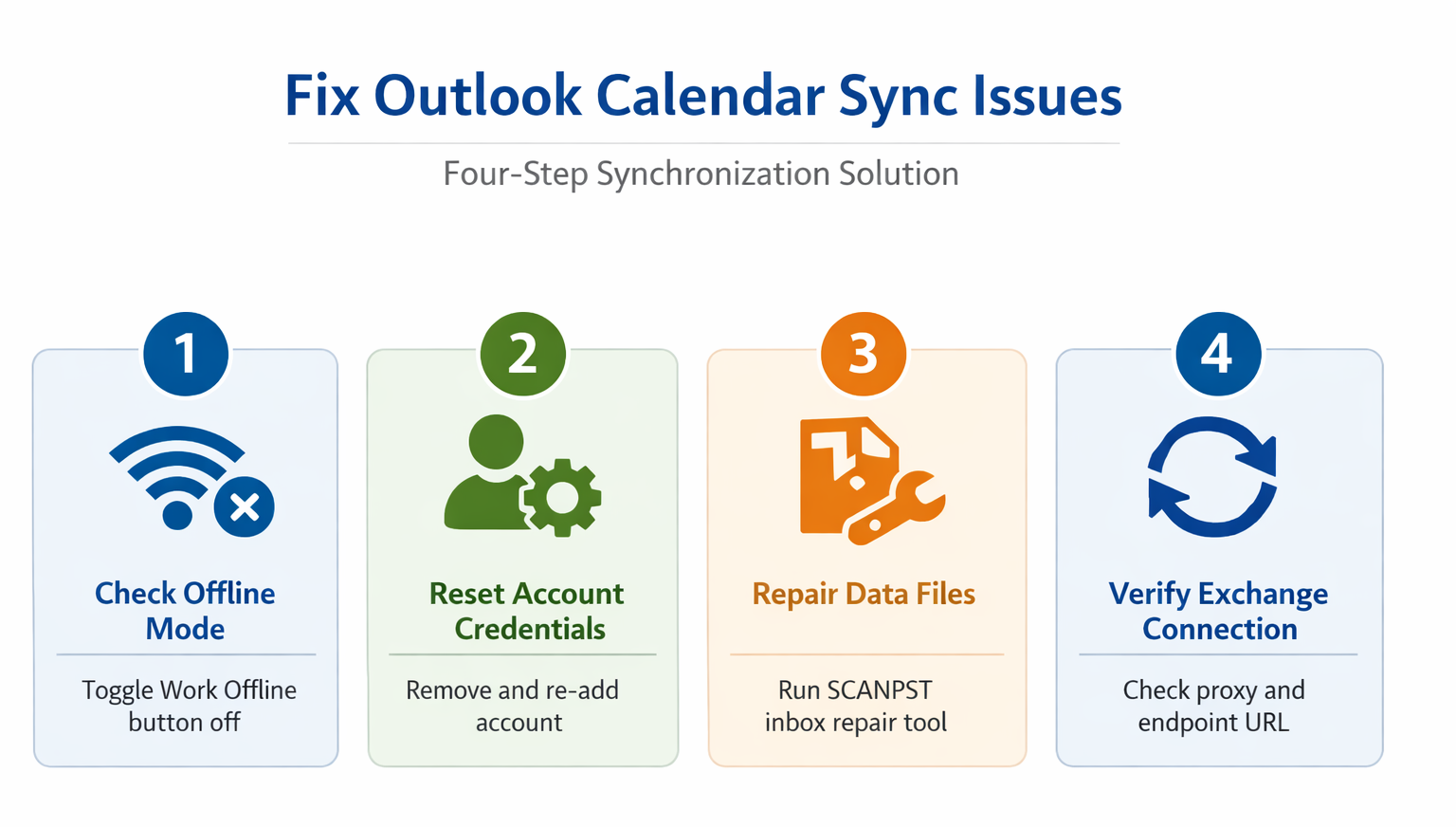
Check for delegate access conflicts
Delegate configurations in Outlook are a surprisingly common cause of calendar sync failures that most troubleshooting guides overlook entirely. Open Outlook >> File >> Account Settings >> Delegate Access and look for entries you don’t recognize — conflicting or outdated delegates can block the Teams calendar pipeline even when direct Outlook calendar access works perfectly. Remove any delegate entries that look unfamiliar, outdated, or belong to people who’ve left the organization. If sync remains slow after cleaning up delegates, try connecting external calendar services as a diagnostic step to determine whether the problem is specific to the Outlook-Teams pipeline or affects all calendar integrations on your account.
Verify Microsoft 365 service health
Before spending more time troubleshooting locally, check the Microsoft 365 Service Health dashboard (admin.microsoft.com) to confirm there are no active outages affecting Teams or Exchange calendar sync. Service-side outages produce symptoms identical to local configuration problems — empty calendars, sync errors, missing events — and no amount of cache clearing or permission resets will help during a server incident. If the service health page shows a calendar-related advisory or incident, wait for Microsoft to resolve it and check back periodically. Most service-side calendar issues resolve within one to two hours, and your calendar reloads automatically once the underlying service recovers without needing any action on your end.
Check Exchange mailbox connectivity
If none of the above fixes work and service health looks clean, the issue may sit at the Exchange mailbox level rather than the Teams client. Open Outlook on the web at outlook.office.com and verify your calendar loads there — if it doesn’t, the problem is with your Exchange mailbox, not Teams. Contact your IT admin and ask them to check your mailbox health in the Exchange admin center, specifically looking for provisioning errors, mailbox corruption, or licensing issues that could prevent calendar sync. Organizations that recently migrated mailboxes between tenants or from on-premises Exchange to Exchange Online sometimes see calendar sync break for individual users during the transition.
Reader questions
Why does Teams say it can’t load my calendar?
The most common causes are corrupted cache files, expired authentication tokens, and revoked calendar permissions at the Exchange level. Start by clearing the Teams cache — that resolves about 70% of calendar loading failures without needing any other changes.
How long does Teams calendar sync take?
Normal sync between Outlook and Teams takes one to three minutes. Anything longer than 15 minutes usually points to a configuration issue — clear the cache, check delegate access in Outlook, or reset the Teams-Outlook add-in connection to get the sync pipeline working again.
Does clearing the Teams cache delete events?
No. The cache only contains temporary local copies of data — your actual calendar events live on the Exchange server and remain completely safe. After clearing the cache and restarting Teams, all events reload from the server within seconds.
Start with the cache clear — it’s the fastest fix and works for most people. If that doesn’t do it, reset credentials and check delegate access before escalating to IT.