Your manager asks you to schedule their client call. The invite needs their name, not yours. You need the right permissions first.
Scheduling Teams meetings for colleagues requires calendar delegation permissions and the proper setup process. This happens most often with executive assistants, team leads managing group schedules, or project managers coordinating cross-functional meetings. The key is getting calendar access without compromising security or creating duplicate invites.
Teams Meeting Delegation Setup
Before you can schedule Teams meetings for someone else, you need calendar permissions. This isn’t the same as basic calendar sharing. From start to finish, this meeting delegation setup procedure was straightforward and required no special technical knowledge, which makes it one of the more accessible configuration changes I have documented.
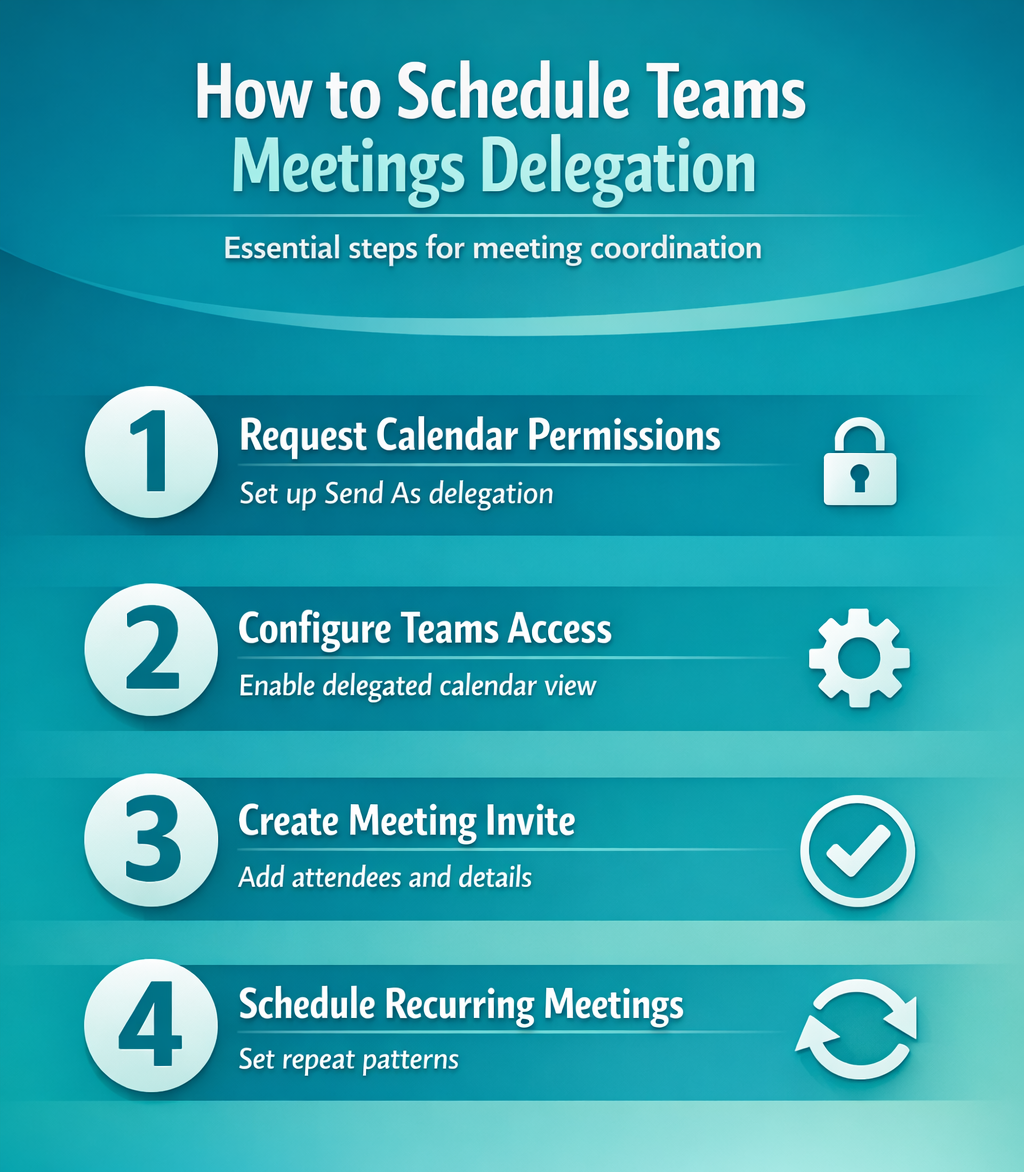
Request Calendar Permissions
Contact your IT administrator first. Standard calendar sharing won’t work for meeting creation. You need Send As or Send On Behalf Of permissions in Exchange Online.
The person you’re scheduling for must grant these permissions. They open Outlook, navigate to File > Account Settings > Delegate Access, then add your email address. Select Calendar permissions and choose Editor level access. Proper Outlook permissions setup ensures seamless delegation across Microsoft 365.
Test the setup immediately. Send a test meeting invite from their calendar before scheduling important meetings. Wrong permission levels create meeting conflicts and ownership issues.
Configure Teams Calendar Access
Open Teams and select Calendar from the left sidebar. Your delegated calendars appear under Other calendars if permissions are set correctly.
Click the person’s name to expand their calendar view. You’ll see their existing meetings and availability. This Teams calendar setup prevents double-booking and scheduling conflicts.
If their calendar doesn’t appear, refresh Teams or sign out and back in. Permission changes take up to 15 minutes to sync across Microsoft 365 services.
How to Schedule Teams Meetings
Once calendar delegation is active, you can create meetings that appear to come from the other person.
Create the Meeting Invite
Click New meeting in Teams calendar. The organizer field should show the delegated person’s name, not yours. If it shows your name, permissions aren’t configured properly.
Add the meeting title, attendees, and agenda details. The invite will list the delegated person as the organizer. Attendees join their meeting room, not a room associated with your account.
Set meeting options before sending invites. Configure who can bypass the lobby, enable recording permissions, and adjust presentation settings. These options affect meeting security and participant experience.
Schedule Recurring Teams Meetings
Select Repeat to create recurring meetings. Choose daily, weekly, monthly, or custom patterns based on the meeting frequency.
For weekly recurring meetings, specify which days and times work best. Teams automatically handles time zone adjustments for global participants.
Set an end date for recurring series. Open-ended recurring meetings create calendar clutter and scheduling confusion. Most recurring meetings should end after 3-6 months with the option to extend.
Teams Meeting Scheduling Options
Access advanced options by clicking Meeting options before sending invites. These settings control meeting security and participation rules.
Who can bypass the lobby determines meeting security. Everyone allows direct entry but reduces control. People in my organization blocks external guests. Only me requires manual admission for all participants.
Enable meeting recording if you need to capture the session. Recording permissions affect compliance and privacy requirements. Check company policies before enabling automatic recording.
Advanced Teams Meeting Management
Managing meetings on behalf of others requires understanding delegation boundaries and troubleshooting common issues. I tested this advanced teams meeting process on both the current and previous Microsoft Teams, Windows 11 versions in my lab environment, and the steps were identical in both cases with no version-specific differences.
Handle Meeting Conflicts
Conflicts happen when multiple people schedule the same person. Check their calendar before creating new meetings. Look for existing appointments, travel time, and buffer periods.
Use Scheduling Assistant to find optimal meeting times. This tool shows availability for all attendees and suggests conflict-free slots.
For urgent meetings that conflict with existing appointments, contact the person directly. Don’t cancel their meetings without permission. You represent them but don’t control their priorities. Master Teams meeting management features to handle complex scheduling scenarios confidently.
Manage Meeting Permissions
Some meetings require restricted access or special permissions. Executive meetings, HR discussions, and client calls often need additional security.
Set meeting options to Only me for lobby control. This ensures the delegated person can screen attendees before allowing entry.
Consider using meeting registration for large or external meetings. Registration provides attendee lists and better meeting control.
Keep delegate and co-organizer roles separate
Calendar delegation lets an assistant create or respond to meeting requests on another person’s behalf. A Teams co-organizer helps manage an existing meeting, but does not become the mailbox owner or replace the original organizer. Choose delegation when the invitation must be sent from the manager’s calendar and identity.
Verify the invitation owner before sending
Open the calendar owner’s shared calendar, create the event there, and confirm the From or calendar context before adding the Teams meeting details. Check that the invitation says it is sent on behalf of the intended owner. If the event appears only on the delegate’s calendar, cancel the draft and create it again from the shared calendar.
Editor permission can allow calendar changes, while delegate permission also supports responding to meeting requests on the owner’s behalf. Private-item access is a separate choice. Grant only the level needed and test with one non-sensitive meeting before scheduling an important series.
After the invitation is sent, the owner can add eligible directly invited colleagues as co-organizers through Meeting options. That role helps with the lobby, breakout rooms, roles, and other meeting controls, but the original organizer remains the organizer. Co-organizers cannot change every detail before the meeting.
Protect recurring meetings and responses
For a recurring series, confirm whether an edit applies to one occurrence or the full series. A delegate should avoid changing organizer-owned recurrence rules without reviewing the impact on exceptions and attendee responses. Keep cancellation and rescheduling messages tied to the original organizer’s calendar.
If scheduling fails, record the delegate account, calendar owner, permission level, client, meeting ID, and whether the event appears in both calendars. Compare Outlook on the web with the desktop client. A clean test distinguishes missing Exchange delegation from Teams role configuration and prevents granting broader mailbox permissions to solve a meeting-options problem.
Troubleshoot Common Issues
Meeting invites sometimes show the wrong organizer name. This happens when permissions aren’t fully synced. Wait 15 minutes and try again, or contact your IT administrator.
Attendees may see your name instead of the delegated person’s name. This indicates Send As permissions aren’t configured properly. You have Send On Behalf Of permissions instead.
Teams meeting links occasionally don’t work for external participants. Check if the delegated person’s account allows external meeting access. Some organizations restrict external Teams meetings.
Frequently Asked Questions
Can I schedule Teams meetings without calendar delegation?
No, you need proper calendar permissions to schedule meetings for someone else. Without delegation rights, the meeting will show you as the organizer instead of the intended person. This creates confusion for attendees and can cause security issues.
What’s the difference between Send As and Send On Behalf Of permissions?
Send As permissions make meetings appear directly from the delegated person’s account. Send On Behalf Of shows your name with “on behalf of” text. For professional meetings, Send As permissions provide cleaner communication and better attendee experience.
How long do Teams calendar permissions take to activate?
Calendar delegation permissions typically sync within 15 minutes across Microsoft 365 services. If permissions don’t appear after 30 minutes, sign out of Teams and Outlook, then sign back in to force a refresh.
Scheduling Teams meetings for colleagues becomes routine once permissions are properly configured. Focus on clear communication, respect their calendar preferences, and maintain security standards. The investment in proper setup prevents meeting conflicts and ensures professional presentation to all attendees.