Using AI assistance for meeting coordination challenges
“How can I leverage Microsoft Copilot to streamline meeting scheduling in New Outlook when coordinating with multiple team members across different time zones?”
Solving complex scheduling scenarios with intelligent automation
Many professionals struggle with the back-and-forth email exchanges trying to find suitable meeting times, especially when working with colleagues in various locations and departments who have conflicting schedules and availability constraints.
Meeting coordination becomes increasingly complex as teams grow and work across multiple time zones, making traditional scheduling methods inefficient and time-consuming. The challenge intensifies when you need to consider attendee preferences, room availability, and conflicting calendar commitments while maintaining professional communication standards throughout the process.
We will show how to harness Microsoft Copilot’s AI capabilities within New Outlook to automate meeting scheduling tasks, generate intelligent time suggestions, and create professional meeting invitations. You will learn to configure Copilot settings, utilize natural language prompts for scheduling assistance, and leverage smart recommendations that consider attendee availability and preferences automatically.
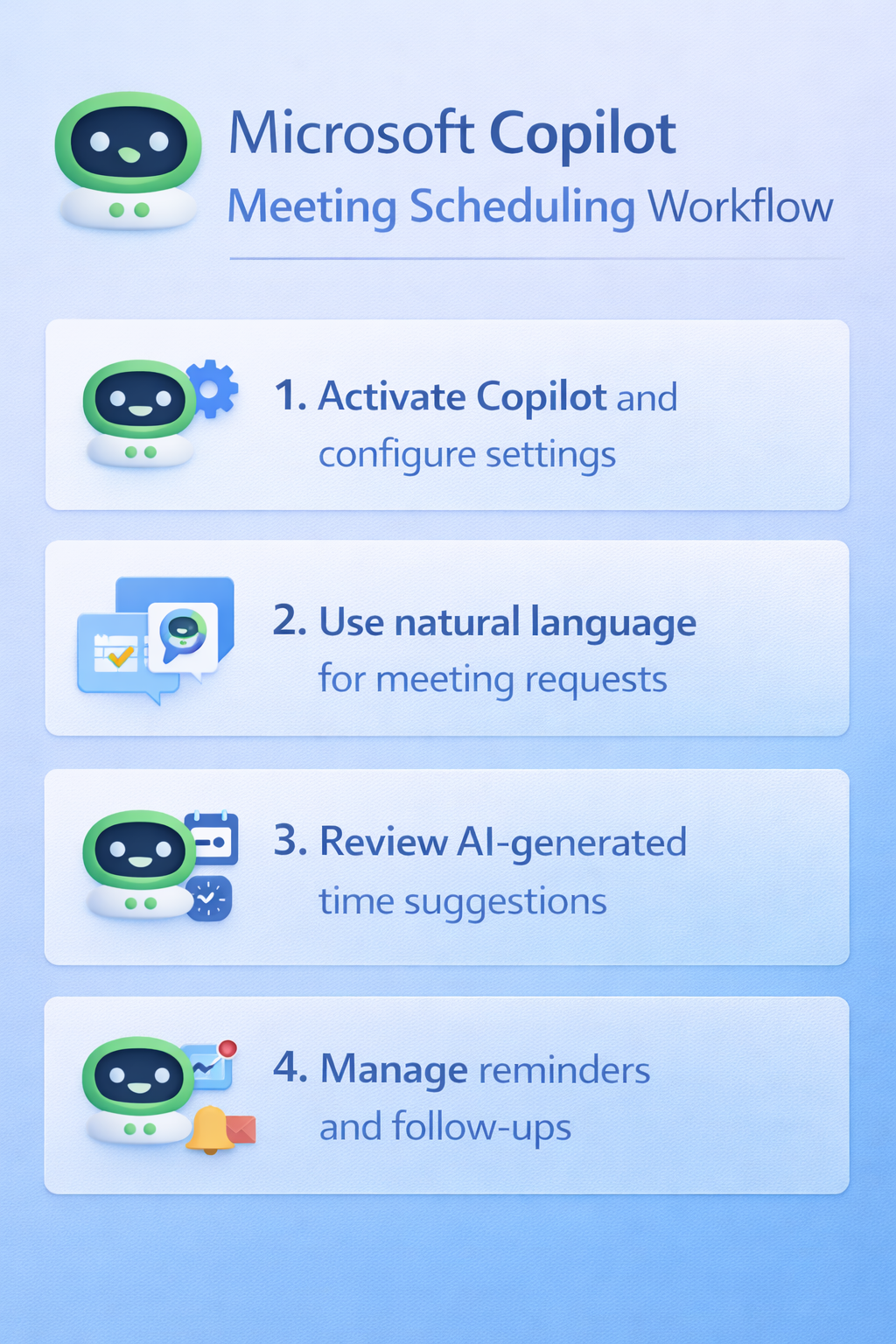
Setting up Copilot integration for meeting requests
Begin by opening New Outlook application and ensuring your Microsoft 365 account has Copilot licensing activated through your organization’s subscription settings. Navigate to the Settings menu by clicking the gear icon in the top-right corner, then select Mail settings to verify Copilot integration appears under the AI assistance options section.
- Access the Calendar view by clicking the Calendar icon in the left navigation panel, then select New Event to open the meeting creation interface where Copilot assistance becomes available.
- Click the Copilot icon that appears in the meeting creation toolbar, typically positioned near the Send button, to activate AI assistance for your scheduling task throughout the process.
- Configure Copilot preferences by selecting the three-dot menu next to the Copilot icon, then choose Settings to customize how AI suggestions appear and what information gets automatically included in meeting requests.
- Enable smart scheduling features by toggling on options for time zone detection, availability checking, and automatic room booking suggestions within the Copilot configuration panel for enhanced functionality.
Expert Tip: Ensure your calendar sharing permissions are configured appropriately before using Copilot scheduling features, as the AI requires access to attendee availability information to provide accurate recommendations.
Creating intelligent meeting requests with natural language
Activate Copilot assistance by typing natural language requests directly into the meeting subject line or description field, such as “Schedule a project review meeting with the marketing team next week for 90 minutes.” The AI will analyze your request and provide intelligent suggestions for meeting details, timing, and attendee coordination based on calendar availability patterns.
- Type your meeting request using conversational language in the Copilot chat interface, including specific details like duration, attendee preferences, and any special requirements for room setup or equipment needs.
- Review Copilot’s suggested meeting times by examining the automatically generated time slot recommendations that consider all attendees’ calendars and identify optimal scheduling windows for maximum participation rates.
- Select preferred time options from Copilot’s suggestions by clicking on the recommended slots, which will automatically populate the meeting invitation fields with appropriate start times, duration, and attendee notifications.
- Customize meeting details using Copilot’s content generation features by asking for agenda creation, location recommendations, or professional meeting descriptions that match your organization’s communication standards and formatting requirements.
Optimizing attendee coordination and follow-up
Enhance attendee management by utilizing Copilot’s intelligent suggestions for adding relevant team members based on meeting topics, project associations, and previous collaboration patterns within your organization. The AI analyzes email threads, shared documents, and calendar history to recommend appropriate participants who should receive meeting invitations automatically.
- Generate professional meeting agendas by prompting Copilot with meeting objectives and expected outcomes, allowing the AI to create structured agenda items that promote productive discussions and clear action items.
- Configure automatic reminders and follow-up messages using Copilot’s scheduling assistance features, which can draft reminder emails, prepare meeting materials, and create post-meeting summary templates for consistent communication workflows.
- Manage recurring meeting schedules by leveraging Copilot’s pattern recognition capabilities to suggest optimal recurring time slots based on attendee availability trends and historical meeting success rates within your team.
- Handle meeting conflicts and rescheduling requests through Copilot’s conflict resolution suggestions, which automatically identify alternative time slots and draft professional rescheduling messages to affected attendees with minimal manual intervention required.
Resolving common scheduling automation issues
Address Copilot availability limitations when the AI assistant fails to access attendee calendar information due to permission restrictions or tenant configuration settings that prevent cross-organizational calendar visibility.
- Verify calendar sharing permissions are configured correctly by navigating to Calendar Settings, selecting Shared Calendars, and ensuring appropriate access levels are granted to Copilot services for accurate availability checking functionality.
- Resolve licensing conflicts when Copilot features appear grayed out or unavailable by confirming your Microsoft 365 subscription includes Copilot access and contacting your IT administrator to verify proper license assignment and activation status.
- Fix time zone calculation errors by checking your Outlook time zone settings match your actual location and ensuring Copilot is configured to use the correct regional settings for accurate scheduling recommendations and attendee coordination.
- Troubleshoot meeting invitation generation problems when Copilot fails to populate meeting details correctly by clearing the application cache, restarting New Outlook, and re-authenticating your Microsoft 365 account credentials through the sign-in process. See our rescheduling guide for related tips.
Use Schedule with Copilot for the draft, not the final decision
In new Outlook, Schedule with Copilot can analyze an email thread, propose a meeting title and agenda, include the thread as an attachment, and add people from the conversation as attendees. It creates a draft invitation for review. The feature requires an eligible Microsoft 365 Copilot work license and may appear through customized actions if it is not visible on the message toolbar.
Create and inspect the invitation
Open the relevant email conversation and select Schedule with Copilot. Review the proposed content, insert it into the invitation, and then verify every field before sending. Remove people who do not need the meeting and add missing decision makers. Check the title, agenda, attachments, duration, location or Teams link, recurrence, and reminder.
Copilot can derive context from the thread, but it does not replace the Scheduling Assistant. Open Scheduling Assistant to compare attendee availability, work hours, time zones, room availability, and tentative or out-of-office blocks. Confirm that the proposed time is reasonable for all locations.
If the thread has little actionable context or contains confidential or potentially harmful content, Copilot may not generate an agenda. Write the agenda manually and include only the minimum necessary background.
Troubleshoot a missing or incomplete option
If Schedule with Copilot is absent, confirm that you are using new Outlook with the licensed work account. Review customized actions, update the client, and compare Outlook on the web. Ask the administrator to verify license assignment and Copilot policy when it is unavailable across clients.
Before sending, read the source thread and compare names, decisions, and commitments with the generated agenda. Avoid attaching an entire sensitive conversation when a short summary is sufficient. After sending, check the calendar item and attendee list. A careful human review prevents an efficient draft from becoming an incorrect invitation.