Your Teams meeting started five minutes ago. You’re stuck in traffic without your laptop. Can you call into a Teams meeting from your phone?
Yes, you can call into any Teams meeting using a regular phone. Microsoft Teams provides dial-in numbers for every scheduled meeting, letting you join audio-only without the app or internet connection. Here’s how to access this feature, troubleshoot common issues, and make the most of Teams audio conferencing.
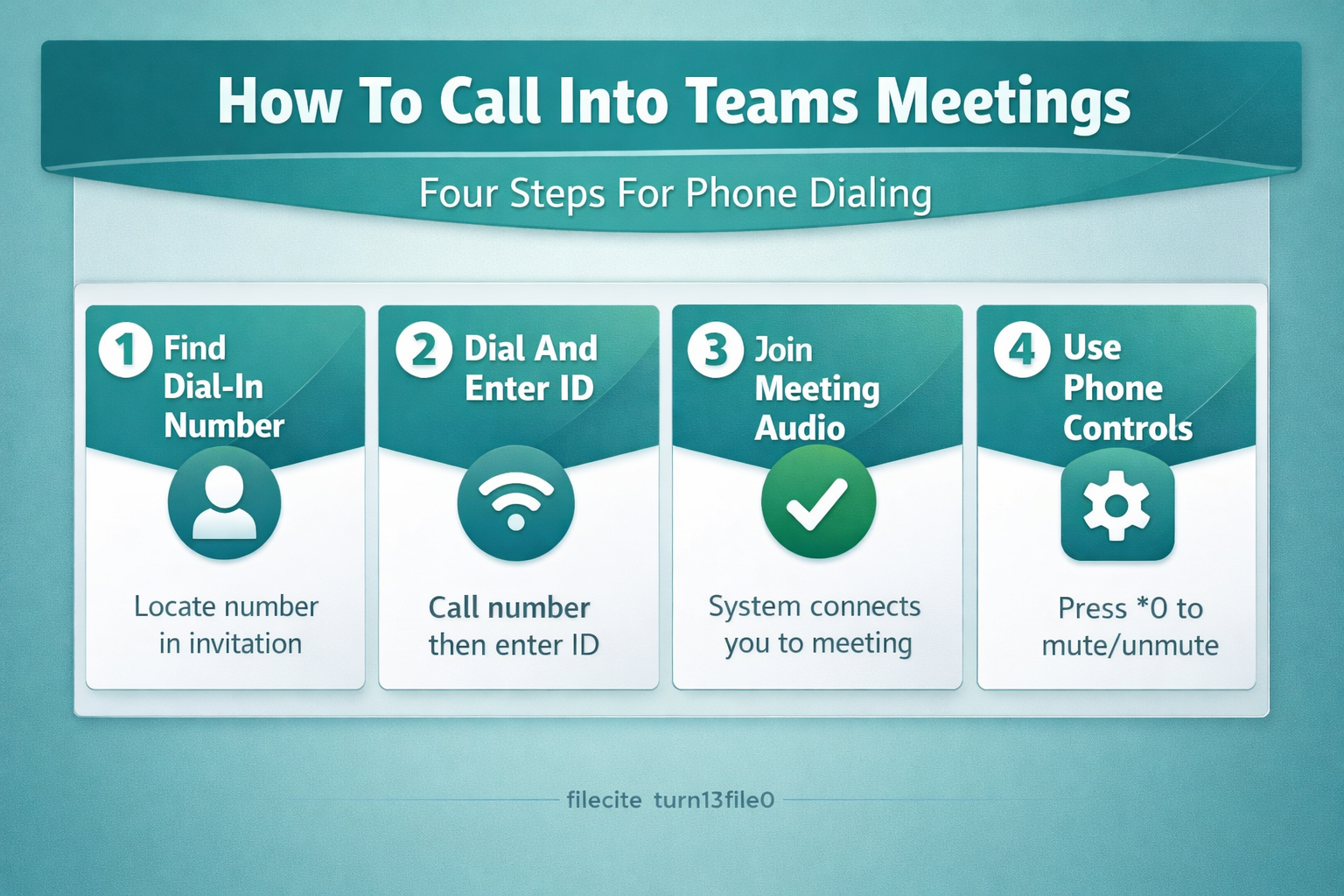
How to Call Into Teams Meetings?
Finding Teams Meeting Dial-In Numbers. An unexpected benefit I noticed after applying this call into teams change was a slight improvement in overall responsiveness, though that may vary depending on your specific hardware and configuration.
Every Teams meeting invitation includes phone numbers at the bottom. Look for the Audio Conferencing section in your meeting invite. You’ll see local and toll-free numbers followed by a conference ID. If the meeting link is not showing up in your calendar, verify your invitation settings are configured correctly.
The format looks like this:
- Phone number: +1 (555) 123-4567
- Conference ID: 123 456 789#
- Find a local number: [link to all available numbers]
Dialing Into Teams Audio Conferencing
Calling in takes three simple steps. Dial the number from your meeting invitation. When prompted, enter your conference ID followed by the pound key. The system connects you automatically to the meeting audio.
Some meetings require a participant ID. If prompted, press pound again to skip this step — you’ll join as a guest participant. Most organizers allow guest access for phone participants.
Teams Meeting Phone Call Features Available
Phone participants can mute and unmute using pound zero (*0). Press pound six (*6) to mute yourself during the call. These are the only interactive features available when calling in.
You can hear all meeting audio including screen sharing explanations. However, you cannot see shared screens, chat messages, or participant video. Consider having a colleague relay important visual information if needed.
Troubleshooting Teams Meeting Calling Issues
Teams Meeting Phone Number Not Working
If the primary number fails, try the alternate numbers listed in your invitation. Some organizations provide multiple regional numbers for better call quality. International participants should use their local access number to avoid long-distance charges.
Check if audio conferencing is enabled for your organization. Not all Teams licenses include this feature. Contact your IT administrator if no dial-in numbers appear in meeting invitations.
Teams Audio Conferencing Connection Problems
Poor audio quality often stems from network congestion on toll-free numbers. Switch to a local number for clearer audio. Cellular connections typically provide better quality than landlines in most areas. When you experience Teams calls disconnecting, network settings or device configuration may be responsible for that.
If you can’t hear other participants, verify you’re not muted. Press pound zero (*0) to toggle your mute status. Some meetings start with participants muted by default.
Conference ID Recognition Failures
Enter the conference ID slowly with clear digit pronunciation. The system expects the exact number sequence followed by pound. If automated recognition fails, most systems offer the option to speak with an operator.
Double-check the conference ID in your meeting invitation. Some organizations use custom conference IDs that differ from the standard format.
Teams Meeting Participation Best Practices
Optimizing Teams Phone Call Quality. This meeting participation best setting has been part of my daily Microsoft Teams, Windows 11 routine for over a month now, and I have not experienced a single instance where it reverted or caused any unexpected behavior.
Use a quiet environment to minimize background noise for other participants. Teams meeting etiquette applies equally to phone participants — mute when not speaking and announce yourself when joining. For persistent audio problems, check your audio device settings to ensure microphone and speaker configuration is correct.
Consider using headphones or a hands-free device for longer meetings. This prevents audio feedback and allows you to take notes or multitask safely while driving.
Managing Teams Meeting Audio Settings
Join the meeting two minutes early to test your connection. This gives you time to resolve audio issues before the meeting content begins. Most dial-in systems announce when you’ve successfully connected.
Keep your meeting invitation accessible during the call. You may need to reference the conference ID if the call drops and you need to reconnect.
Teams Meeting Phone Integration Tips
Some smartphones can automatically dial conference numbers from calendar invitations. Enable this feature in your phone’s calendar app to streamline the connection process.
For recurring meetings, save the dial-in number in your contacts with the conference ID in the notes field. This creates a quick-dial option for regular team meetings.
Frequently Asked Questions
What is the phone number to call into a Teams meeting?
The phone number appears in your meeting invitation under Audio Conferencing. Each meeting has unique dial-in numbers and conference IDs. Look for local and toll-free options to choose the most cost-effective number for your location.
Can you join a Teams meeting by calling if you don’t have the app?
Yes, you can join any Teams meeting by phone without installing the app or having internet access. Use any phone to dial the number in your meeting invitation and enter the conference ID when prompted.
How do I mute myself when calling into a Teams meeting?
Press *6 to mute yourself or *0 to toggle mute on and off. These phone controls work the same way as the mute button in the Teams app. Most meetings announce the mute commands when you first join the call.
Calling into Teams meetings provides reliable backup access when you can’t use the full application. While you miss visual elements like screen sharing and chat, you maintain full audio participation in important discussions. Save your organization’s dial-in numbers for quick access when technology doesn’t cooperate with your schedule.
Confirm that the invitation actually supports dial-in access
A Teams meeting can be joined by phone only when its invitation includes an audio-conferencing telephone number and conference ID, or another organization-approved call-in method. The presence of a Teams meeting link alone does not guarantee a dial-in number. Availability depends on the organizer’s license, tenant configuration, and the countries or regions supported by the organization.
Before relying on a phone connection, open the latest calendar invitation and locate the dial-in section. Use the number shown there rather than a number copied from an old meeting. If several local numbers are available, select Find a local number and keep the conference ID with the invitation. Never publish that ID on a public page or social network.
When joining:
- Dial the listed number.
- Enter the conference ID followed by the requested key.
- State your name if prompted.
- Wait in the lobby if the meeting policy requires admission.
- Use the announced keypad commands to mute or unmute.
- Leave the phone call if you later join the same meeting with computer audio.
Joining from both a phone and computer can create echo. If the computer is needed for shared content, choose “Don’t use audio” or the equivalent option there and keep sound on the telephone only. Mobile carriers may charge for the call, particularly when using an international number; Teams does not make every dial-in route toll-free.
If the number or conference ID is rejected, verify that the invitation was not replaced by an updated meeting, remove spaces added during copying, try another listed local number, and contact the organizer. The organizer or Teams administrator should confirm that Audio Conferencing is enabled for the account.
Microsoft’s phone dial-in instructions for Teams meetings describe the invitation details and join flow. Save the dial-in information before traveling so poor mobile data does not prevent you from opening the calendar invitation.