Microsoft Planner lets you split work into smaller pieces, but the correct method depends on the plan type. A basic plan uses checklist items as lightweight steps inside a task. A premium plan can create a true hierarchy of summary tasks and subtasks. Choosing the right structure keeps owners, dates, and progress visible without turning a simple plan into unnecessary administration.
If your team works mainly from Microsoft Teams, the same principles apply in the shared work view inside Teams. The labels may shift slightly as Microsoft rolls out the new Planner experience, but the distinction between checklist steps and separately tracked tasks remains important.
Decide what “subtask” means in your plan
Before adding work, decide whether each smaller item needs its own owner, schedule, and status. That answer determines whether you need a checklist, a separate task, or a premium hierarchy.
| Need | Basic plan | Premium plan |
|---|---|---|
| A few steps inside one assignment | Add checklist items | Add checklist items |
| Separate ownership and due dates | Create separate tasks | Create subtasks |
| Parent-and-child hierarchy | Not available as a true hierarchy | Use summary tasks and subtasks |
| A step grows beyond the original task | Promote the checklist item to a task | Promote or rearrange the subtask |
Use checklist items for small steps
A checklist works well when one person owns the result and the steps simply explain how to finish it. For example, a task named “Prepare launch announcement” could contain checklist items for drafting the copy, confirming the date, and getting final approval. The task carries the assignment and due date, while the checklist shows the small steps.
Checklist items are not independent tasks. They do not provide the same separate ownership, due-date, or status controls as full tasks. Keep them short, action-oriented, and closely tied to the parent outcome.
Use true subtasks for independently managed work
Choose a premium hierarchy when the parent describes a phase or deliverable and its children need to be planned separately. A summary task such as “Prepare customer webinar” might contain subtasks for booking the presenter, building the slide deck, testing the meeting link, and sending the invitation.
Each child can represent real work rather than a reminder inside another person’s task. This is useful when different people own the pieces or when the work needs distinct dates and progress updates.
Build the parent task before breaking it down
Start with a clear parent outcome. In Board or Grid view, select Add task, write a verb-led title, and add the task. Open its details and set the responsible person, start or due date when appropriate, priority, and a short description of what “done” means.
Use this sequence:
- Name the outcome, not the department or topic.
- Assign one accountable owner whenever possible.
- Add a realistic due date for the completed result.
- Put supporting context, links, or files in the task details.
- Break down only the work that helps people execute or report progress.
A task named “Website” is too vague. “Approve the redesigned pricing page” gives the owner and anyone reviewing the plan a measurable finish line. That clarity makes the checklist or subtask structure much easier to design.
Add lightweight subtasks in a basic plan
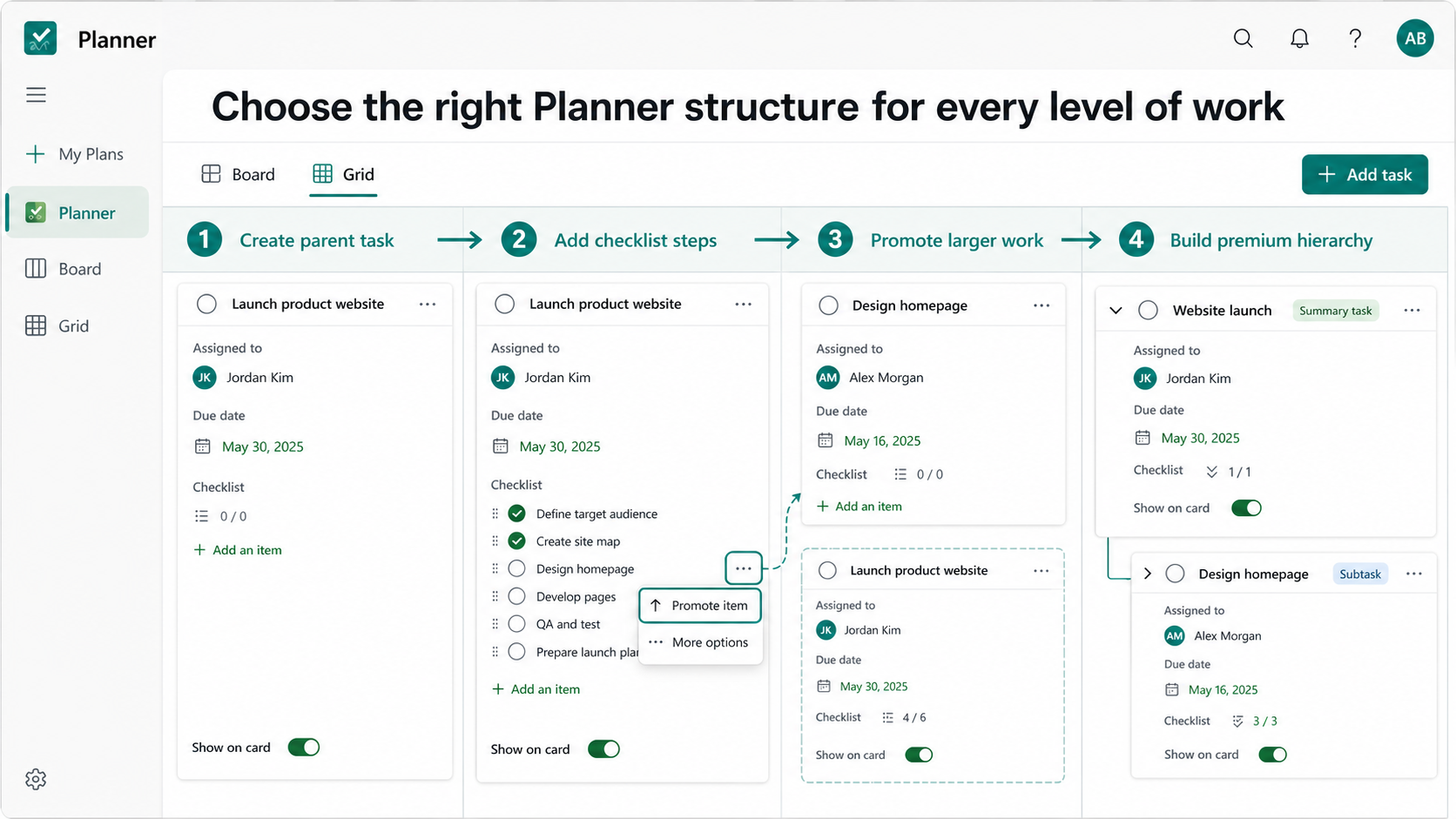
Open the task details and find Checklist. Select Add an item, type the first step, and press Enter. Continue until the task contains the few steps needed to reach the outcome. If the checklist is useful from Board view, enable Show on card so the items and completion count appear without opening the task.
Keep the checklist focused
Five or six concrete actions are usually more useful than a long procedural manual. Start each item with a verb, such as “Review copy,” “Confirm attendees,” or “Upload final PDF.” If an item needs detailed notes, discussion, its own file set, or repeated status updates, it is probably too large for the checklist.
Mark items complete as the work advances. The parent task should be completed only when its overall result is finished, not merely when someone has started its first checklist item.
Promote a checklist item when it grows
Planner provides a Promote item action for turning a checklist item into a separate task. Use it when a small step gains its own owner, date, or deliverable. After promotion, open the new task and add the missing assignment and schedule details.
Promotion creates a separately tracked task; it does not create a nested child under the original task in a basic plan. Use a consistent bucket, label, or naming pattern if the relationship must remain obvious on the board.
Create a true hierarchy in a premium plan
Premium plans include summary and subtask capabilities. In Grid view, add the rows you need, then open the row’s More options menu and choose Make subtask when that command is available. The indented row becomes a child of the task above it. Use Promote subtask to move it back out of the hierarchy.
The exact menu position or wording can vary during the Planner rollout. If Make subtask is missing, first confirm that the plan is premium and that you are working in a view that supports the hierarchy.
Put ownership on the work level
Assign the people who will actually complete each subtask, then set dates that fit within the parent phase. The summary task should describe the combined result. Its children should be deliverables that can be discussed and updated independently.
Do not duplicate the same assignment on the parent and every child unless that accurately reflects accountability. The hierarchy should clarify responsibility, not create several competing versions of progress.
Treat hierarchy and dependency as different controls
Indenting a row explains that one piece of work belongs under another. It does not automatically mean the child must finish before a different task can start. When sequence matters, use premium dependency controls separately and confirm that the dates still make sense after changes.
For more detailed reporting, premium plans also support features such as extra tracking fields. Add those fields only when the team will maintain them consistently.
Keep the hierarchy useful after handoff
A good Planner structure should remain understandable when the original creator is unavailable. Review it with the people doing the work and keep these rules consistent:
- Write parent tasks as outcomes and child items as actions or deliverables.
- Use a checklist only when one task-level owner and date are sufficient.
- Promote work as soon as it needs separate accountability.
- Avoid repeating the same child item as both a checklist entry and a task.
- Review dates after reorganizing a premium hierarchy.
- Close the parent only when the combined result is genuinely complete.
If the board becomes crowded, group related tasks with buckets and use labels for cross-cutting attributes such as workstream, risk, or approval state. Buckets organize the plan; they do not replace the parent-child relationship in a premium hierarchy.
What should you know about Planner subtasks?
Can checklist items have their own assignee and due date?
No. A checklist item is a step inside its parent task and relies on the parent’s assignment and dates. Promote the item to a separate task, or use a premium subtask, when it needs independent ownership or scheduling.
Why don’t I see Make subtask?
The hierarchy capability is associated with premium plans and supported views. Confirm the plan type and try Grid view. Microsoft is also evolving the Planner interface, so an organization’s rollout stage can affect the exact menu labels you see.
Should I use buckets or summary tasks?
Use buckets to group peer tasks by stage, team, or workstream. Use a premium summary task when several child tasks combine into one deliverable or phase. A bucket is a board-level grouping; a summary task is part of the task hierarchy.
Does indenting tasks create dependencies?
No. Indenting creates a parent-child relationship. Dependencies describe sequence between tasks and must be configured separately in a premium plan when one task should control the timing of another.
A simple rule for choosing the structure
Use a checklist when the smaller steps share one task owner, one schedule, and one completion result. Create separate tasks when those steps need independent tracking in a basic plan. Use premium summary tasks and subtasks when the hierarchy itself helps the team plan and report a larger deliverable. The simplest structure that preserves clear ownership is usually the one people will keep up to date.