To pull a transcript from Teams after a meeting, open the completed meeting’s chat or calendar event, go to Recap, select Transcript, and use the Download menu. Teams normally offers a Word .docx file for reading and a .vtt file for captions or time-coded processing.
That route works only when the meeting was transcribed and your role is allowed to download the result. The most common mistake is searching the Downloads folder or the recording player before opening the meeting’s Recap. The transcript is a meeting artifact with its own permissions, not simply a text file that every attendee receives.
Pull the transcript from a past meeting chat
Use this path when the meeting chat is still easy to find:
- In Teams, select Chat.
- Open the chat for the completed meeting.
- Select the Recap tab.
- Open Transcript in the recap.
- Select the arrow beside Download.
- Choose Download as .docx or Download as .vtt, then save the file.
Microsoft says the transcript is available in the meeting event after the meeting ends. By default, the organizer and co-organizers can download it, while other attendees may be able to view it without receiving download permission.
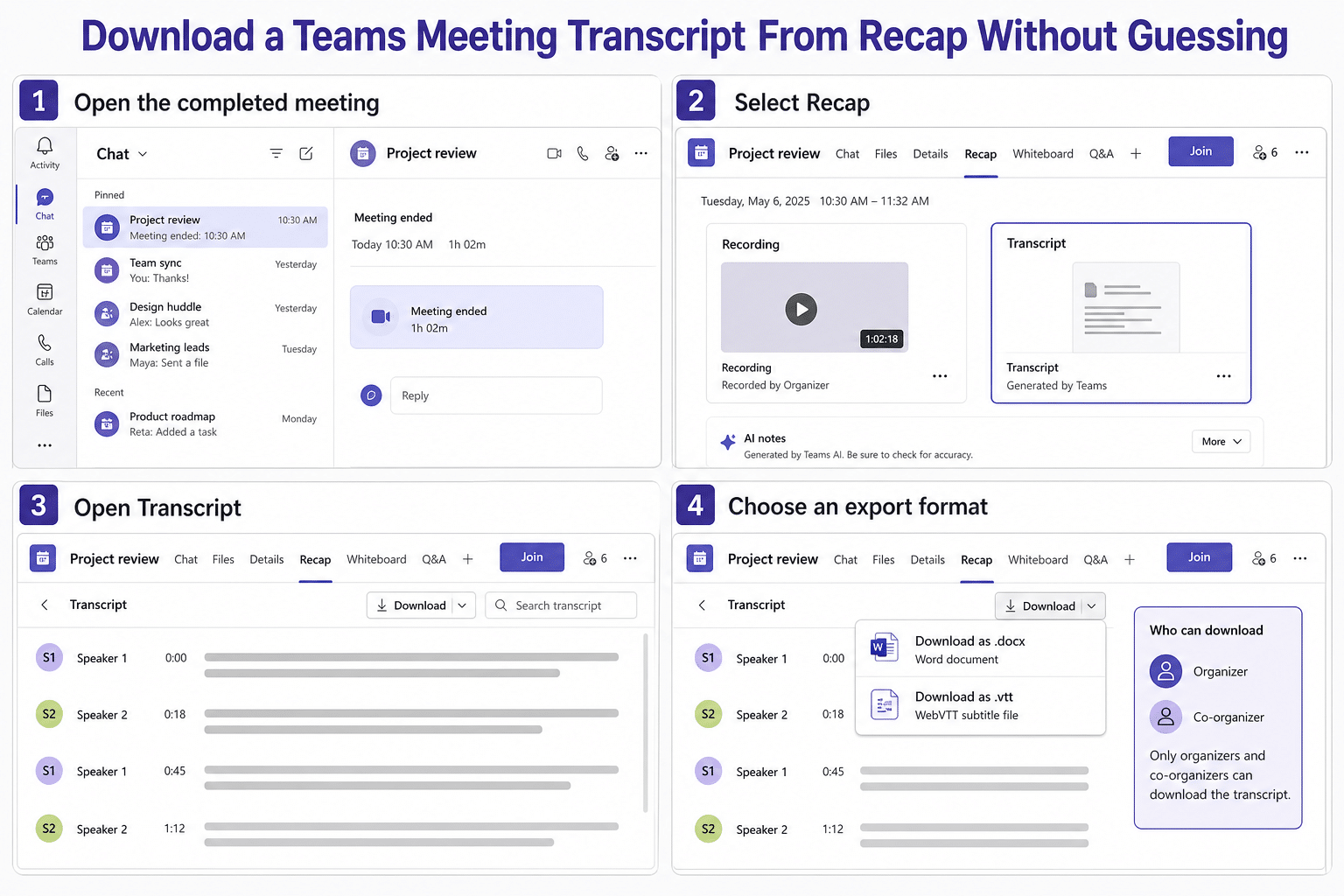
If Recap is missing from the chat, do not assume the transcript was deleted. Use the calendar route next and confirm that you opened the correct occurrence of a recurring meeting.
Find the same recap from the Teams calendar
Select Calendar in Teams, open the past meeting, and choose Recap. For a recurring series, select the specific date and time that was transcribed. Each occurrence has its own artifacts, so the series shell may not show the transcript you expect.
A recap can include the recording, transcript, shared files, notes, agenda, and follow-up items. You do not need an Intelligent Recap or Copilot license merely to open a standard transcript you already have permission to view. Premium features can add summaries and markers, but they are separate from the basic export path.
The organizer-side meeting transcription setup is useful before a future call because a transcript cannot be exported if transcription never started. During the meeting, an authorized organizer, co-organizer, or presenter uses More actions > Record and transcribe > Start transcription according to the meeting and tenant policy.
Choose DOCX or VTT for the next task
The two downloads carry the same conversation in different forms:
| Format | Best use | What to expect |
|---|---|---|
.docx |
Reading, editing, quoting short sections, or sharing a conventional document | Speaker names and transcript text in a Word-friendly layout |
.vtt |
Captions, timestamp-based review, media workflows, or importing into tools that understand WebVTT | Time-coded caption cues and speaker text |
Use .docx when a colleague needs readable meeting notes. Use .vtt when timestamps matter. Do not rename one extension to the other; download the proper format from Teams so the file structure matches the application that will open it.
Before sharing either file, review it for sensitive information. A transcript can contain names, decisions, and conversations that were not intended for a broader audience. Meeting access does not automatically authorize redistribution outside the invited group.
Understand who can download
By default, meeting organizers and co-organizers can download a completed transcript. Microsoft documents that same-organization participants can often view the transcript after the meeting but cannot necessarily download it. The organizer may be able to change who can access or download the transcript, subject to licensing and the organization’s policies.
External tenant participants and anonymous attendees have more limited post-meeting access. If you attended someone else’s meeting and the Download control is absent, ask the organizer to export the file or adjust access. Trying another browser or reinstalling Teams will not add a permission your meeting role does not have.
For sensitive meetings, organizers and administrators can restrict recording and transcription access. A tenant policy may also disable transcription entirely. If Start transcription was unavailable during the meeting, the organizer should ask IT to review the assigned Teams meeting policy rather than expecting Recap to create a transcript afterward.
When the transcript is not where you expect
First confirm that transcription actually ran. A recording does not always guarantee a usable transcript unless automatic or manual transcription was enabled. Look in the chat for transcription notices and open the correct meeting occurrence.
Next compare your role. If the transcript is visible but Download is not, the problem is probably access rather than processing. Ask the organizer or co-organizer to download it. If neither can see it, check whether the organizer deleted the transcript or whether the meeting occurred under another organizer’s account.
If Recap shows the transcript but an organizer’s download control fails, use the focused export troubleshooting checks. That existing guide addresses the narrower not-downloading failure; the workflow here is intentionally about locating and exporting a normally completed transcript.
Teams stores meeting transcripts associated with recording or transcription in the organizer’s OneDrive for Business and exposes them through Chat and Recap until an organizer deletes them. Treat Recap as the primary navigation surface rather than manually hunting through a local Downloads folder.
Transcript questions after the meeting
Can I pull a transcript if nobody started transcription?
Usually no. Teams needs live transcription or an applicable recorded-and-transcribed workflow to create the artifact. For future meetings, have an authorized person start transcription from Record and transcribe, and verify that participants receive the transcription notice.
Why can I read the transcript but not download it?
Viewing and downloading are separate permissions. Microsoft says same-organization participants may view a transcript while organizers and co-organizers have download rights by default. Ask the organizer to provide the export or update access if organizational policy allows it.
Where does Teams save the downloaded file?
Your browser or Teams client normally uses the device’s configured Downloads location unless you are prompted to choose a folder. The source transcript remains attached to the meeting Recap; downloading a copy does not remove it from Teams.
Which format should I send to a colleague?
Choose .docx for convenient reading and review. Choose .vtt when the recipient needs caption cues or timestamps. In either case, verify that the recipient is permitted to receive the meeting content before sharing it.
Can an organizer delete the transcript later?
Yes. Microsoft provides transcript controls for organizers, including deletion from the Recap experience. If retention matters, download an authorized copy promptly and store it according to your organization’s information-governance rules.
A reliable export habit
After an important meeting, open the specific occurrence from Chat or Calendar, confirm the transcript in Recap, and export the format needed for the next task. Check the file opens before closing Teams, then keep it only in an approved location. If the control is missing, diagnose role and policy before reinstalling anything. That sequence turns transcript retrieval into a predictable organizer workflow rather than a search across recording folders.