When Edge Workspace tabs keep reopening, first decide whether the browser is restoring a normal session or reopening the workspace’s saved tab set. Those behaviors look similar but use different state. Edge Workspaces are designed to save and synchronize their tabs, while the separate Open tabs from the previous session startup option restores ordinary browser windows.
Closing an entire workspace window does not mean “forget these tabs.” It often means “leave the saved workspace for now.” To remove a page from the workspace, close that individual tab while the workspace is online and able to synchronize the change. Then confirm that no lock or collaborator is restoring it.
Tell a workspace restore from a session restore
Look at the upper-left Workspace indicator and the profile badge. If the returning tabs appear inside a named workspace, their state comes from Workspaces. If they return in a normal Edge window without a workspace label, inspect startup settings instead.
Use this quick distinction:
- Named workspace window: tabs and favorites are automatically saved with the workspace.
- Normal browser window: tabs can return because Edge is set to open the previous session.
- Shared workspace: another member can add or close tabs, and those changes synchronize in real time.
- Locked workspace tab: the tab cannot be closed until an authorized person unlocks it.
Do not delete browser history as the first fix. Microsoft notes that even when selected browsing data is cleared on close, a URL can still persist for previous-session restoration. More importantly, history cleanup does not remove the saved tab set from an Edge Workspace.
Remove a tab from the saved workspace
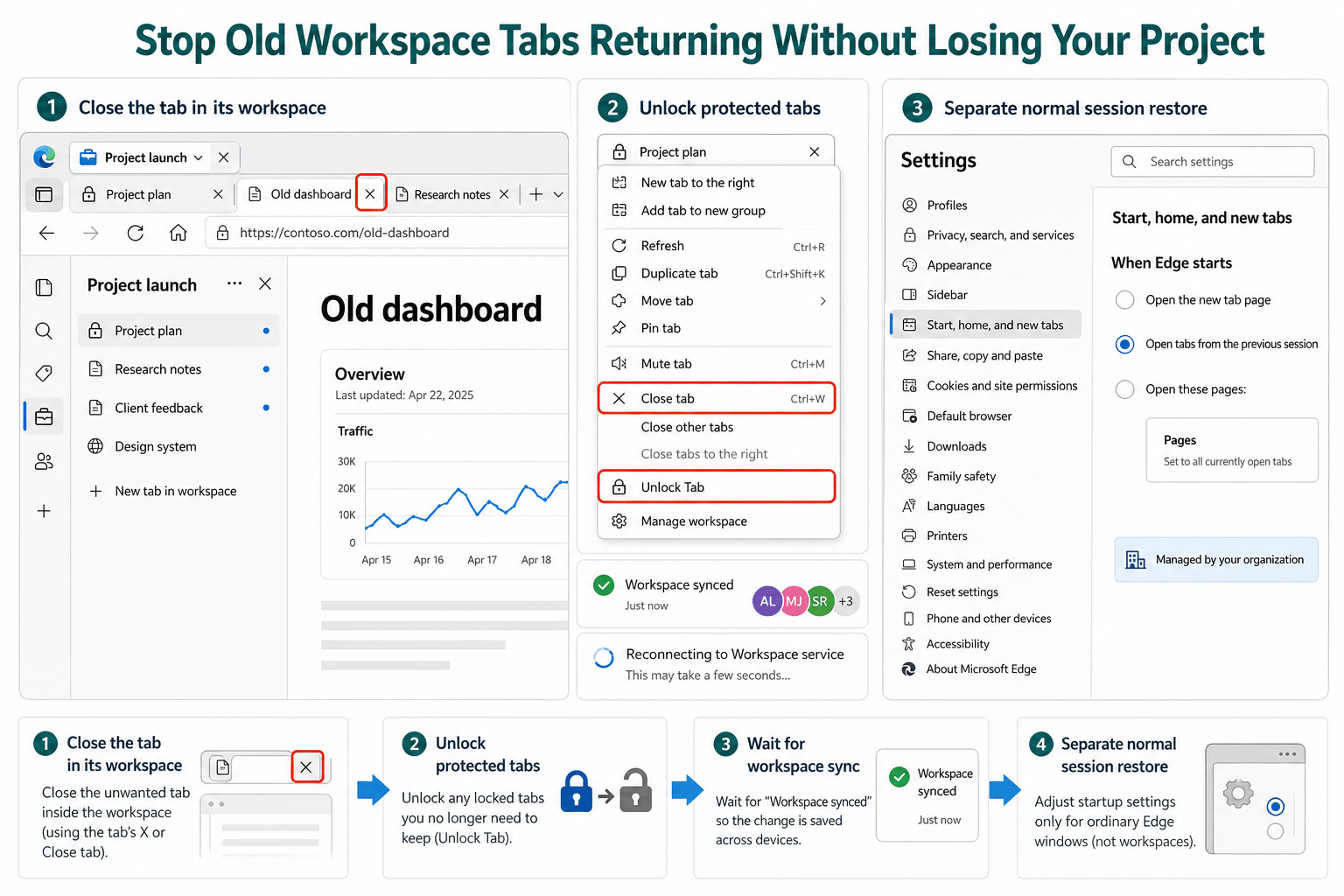
Open the affected workspace from the Workspaces menu and wait for it to connect. Confirm that you are signed into the Edge profile associated with that workspace. Then close the unwanted tab itself with its X or the tab context menu.
Watch for a brief synchronization delay before closing the workspace window. Reopen the workspace from the menu and confirm the tab is gone. If it immediately returns, check whether the tab has a lock icon or whether a collaborator still has the workspace open.
Microsoft documents that tabs in a shared workspace update for everyone in real time. If one member closes a normal tab, it closes for everyone. Another member can also open the same site again, making it seem as though Edge ignored your action.
Unlock a protected tab
A locked tab cannot be closed, dragged, or moved out of the workspace. Right-click it and choose Unlock Tab, or select its lock icon. Only the workspace creator and the person who locked the tab are permitted to unlock it.
If you lack permission, ask the creator to remove the lock and close the tab. Repeatedly closing the window will not override that workspace control.
Change startup restore for ordinary Edge windows
If the tabs return outside a named workspace, open Settings and more > Settings > Start, home, and new tab page. Under the startup choices, check whether Open tabs from the previous session is selected.
Choose the new-tab option or a specific startup-page set if you do not want the previous normal window restored. Then close all Edge windows, reopen the browser, and verify the result. This change controls regular session startup; it does not erase a workspace or its intentionally saved tabs.
Be careful with multiple profiles. Startup pages and saved session state are profile-specific, so change the setting in the same profile that owns the returning window. A work profile and personal profile can behave differently on the same computer.
Check workspace synchronization before repeating the close
A temporary connection problem can leave your local view behind the workspace service. If Edge displays Reconnecting to Workspace service, keep the window open until it reconnects, then close the unwanted tab again. Test by reopening the workspace after synchronization completes.
The guide to what Edge is synchronizing behind the scenes can help when different devices show different workspace tab sets. Confirm that each device uses the matching signed-in account and a current Edge version before assuming the workspace data is corrupt.
For a shared workspace, ask collaborators whether they reopened the site. Microsoft says the shared state includes browser tabs, favorites, history, and the active tab for each member, but it does not share passwords, cookies, downloads, extensions, or personal browser settings. A colleague adding a tab changes the workspace without exposing their signed-in page content to you.
Avoid confusing recovery features with Workspaces
Edge also offers recently closed tabs, synchronized tab groups, pinned tabs, and previous-session restore. A recovered regular tab does not automatically become a workspace tab. Check the named window before changing a setting.
If you accidentally closed an ordinary window you still needed, ways to recover that browsing session are safer than turning every startup restore option on permanently. Recover the pages, move only the project pages into the intended workspace, and close unneeded tabs from the correct surface.
Avoid deleting the entire workspace merely to remove one tab. That affects the organized project state and, in a shared workspace, can disrupt collaborators. Tab-level cleanup followed by a sync check is the narrow fix.
If the same tab returns once more
Use the tab’s URL to trace the source. A site that appears only after Edge starts may be configured as a permanent startup page. Open the startup settings and review the specific-page list. A site that appears only when you open a named workspace belongs to the workspace state or a collaborator action.
Also inspect extensions that intentionally open dashboards, but disable them one at a time and only after ruling out workspace and startup state. If the browser is managed, look for the Managed by your organization indicator. An administrator can configure startup pages or workspace availability, although a managed setting normally shows that it cannot be edited.
Update Edge at Settings > About Microsoft Edge before deeper repair. A current build removes version mismatch as a cause when a workspace is used across several devices.
Questions about persistent Workspace tabs
Why does closing the workspace window not remove its tabs?
Workspaces are designed to preserve a project-specific tab set so you can return later. Closing the window leaves that saved state intact. Close the individual unwanted tab inside the connected workspace, wait for synchronization, and then reopen the workspace to verify the change.
Can another person make a tab reappear?
Yes. Shared workspace tab changes occur in real time. A collaborator can reopen a site after you close it, so check with the group when a normal unlocked tab repeatedly returns. The active workspace member state can help explain the timing.
Why can I not close a tab with a lock icon?
Locked Tabs protects important workspace pages from being closed or moved. Only the workspace creator and the person who applied the lock can unlock it. Ask one of them to remove the lock instead of closing the whole browser window.
Does turning off previous-session restore delete my workspace?
No. The startup option controls ordinary browsing-session restoration. A named Edge Workspace has its own automatically saved tab set and remains available from the Workspaces menu when you are signed into the associated account.
Why do different devices show an older tab set?
One device may be offline, signed into a different Edge identity, or waiting to reconnect to the Workspace service. Bring both devices online, verify the same account and workspace, update Edge, and allow synchronization to complete before making another tab change.
Leave only the tabs the workspace needs
Open the named workspace, close each unwanted unlocked tab, and wait for the service to accept the change. Then reopen that workspace to verify its saved set. Separately review Start, home, and new tab page for normal windows that restore a previous session. Once those two state systems are handled independently, Edge stops looking unpredictable and the workspace remains useful instead of becoming a permanent pile of old tabs.