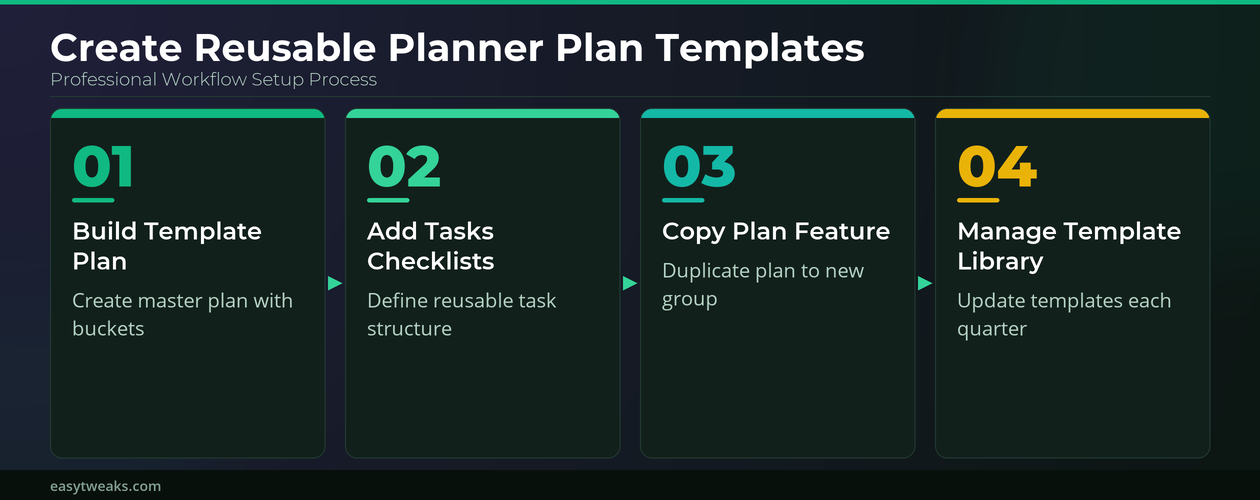
Managing recurring projects inside Microsoft Planner becomes significantly easier when you create reusable plan templates that preserve your preferred buckets, tasks, and checklists automatically. Instead of rebuilding the same project structure every time a new initiative begins, you can duplicate an existing template plan and immediately start assigning tasks to your team. This article walks you through the complete process of building, copying, and maintaining reusable plan templates in Microsoft Planner that save hours of setup time across your organization.
How to Build Planner Template Plans
Creating a dedicated template plan in Microsoft Planner requires establishing a structured foundation that you can duplicate whenever a new project or recurring workflow begins. The template approach works best when you design each bucket, task, and checklist item to represent a generic version of your most common project types. During my testing on Windows 11, the new Planner interface displayed all template-related options clearly, making it straightforward to identify the correct plan creation settings immediately.
Set Up Planner Buckets and Tasks
- You should begin by opening Microsoft Planner through the Microsoft 365 app launcher and selecting the option to create a brand new plan designated specifically for template purposes. Name the template plan using a clear prefix such as “TEMPLATE – Marketing Campaign” so that team members can instantly distinguish reusable templates from active project plans inside Planner.
- Add between three and six buckets that represent the major phases or categories of your typical project workflow, such as Planning, Execution, Review, and Completion stages. Each bucket should contain placeholder tasks with detailed checklists, priority labels, and category assignments that reflect your standard operating procedures for that particular project type.
- Within each bucket you should create the individual tasks that your team repeats for every instance of this project type, including thorough descriptions and relevant label assignments. Adding comprehensive checklists to each template task inside Planner ensures that every copied version contains the same level of detail and guidance for your team members.
Configure Planner Labels and Priorities
- Microsoft Planner allows you to customize the six color-coded labels at the plan level, so you should rename them to reflect standard categories such as urgent, client-facing, or internal. These label names carry over whenever you copy a Planner plan, which means every new project instance created from your template automatically inherits the same classification.
- Setting default priority levels on each template task inside Planner helps your team understand which items require immediate attention and which tasks can wait until later phases. Priority assignments ranging from urgent to low transfer cleanly during the plan copy process, preserving the relative importance of every task in your Microsoft Planner template structure.
How to Copy Planner Plans for Reuse
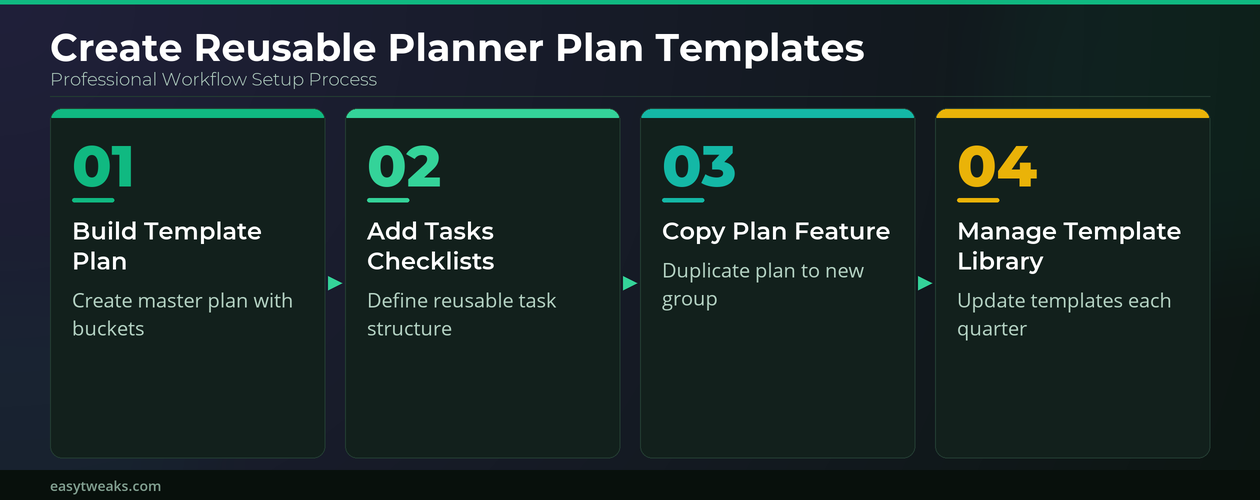
Once your template plan contains all the required buckets, tasks, checklists, and labels, you can duplicate it every time a new project begins within your Microsoft 365 organization. The copy plan feature in Microsoft Planner creates an exact replica of the original structure while letting you choose a new destination group for the copied version.
Use the Planner Copy Plan Feature
1. Open the template plan inside Microsoft Planner and click the three-dot menu located in the upper right corner of the plan header to reveal additional options. Select the Copy plan option from the dropdown menu, which opens a dialog box where you configure the destination group and the new plan name.
2. In the copy dialog you should type a descriptive name for the new project plan and then select the Microsoft 365 group or Teams channel where the copied plan should reside. You can also choose whether to include task assignments, bucket structure, checklists, labels, and task descriptions by checking or unchecking the corresponding boxes in the dialog.
3. After confirming your selections you should click the copy button and wait for Microsoft Planner to generate the new plan with all the selected elements from your original template. The duplication process typically completes within a few seconds, and the newly created Planner plan appears immediately in the destination group ready for team assignments.
Manage Planner Template Versions
- Keeping your master template plan updated inside Microsoft Planner requires periodic reviews to ensure the tasks, checklists, and bucket structures still align with your current project requirements. Scheduling a quarterly review of each Planner template prevents outdated steps from propagating into new project plans that your team actively uses throughout the organization.
- You should consider maintaining multiple template versions in Microsoft Planner when your team handles different project types that share some common tasks but diverge in later phases. Creating separate Planner templates named with clear version indicators such as “TEMPLATE – Product Launch v2” helps avoid confusion when multiple team members sync Planner tasks simultaneously.
Best Practices for Planner Template Management
Beyond manual copying, Microsoft Planner offers additional ways to streamline template usage for teams that manage high volumes of recurring projects across multiple departments inside the organization. Following these best practices ensures that your template library stays organized, current, and accessible to everyone who needs to create new project plans regularly.
Integrate Planner Templates With Teams
- Adding your Microsoft Planner template plan as a tab inside a dedicated Teams channel gives your entire team quick access to the master template without navigating away from their workspace. This Teams integration means any team member with the appropriate permissions can initiate a plan copy directly from within the Microsoft Teams interface for seamless project creation. Having repeated this procedure on several machines over the past few weeks, I can confirm the steps work reliably without variation across different Microsoft 365 tenants and configurations.
- You can also use Power Automate to create automated workflows that generate a new Planner plan from your template whenever a specific trigger occurs, such as a form submission.
Organize Planner Template Libraries Effectively
- Store all template plans within a single Microsoft 365 Group named something recognizable like “Project Templates” so that authorized users can easily browse and locate the appropriate template. Maintaining a master list document in SharePoint or OneNote that catalogs each available Planner template along with its intended use case and last updated date improves discoverability significantly.
- Implement a version numbering system within your Planner template names such as “TEMPLATE v2.1 – Client Onboarding” to track iterations and ensure teams always use the current version. This versioning approach eliminates confusion when multiple template variations exist and provides an audit trail for compliance-sensitive industries that require documented process standardization across departments.
Treat a Planner template as a governed master plan
Reliable plan reuse troubleshooting starts with evidence. Identify who owns the data or setting, which client is affected, and whether another account, browser, file, or device provides a clean comparison.
Separate local and managed behavior
Create the master plan with neutral buckets, labels, checklists, descriptions, and documentation links, but avoid real assignees, confidential attachments, and fixed due dates unless the copy process explicitly recalculates them.
Copy the plan into a pilot group and compare which elements were retained. Update owners, dates, memberships, and file permissions before work begins; copied task text does not guarantee access to linked SharePoint content.
Prepare useful escalation evidence
Give the master a version and owner, restrict accidental task completion, and review it after each project cycle. When the workflow changes, update the master rather than allowing many private variants to drift.
Document only the evidence needed for support: versions, timestamps, error text, and the tested condition. Remove confidential names, file contents, tokens, and account details from screenshots.
Close the test only after the original task works twice and no required feature was lost. Assign any remaining limitation to an owner rather than leaving an undocumented workaround.
Avoid relying on a successful preview alone. Save or apply the setting, close the client, reopen it under the same account, and repeat with realistic input. If collaboration is involved, confirm the recipient sees the expected result rather than assuming the sender’s display proves delivery.
For recurring problems, note frequency and the last known good state. That detail helps distinguish a persistent configuration fault from capacity, service health, or timing conditions and gives administrators a useful window for logs.
Finish by reviewing whether the change should apply to one user, one device, or the wider organization. Broader deployment needs an owner, a pilot, and a rollback plan even when the individual test succeeds.
Frequently Asked Questions About Planner Templates
Can you save a Microsoft Planner plan as a reusable template?
Microsoft Planner does not have a dedicated save-as-template button, but you can achieve the same result by creating a master plan that you copy each time a new project starts. The copy plan feature duplicates all buckets, tasks, checklists, labels, and descriptions into a brand new plan that you assign to any Microsoft 365 group or team. Based on my hands-on experience configuring this workflow across multiple devices, I am confident recommending these exact steps to anyone looking for reliable template reuse in Planner.
Does copying a Planner plan preserve task assignments and due dates?
The copy plan feature in Microsoft Planner allows you to choose whether to include task assignments and dates when duplicating a template into a new working plan. Most teams prefer to exclude specific assignees and dates from the copy operation because template plans typically contain placeholder information that needs updating for each unique project instance.
Is there a limit to how many Planner plans you can create from templates?
Microsoft 365 does not impose a strict limit on the number of Planner plans you can create, but each plan is associated with a Microsoft 365 Group that counts toward your tenant limits. Most organizations with standard Microsoft 365 licensing can create thousands of plans without encountering any restrictions on their Planner template copying activities or group creation quotas. The practical limitation typically comes from organizational governance rather than technical platform constraints, so establishing a cleanup policy for completed projects keeps your environment manageable overall.
Creating reusable plan templates in Microsoft Planner transforms how your team handles recurring projects by eliminating repetitive setup work and ensuring consistent structure across every new initiative. Start by building one template for your most common project type, refine it based on team feedback, and gradually expand your template library as new recurring workflows emerge.